Frame.io review links are used to distribute cuts, gather feedback, track revisions, and facilitate communication throughout editorial and post-production workflows. This page outlines expectations for organizing, sharing, and managing review links during the feedback and approval process.
Consistent review workflows help productions avoid confusion around versions, notes, and approvals while making collaboration more efficient across faculty, students, and post-production teams. Structured review practices also help students develop professional habits related to client communication, revision tracking, and collaborative editorial workflows.
CREATE A REVIEW LINK
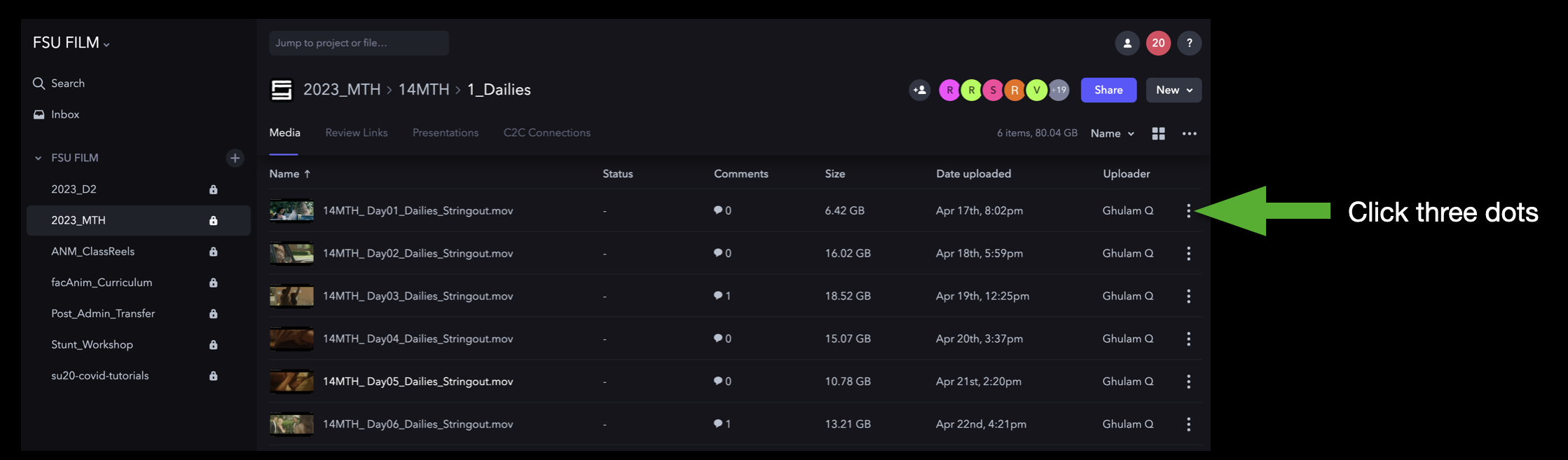
Navigate to the video on Frame.io that you want to share. Then, click the three dots to the right of the video:
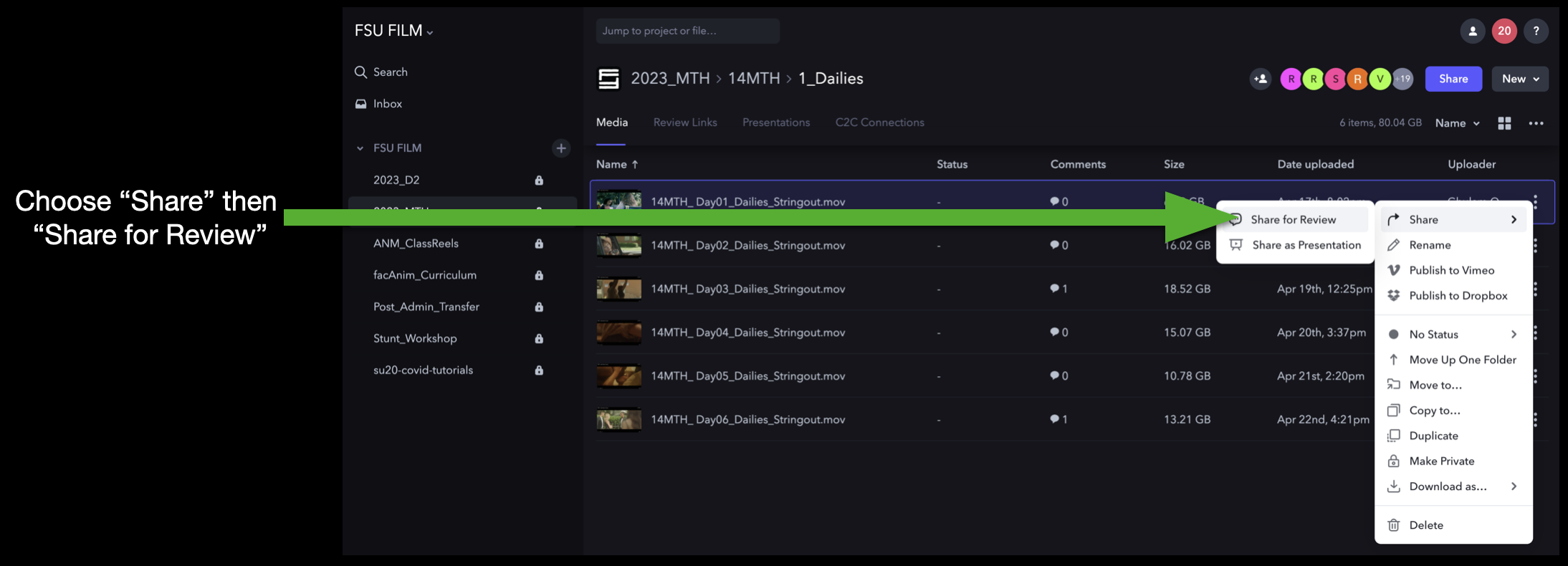
This will open a dropdown menu that you can navigate through. Select “Share” and then “Share for Review”:
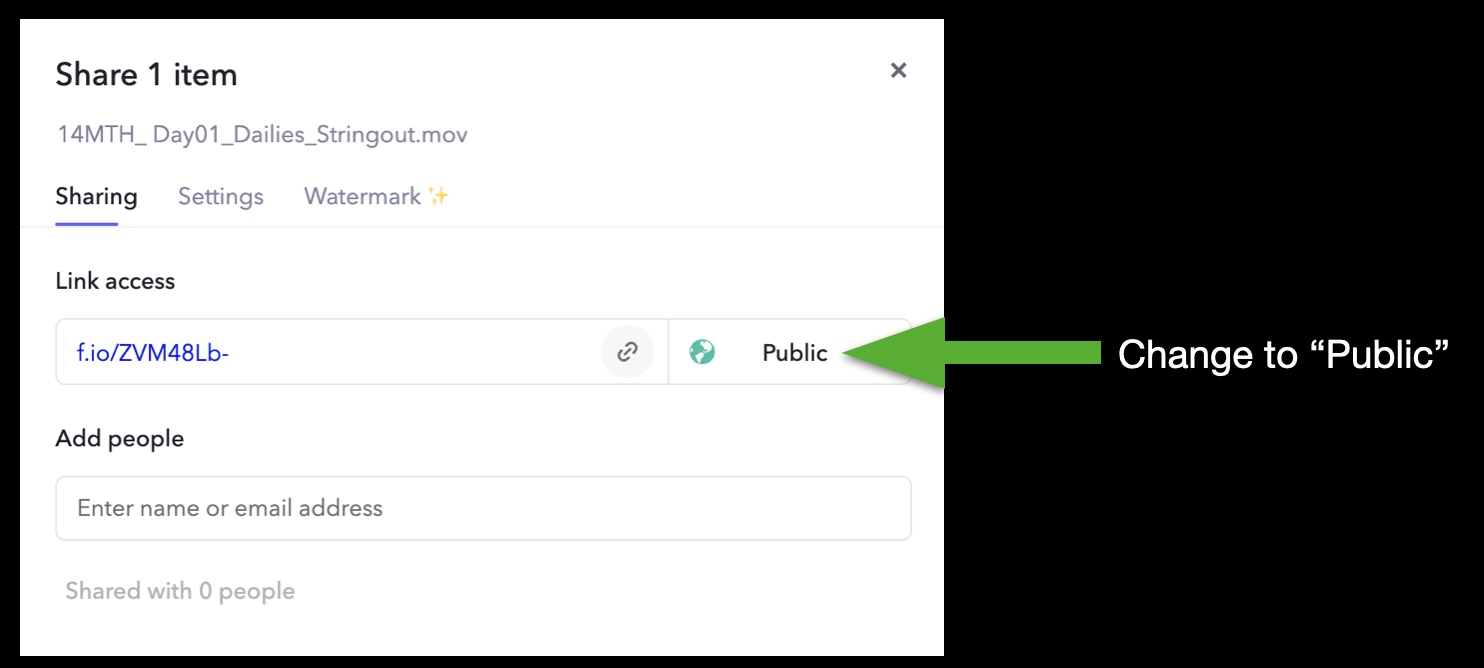
A window will open prompting you to choose what kind of link you want to create. To be able to send the link to someone who’s not already a member of the Frame.io project, you will need to change it to “Public”:
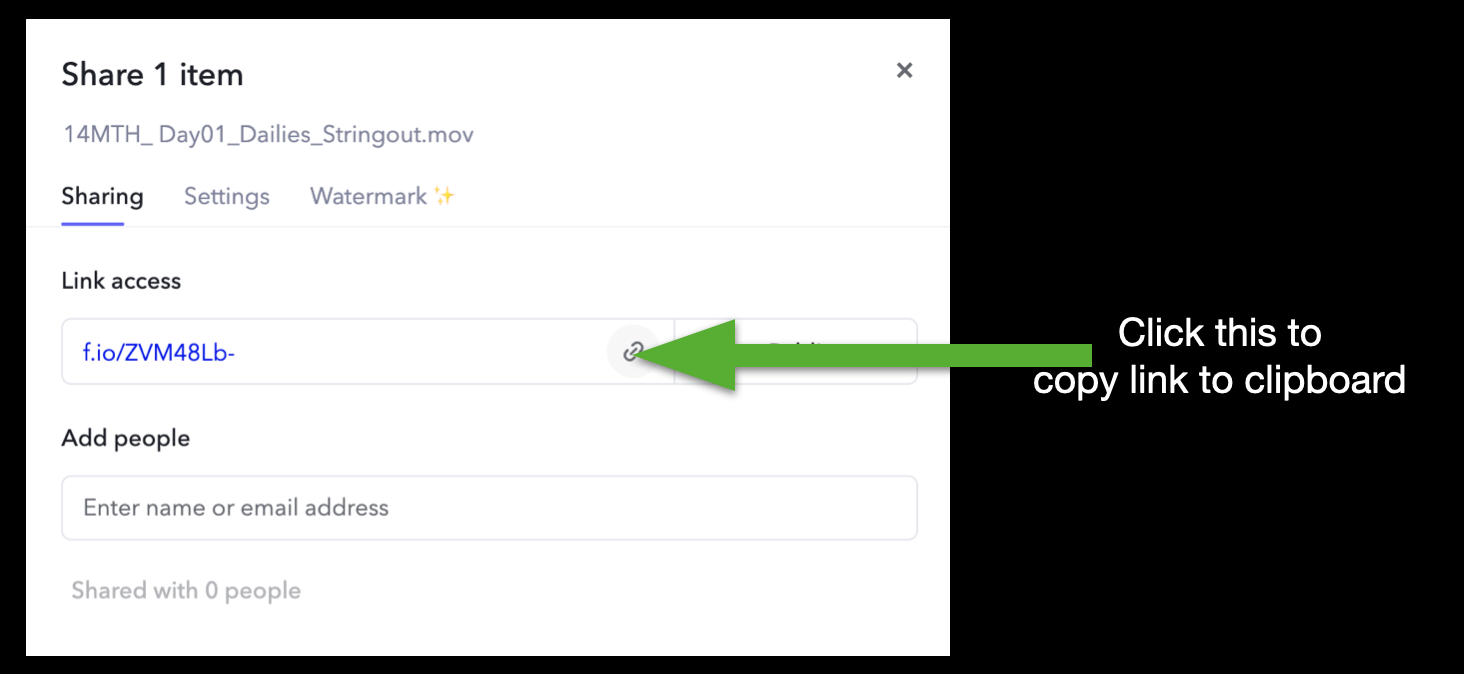
Then, click the icon to copy the link to your clipboard:
Now you can paste this link anywhere, such as in a Teams message or an email, and send it to whomever needs to see it. Please be careful when sharing review links, though; anyone with the link, regardless of who they are, will have access to the linked content on frame.io and will be able to leave comments.
Manage Review Links
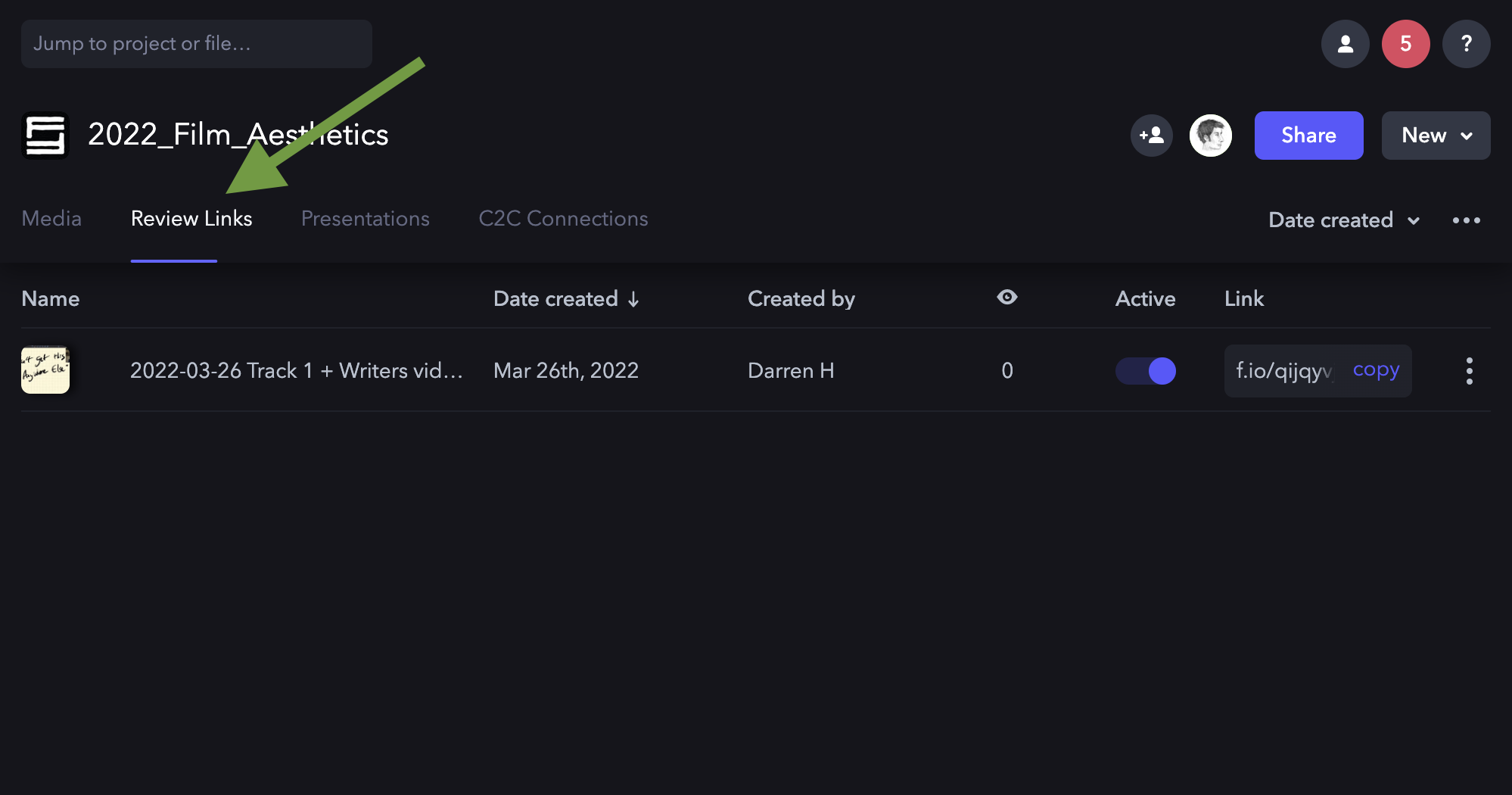
If you need to go back and manage the review links you’ve created, navigate to the main page for project and click on the Review Links tab:
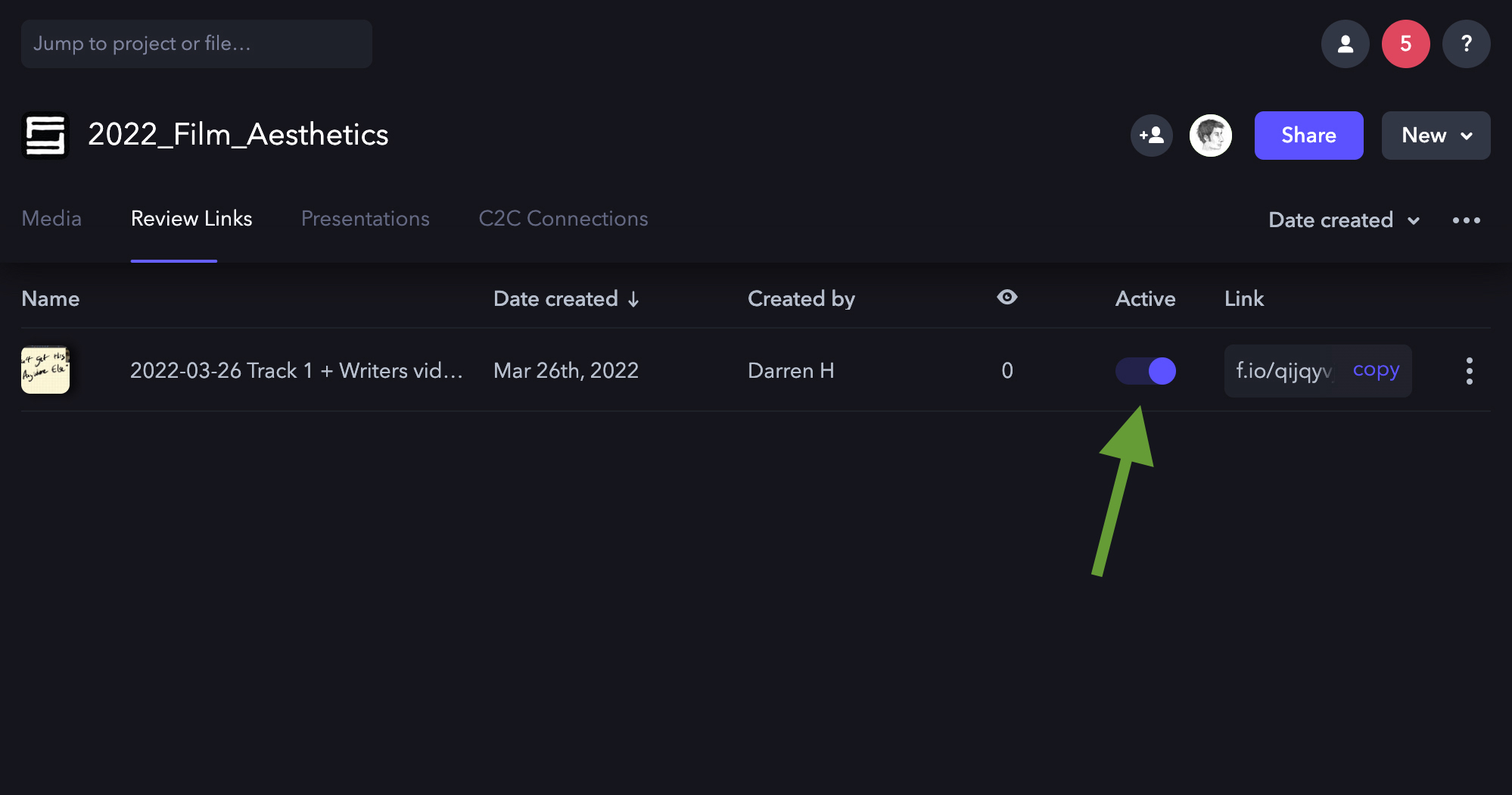
This will display all the links that have been created for that project. If you wish to activate or deactivate a review link, toggle the “Active” button:
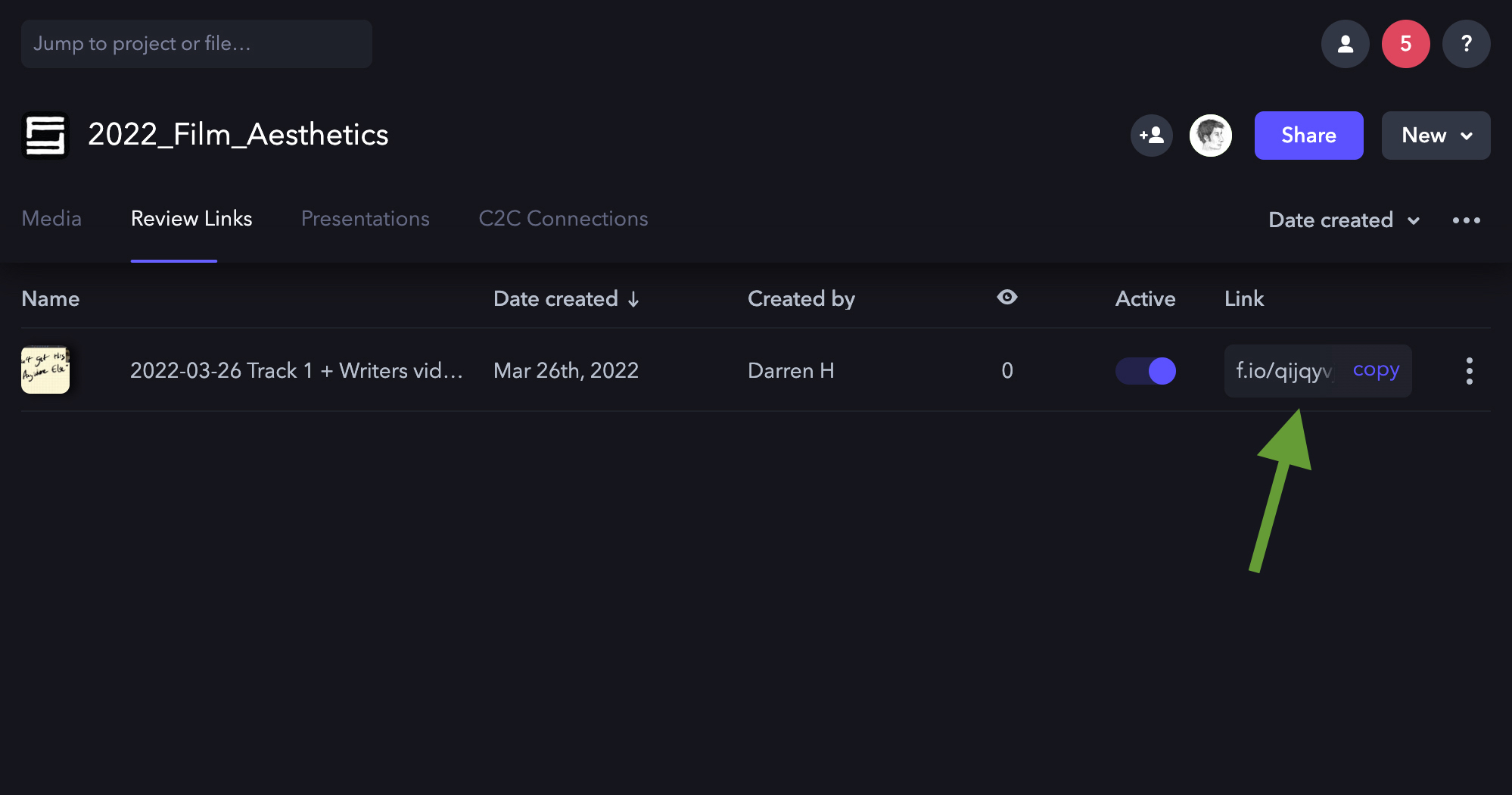
If you need to re-copy the review link, you can do so here:
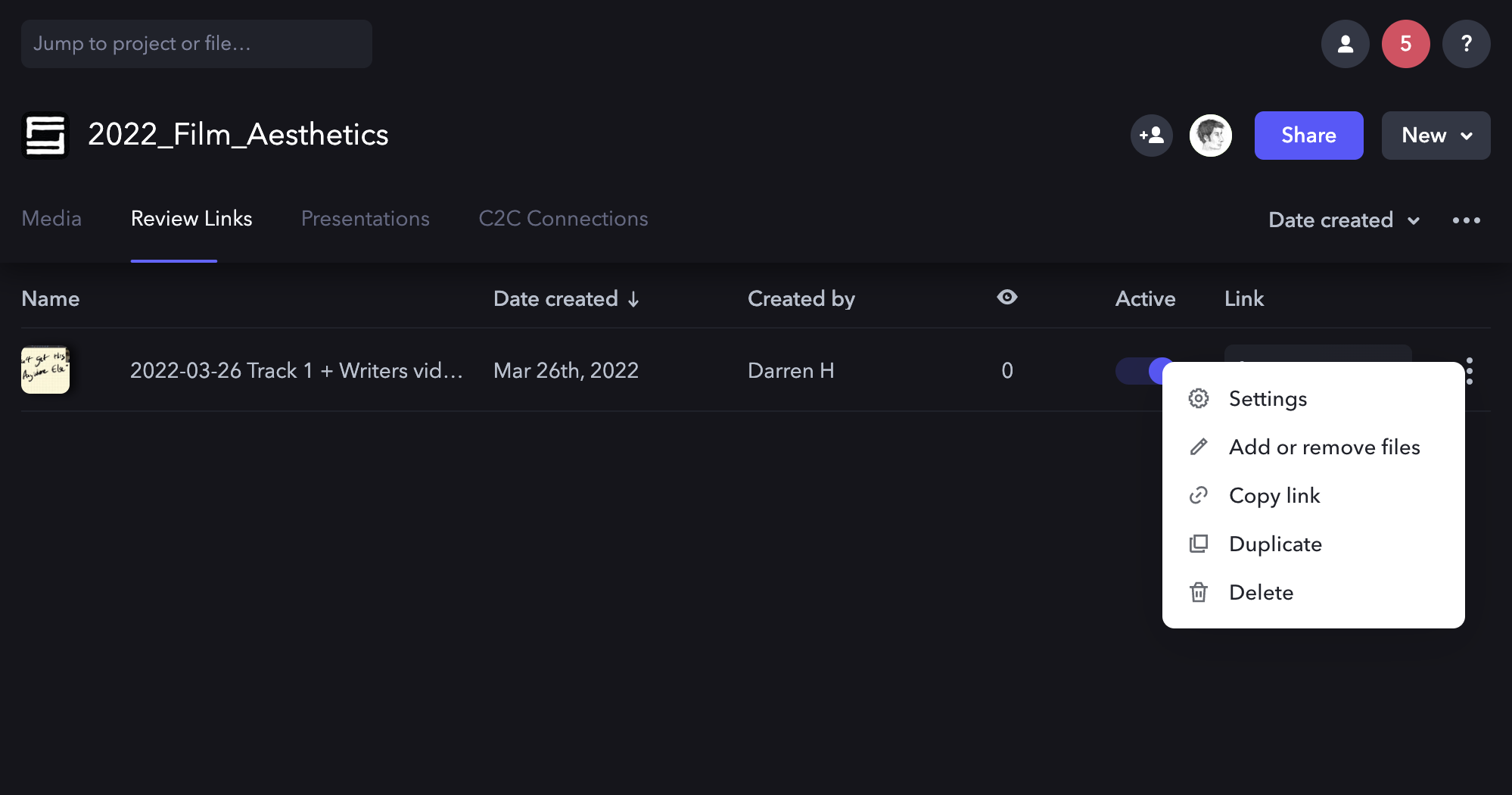
If you need to adjust settings, add or remove files, or duplicate or delete a review link, click on the three dots and a dropdown menu will appear:
Stock footage refers to pre-existing video materials licensed for use within a production, including archival footage, environmental plates, specialty imagery, or other externally sourced visual assets. This page outlines the policies, approval considerations, licensing expectations, and workflow requirements associated with incorporating stock footage into student projects.
Because stock footage involves both creative and legal considerations, productions must ensure that outside materials are used appropriately, documented properly, and integrated thoughtfully into the project. Learning how to evaluate licensing restrictions, visual consistency, and workflow compatibility helps students better understand the professional standards surrounding third-party media usage in film and post-production environments.
Limitations on Use of Stock Footage
As a school, our primary focus is on the creation of original work. The emphasis is therefore on students creating all the imagery for their films themselves, rather than relying on stock footage libraries. Educationally, this helps students learn the process of creating original imagery, and the labor and resources that are needed to accomplish that. This helps students better understand the value of intellectual property, as their focus is more on creating intellectual property from scratch than on “borrowing” work created by others.
The process of clearing the rights for stock footage also informs the school’s policies. Many stock footage resources have inaccurate or misleading copyright information. For example, sites may claim that footage is in the public domain when it is not. To work through all the potential copyright and licensing issues with stock footage can be a lengthy and laborious process for both students and faculty. On many of our production cycles, there either isn’t sufficient time to do this or the time could be better spent focusing on other aspects of the production.
For these reasons, stock footage use is limited to F2, FC, and MC projects. Stock footage is not allowed on F1, F3, M1, M2, or M3 projects.
F2 • FC • MC
Stock footage is allowed.
All stock footage needs to be cleared by the Head of Production, to ensure that we have the proper rights to use the footage.
If stock footage is going to appear on camera during production — e.g., imagery on a television within a scene — the footage needs to be cleared before the start of principal photography. If stock footage is added during post-production, the footage needs to be clear before picture lock.
Stock footage can only be purchased with CMPA funds. Students are not permitted to purchase stock footage with personal funds.
Stock footage that is already owned by the CMPA, such as media that was originally shot for another FSU film, may be utilized. Please allow two weeks of turnaround on any such requests, in case the media files need to be pulled from the archive.
F1 • F3 • M1 • M2 • M3
Stock footage is NOT allowed.
All footage appearing on screen during the running time of these projects needs to be created by students during the assigned production days. This includes any content that needs to appear on screens within shots — e.g., a news broadcast that appears on a television within the scene. Producers will need to build time into the production schedule to create this embedded content during the assigned production days.
Picture lock marks the point at which the edit is considered creatively and structurally finalized before projects move fully into downstream post-production stages such as sound, color, visual effects, mastering, and delivery. Once picture lock is established, further editorial changes are expected to stop except under exceptional circumstances.
A disciplined picture lock process is essential because editorial changes made after turnover can create major disruptions across multiple departments, requiring unnecessary rework and creating delays throughout post-production. Establishing clear lock procedures helps productions maintain stable workflows while reinforcing the importance of planning, communication, and coordination between editorial and finishing teams.
How It Works
At the end of the picture edit cycle, the Editor and Director will be assigned a time to formally lock picture. This means that the Lock Sequence must be completed by that time and any relevant forms must be filled out in FSUFILM Greenlight. Your editing instructor will be the person who deems your show “Locked” after checking the running time and making sure all notes have been addressed.
Once picture locking is complete and all the parameters laid out in this guide are met, the Editor and Director will work with the Post Staff to prep the film for the next phases of the post-production chain, which includes turnover for sound design and color correction.
Create the Locked sequence
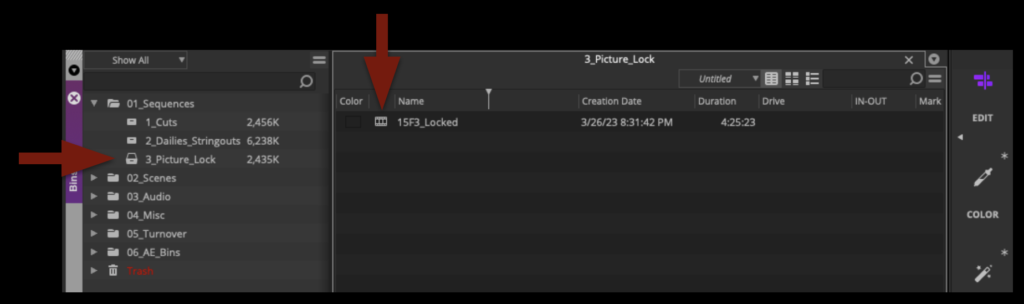
In Media Composer, correctly identify your locked sequence and save it in the Picture Lock bin as Show#_Locked:
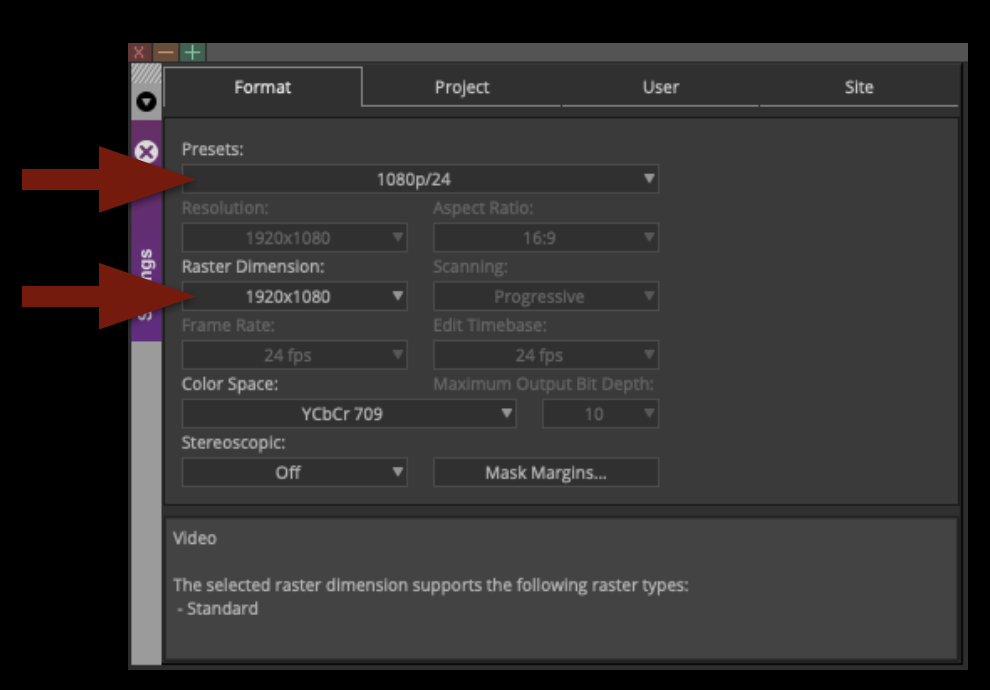
Double-check the project settings by going to Preferences. In the Format tab, the settings should be as follows:
Check the Front Sequence
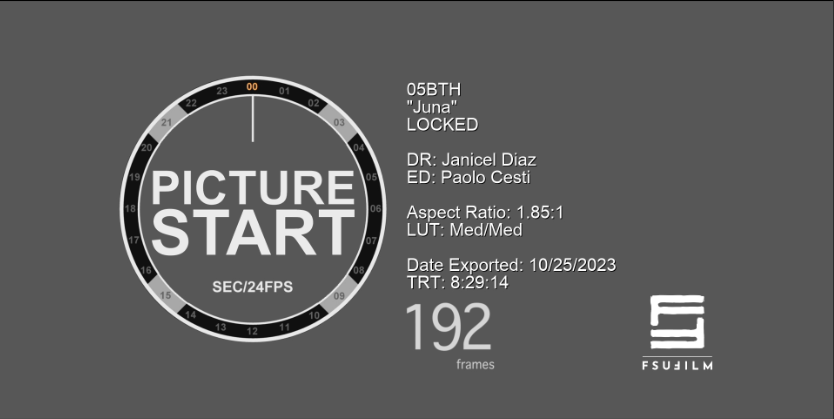
All locked sequences must have a “front sequence” at the start of the timeline, which must be formatted to SMPTE standards. This involves setting the sequence timecode to begin at 01:00:00:00 and building a front sequence that includes the SMPTE Countdown Leader with the slate information filled in and the FSU Film leader.
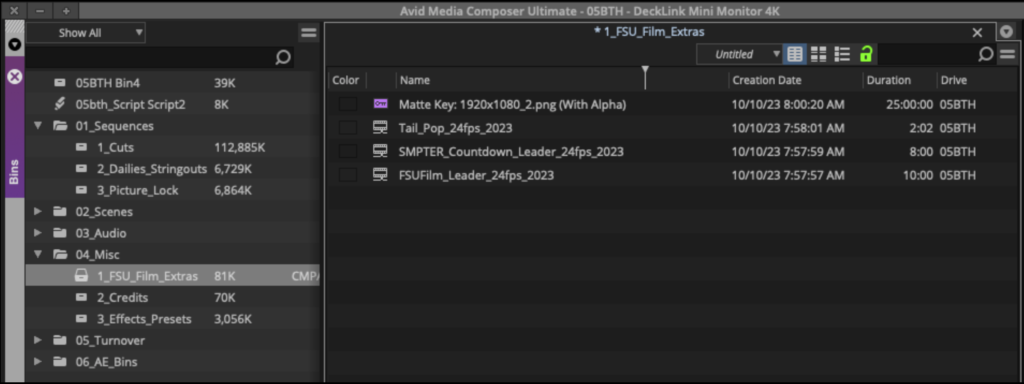
The correct front sequence should have already been set for you in the standard project template. If for some reason it’s no longer there, all the media for the front sequence can be found in the FSU_Film_Extras bin inside the 04_Misc folder.
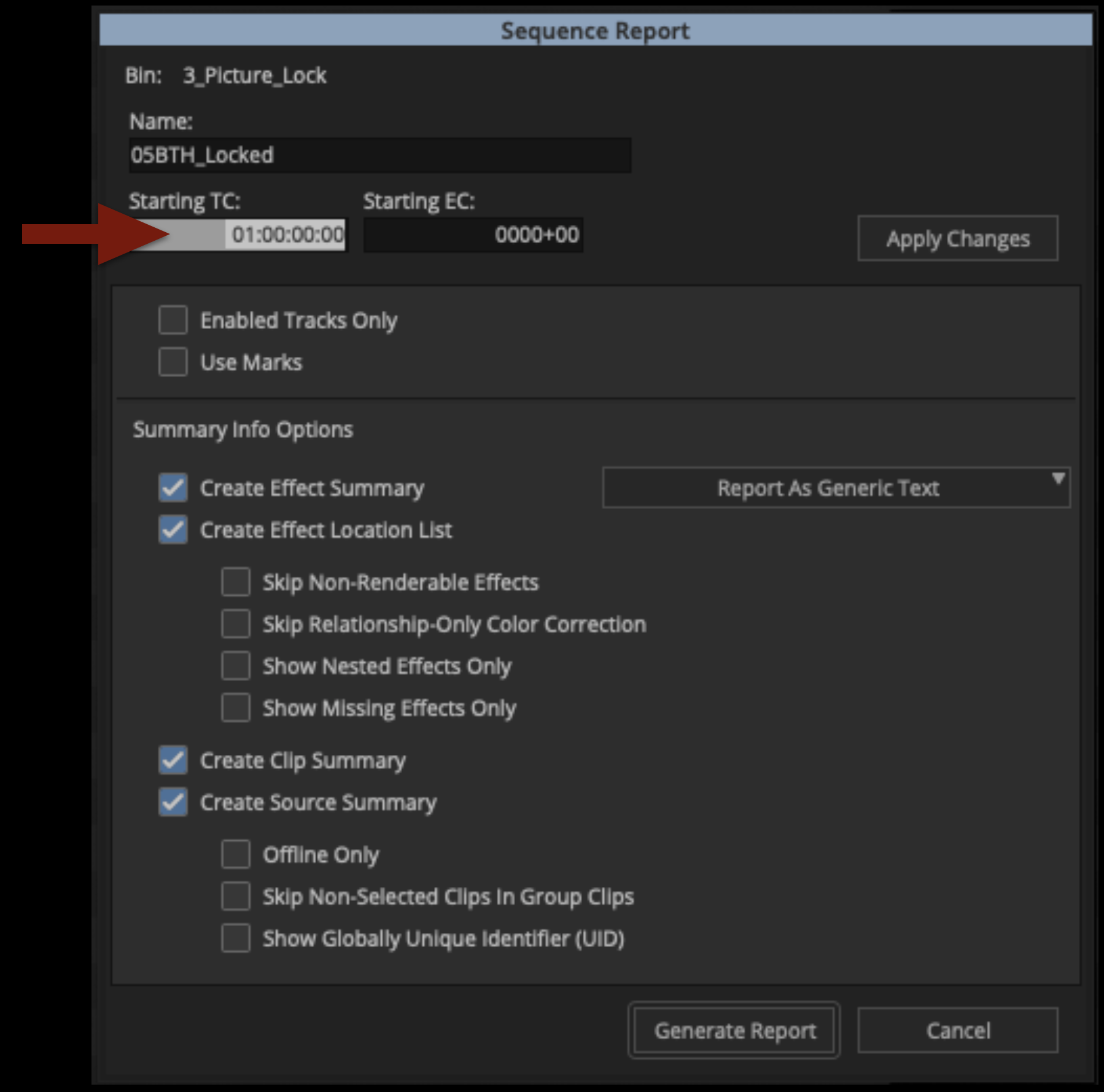
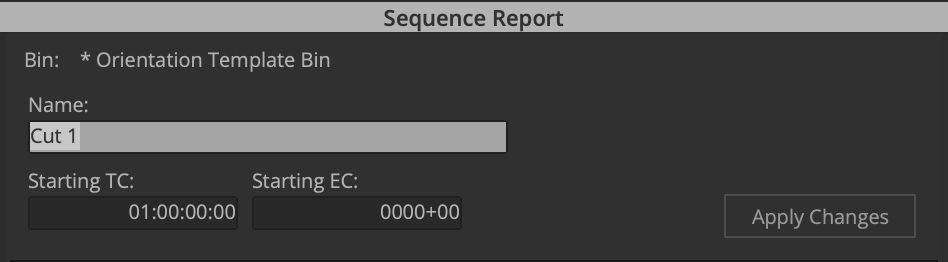
Your sequence should be set to start at timecode 01:00:00:00. If for some reason your sequence no longer starts at this timecode you can change it now. To do this, click in the Record Monitor and select “Sequence Report”. This will allow you to modify the Starting TC:
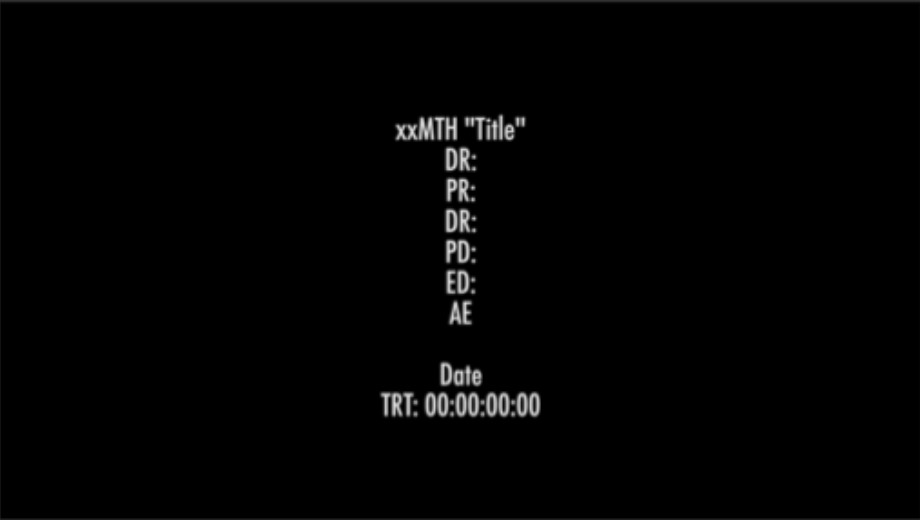
The slate should already have a template laid out for all the information you need to provide. Using the Titler+ tool in Media Composer, fill out the slate with all the information shown below. Keep this slate professional.
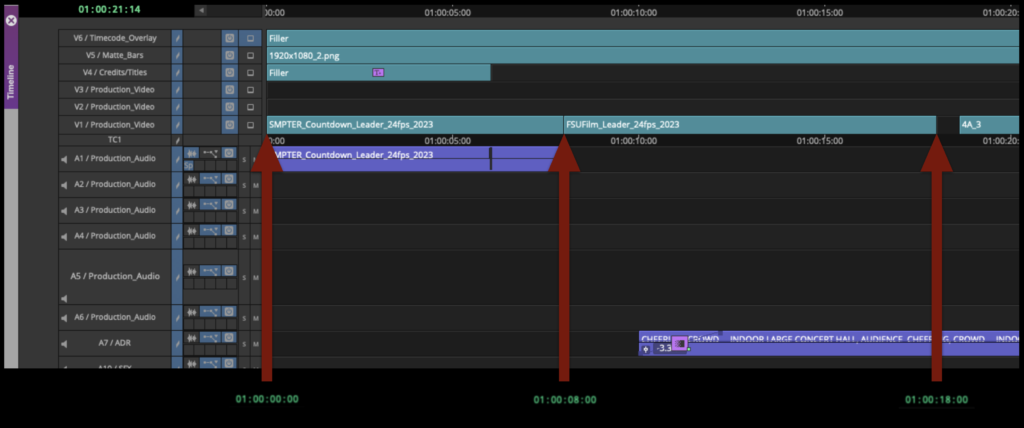
Double-check the the timing of the front sequence:
SMPTE Countdown begins at 01:00:00:00. If everything is put together correctly, the “two-pop” on the countdown leader will fall exactly on 01:00:06:00. (This is very important!)
FSU Film Leader begins at 01:00:08:00
First frame of picture content begins at 01:00:18:00
Your front sequence should match the example below:
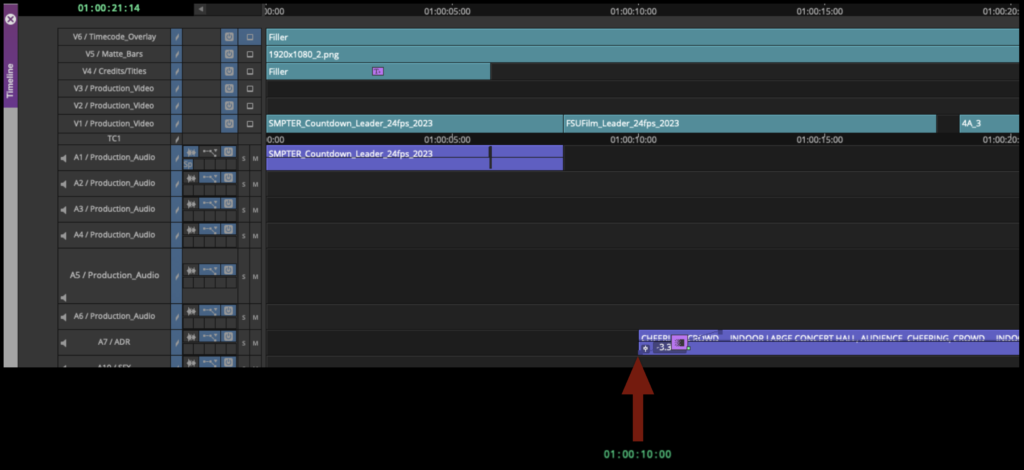
While checking the correct timing of your front sequence, also make sure to check that NO sound from your film starts before 01:00:10:00. There should be exactly 2 seconds of silence after the Countdown has finished.
Add Titles and Credits
The College has strict requirements for how titles and credits need to be formatted. Before building your titles, read the requirements here.
The finished titles and credits must be in at picture lock, cut into the correct video track. The credit sequence should be one continuous image sequence, properly labeled. Do not cut up your credit sequence inside Media Composer. The export from After Effects needs to be correct, so that no further adjustments are required inside Media Composer.
Condense Video Tracks
To prep your timeline for coloring, your video tracks (not your audio tracks) need to be condensed onto as few video tracks as possible. It’s understood that, due to the nature of how some video dissolves are built, more than one video track is sometimes necessary. The idea is to reduce the amount of tracks and media as much as possible.
Your sequence would go from looking like the example below with video on tracks V1 – V3 that needs to be brought down…
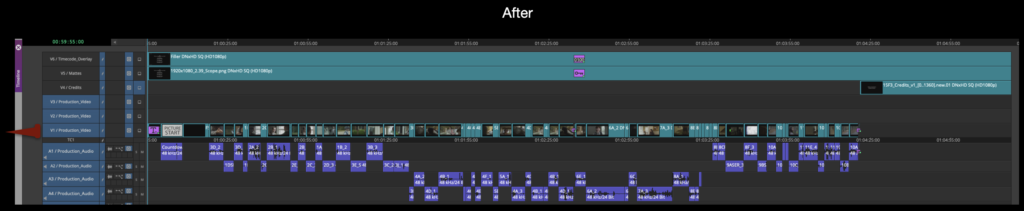
…to your sequence looking like the example below with everything consolidated onto one track:
Apply Masking
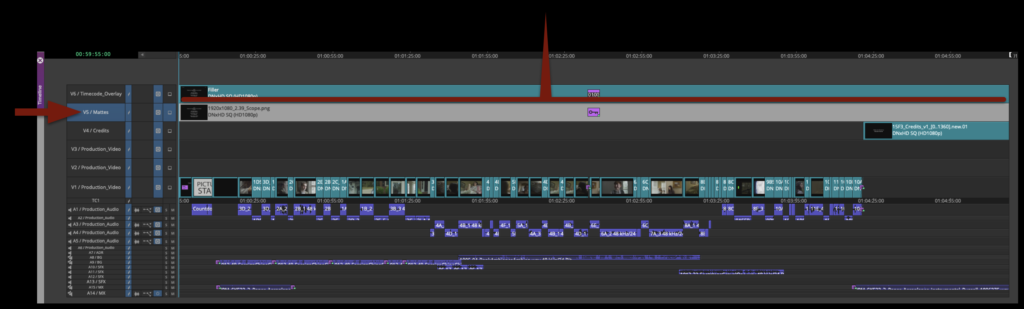
Video Track 5 should have the proper aspect ratio matte (which was chosen during production and notated on the camera reports) applied over top of the entire film (including the credits).
Check Sound Organization
During picture editing, a great deal of sound work should have been accomplished. It may not be the exact music and effects that will be in the finished mix, but the Editor should have taken a good polish to the locked sequence. To make sure all the Editor’s sound work will translate over to ProTools when the locked sequence is turned over, check all the sound media that may be in your locked sequence.
Everything must be transcoded (nothing should be linked)
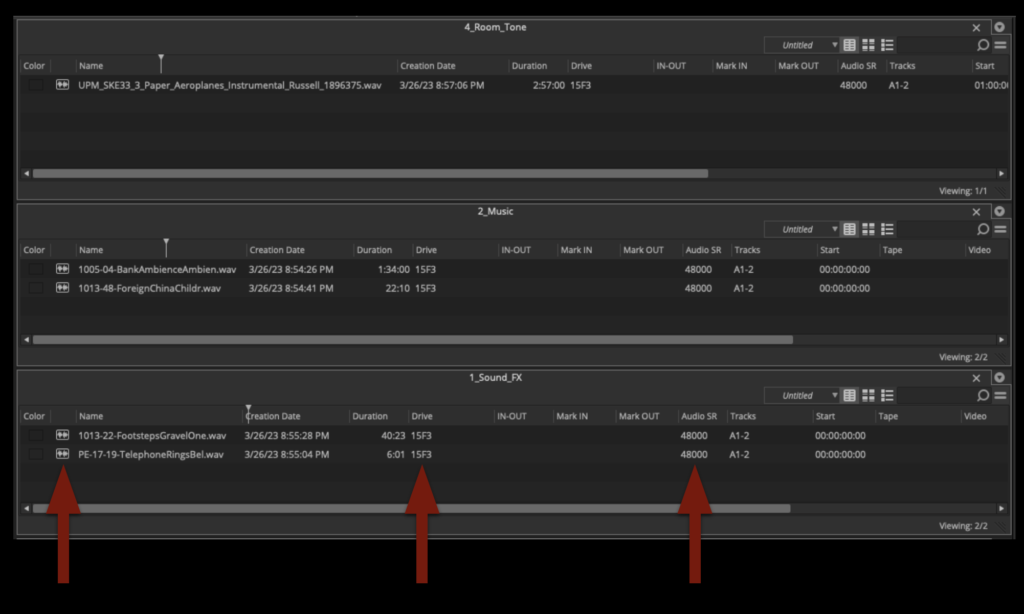
The Audio Sample Rate for all Music, Backgrounds, and SFX should match at 48000
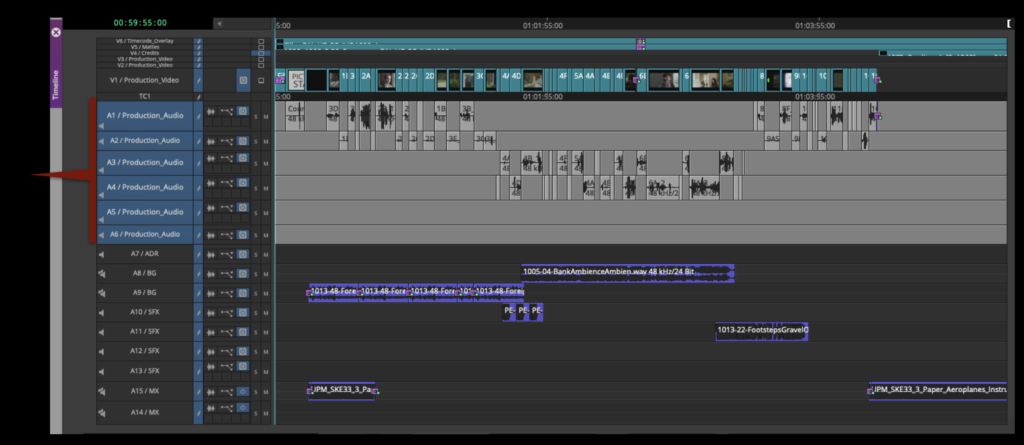
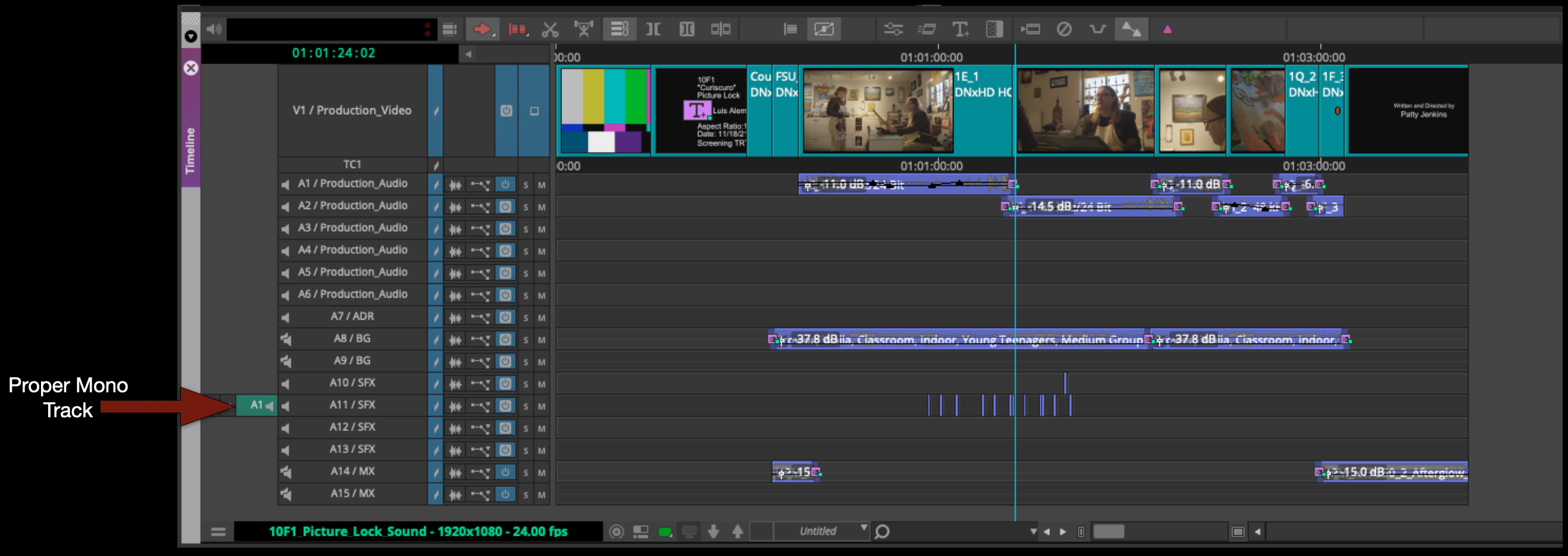
The Production Audio should all be in the Audio Tracks (A1-A6):
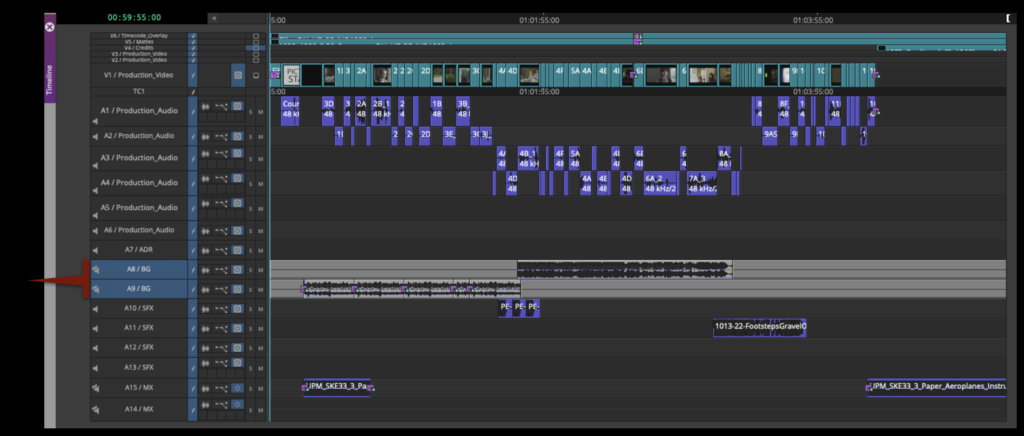
The Backgrounds should be in Audio Tracks (A8-A9). This should be stereo media in stereo tracks:
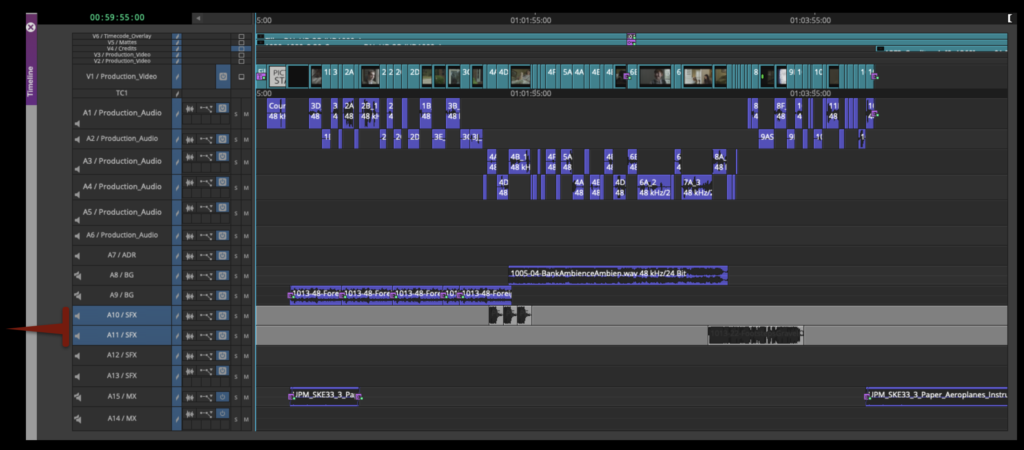
The SFX should be in Audio Tracks (A10-A13):
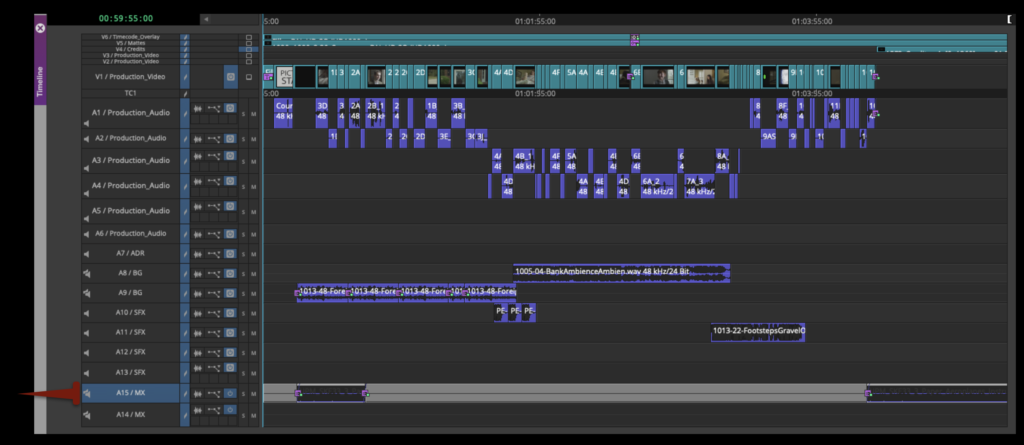
The music should be in Audio Tracks (A14-A15). This should be stereo media in stereo tracks:
Apply Timecode Overlay
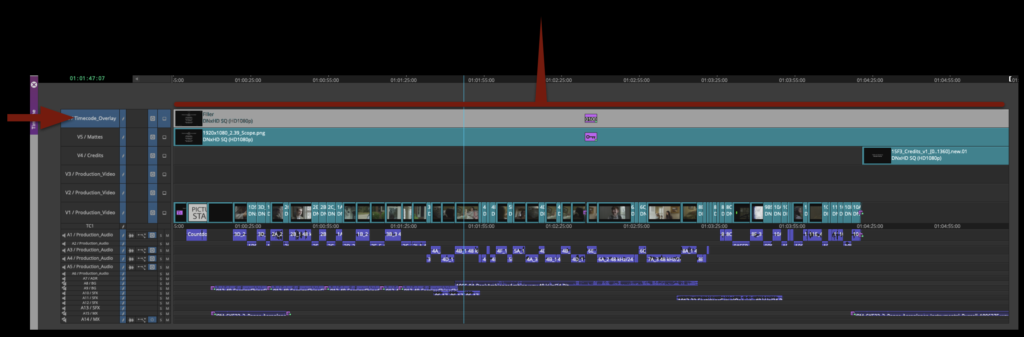
The Timecode Burn-In Effect should be applied to Video Track 6 and cut over top of the entire sequence:
The default Timecode Burn-In Effect in the template may need to be modified slightly.
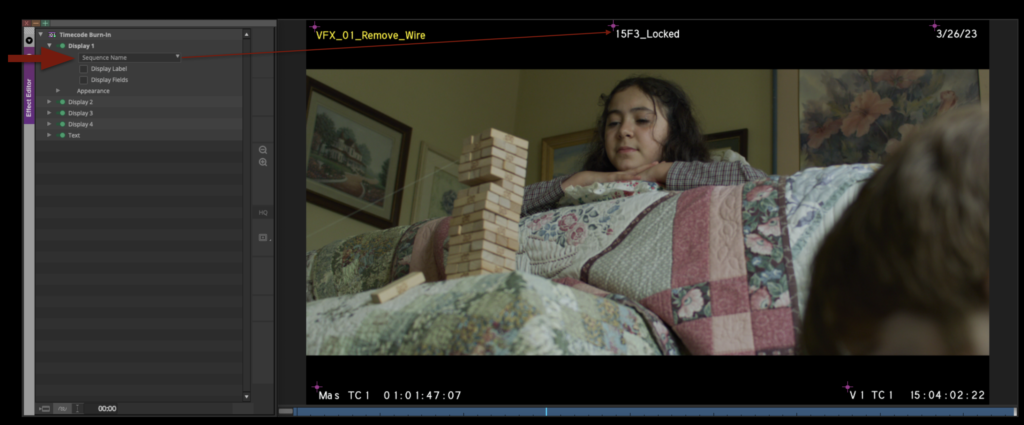
Display 1 should be set to “Sequence Name”. This should be placed in the top-center so that it displays as shown in the example below. This is so that, when it is exported as a video file, it is easy to identify which show it is and that it is locked.
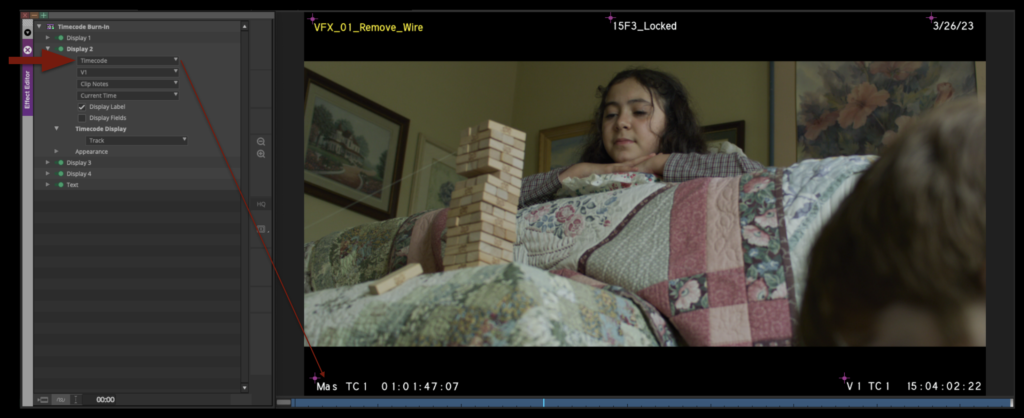
Display 2 should be set to “Timecode” and “V1”. This should be placed in the bottom-left corner so that it displays as shown in the example below. This timecode matches the locked sequence.
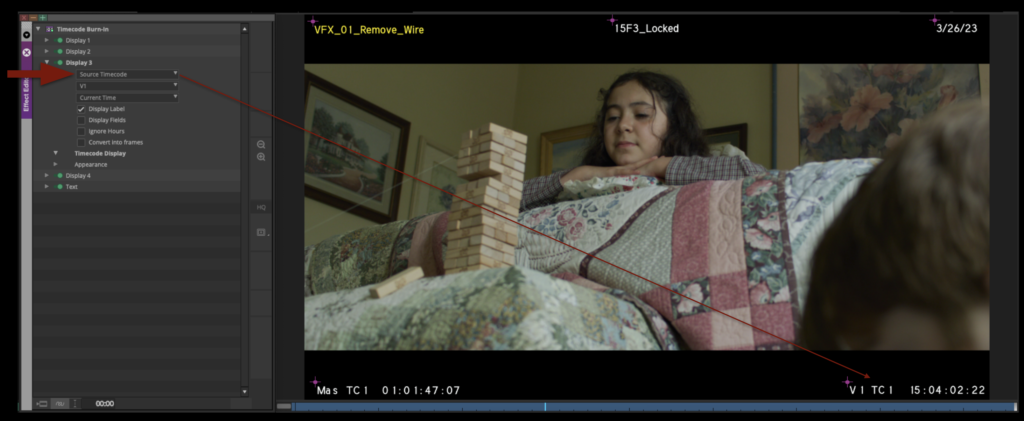
Display 3 should be set to “Source Timecode” and “V1”. This should be placed in the bottom-right corner so that it displays as shown in the example below. This timecode matches the media in the locked sequence.
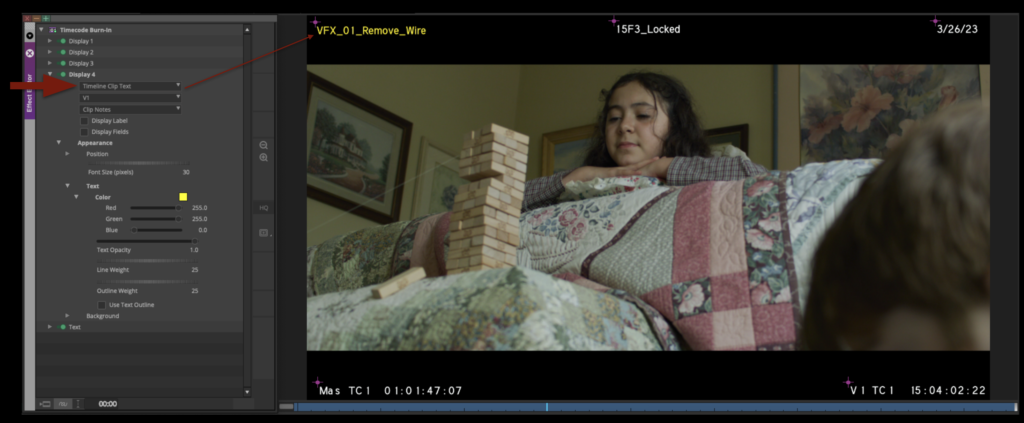
Display 4 should be set to “Timeline Clip Text” and “V1”. The color of the text should be modified to be yellow and be placed in the top-left corner so that it displays as shown in the example below. These burn-ins are helpful for keeping track of which shots are VFX shots.
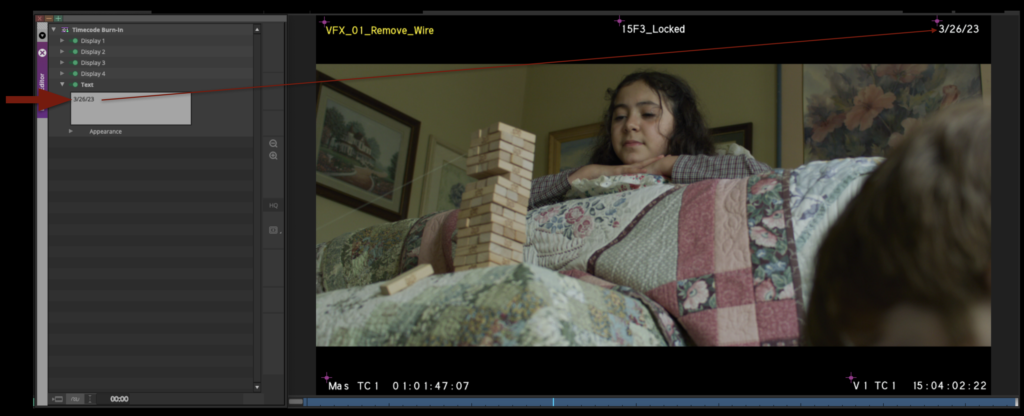
Display 5 should have the date of picture lock typed in. This should be placed in the top-right corner so that it displays as shown in the example below. This is helpful for keeping track of when the show locked.
QC the locked sequence
The Director and Editor should watch the film one last time, looking for black frames or any other problems. This is your last chance to make any changes. Once your picture is locked, it is locked!
Save the project
Finally, once you are confident that your locked sequence is formatted correctly, make sure to save your Picture Lock bin.
Assistant editing workflows involve the organizational, technical, and media-management responsibilities that support the editorial process throughout production and post-production. This includes tasks such as project organization, syncing and grouping media, tracking versions, organizing exports, and maintaining clean editorial structures as projects evolve.
Strong assistant editing practices are critical because editorial workflows depend heavily on consistency, organization, and reliable media management across large amounts of footage and project data. Developing disciplined workflow habits helps reduce errors, improve collaboration between departments, and prepare students for the highly structured pipeline expectations common within professional post-production environments.
How It Works
This page is a step-by-step guide to the Assistant Editing workflow for Media Composer, covering how to:
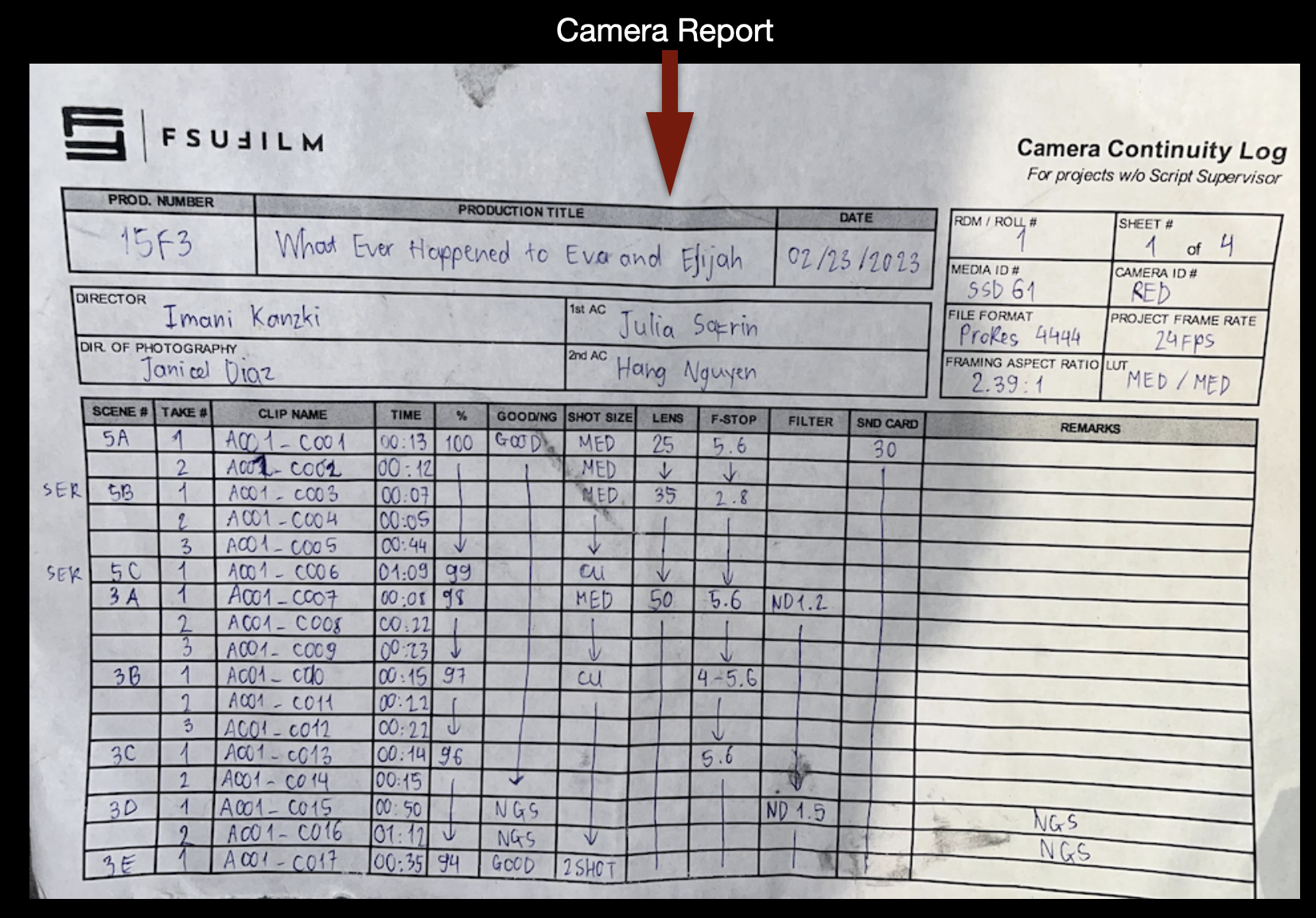
The first job of the Assistant Editor is to organize by day any Camera Reports, Sound Reports, ShotPut Pro Offload Reports, and (if applicable) Script Supervisor Reports.
Most of these reports have already been made and you will only need to copy-and-paste them into the correct folder on the server to consolidate them together. The Camera Reports are analog so you will need to take clear pictures of them and to make a digital version.
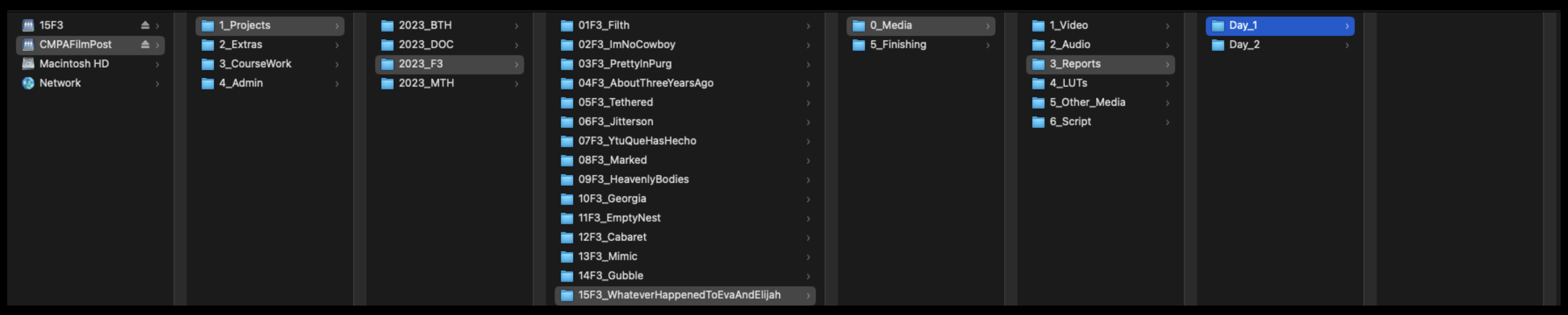
There should be a folder for each day’s report on the server:
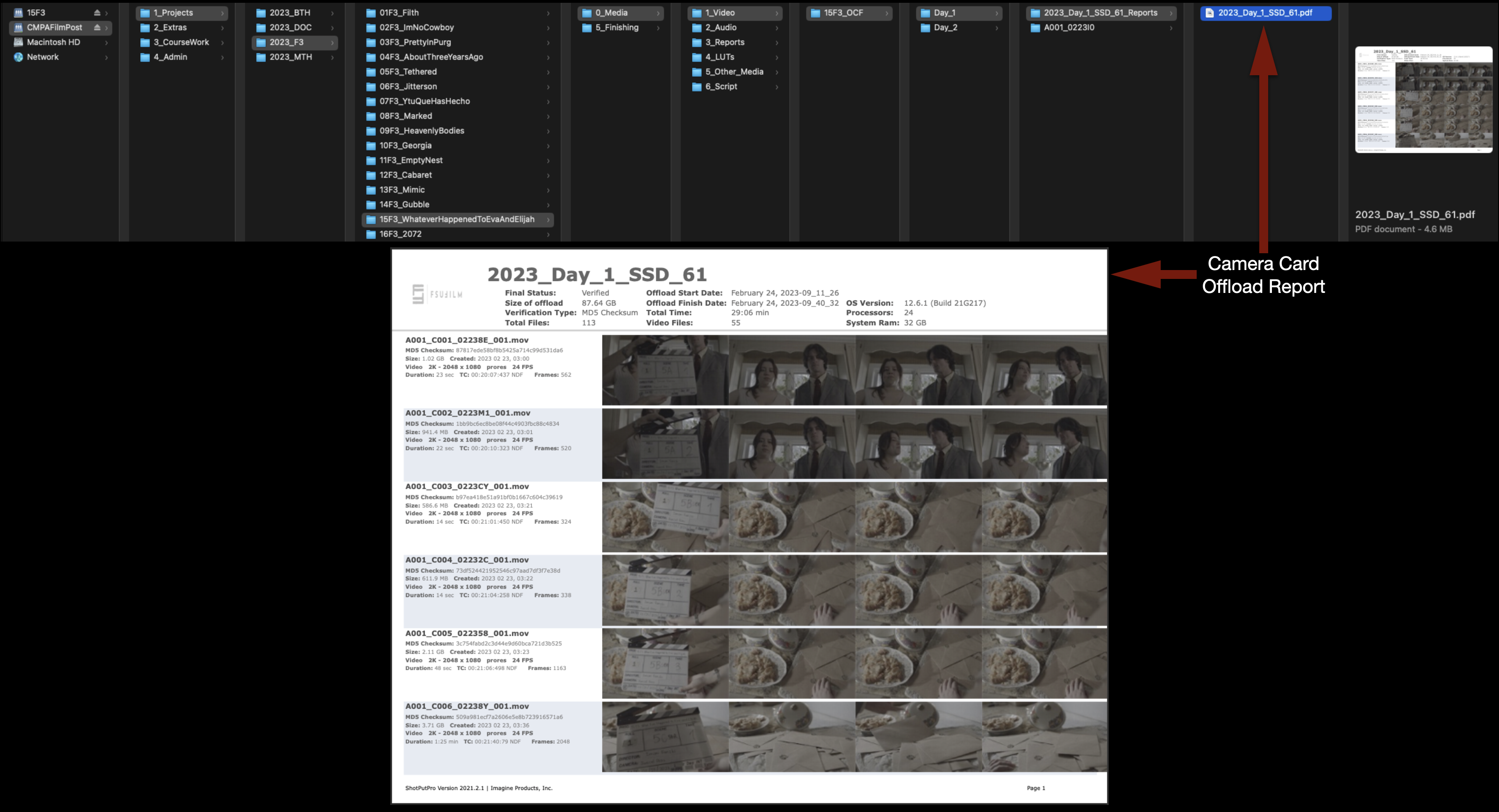
This is where you will find the Camera Card Offload Report:
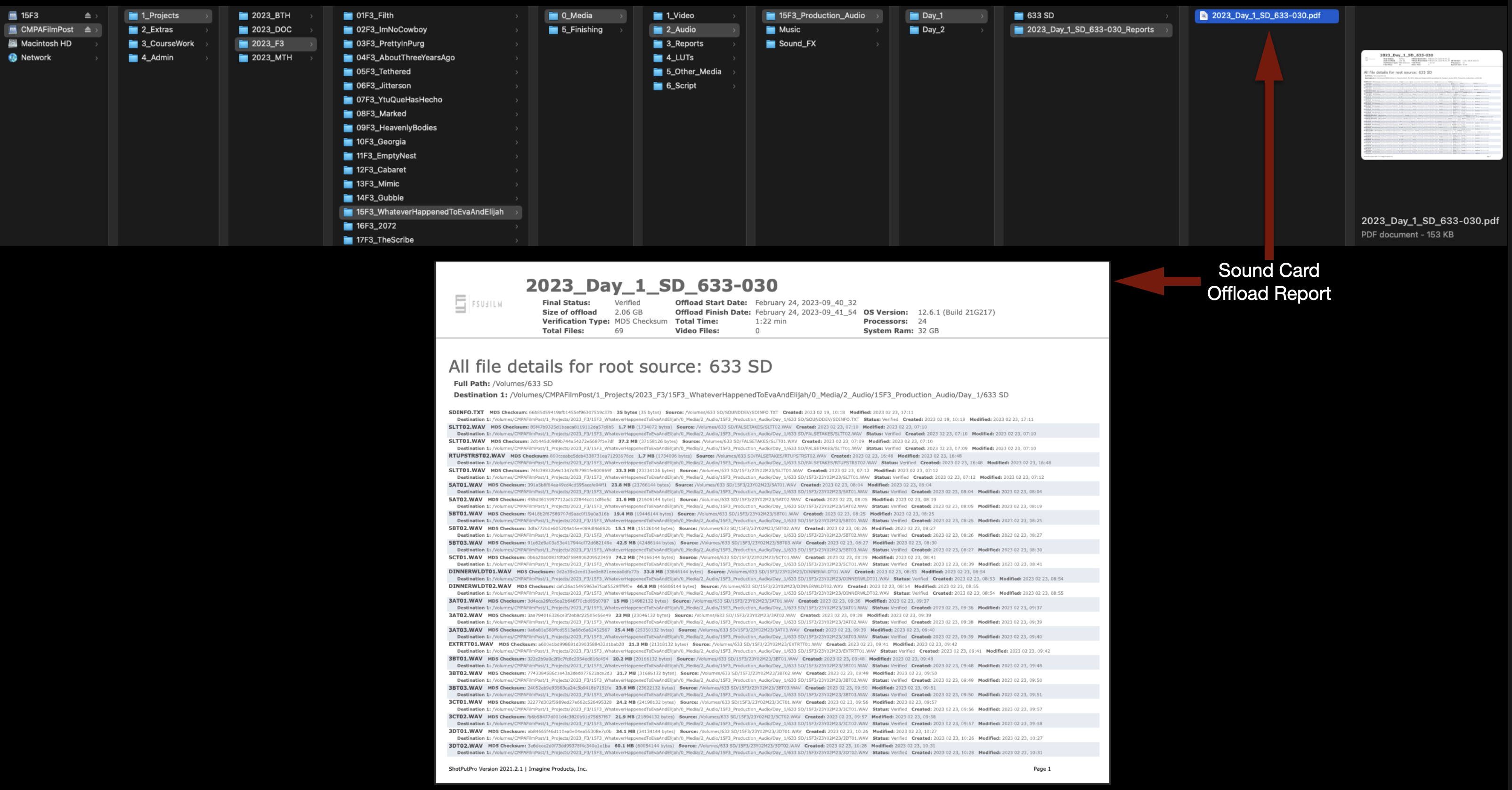
This is where you will find the Sound Card Offload Report:
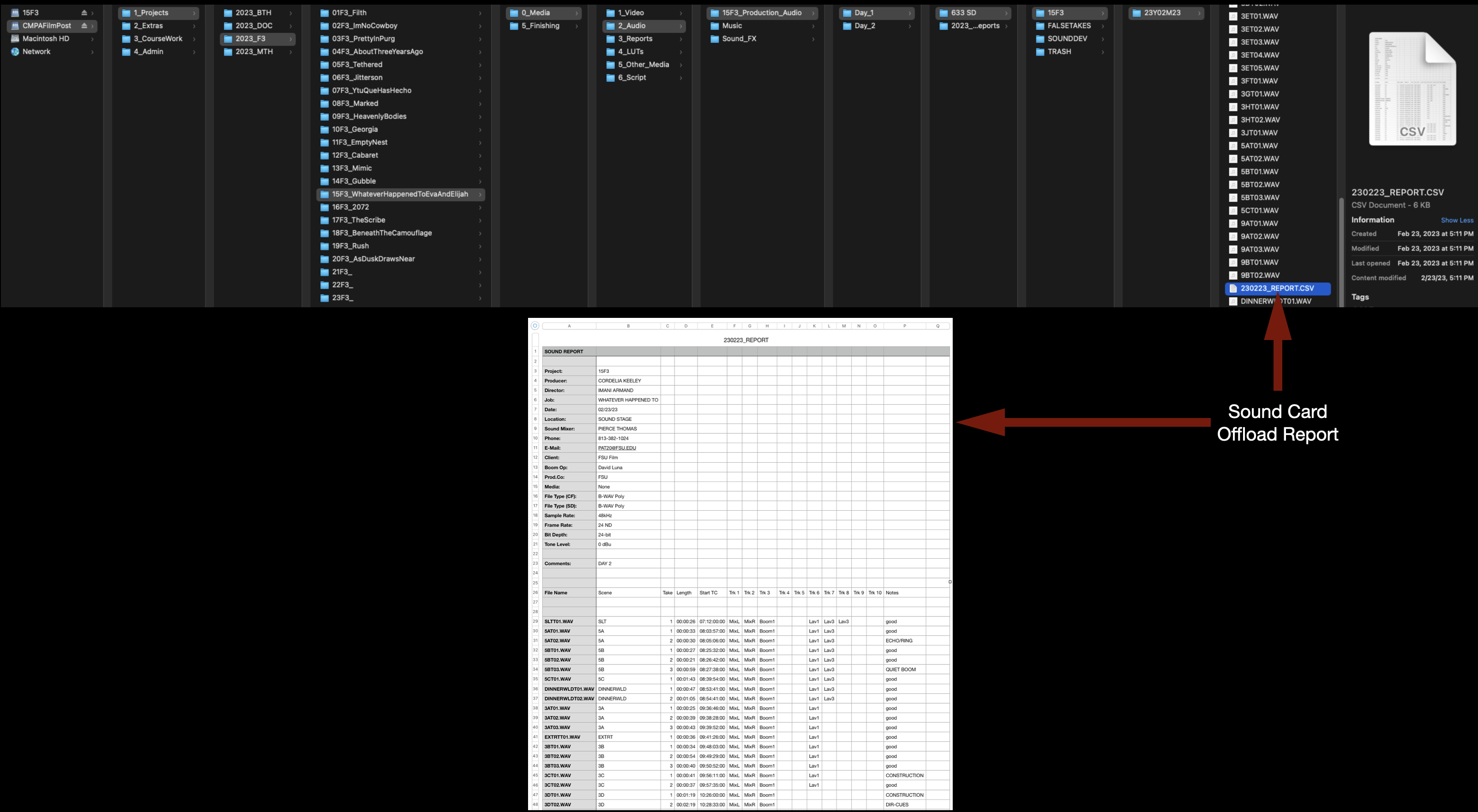
This is where you will find the Sound Report:
For the Camera Report, take a good picture of it to make a digital copy:
Copy-and-paste all of them into the Reports folder:
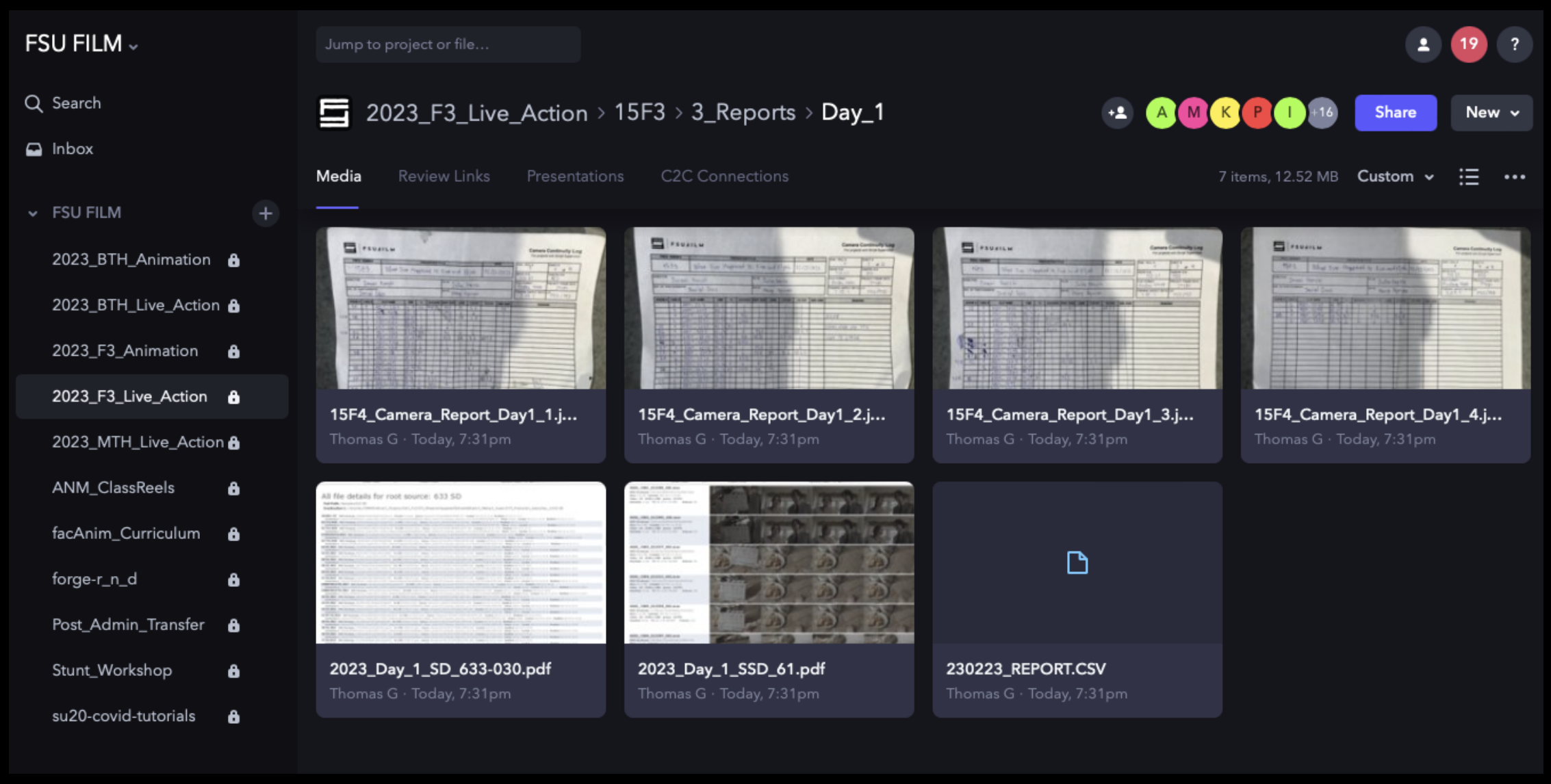
Then, upload each day’s folder to the corresponding folder on frame.io:
Prep the Script
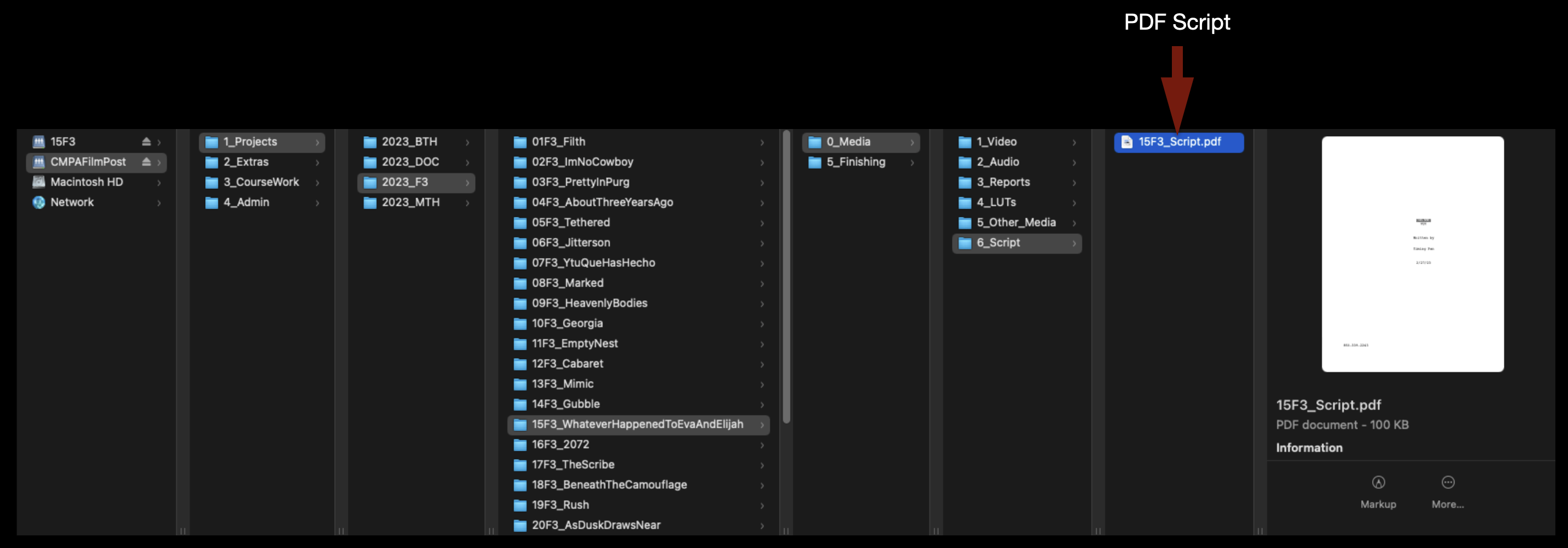
The Director of the film should have already supplied you with a PDF of the shooting script. The .pdf file can be saved in the folder shown below:
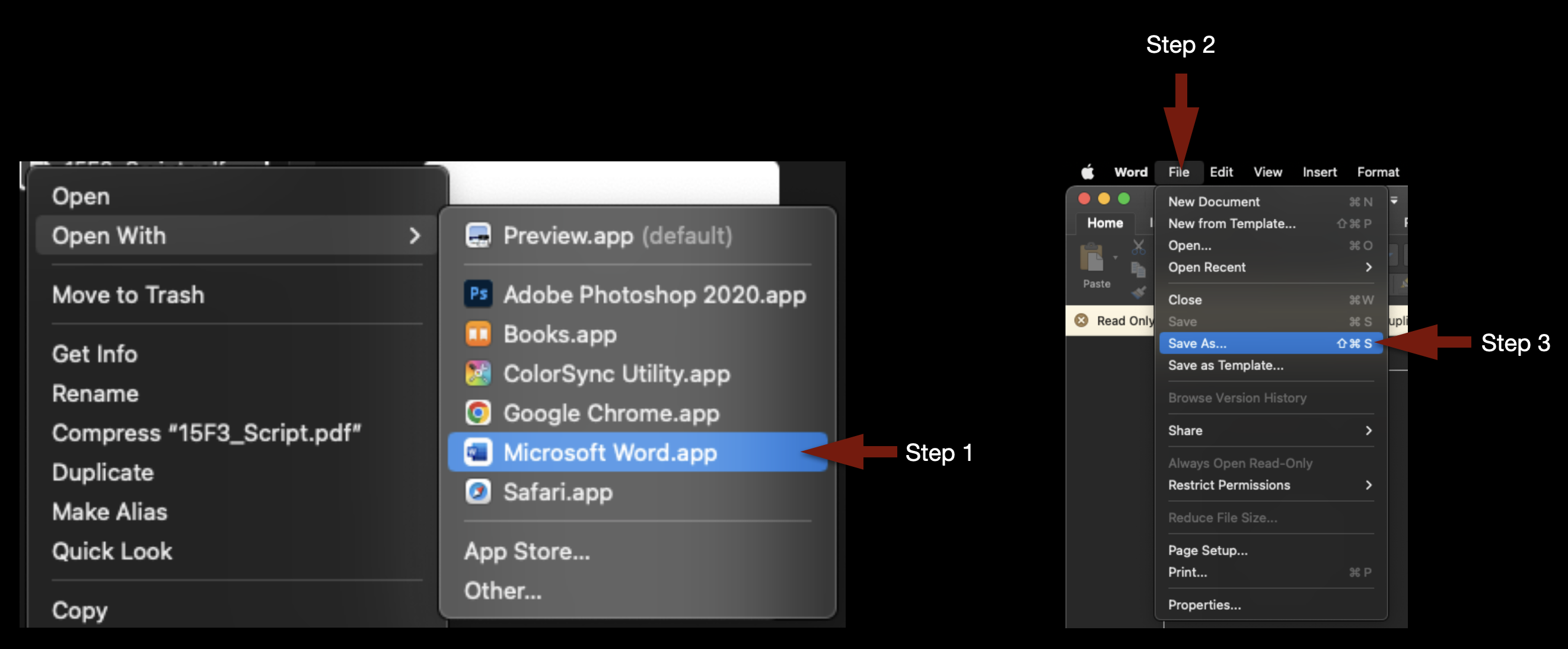
To import the script into the Media Composer project, it must first be converted from a .pdf file into a .txt file. In Finder, right-click on the .pdf file and select Open With > Microsoft Word. Once it opens in Microsoft Word, go to the File menu and select Save As…
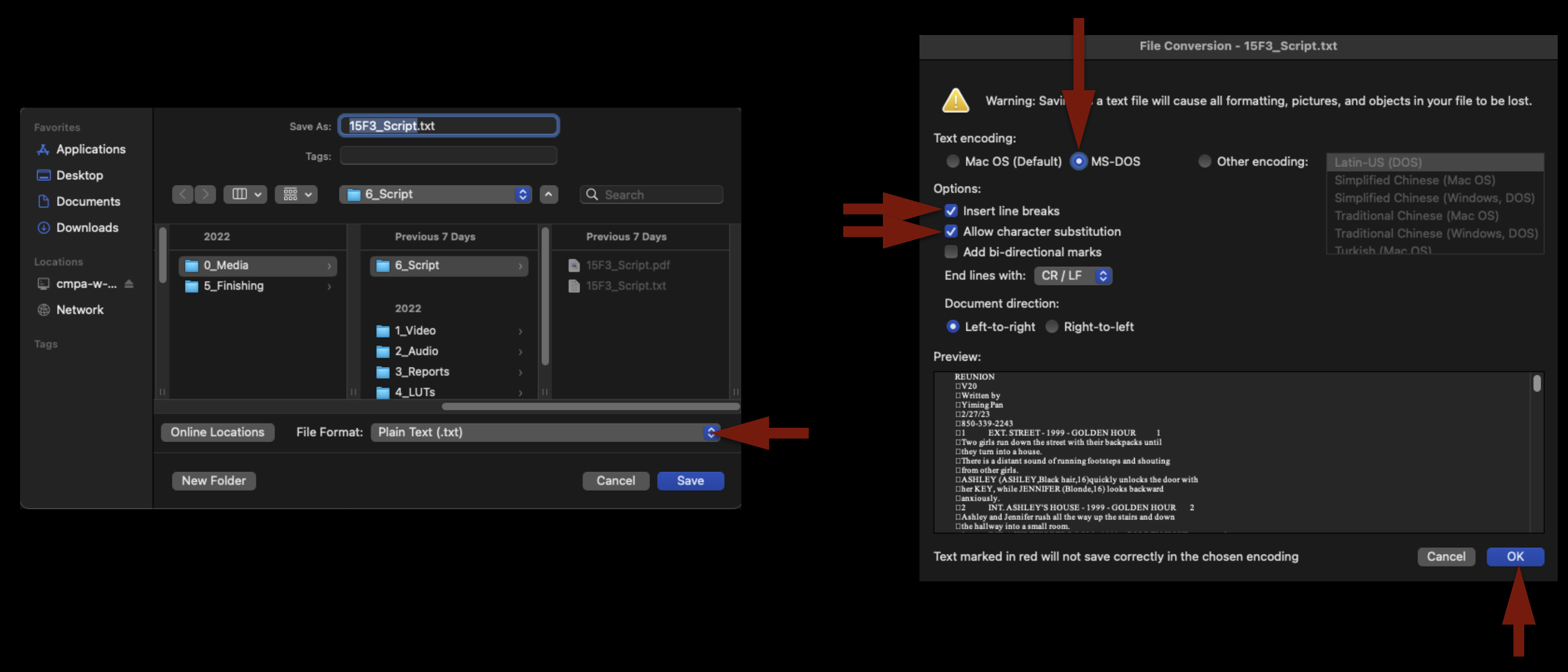
Under File Format change the type to “Plain Text (.txt)” and click “Save”. When the File Conversion screen appears, check the boxes as shown in the example below, then click “OK”.
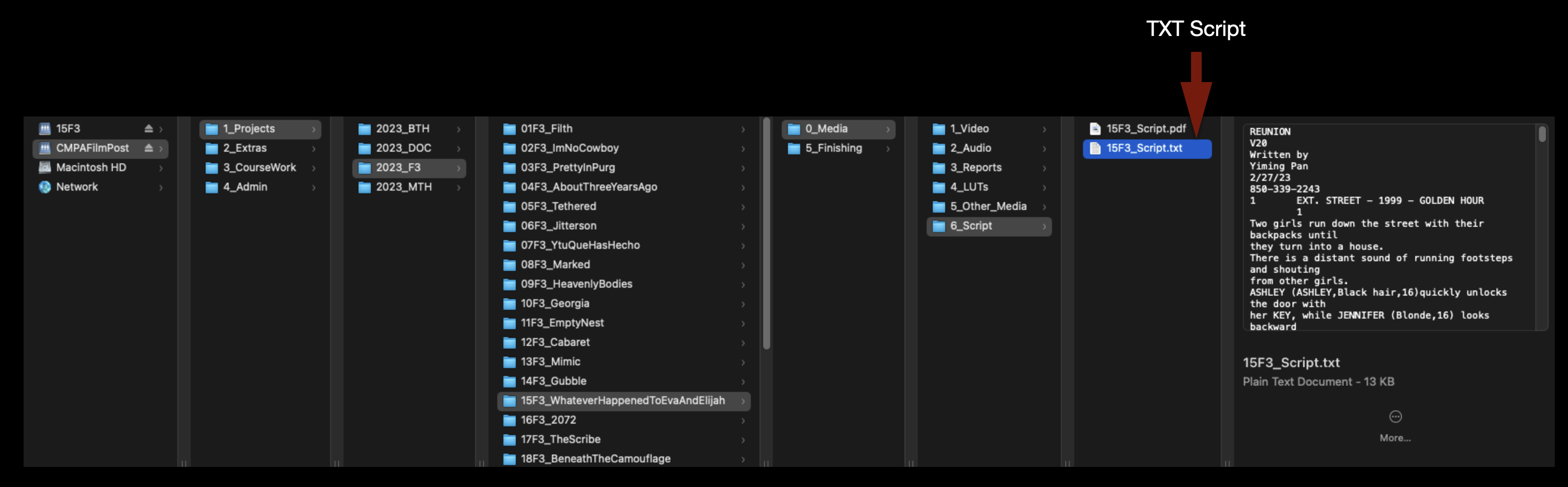
This will save the file as a .txt file, in the same folder:
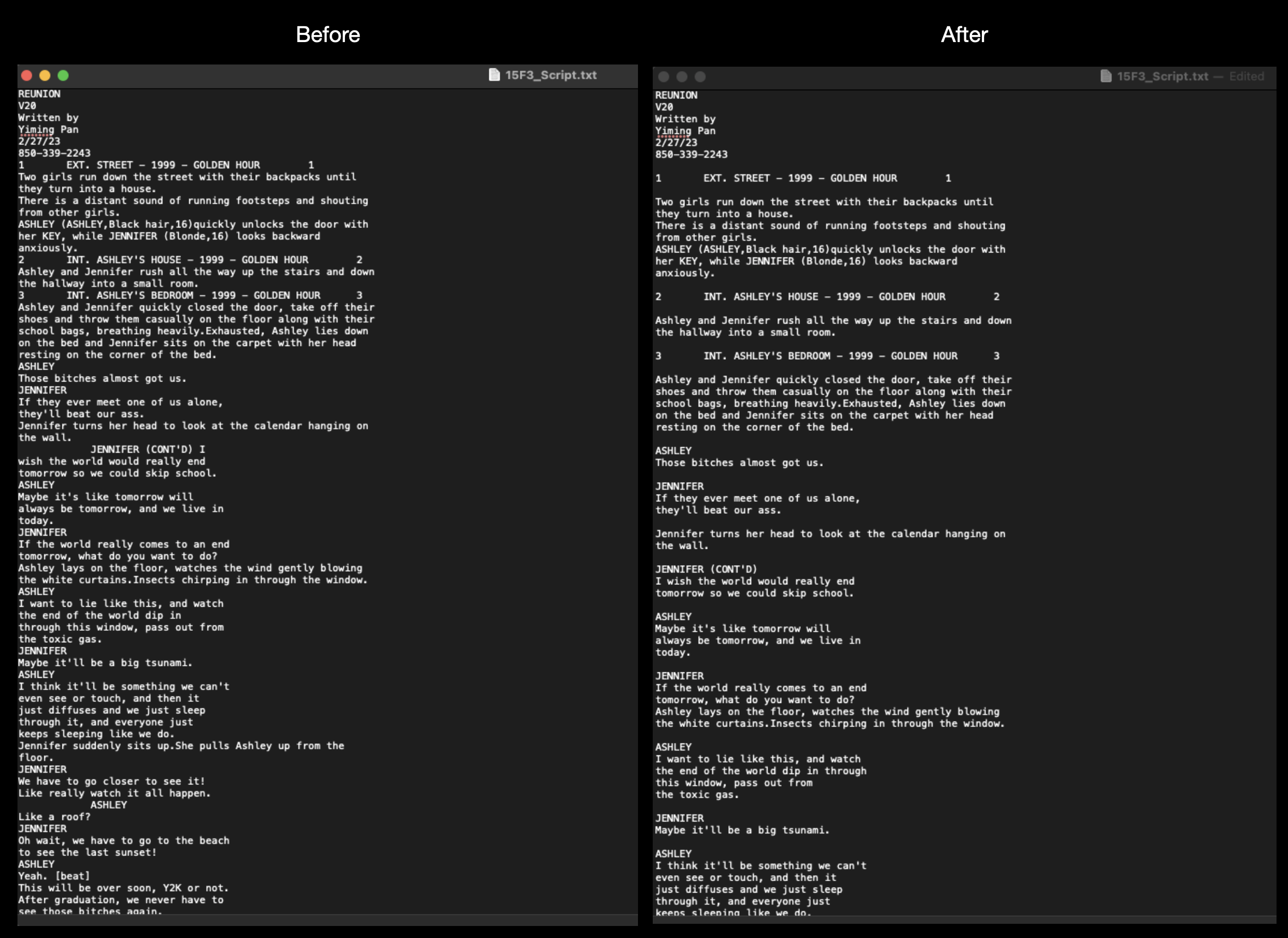
Open the script in the Text Edit app. Depending on how the script was originally formatted, you may notice that not all of the spacing has translated over. Use the return key to add the proper line spacing, as shown in the example below:
Configure the Media Composer Project
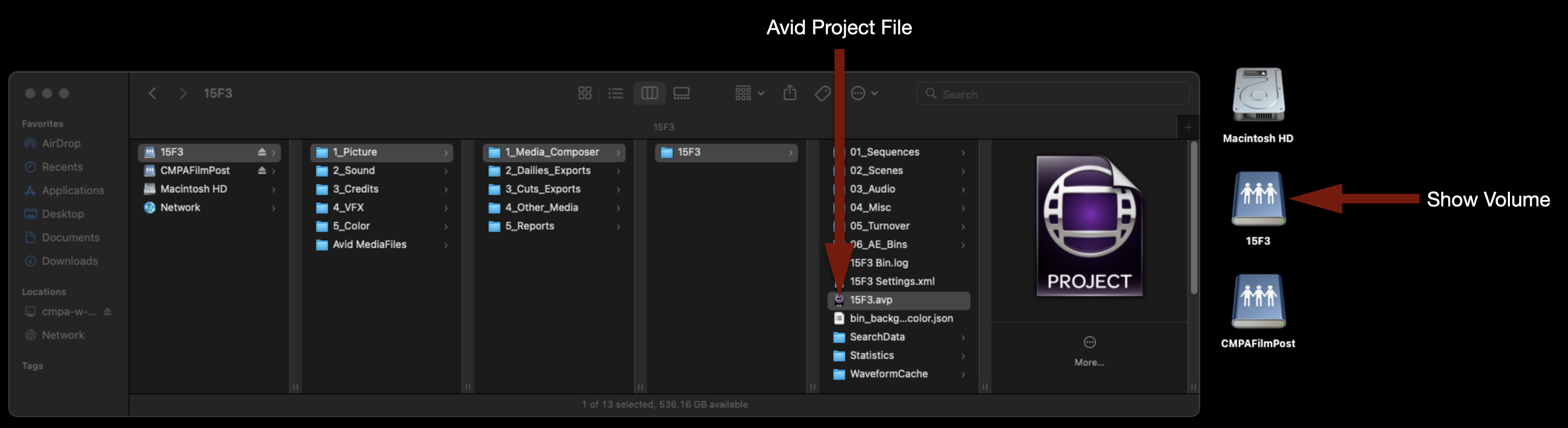
Make sure your Show Volume is mounted. Navigate to your show folder and launch the Media Composer project:
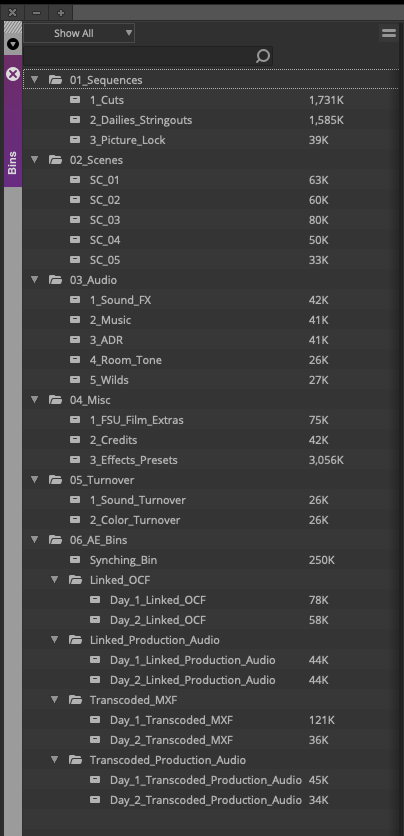
When it opens you will see the project template. These folders and bins must be maintained and kept organized.
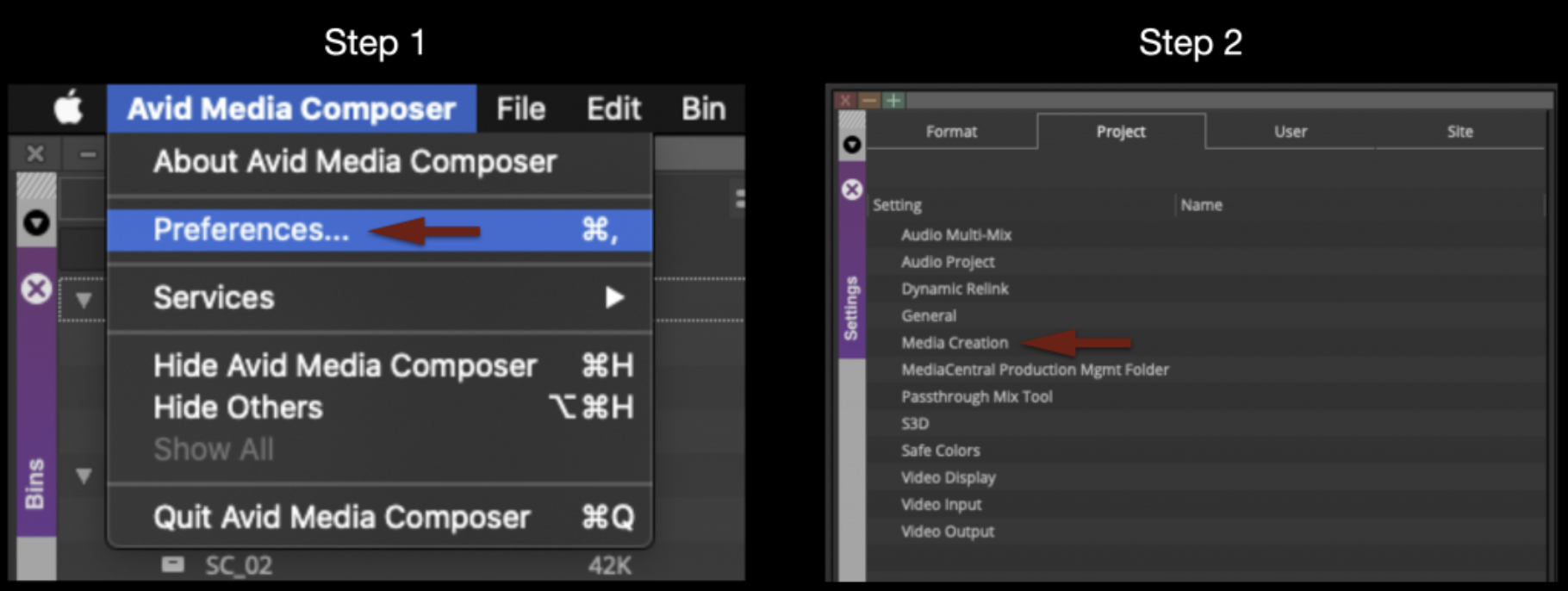
Before you begin, double-check the Media Creation settings. Go to the Avid Media Composer menu and select Preferences. Navigate to the Project tab, then click “Media Creation”.
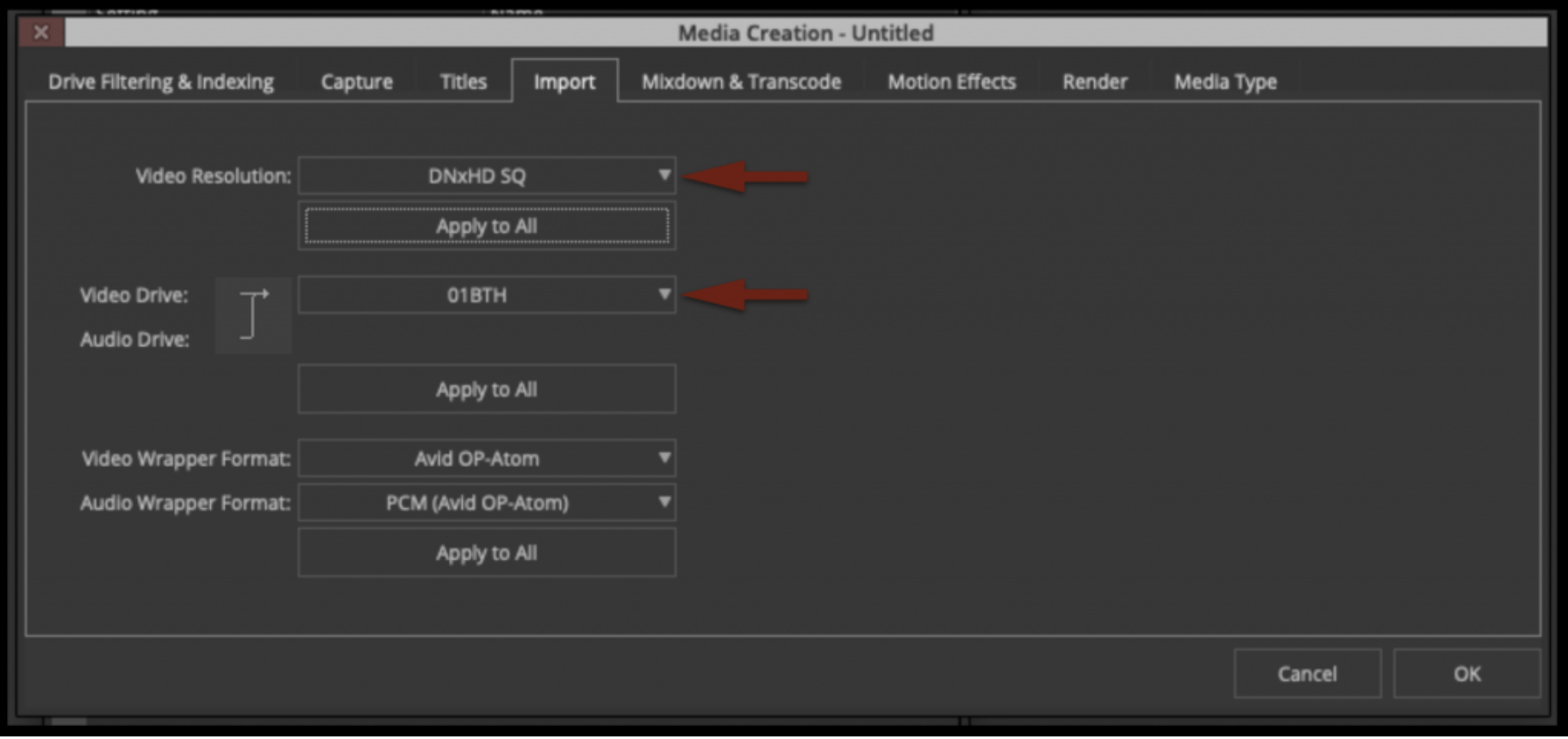
In the Media Creation window, make sure you select:
Video Resolution: DNxHD SQ
Video & Audio Drives: Your Show Volume
Select “Apply to All” for everything, then click “OK”.
Import the Script
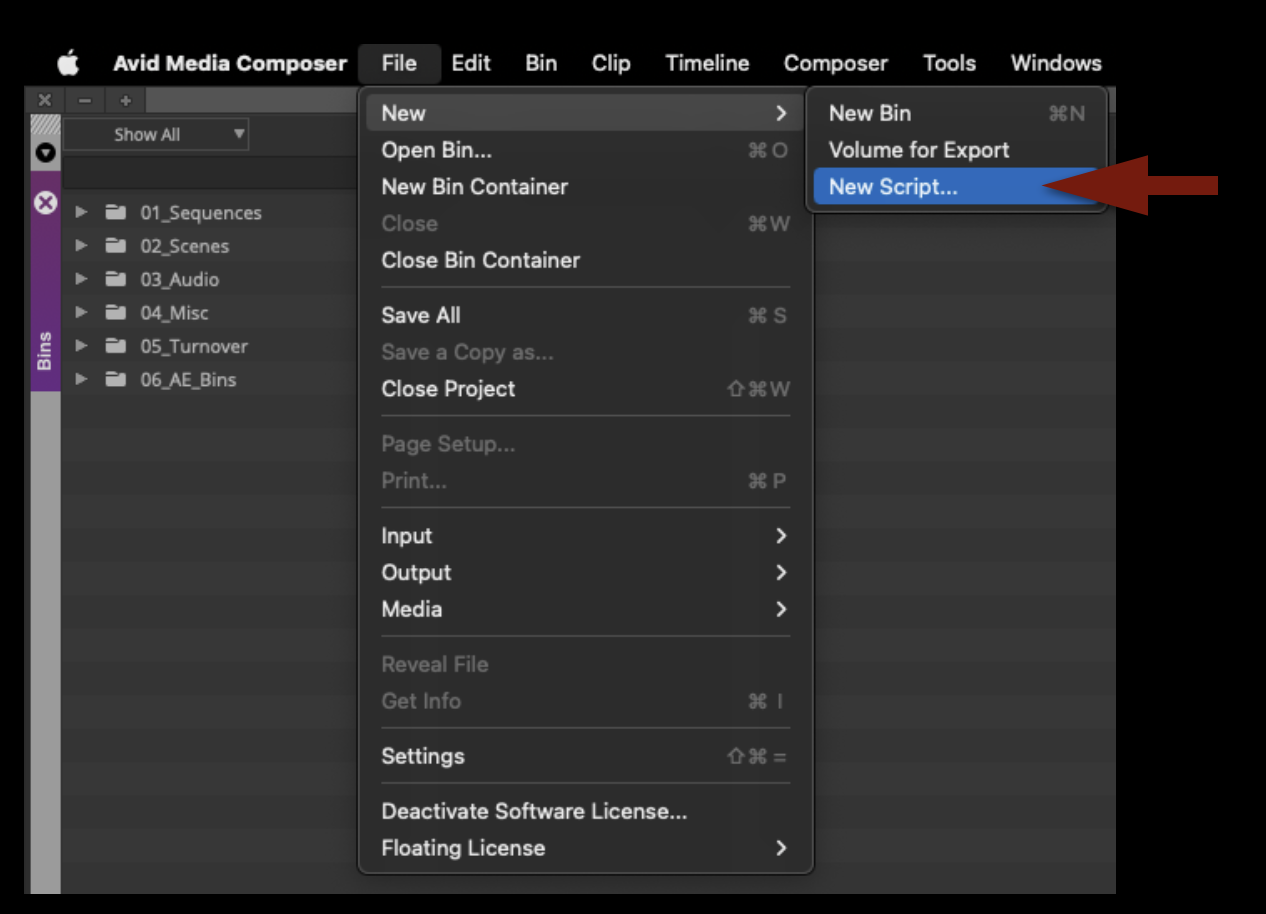
Go to the File menu and select New Script…
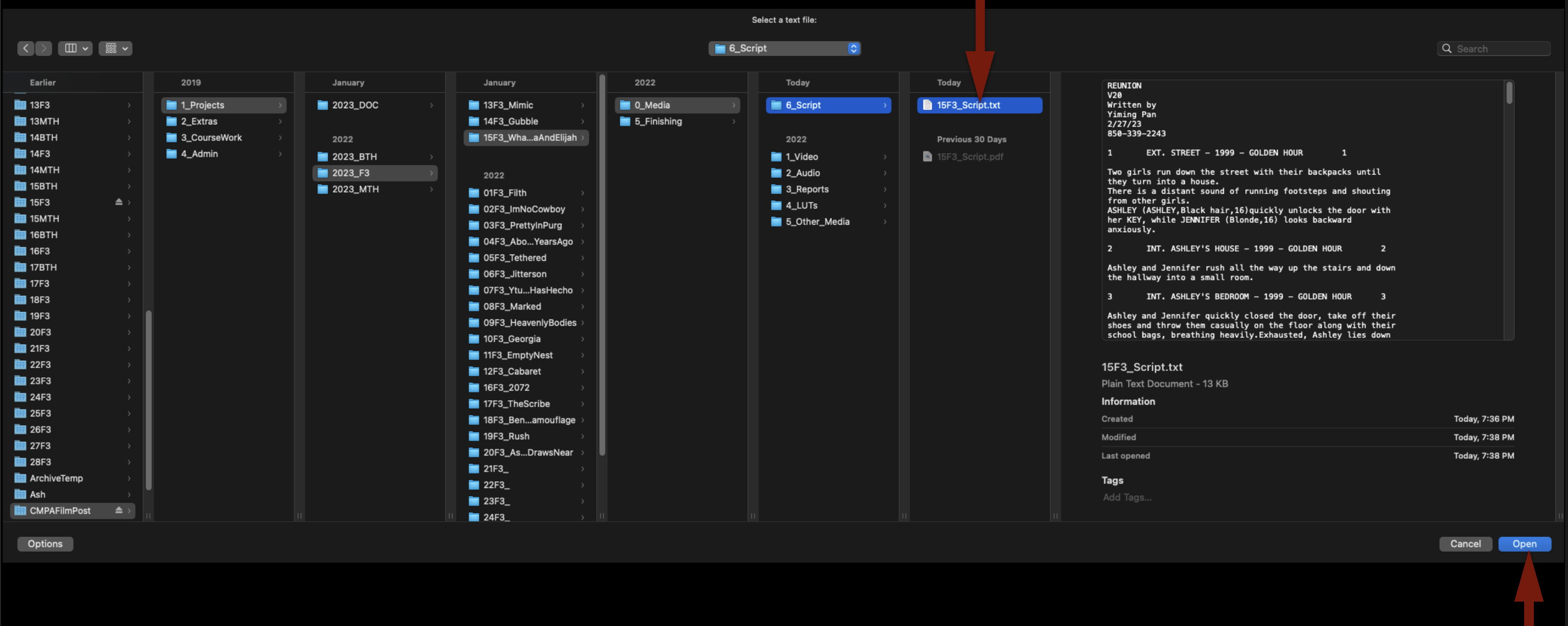
Navigate to where you saved the .txt version of the script and click “Open”:
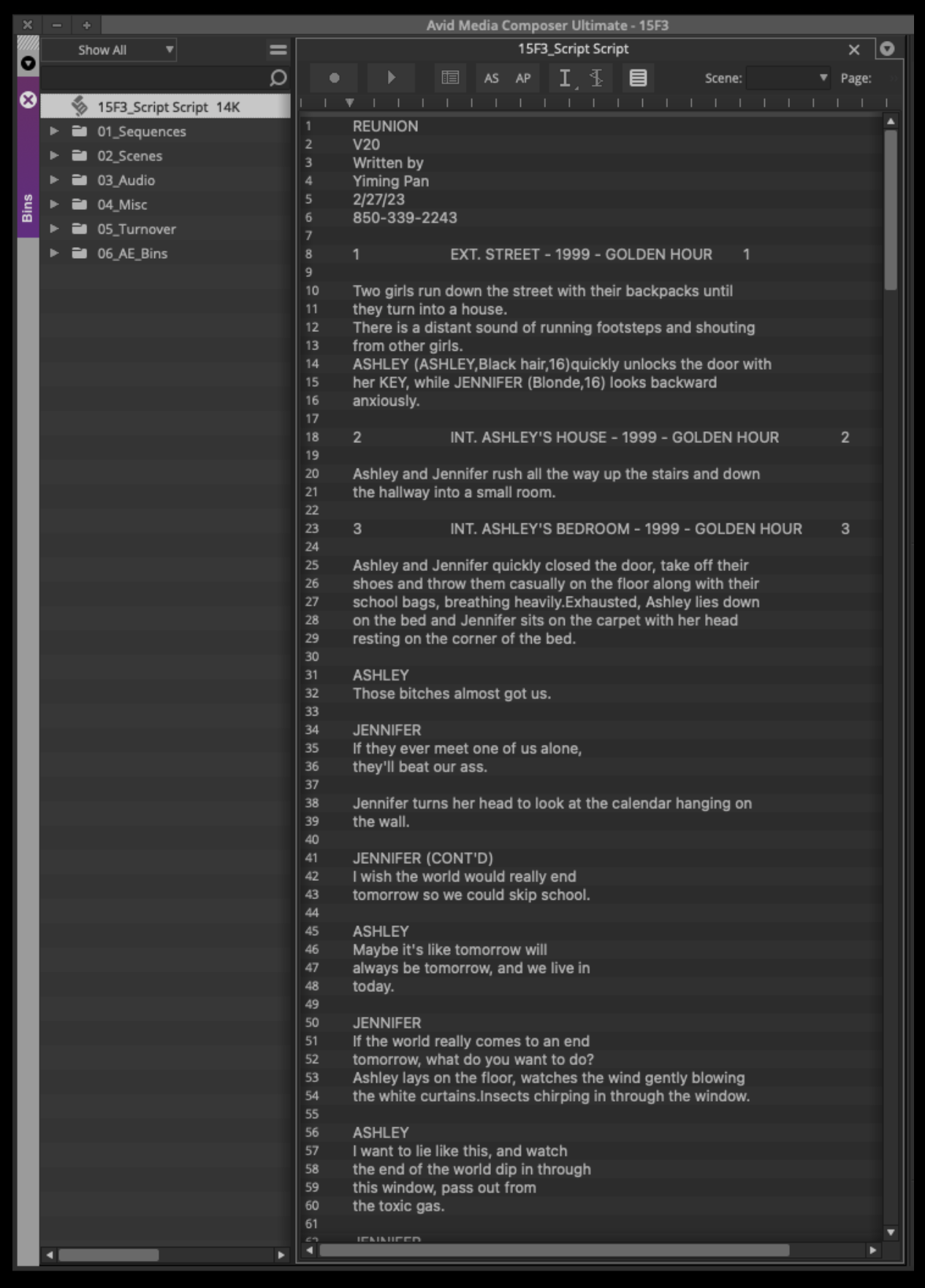
This will import the script into your Media Composer project:
Transcode Footage Using Davinci Resolve
While it is possible to transcode your original camera files into Avid Media MXF files using Media Composer it is much quicker to use Davinci Resolve if you have to transcode more than a few clips.
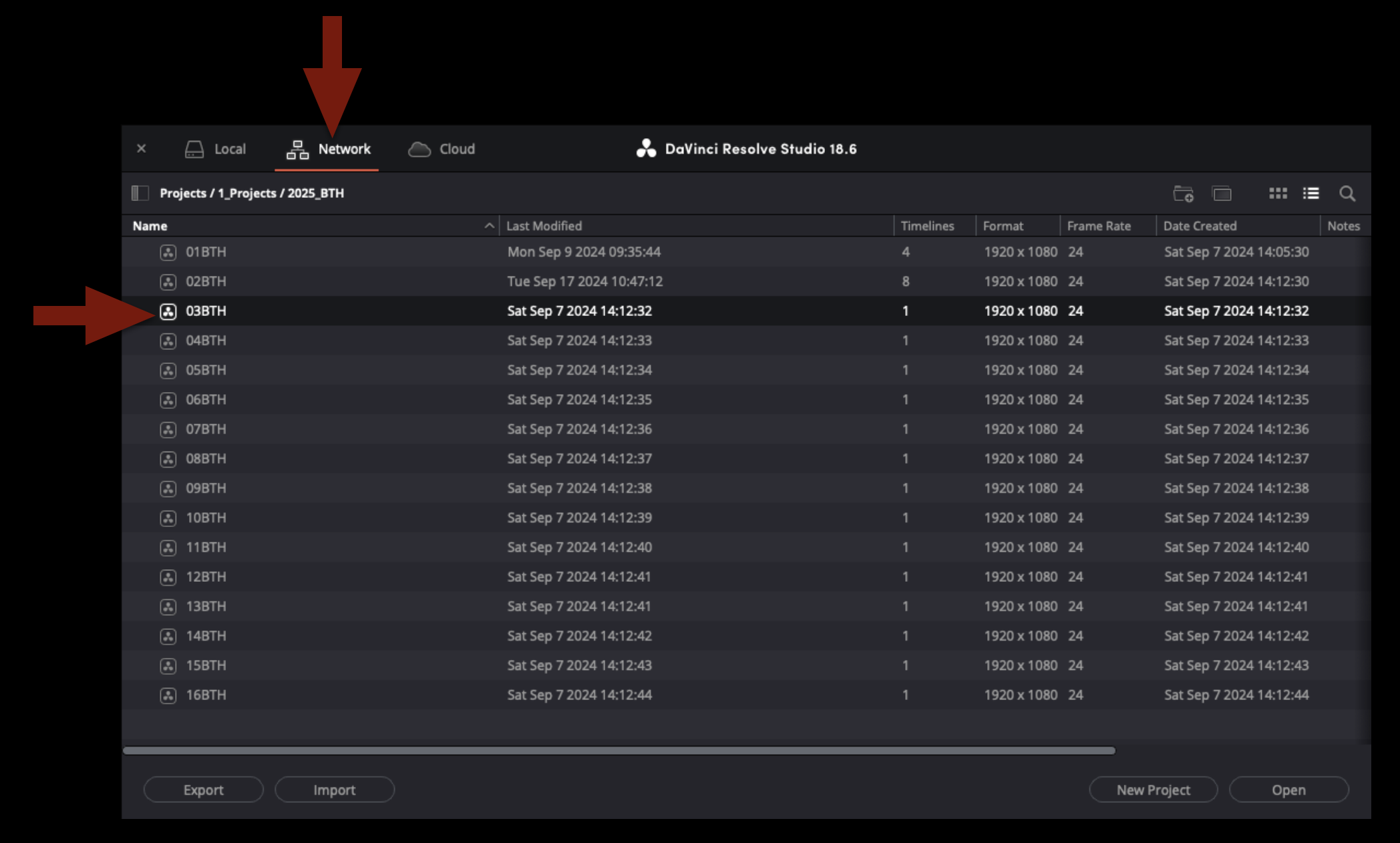
First close Media Composer and then open Davinci Resolve and make sure you are looking a the project window under “Network”. Then find your shows project under the proper folder path.
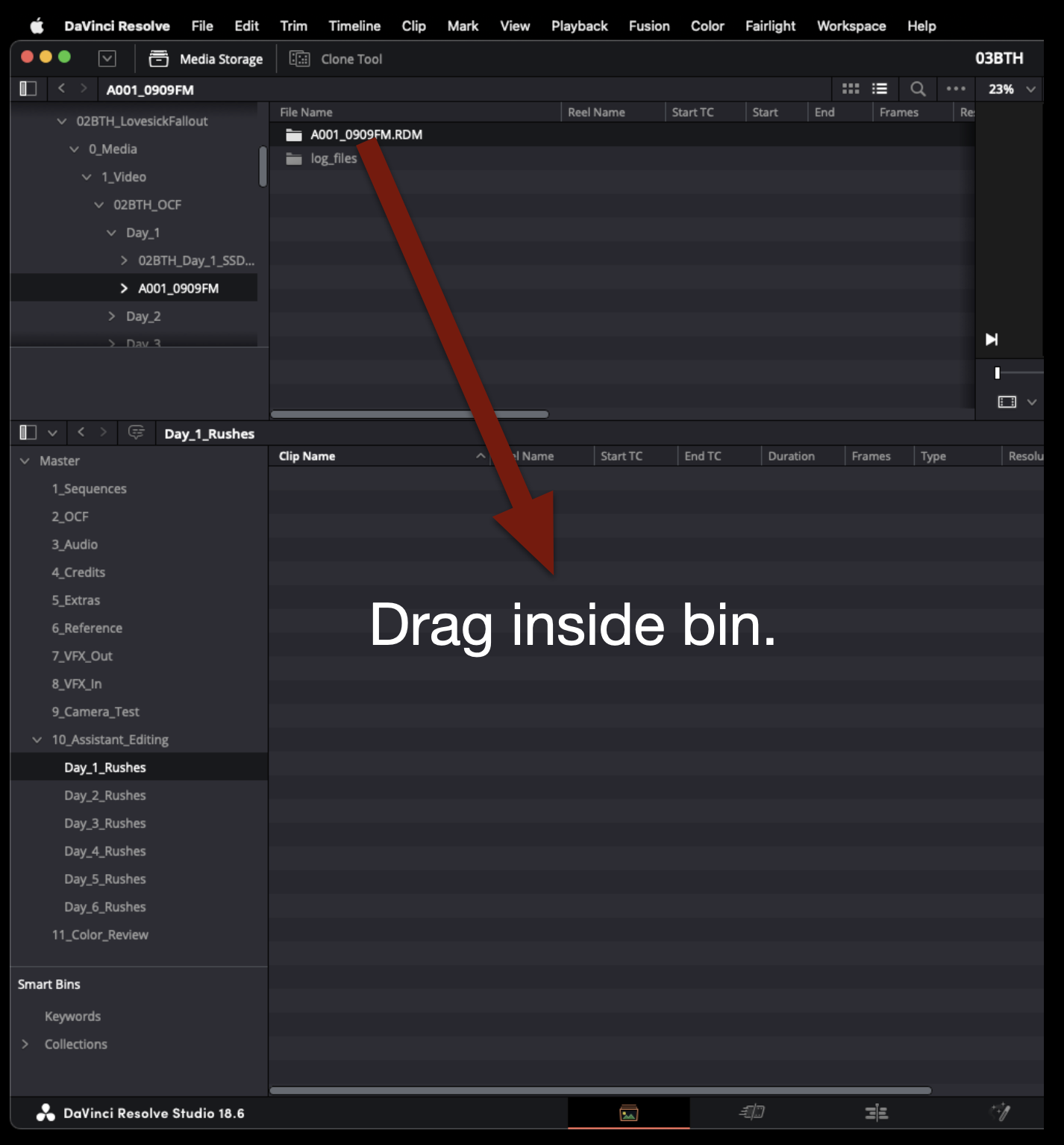
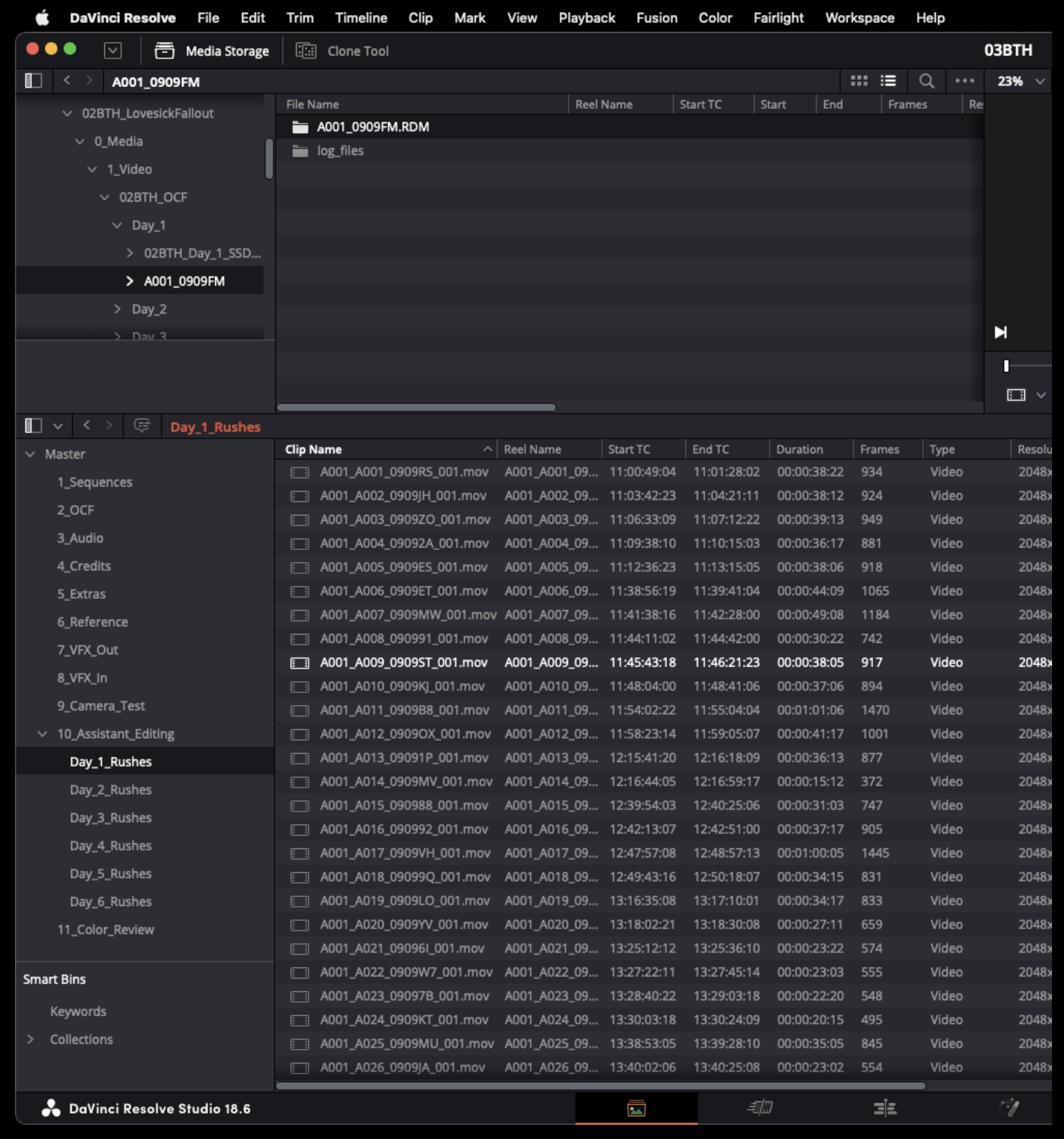
Once your project is open navigate to the “Media” page. The bottom portion of the screen will display the “Media Pool” where the project will be organized into bins. Find the bin that is labeled with the proper shot day of the footage you are going to transcode. Then in the top portion of the screen navigate to the location of your original camera files on the server. When you locate the folder containing all of the video files you wish to transcode, drag the entire folder into the bin.
This will import the entire contents of the folder into the bin.
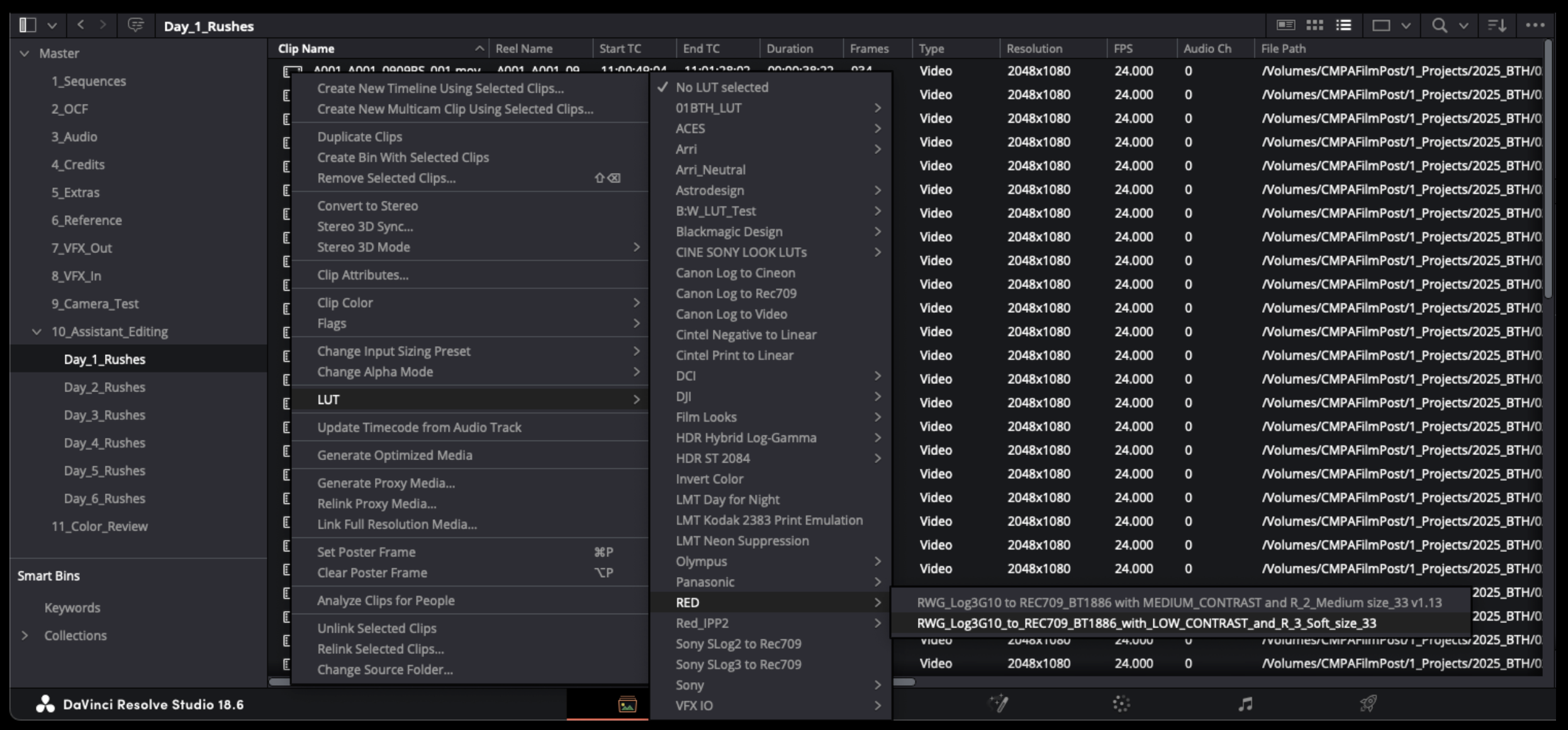
If your OCF were recorded in LOG then you will need to apply a LUT. Highlight all of the clips in the bin and right click on one of them. This will open a long drop down menu. Select LUT and then follow the options until you find the proper LUT to apply. You can find the name of the proper LUT by looking at the camera report
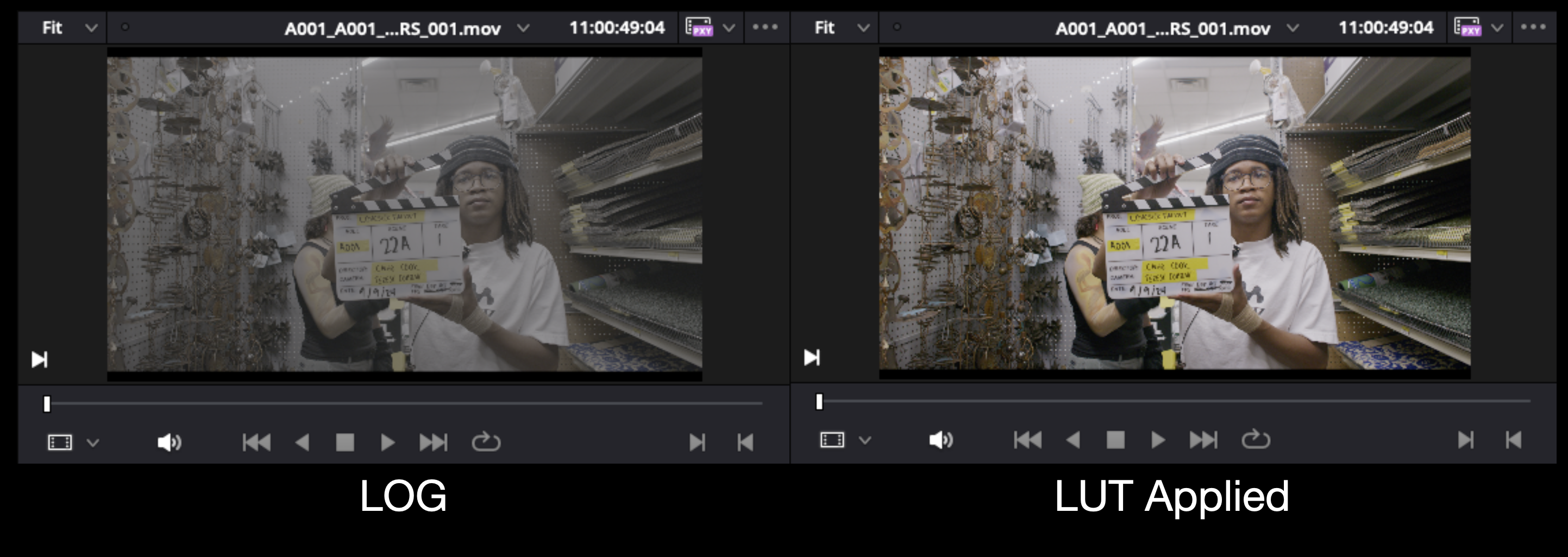
Once you have applied to LUT to all of the clips they should no longer appear in LOG as shown in the example below.
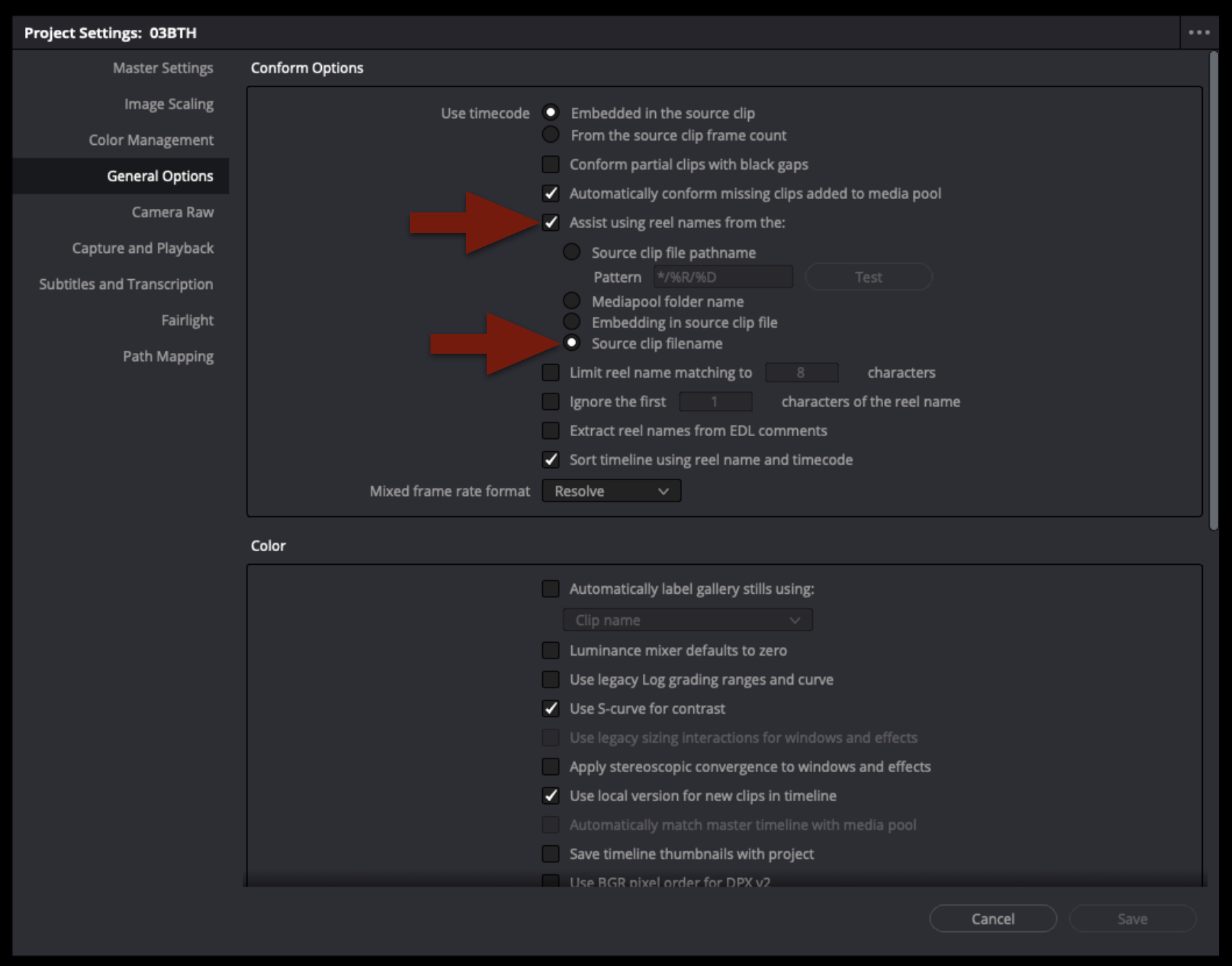
The next step is to check that the proper settings in the “Conform Options” are set. Open the project settings and then navigate under “General Options”. Ensure that “Assist using reel names from the source clip filename” is selected.
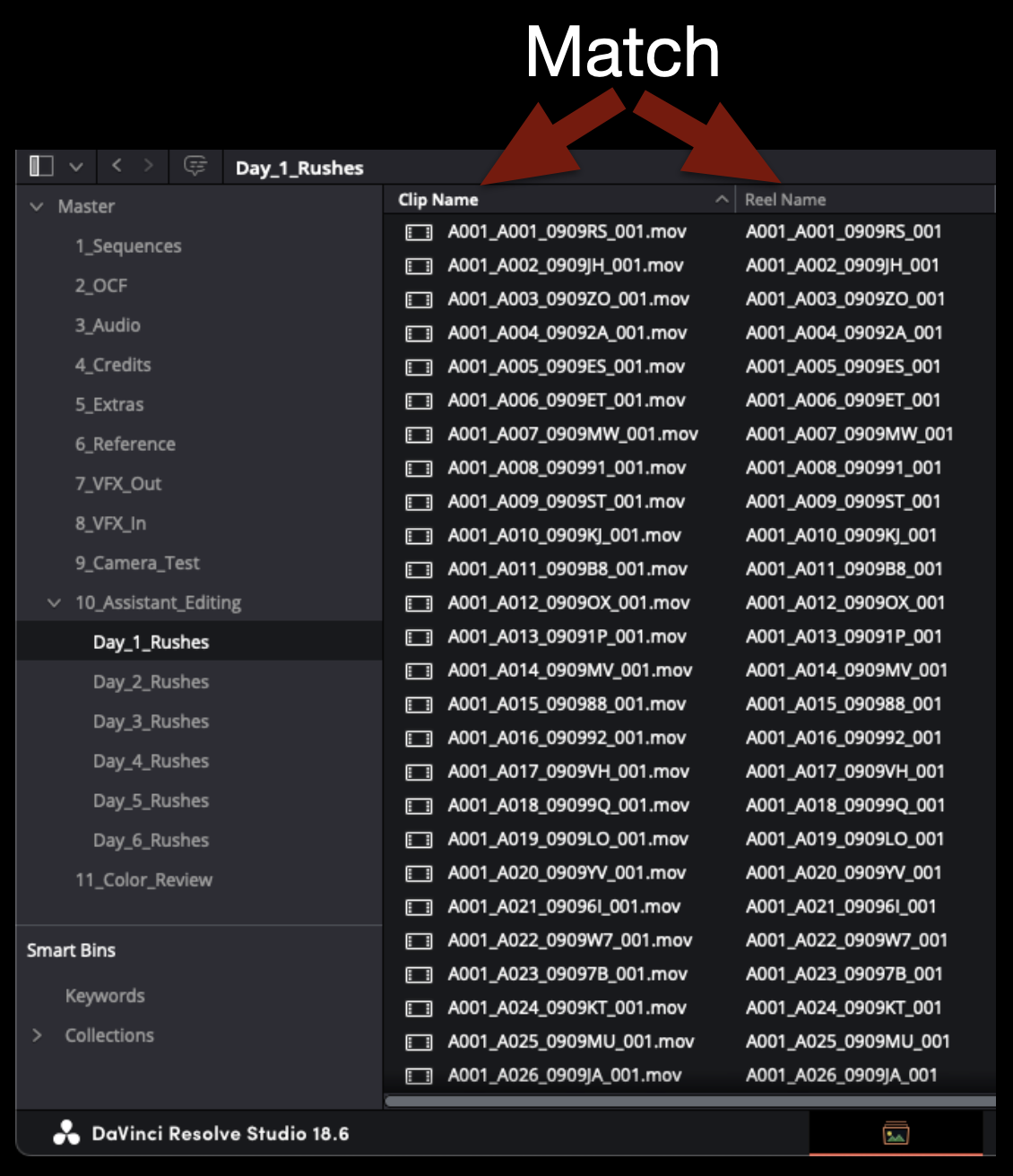
If the “Conform Options” are set correctly you will see that the columns for “Clip Names” and “Reel Names” will match.
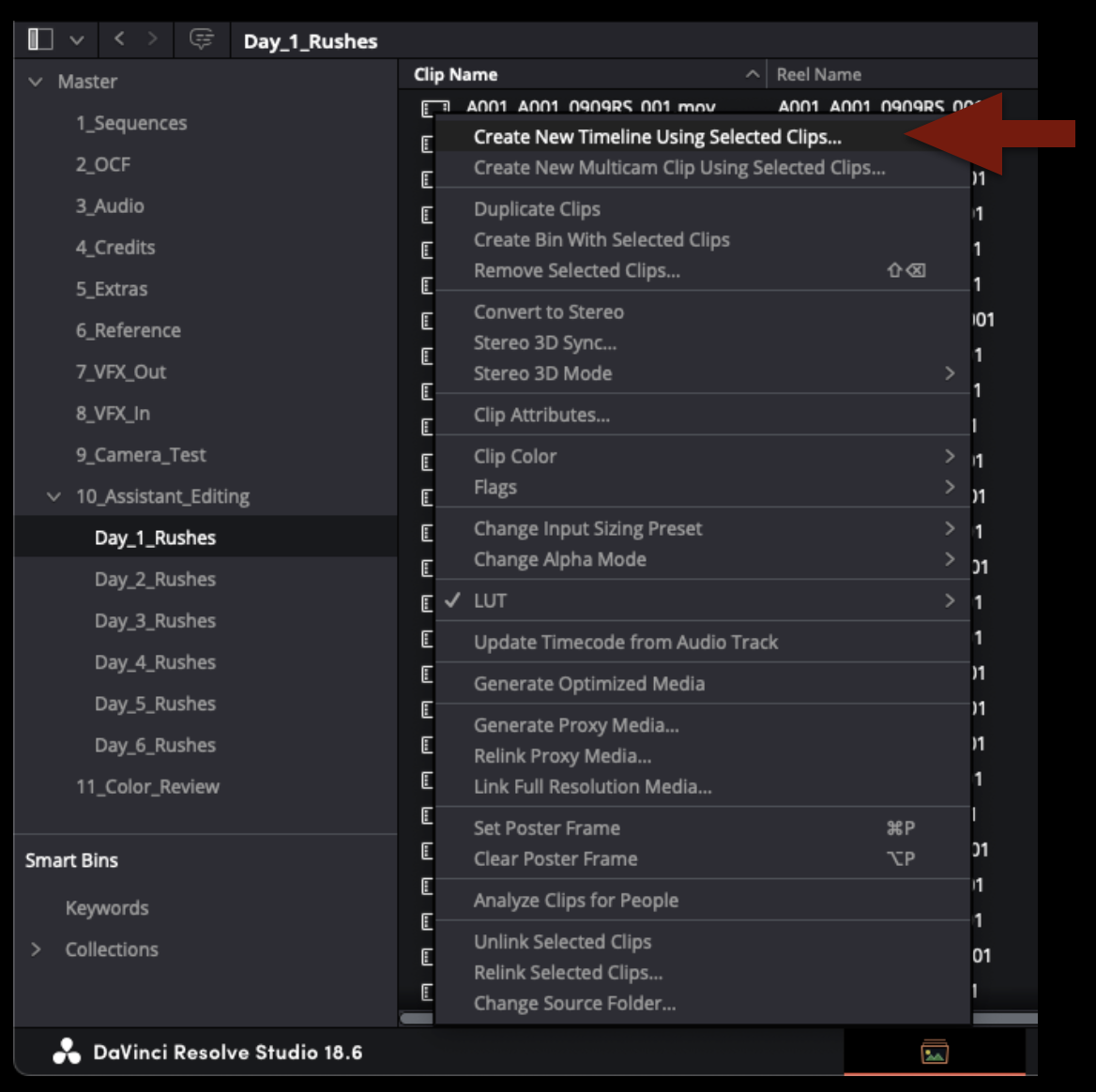
Next select all of the footage in the bin and right click to reveal a long drop down menu. Select the top option to create a new timeline using the selected clips.
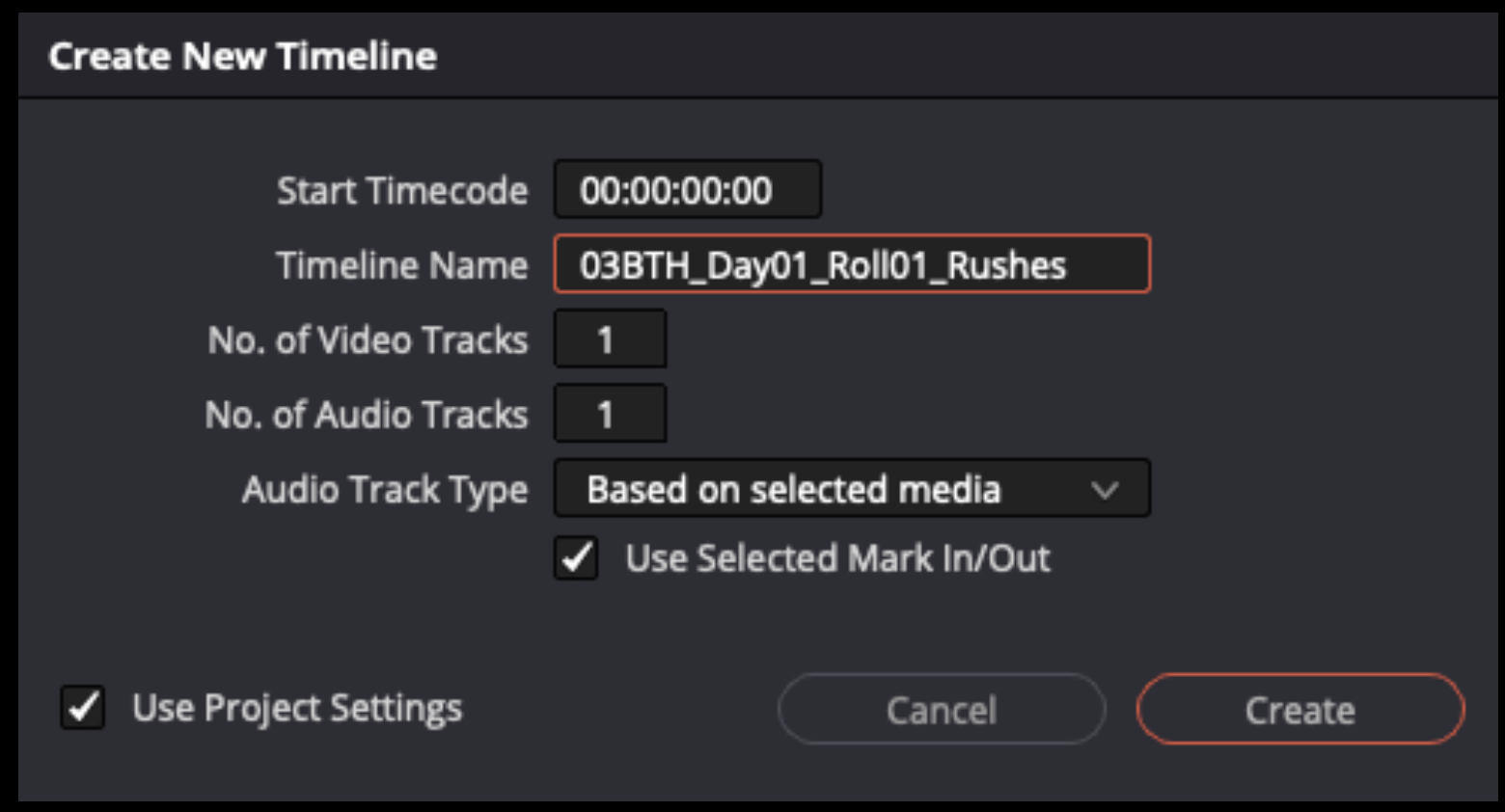
It will ask you to name this new time line. Label it with “Show#”, “Day#”, and “Roll#” as shown in the example below.
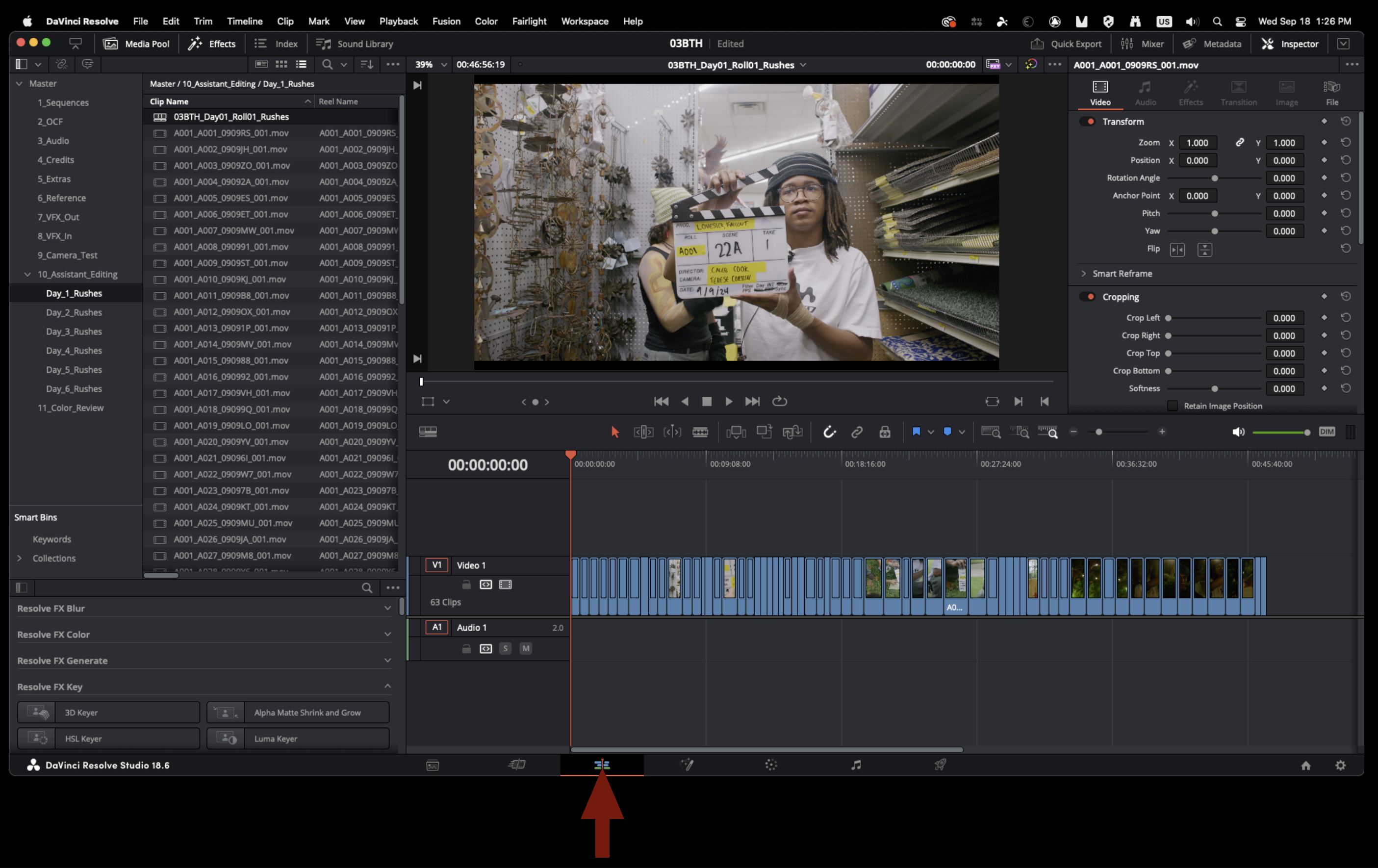
Navigate to the “Edit” page to see all of your footage strung together in the timeline you just created.
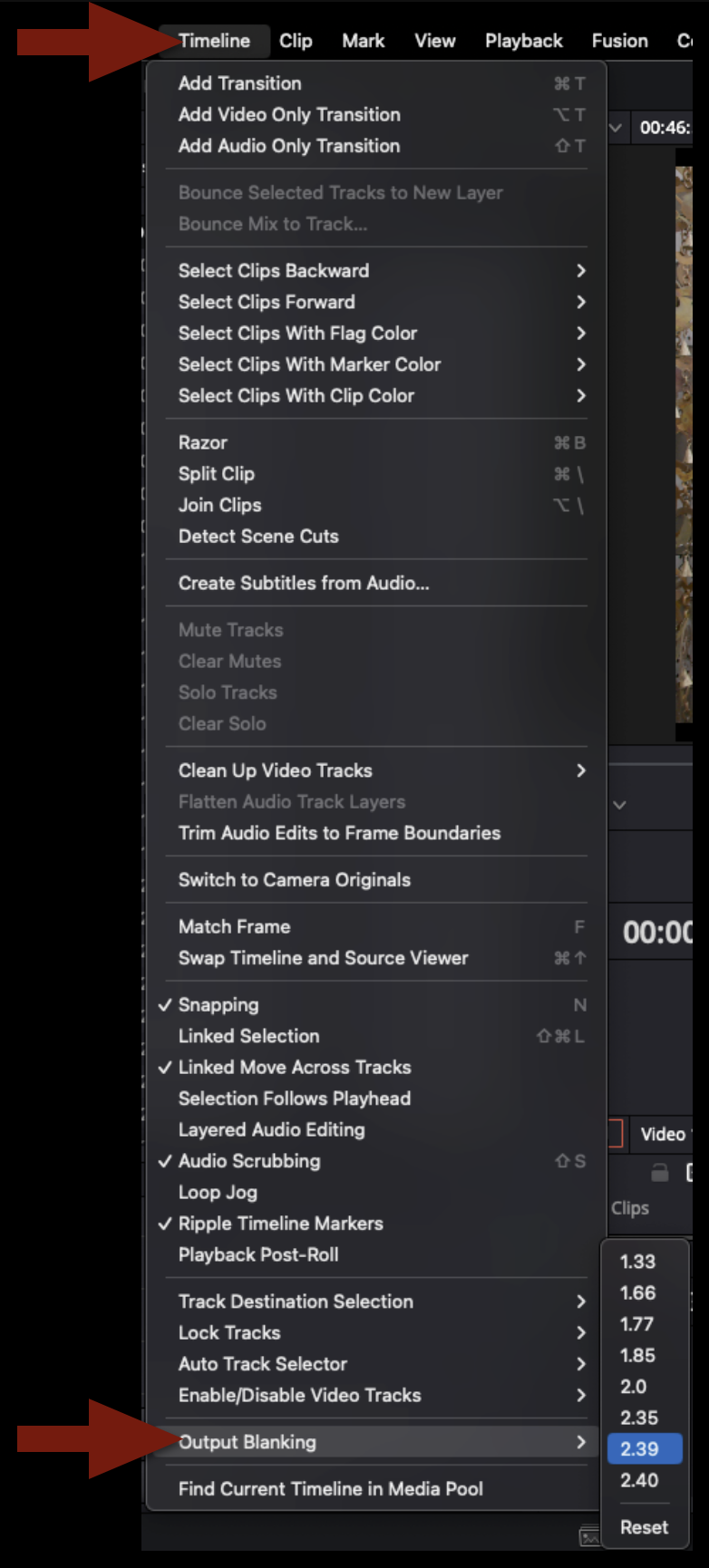
Next you will need to apply the proper masking to the timeline. Check the camera report to see what aspect ratio the footage was framed for. In resolve this can be applied by select “Timeline” rom teh top of the screen and applying the correct “output blanking.
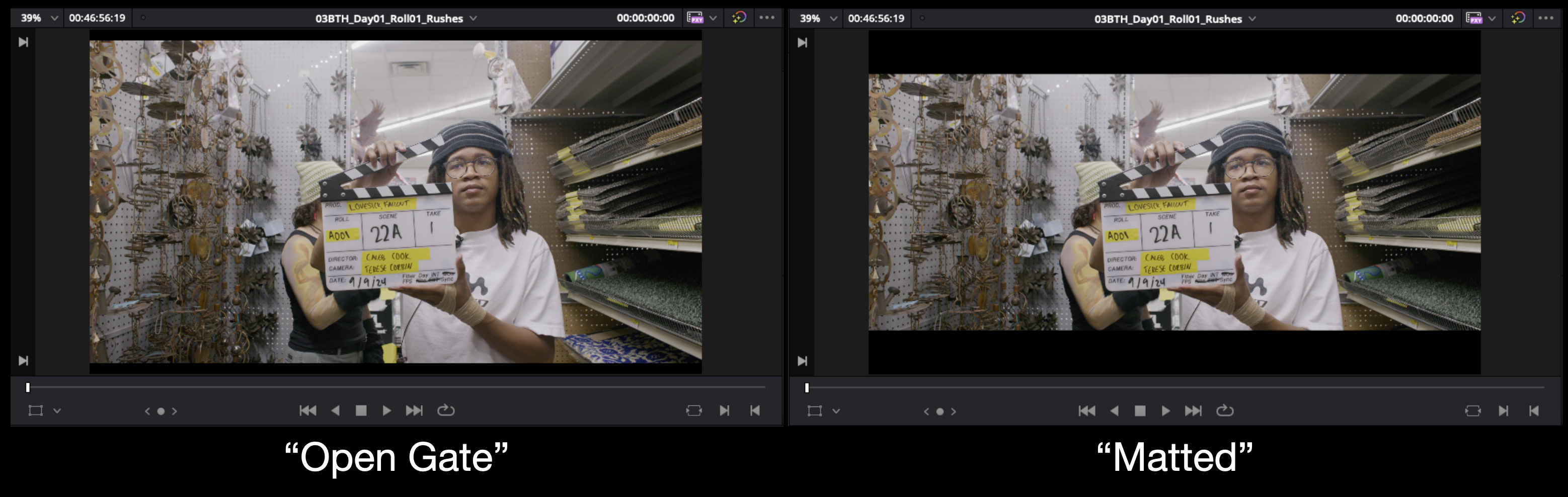
In the example below you will see an example after applying a 2.39:1 output blanking. If the camera report calls for an aspect ratio like 1.85:1 you may not notice any difference after applying that output blanking. You will need to scale the image a certain amount to get it to “fit” inside that output blanking. Consult the post staff for help if needed.
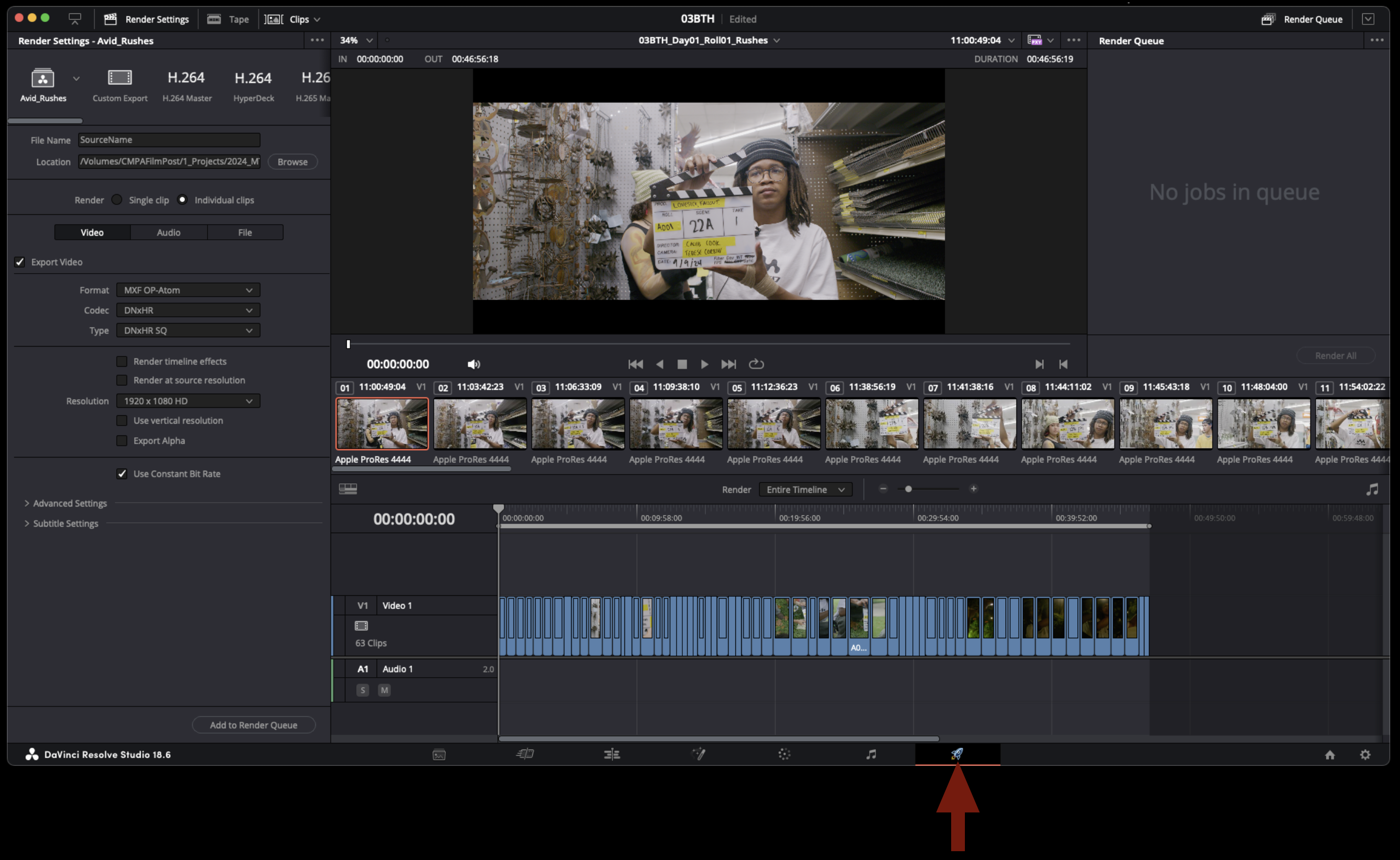
Navigate to the delivery page to begin exporting.
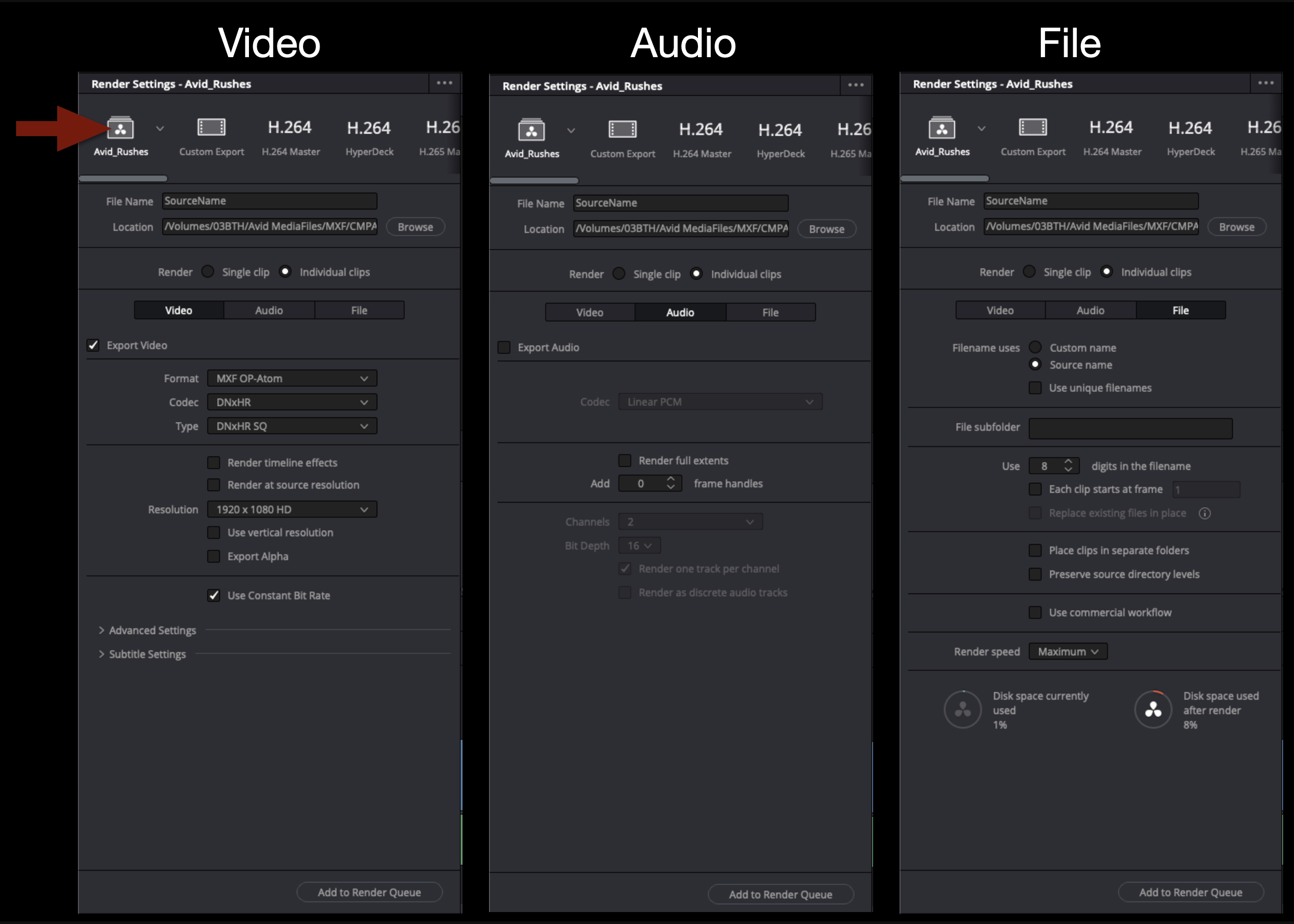
In the upper left hand corner you will find a preset labeled “Avid “Rushes”. Use this preset for exporting avid media mxf files. Check that the settings are as shown below.
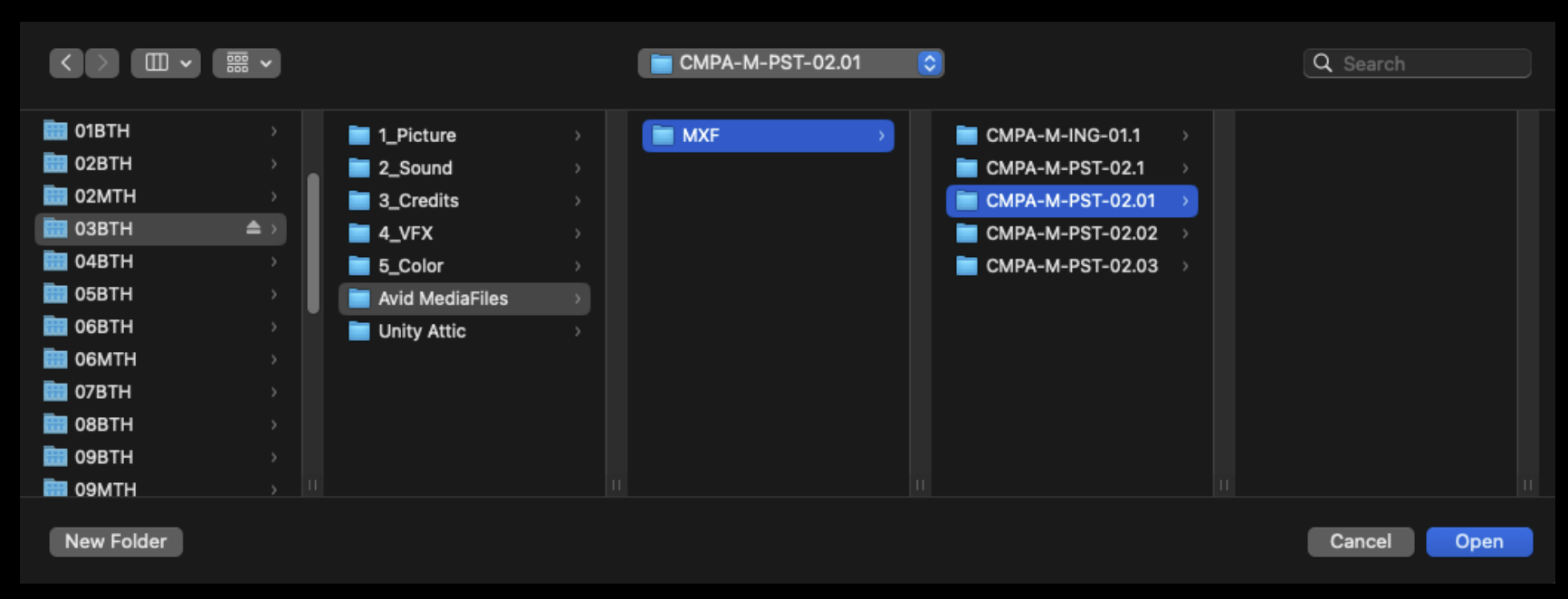
Select “Browse” to set the destination for this export. You will want to find or make a folder in the proper “Avid MediaFiles” folder for your show. This folder will need to reflect either the date the footage was shot or the day of shooting.
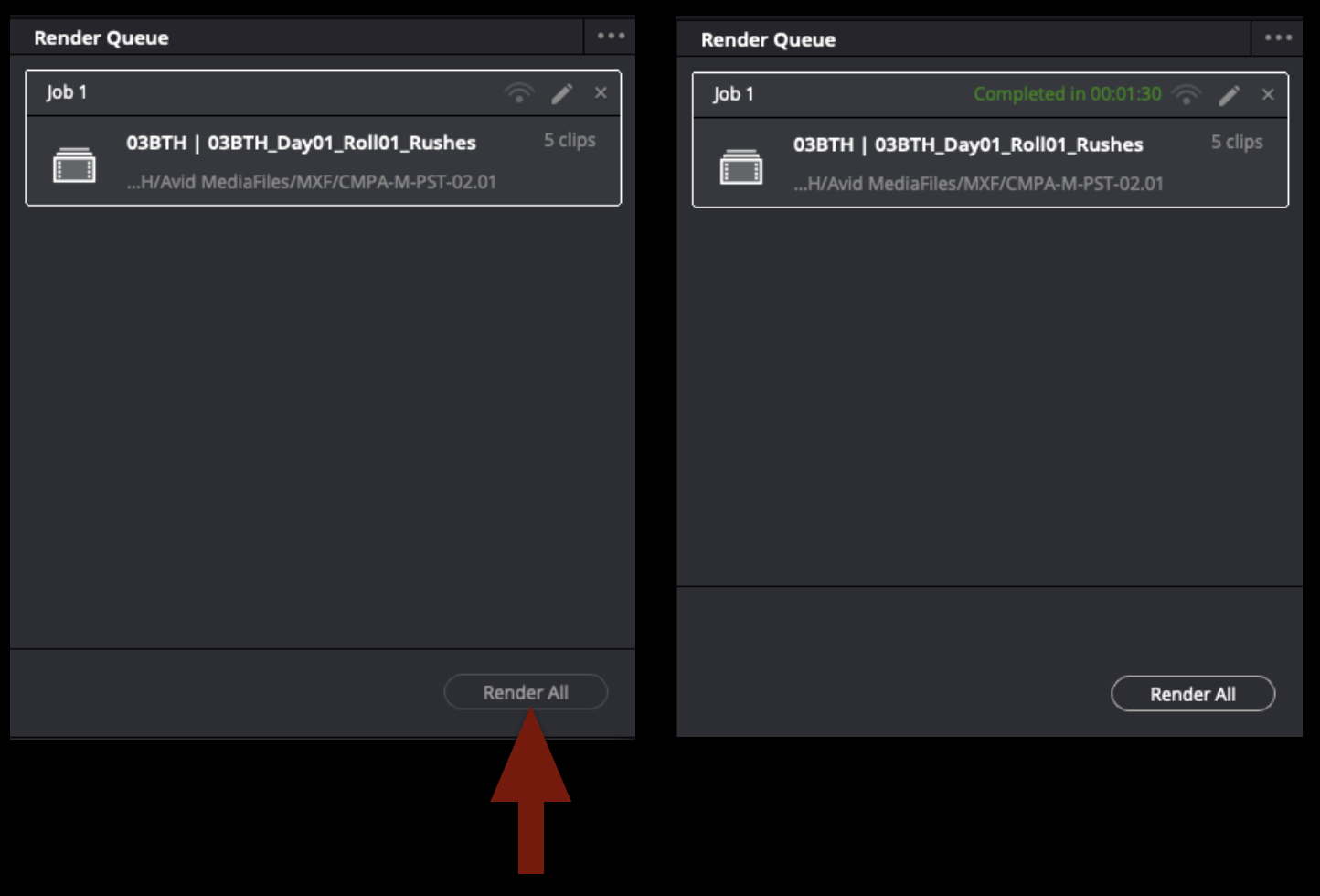
Once all of taht is set you can add the job to the render cue and render all. When the job is complete it will look like the example below. When this step is done you can save and quit Davinci Resolve.
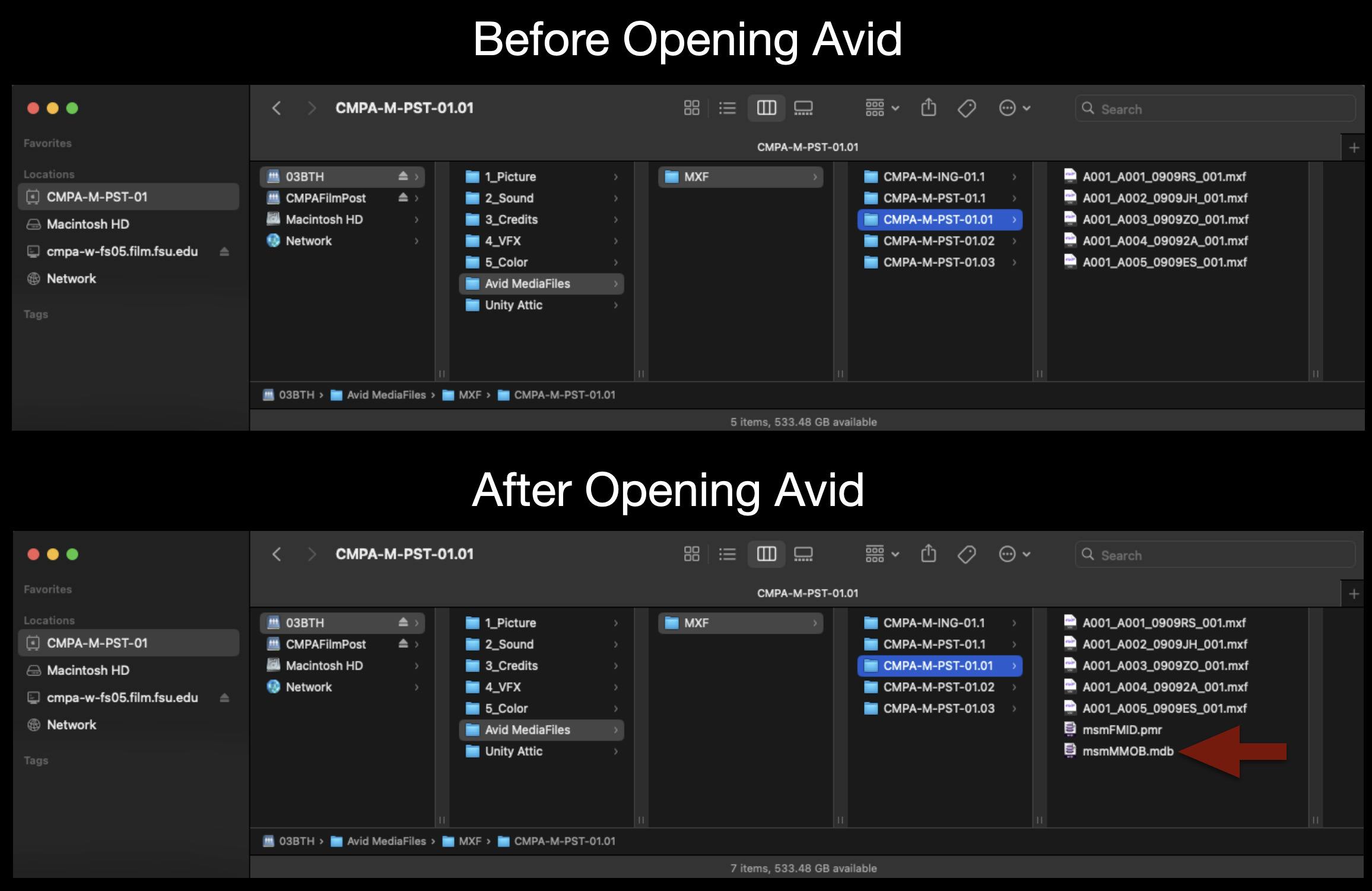
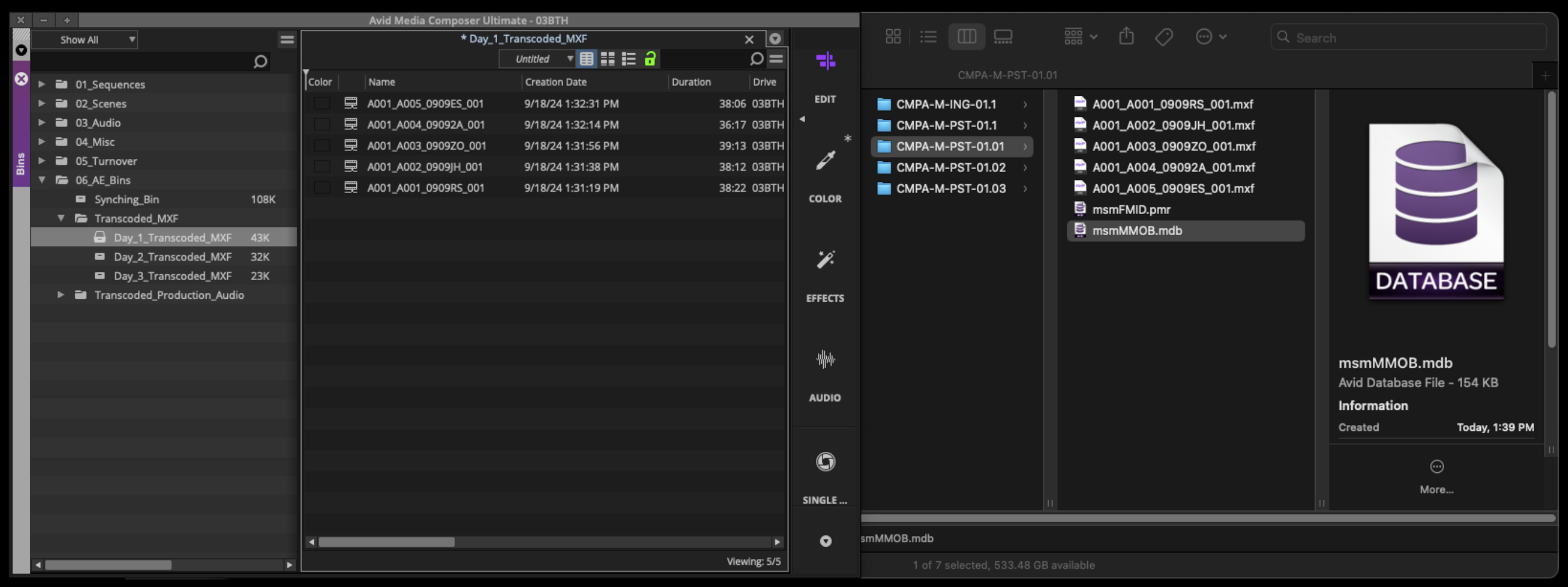
If you navigate in the finder to where the target destination of teh export was set you will find that an .mxf files has been made for every clip. However Davinci Resolve does not generate the avid database files. These files get generated the next time Avid is opened and it will scan the Avid MediaFiles folders looking for new media. When it finds the new folder it will index taht media and generate the necessary database files.
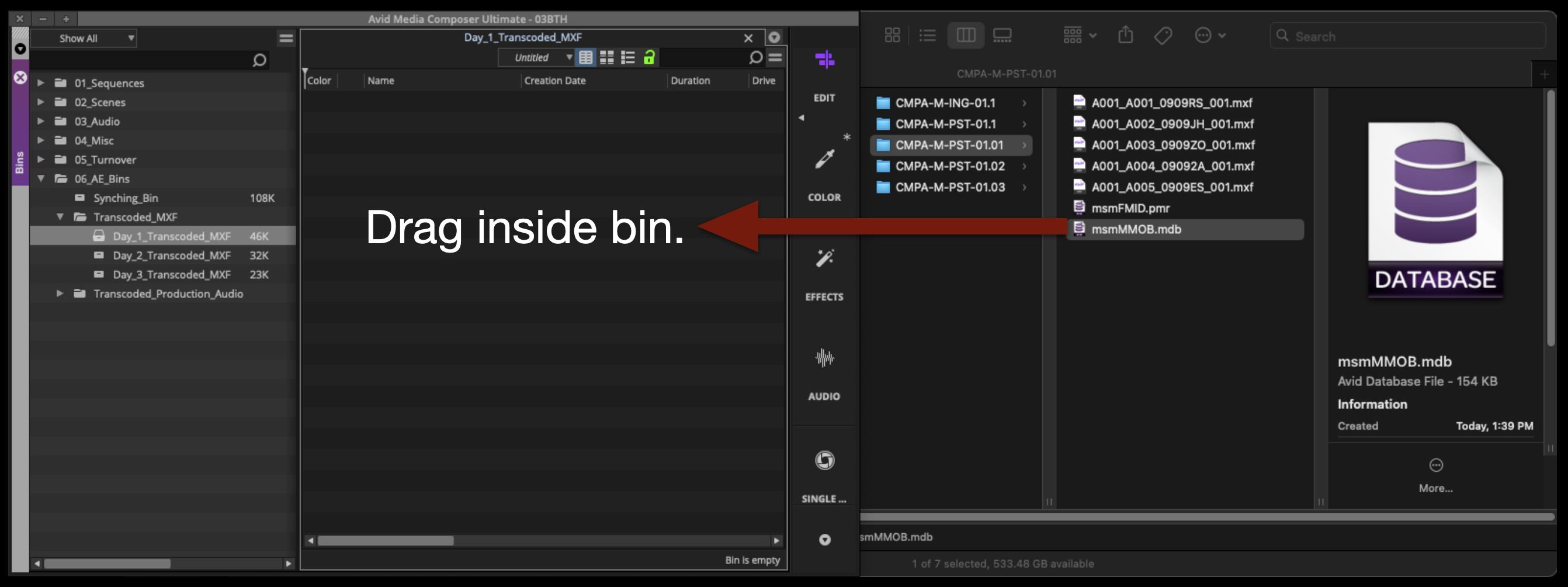
With your Media Composer project now open again to can bring this transcoded footage into the correct bin by dragging the “.mdb” database file into the bin.
If everything was done properly the master clips will appear inside the avid bin.
Link and Transcode Audio
Open the Linked Production Audio bin for the proper day:
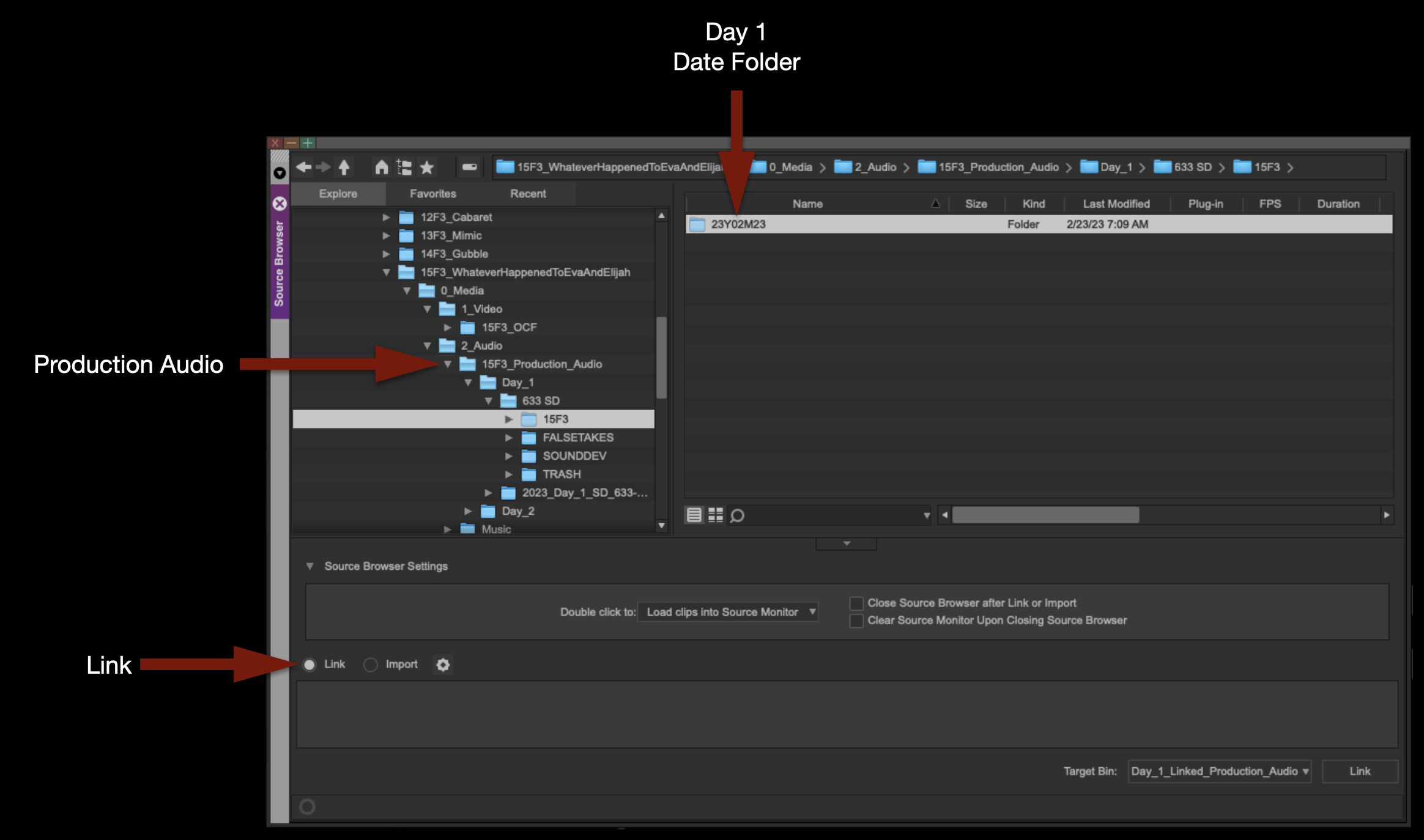
Right-click inside the bin and select “Import > Source Browser”.
Inside the Source Browser, navigate to a day’s worth of Production Audio. Make sure the Link icon is selected, and then click “Link”.
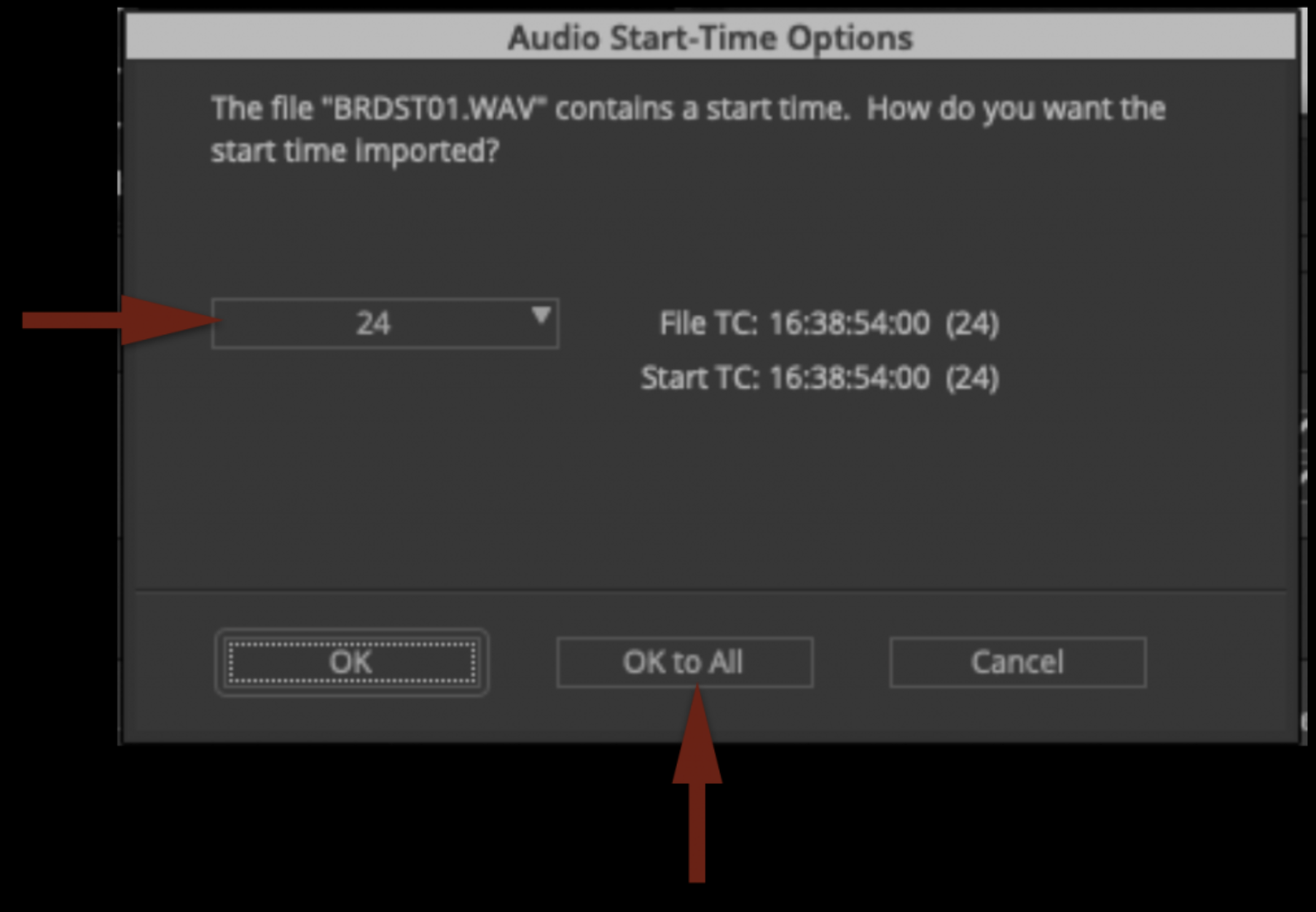
Before it links the media, it will ask you about Audio Start-Time Options. Make sure it is set to “24” and click “OK to All”.
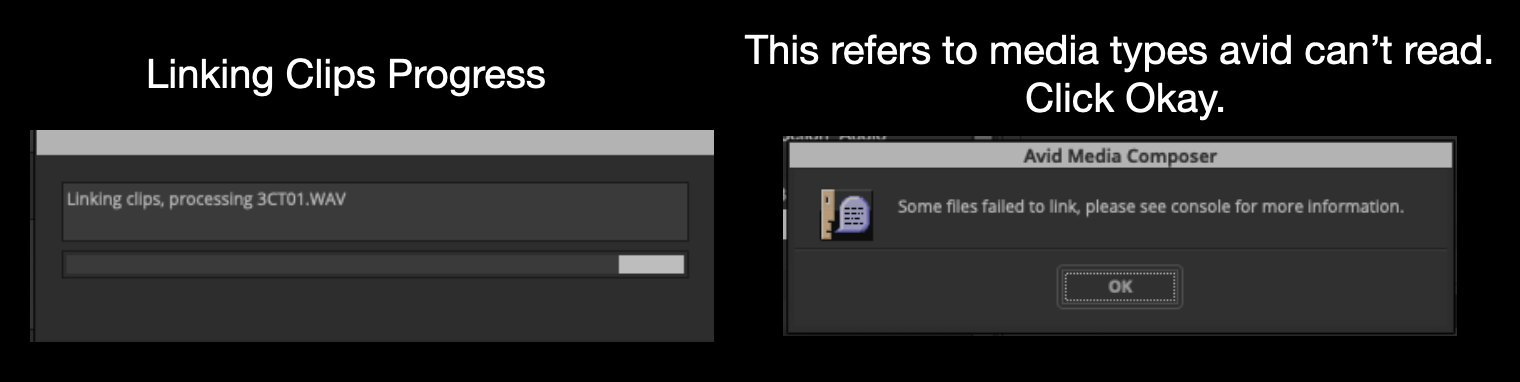
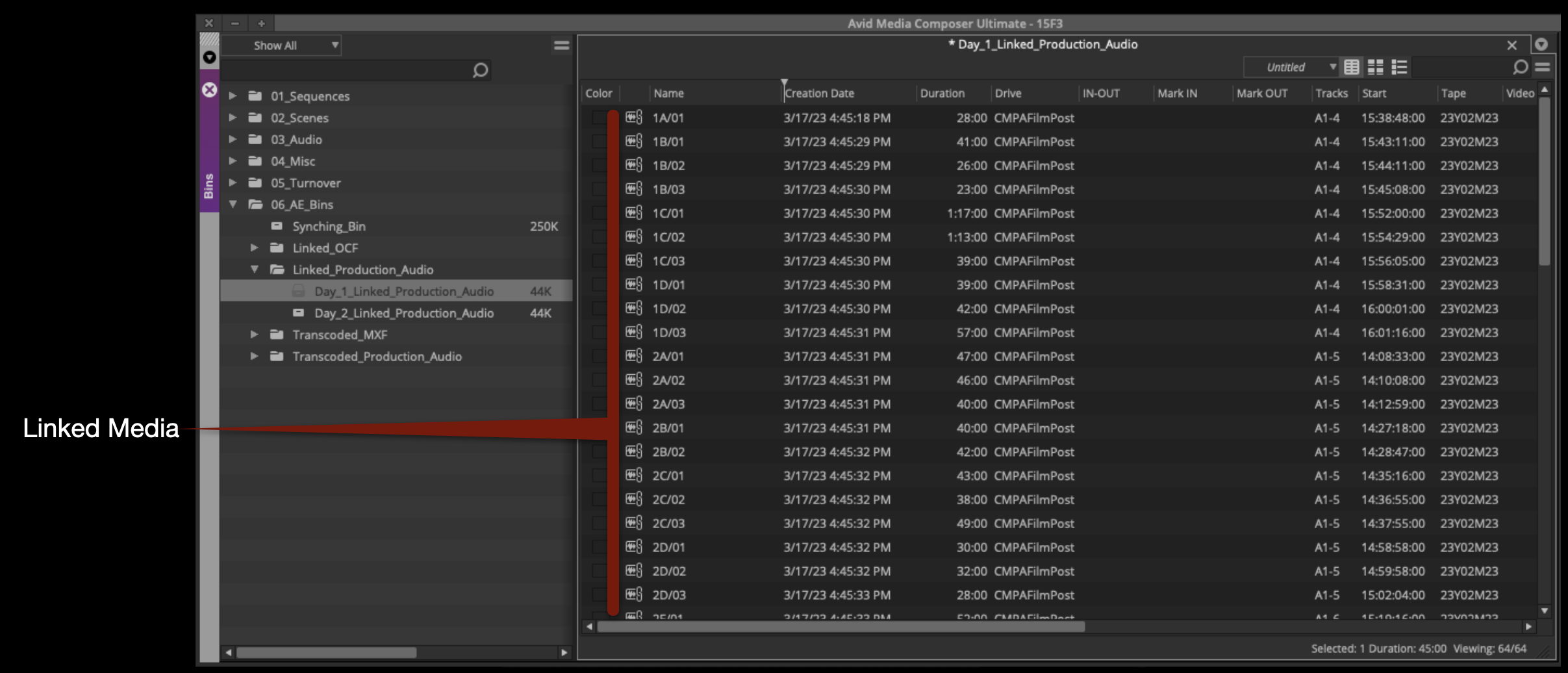
The selected clips will begin linking:
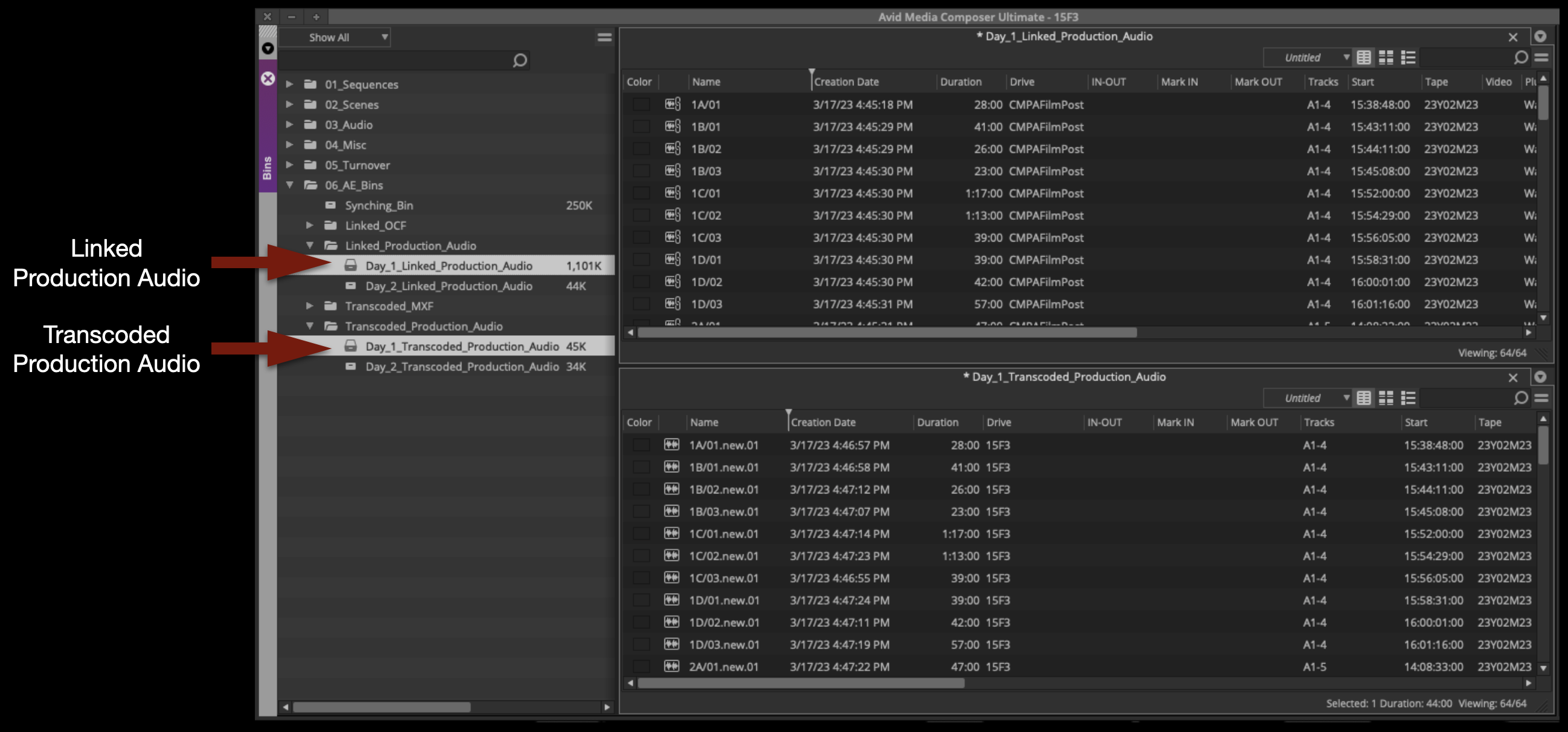
Notice that the icons have linked-chain symbols. This is to let you know that this is not Avid Media yet; it’s only linked to the original media on the CMPAFilmPost Server.
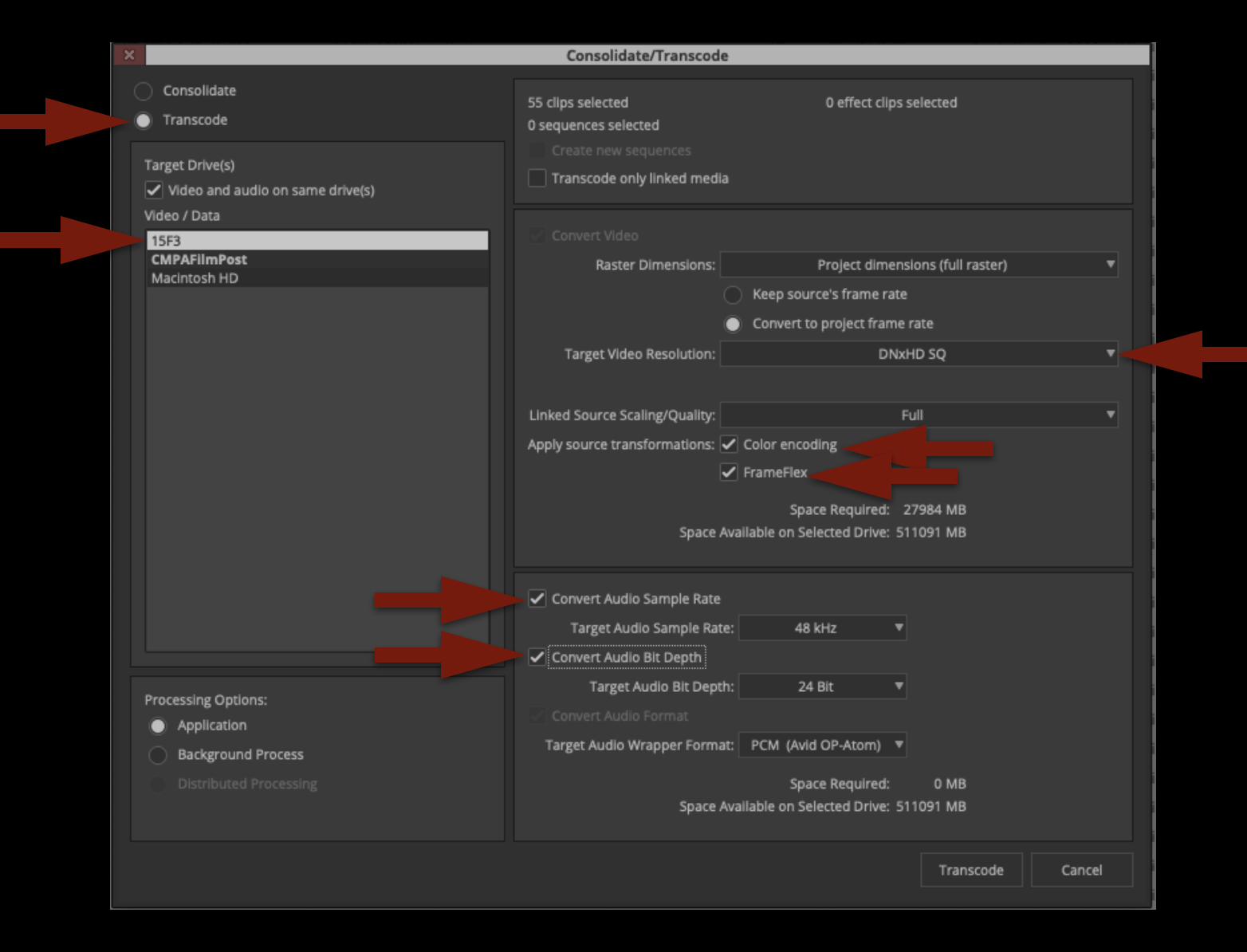
Highlight all of the linked files in the bin by hitting “Command + A”. Right-click on a clip and select “Consolidate/Transcode”. This will open the Consolidate/Transcode window.
THIS IS VERY IMPORTANT: Study all the options highlighted by the red arrows shown below. These settings determine how the media will be transcoded and used for editing in Media Composer. The radial button in the top left should be set to “Transcode”. Under the Target Drive, you should select your Show Volume. Do not select CMPAFilmPost. Then, double-check all of the red arrows on the right.
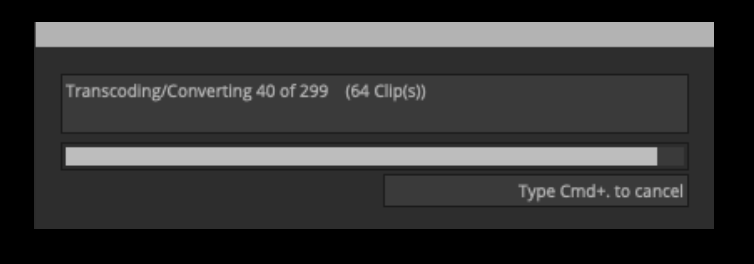
Once everything is set properly you can click “Transcode”. Since this is audio media, it will not take long at all to transcode. Don’t go anywhere!
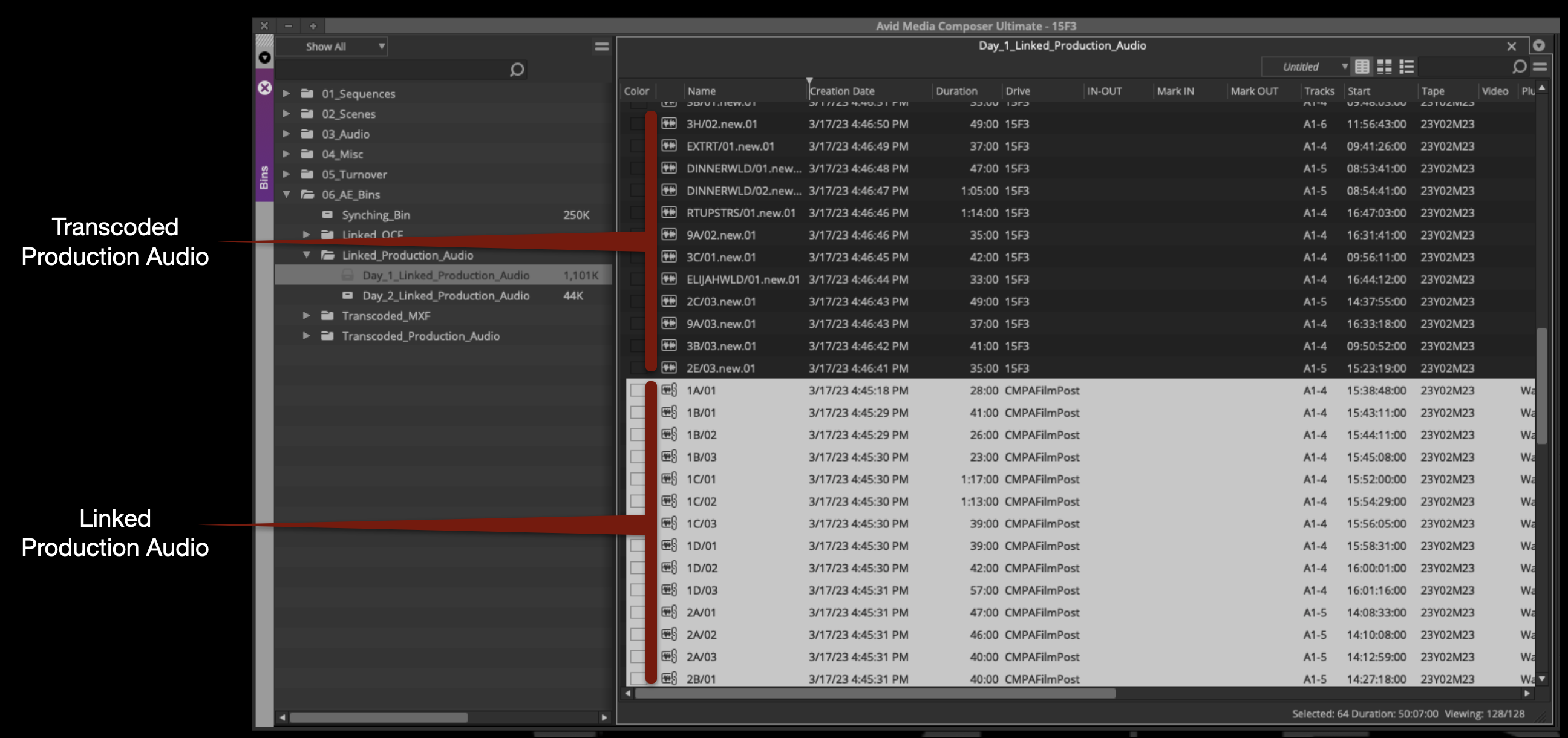
When the transcode is finished, you will notice that now you have two versions of everything in your bin. One is linked Production Audio and the other is Transcoded Production Audio:
Move the Transcode Production Audio media to the proper bin:
In the Transcoded Production Audio bin, take notice of a few things.
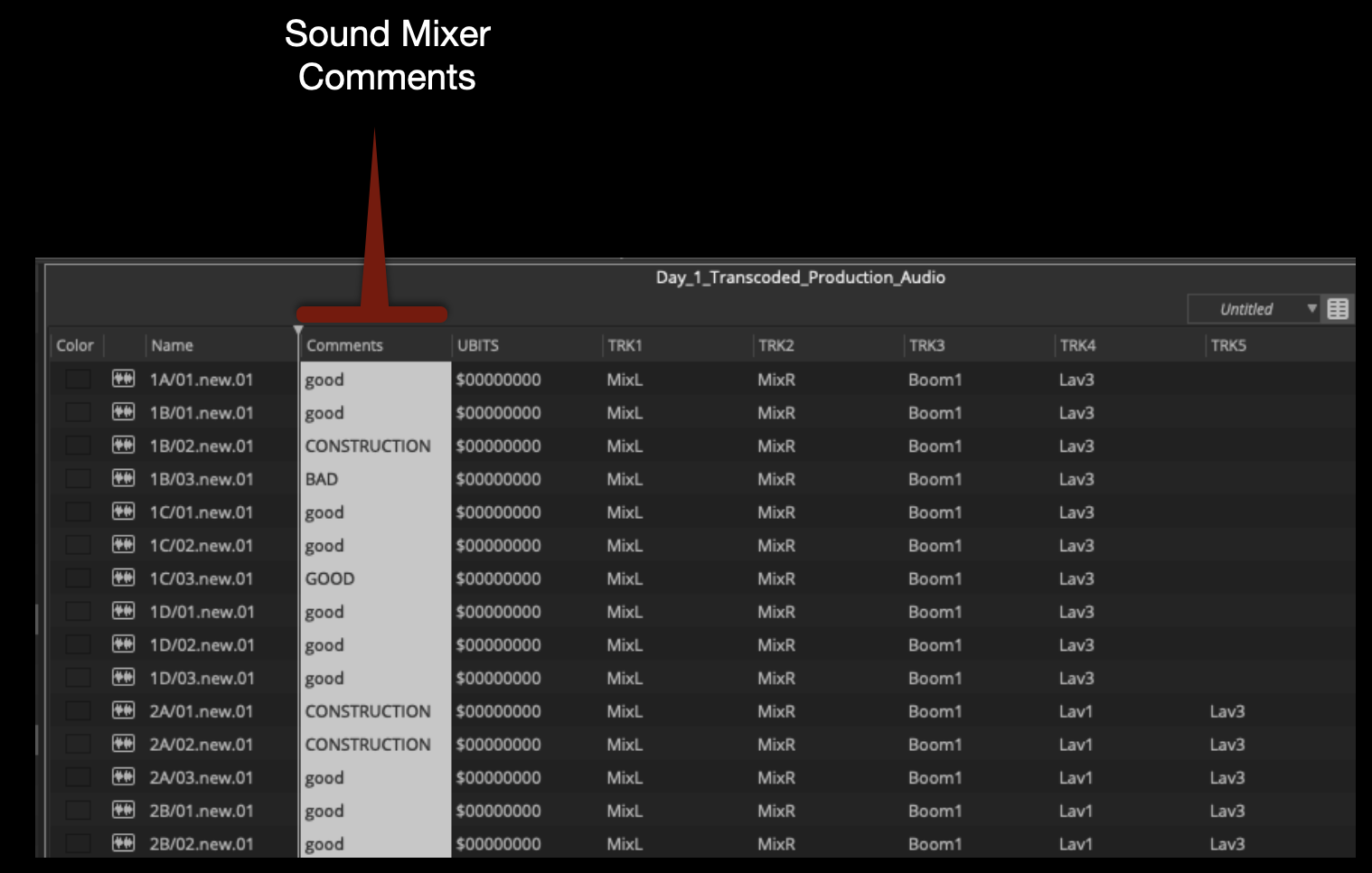
The Sound Mixer has most likely taken notes that will be useful later. These are in the Comments column:
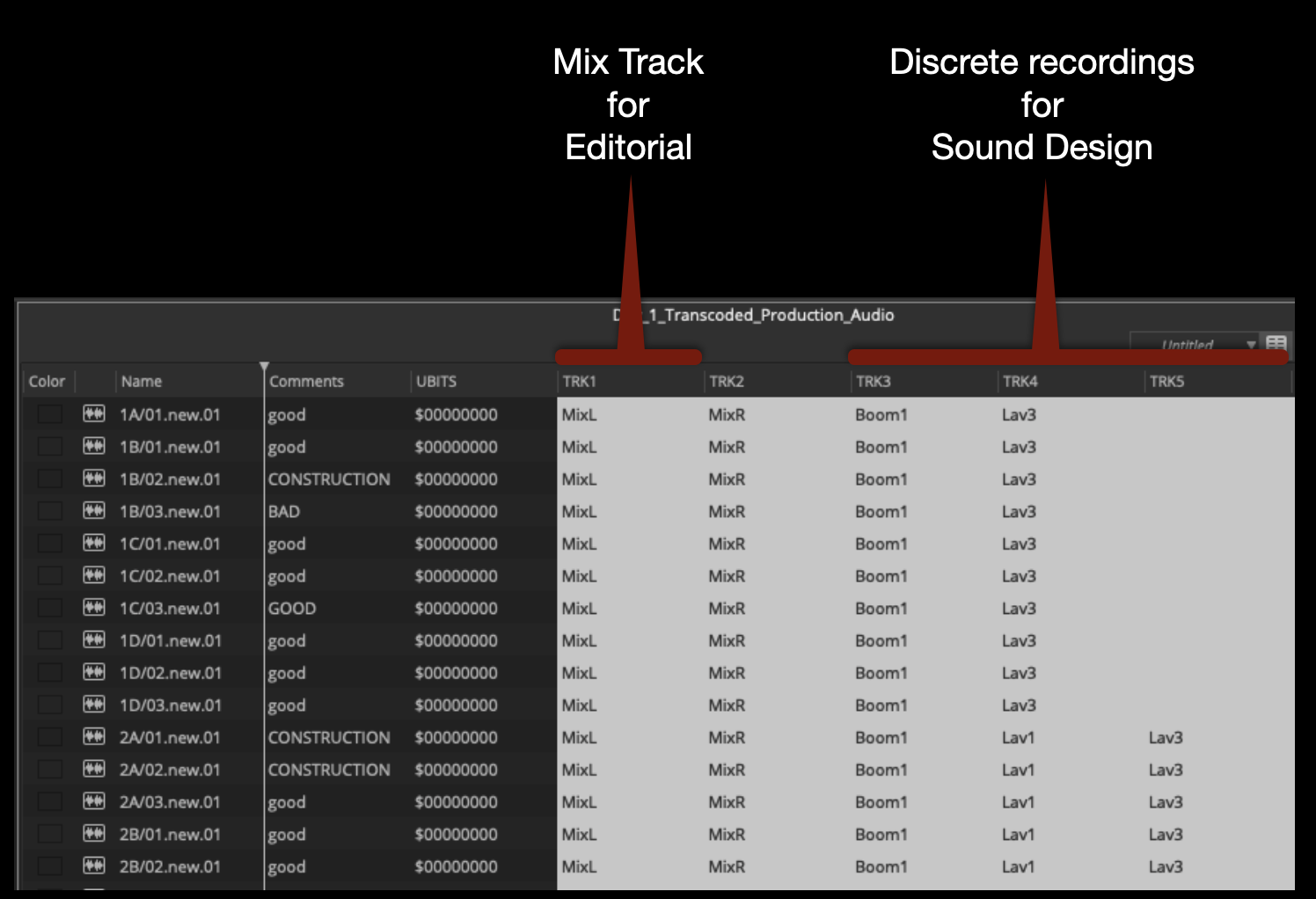
Also, you will see in the TRK columns that Track 1 and 2 are Mix tracks. These Mix tracks are a combination or “mix” of all of the booms and radio mics that were used during production. Later in the process you will make subclips with only Track 1 or “MixL” attached, for use during picture editing. Tracks 3 through 8 are discrete recordings that can be used individually when you get to sound design.
Synchronize Audio and Video
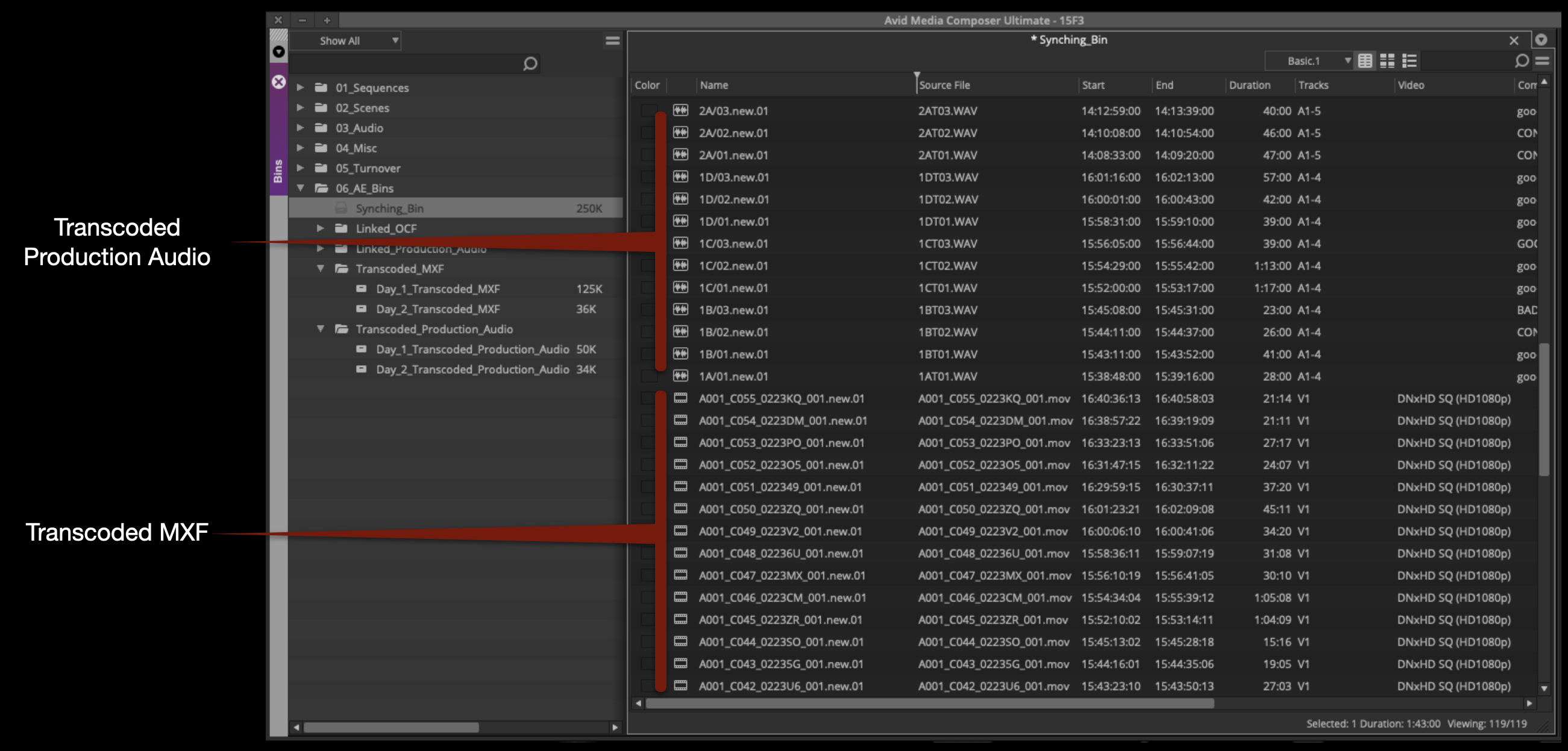
To synchronize master audio clips and master video clips, they need to be placed in the same bin. Move the day’s worth of audio and video together into the Synching Bin.
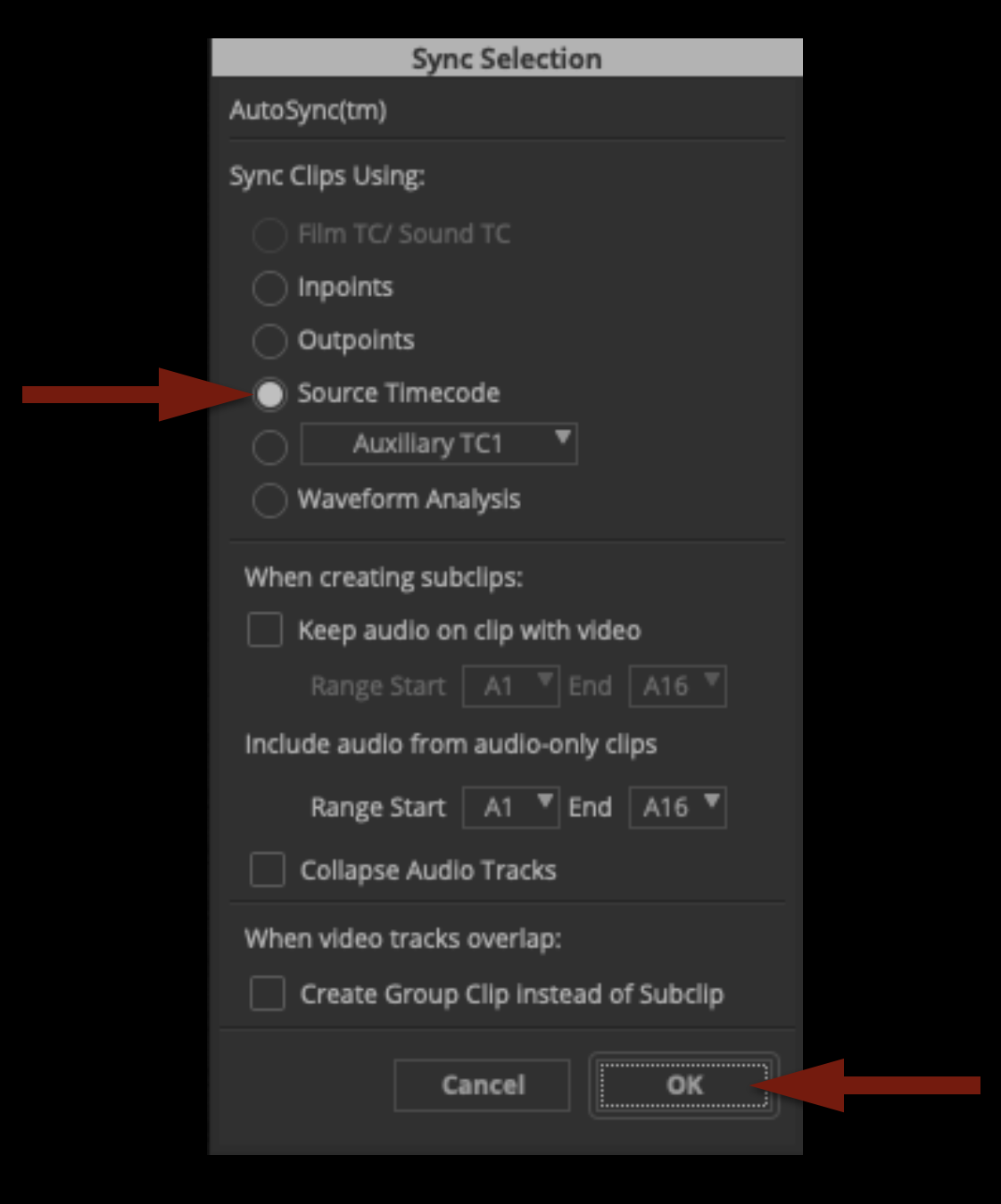
Select all the audio and video clips in the Syncing Bin. Right-click and select “AutoSync” from the contextual menu. The Sync Selection window will open. Make sure “Source Timecode” is selected and click “OK”.
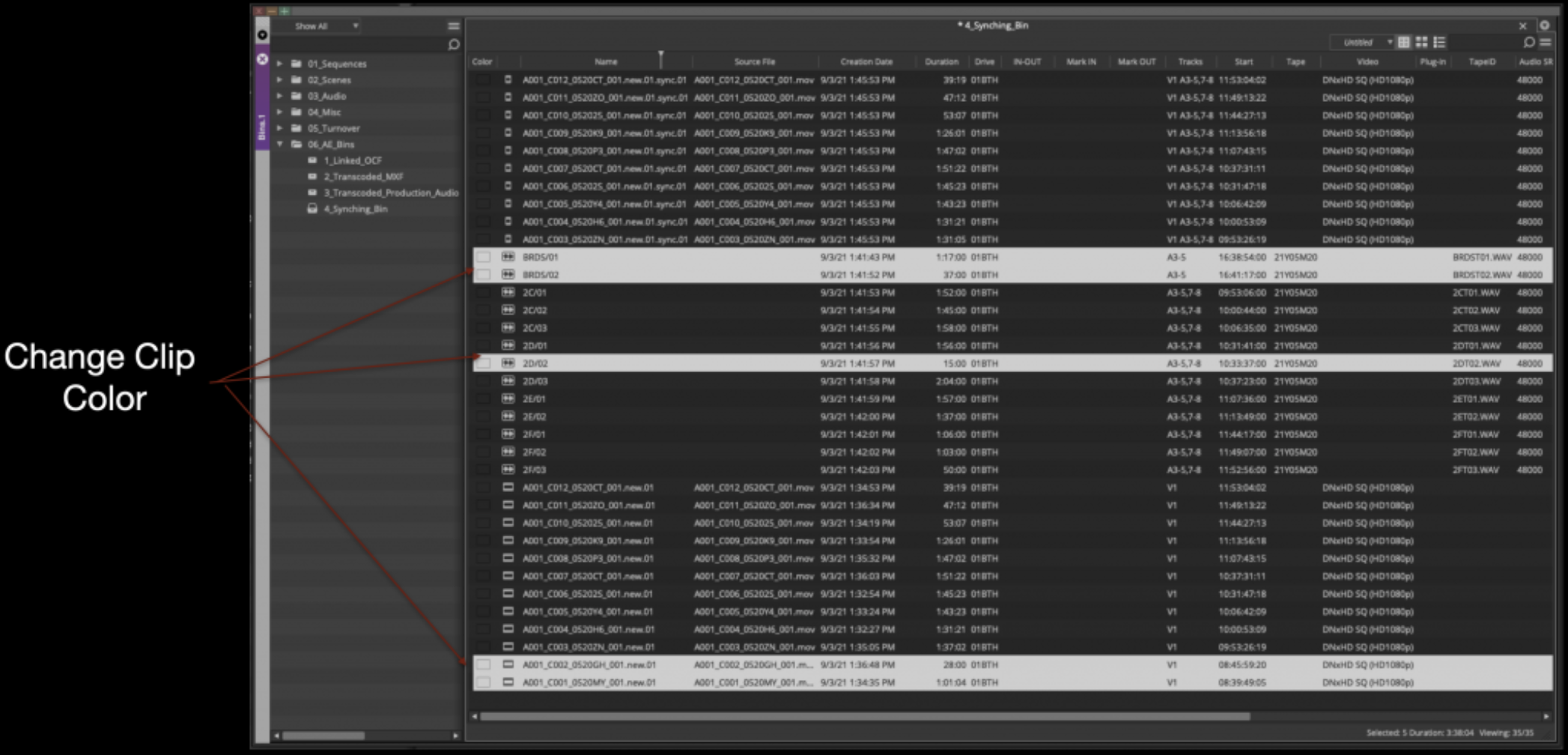
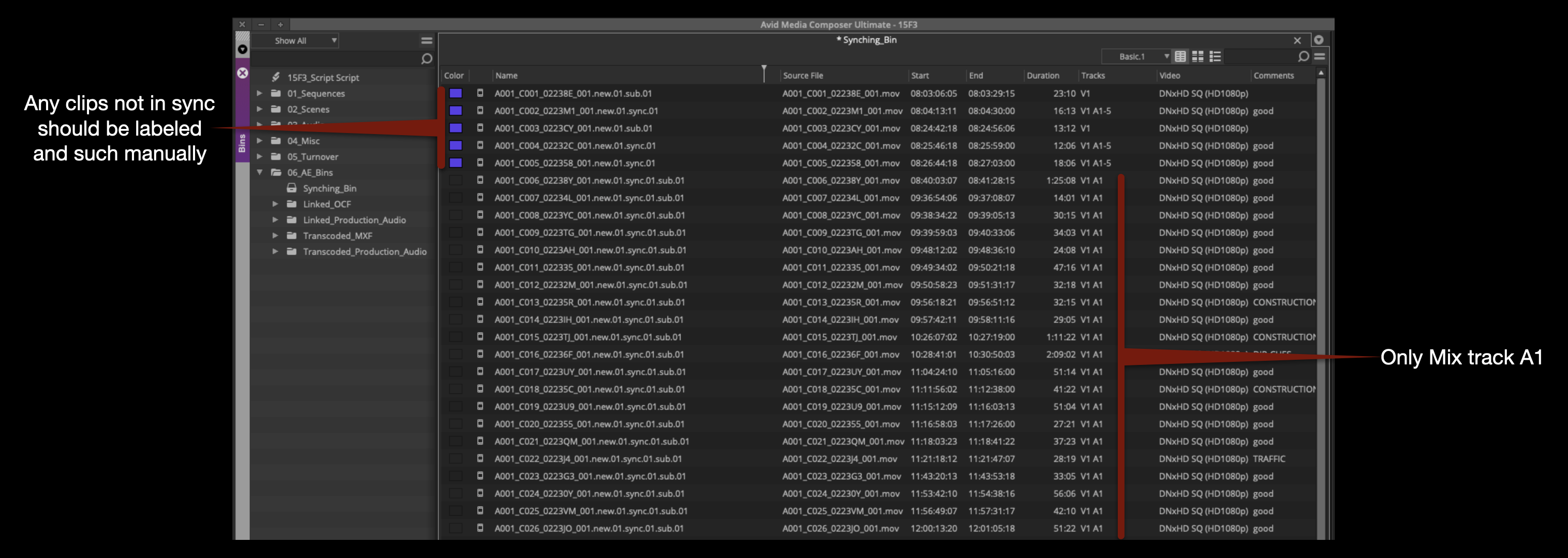
This makes a subclip out of every audio and video clip that has matching timecode. Anything that did not sync (because it couldn’t find a pair with matching timecode) will be left highlighted. Change the clip color of these to make it easier to keep track of them.
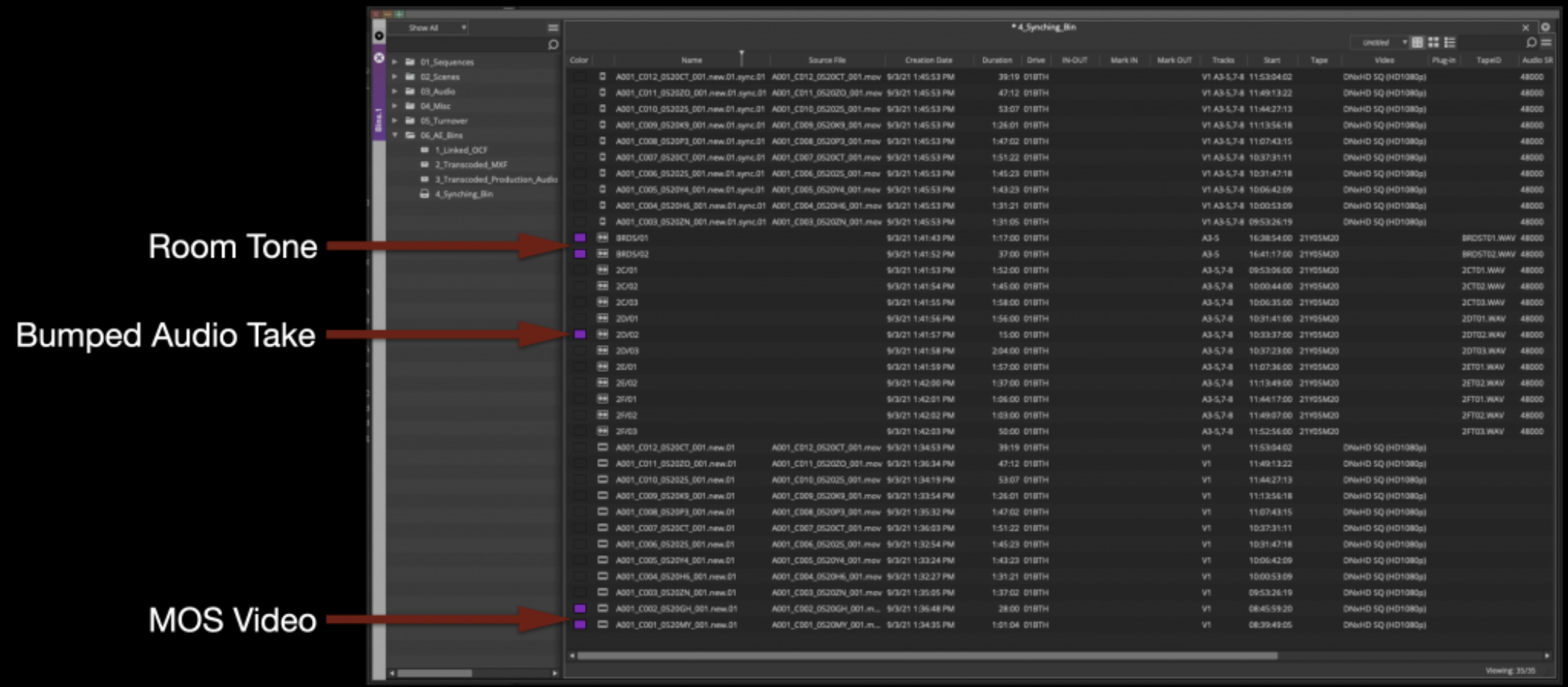
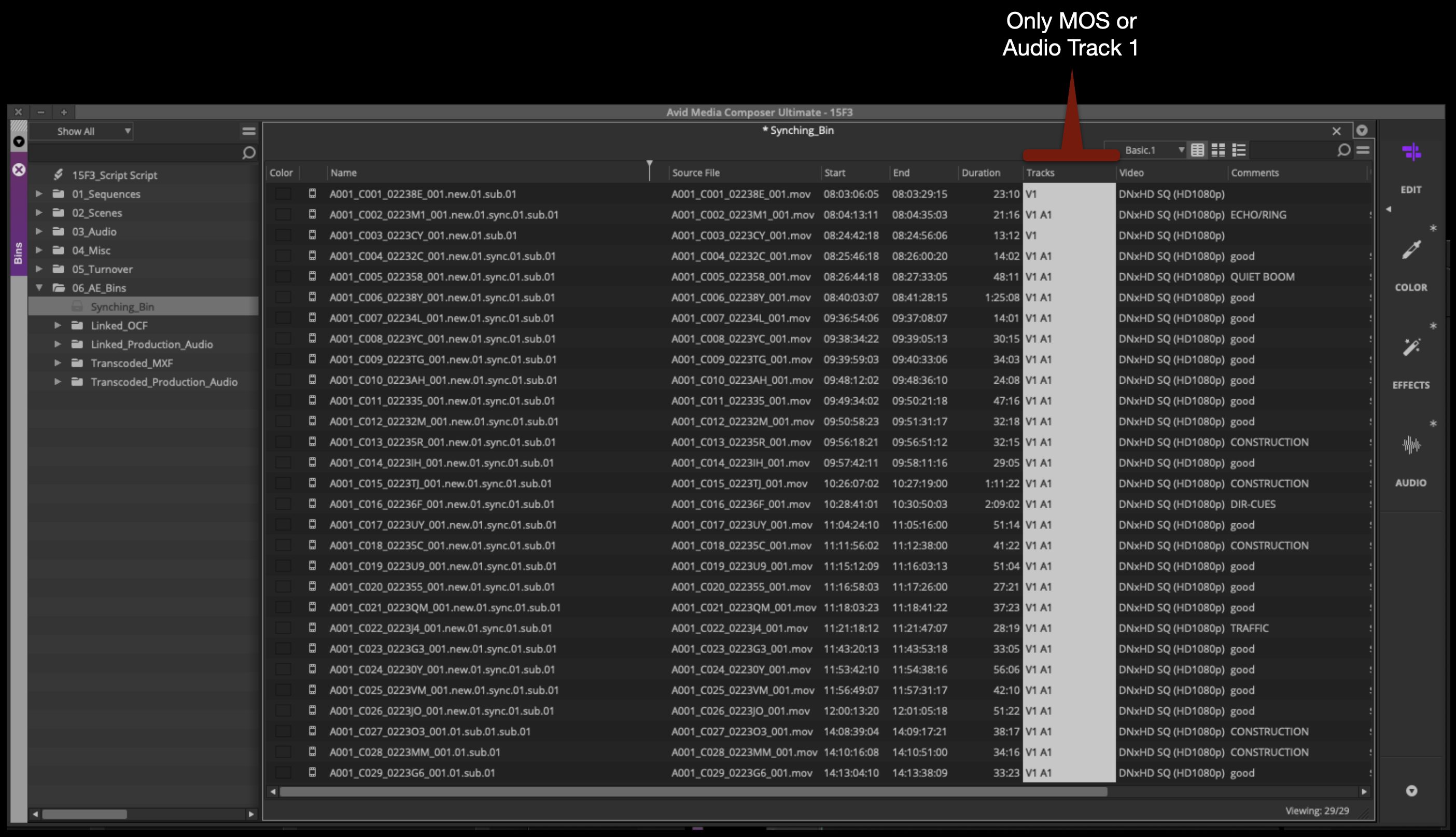
Below are some common examples of thing that won’t sync. Two audio master clips didn’t sync to anything because they are Room Tone. One audio master clip didn’t sync to anything because it was a bump take. Two video master clips didn’t sync to anything because they are MOS.
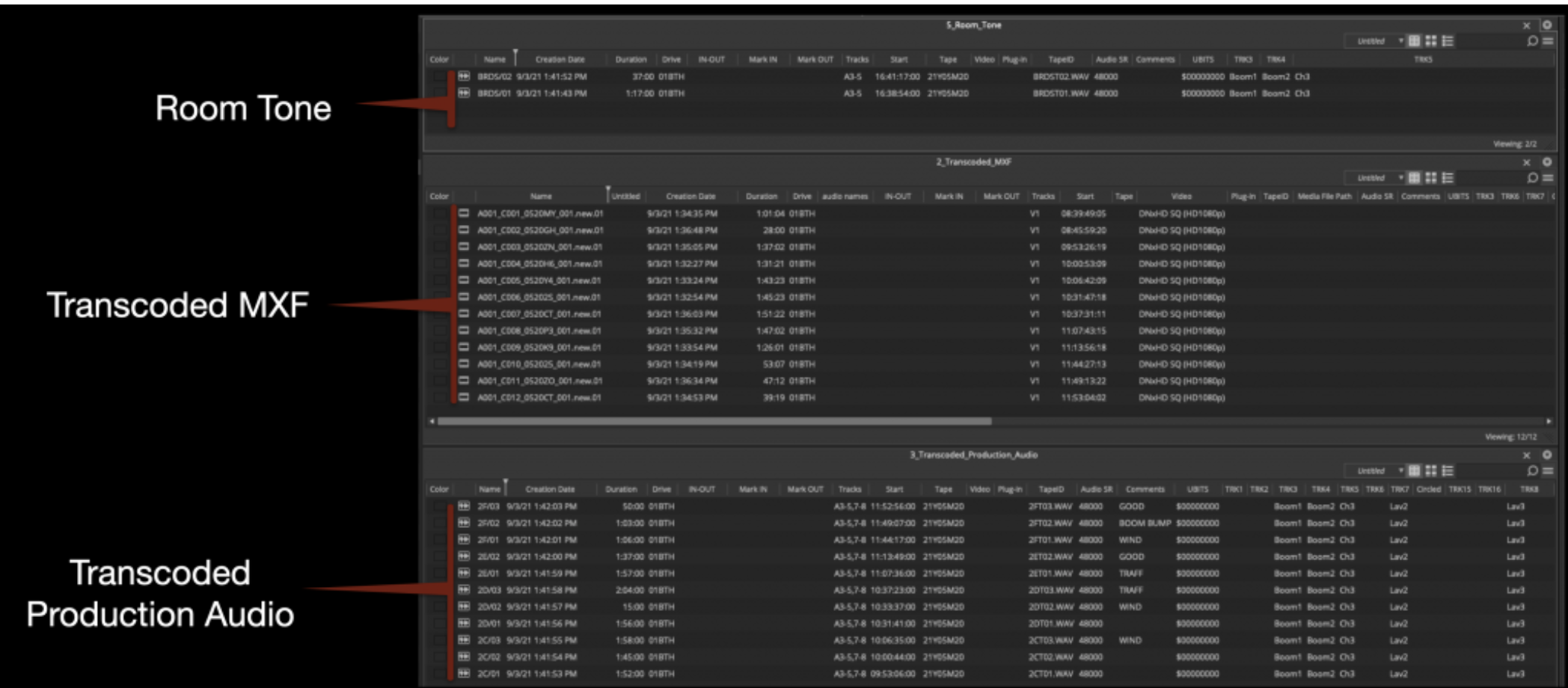
Move the master clips out of the Synching Bin and into their proper bins:
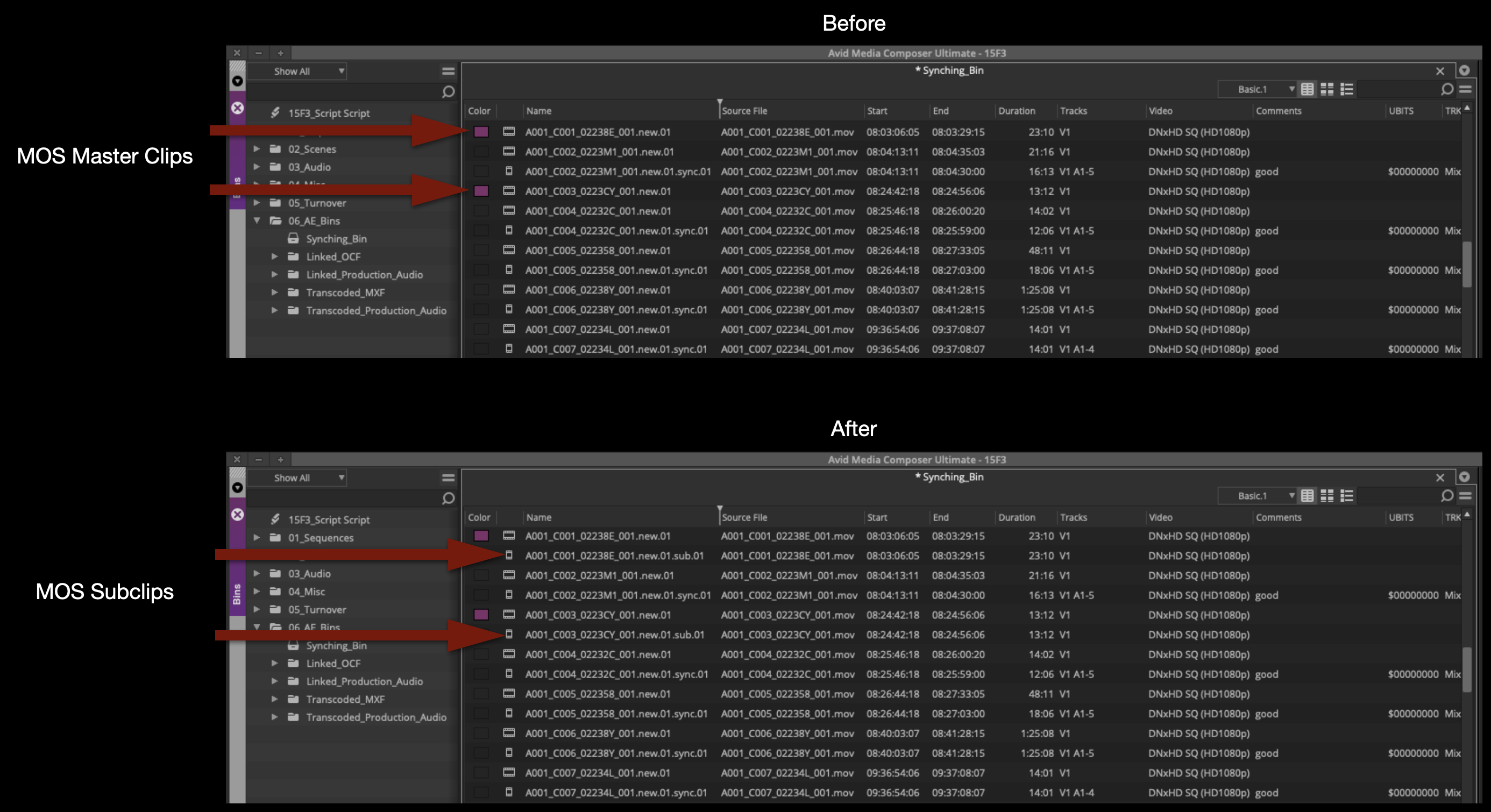
This will leave only the synched subclips in the Synching Bin. If you did have any MOS master clips, you will need to make subclips of them. The easiest way to make a subclip is to use the keyboard shortcut “Shift + C”. If this keyboard shortcut is not mapped in your suite, ask the Post Hall staff and they can show you how to map it.
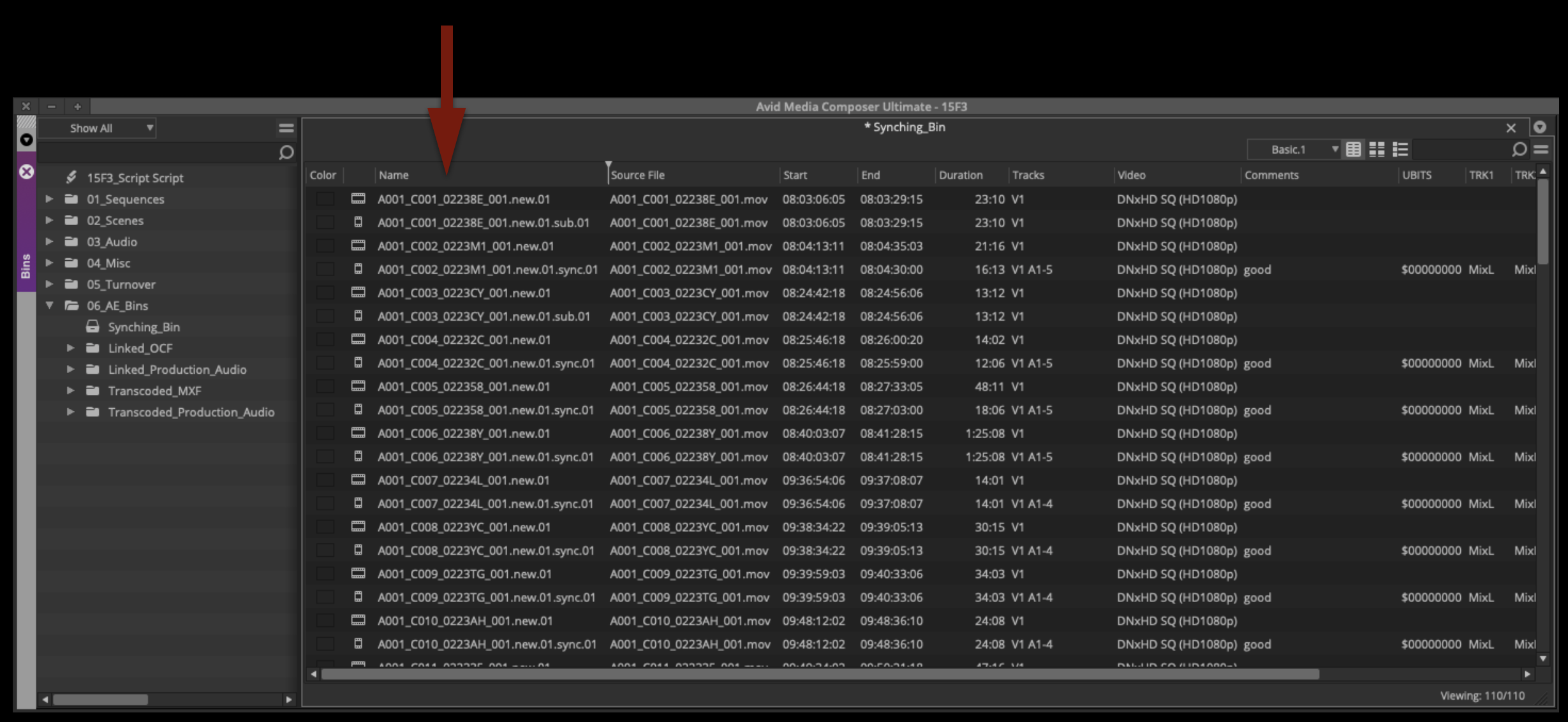
Double-click on the Name column to sort the contents of the Synching Bin alphanumerically. You should see a subclip for every master clip.
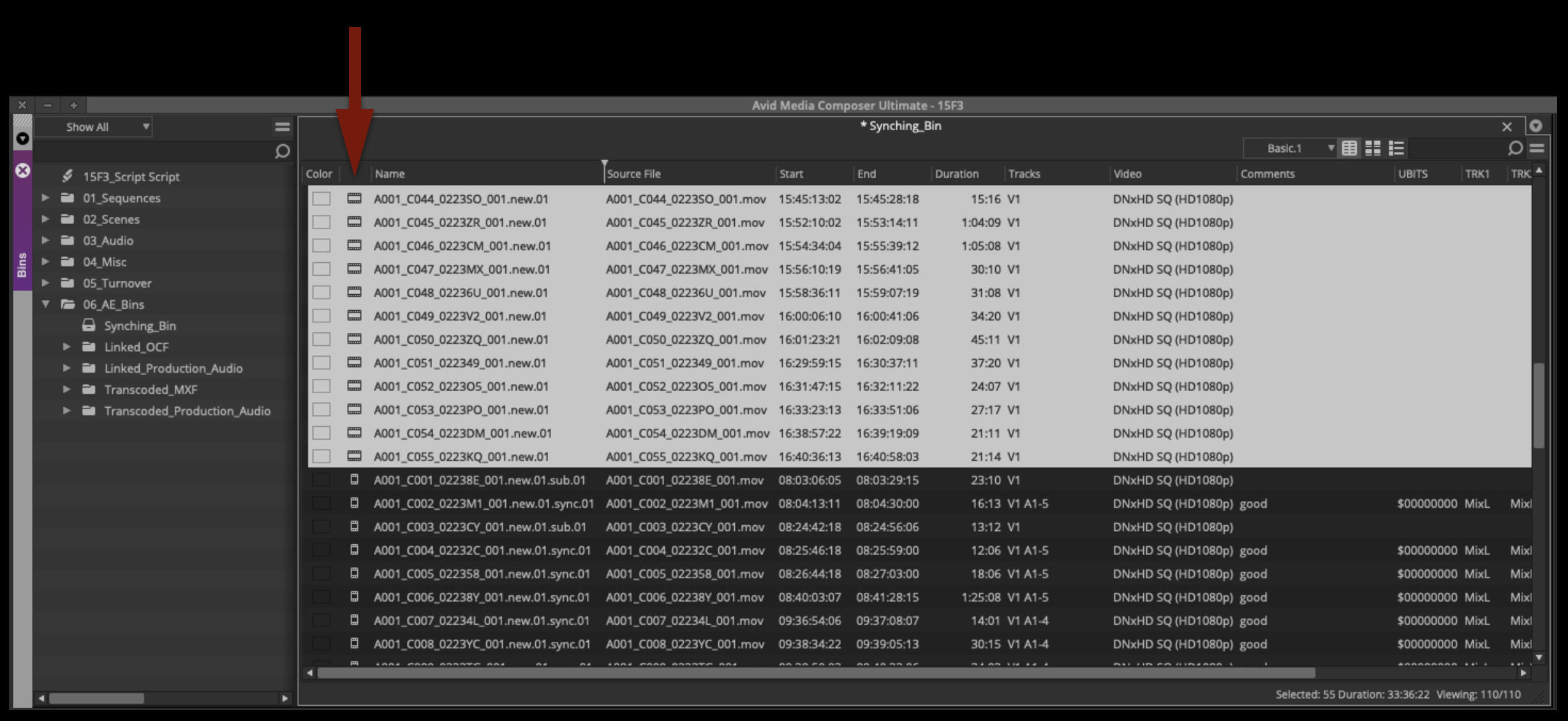
Double-click on the Type column to sort the contents of the Synching Bin by type. This will let you easily select all of the master clips and move them back to the Transcoded MXF Day Folder.
At this point you should have one subclip for every take in the synching bin.
Make Mix-Only Subclips
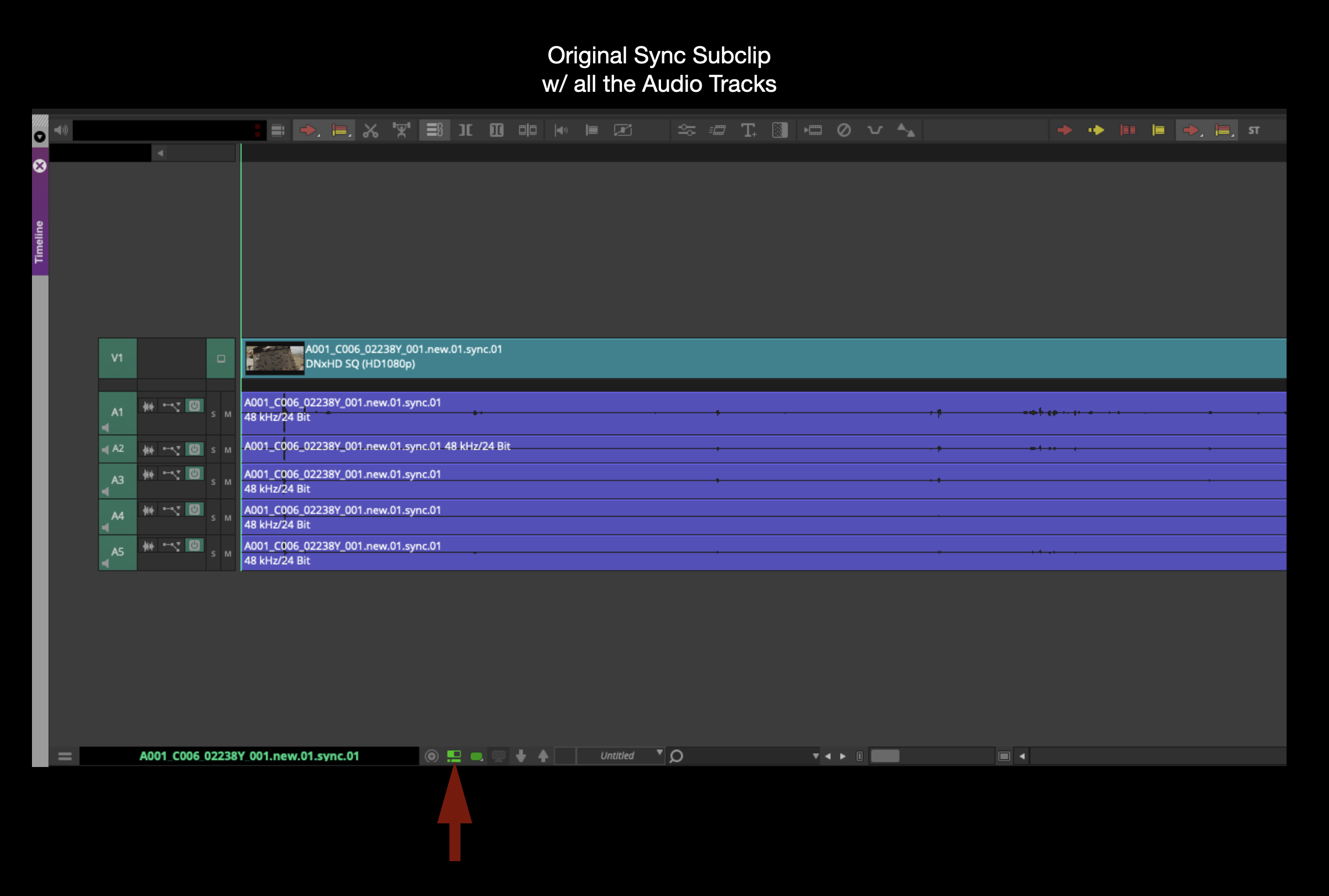
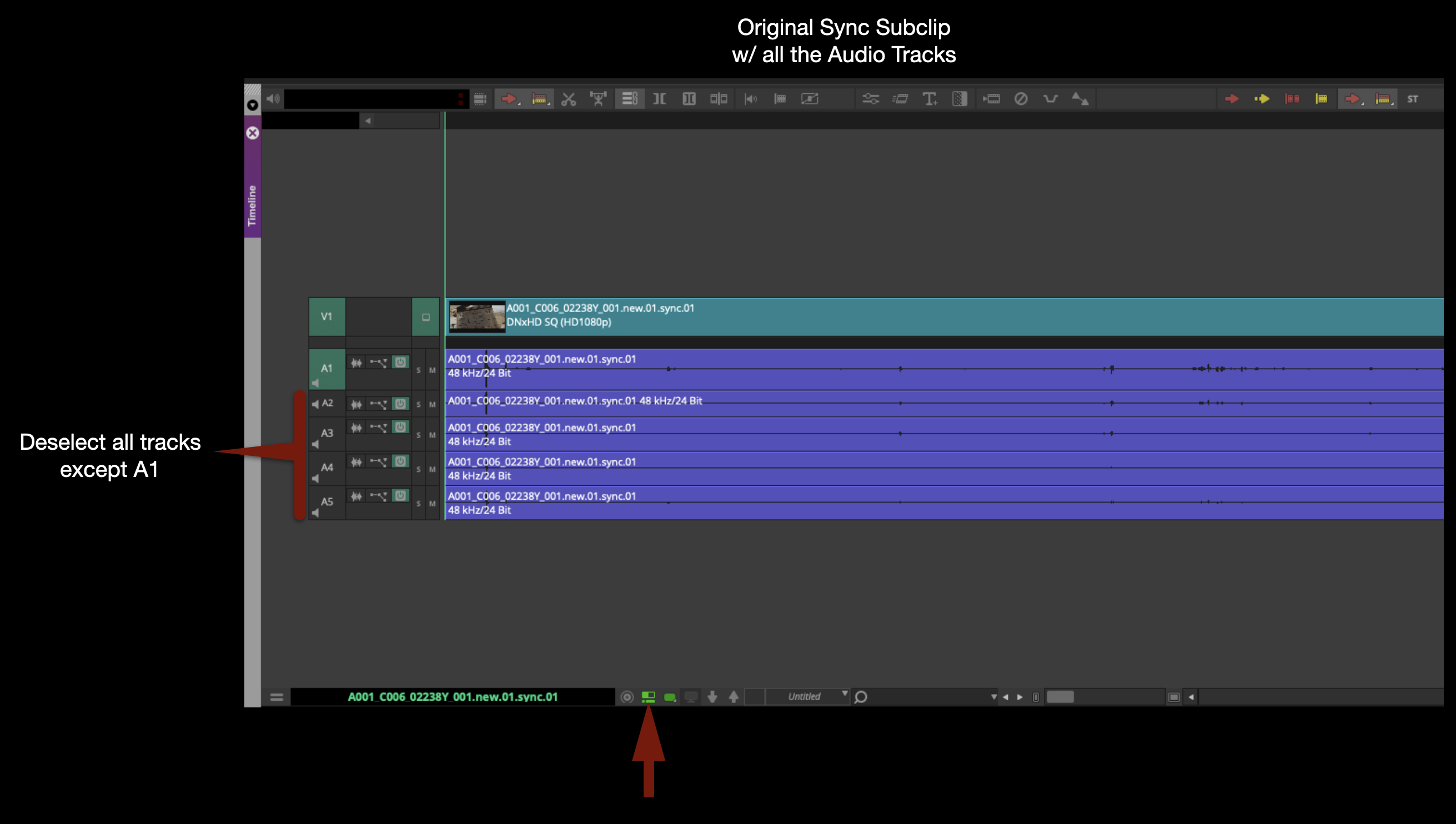
Now is the time to check the sync of each clip by listening to the clapper. But as you do, you will also need to make a new subclip of each current subclip. The reason is that the subclips currently in the Synching Bin have all the audio tracks attached to them and this is not a good way to edit. It will be much easier if the clips are prepped to include only the Mix track.
Starting from the top in the Synching Bin, double-click on each clip to open it in the Source window. Select “Toggle Timeline Source/Record” to see the audio waveforms of each track in the Timeline window.
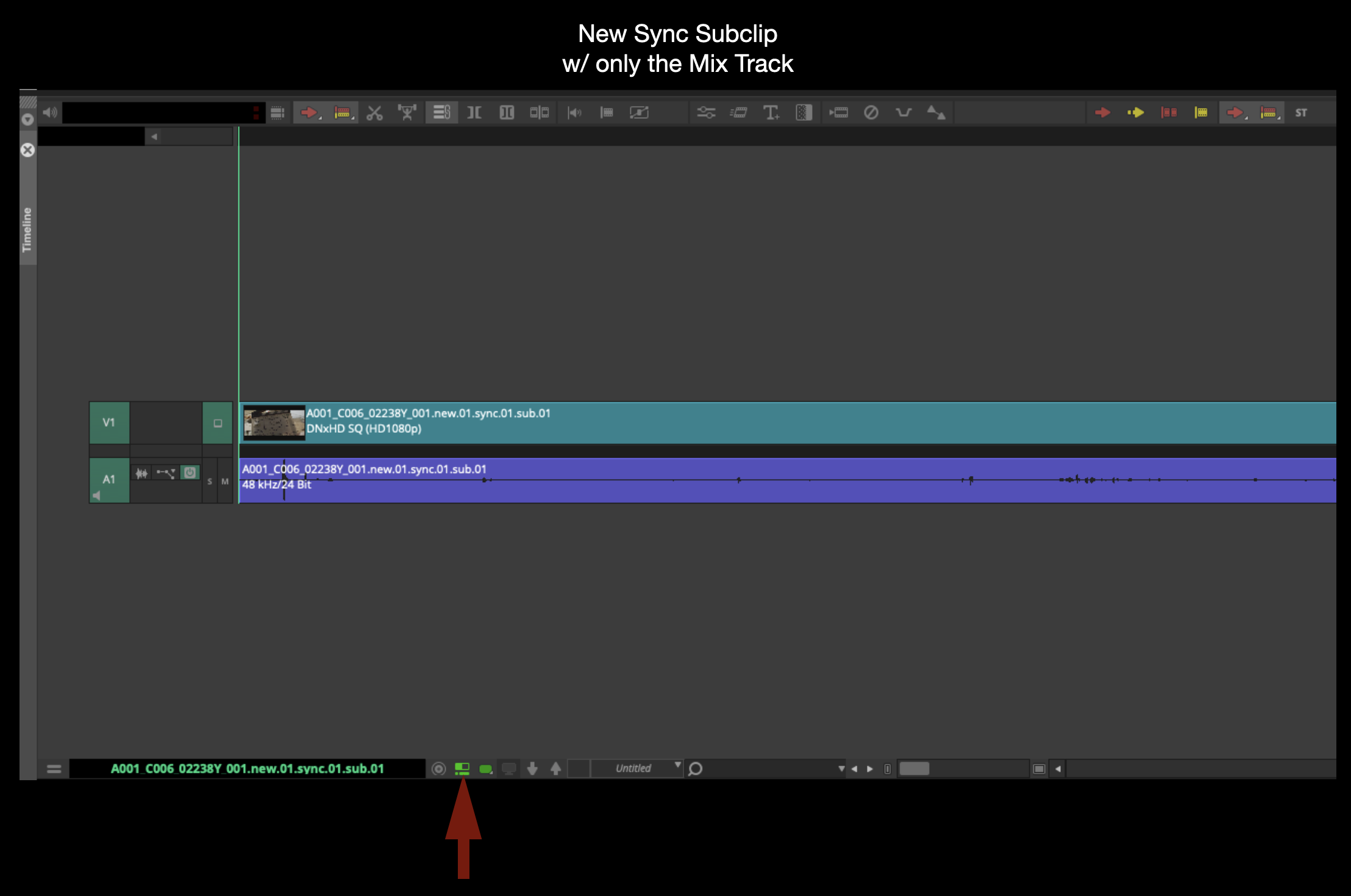
Hold down the “Shift” key and click-and-drag to deselect all the audio tracks except A1. Remember A1 is the Mix track. With only V1 and A1 selected, make a new subclip by hitting “Shift + C”. If this keyboard shortcut doesn’t work on your suite, ask the post staff to show you how to map it.
Check the new subclip by opening it in the Source Monitor. It should only have one Video track and one Audio track.
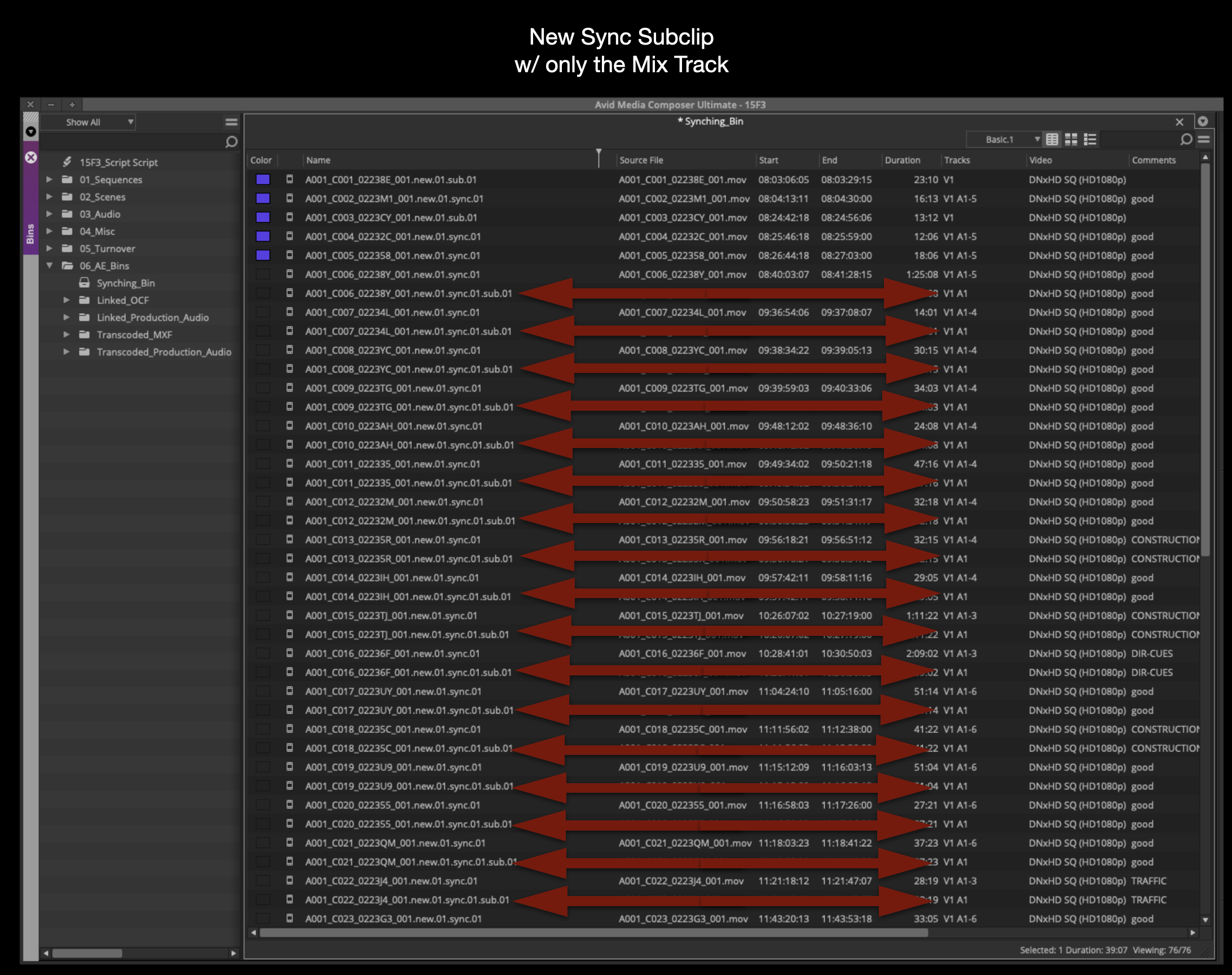
Do this for every subclip, checking for correct sync on the clapper as you go. If you find a clip that is out-of-sync, highlight it in a different color so you will remember when you come back to it.
When you finish doing this for every clip, you should have a new subclip for each clip with only one audio track.
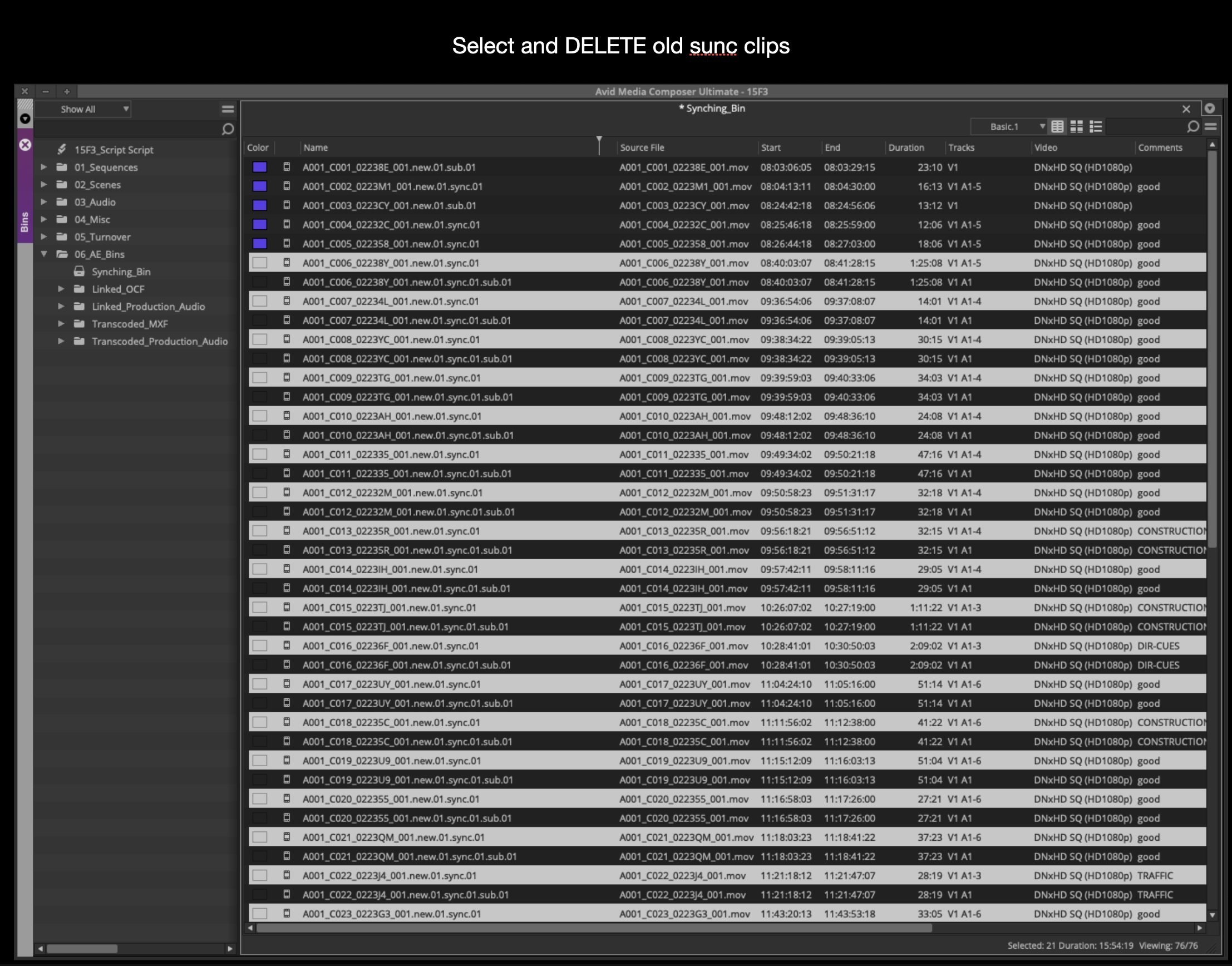
Select all the old subclips and delete them:
This should leave the Synching Bin with subclips that are either MOS or only have Audio Track A1 attached.
If you have any clips that are out-of-sync, they will need to be synched manually. Contact the post staff and they can show you how to do this.
Rename Subclips
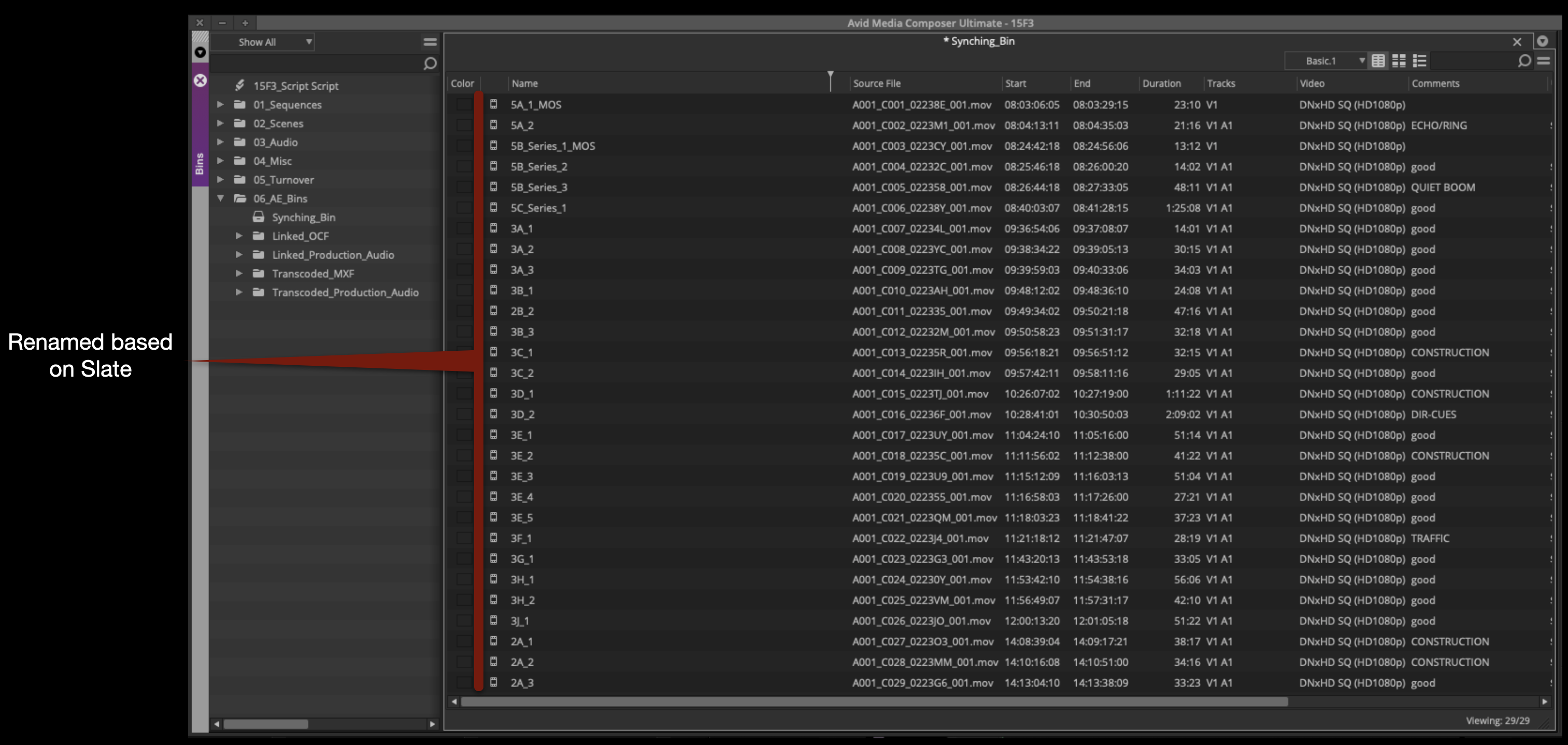
Go through each subclip and rename it based on what the slate is labeled:
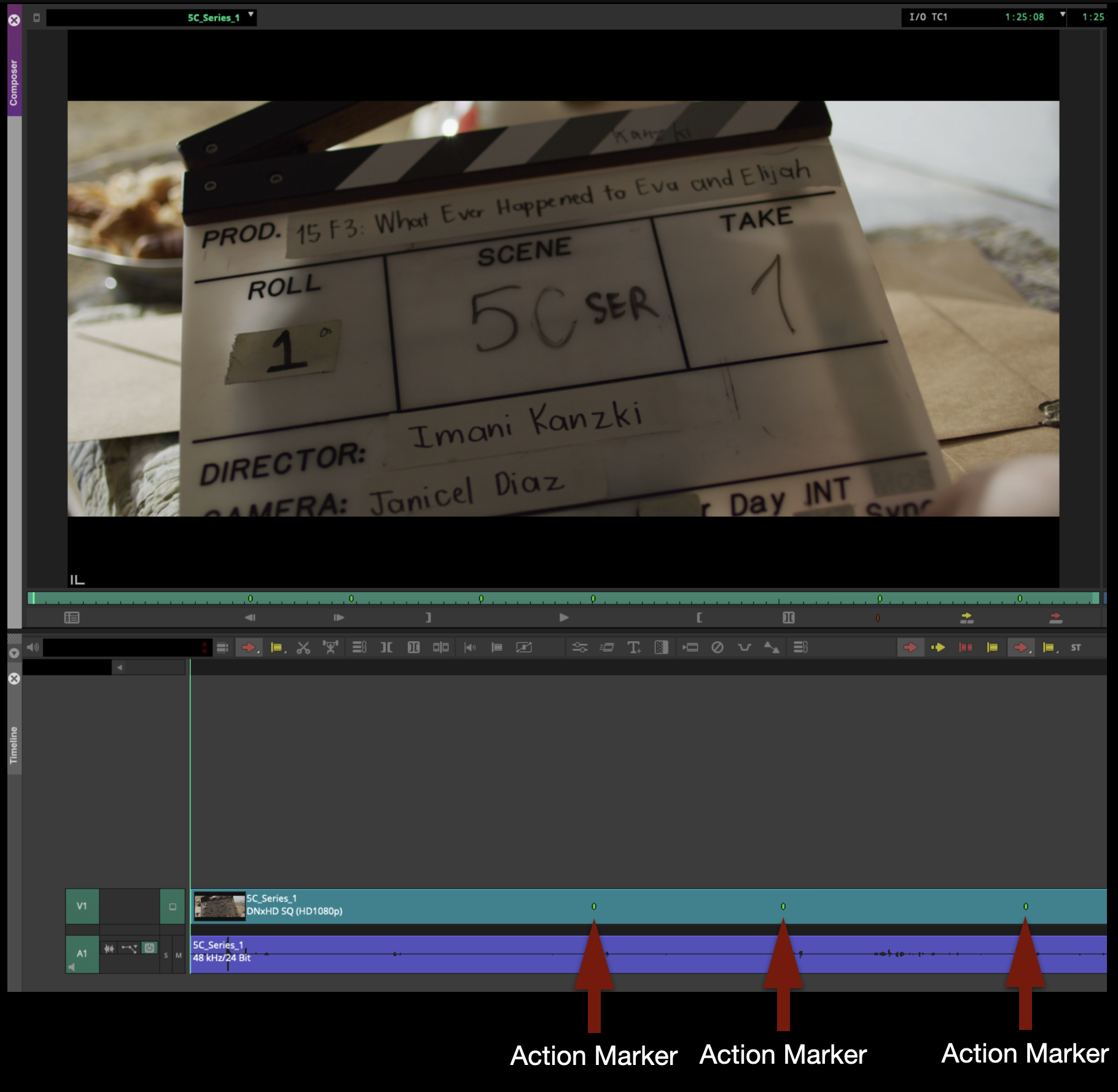
Set Green Action Markers
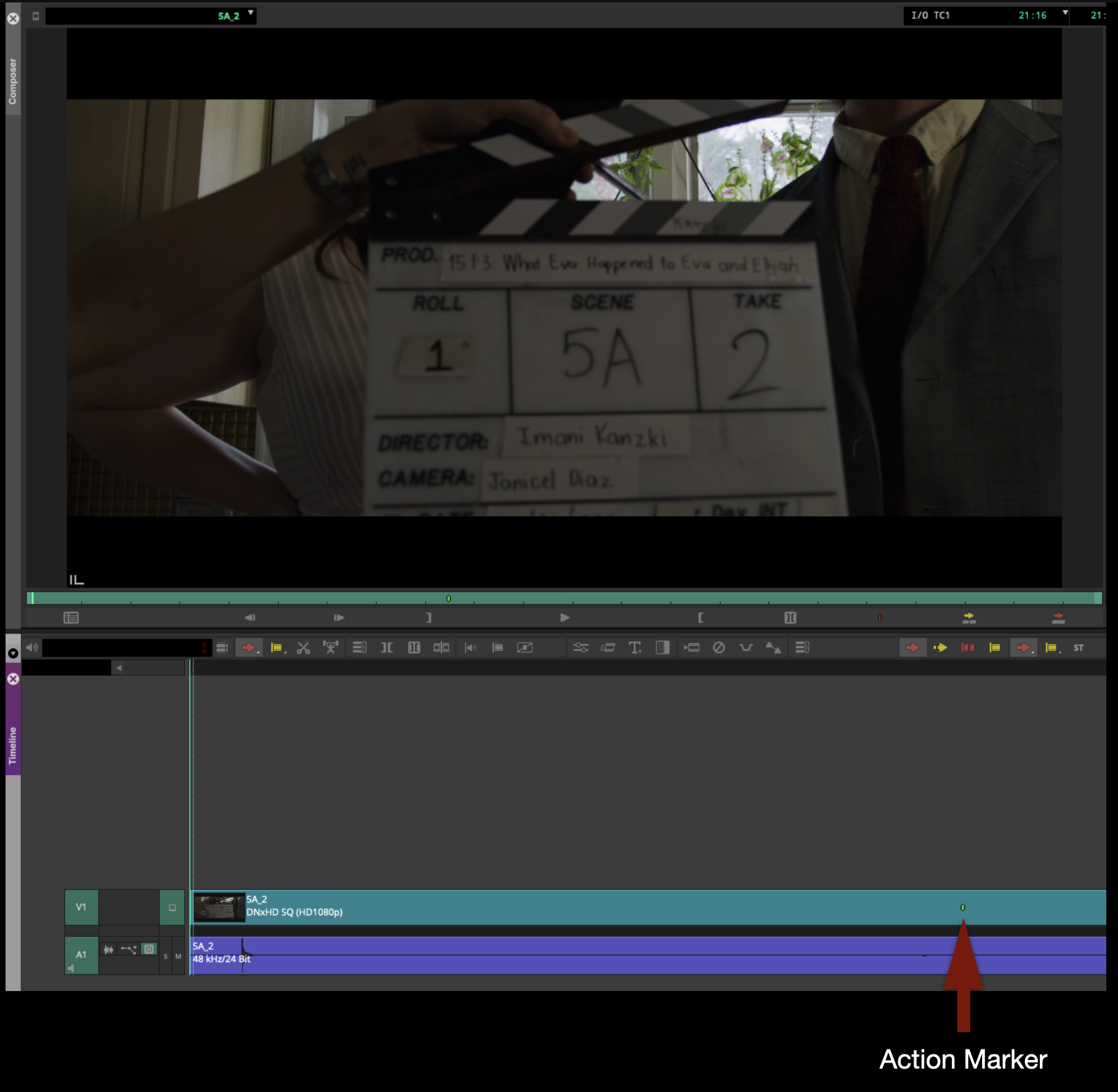
Once everything is renamed, mark the beginning of action for every clip. To do this, listen for when the Director calls “Action” on every clip and immediately hit the “1” key to attach a green marker to that timecode. This will allow the Editor to jump to the beginning of the action for each clip by hitting the “A” and “S” keys to jump between markers.
Normally there will only be one green marker on each clip:
For series takes, multiple green markers may be needed for reset actions:
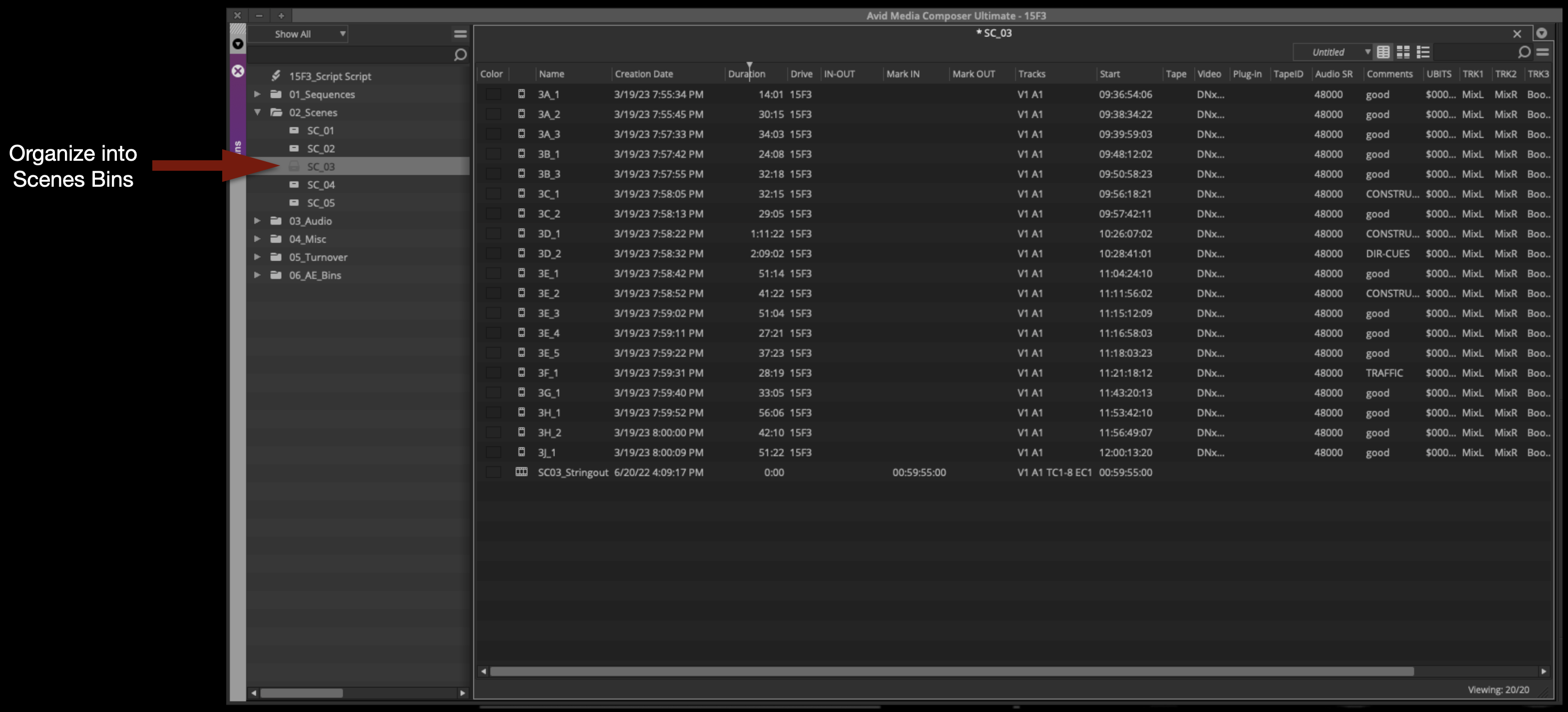
Organize Footage in Bins
Once all the green action markers have been set, you can move the subclips out of the Synching Bin and into the appropriate scene bins.
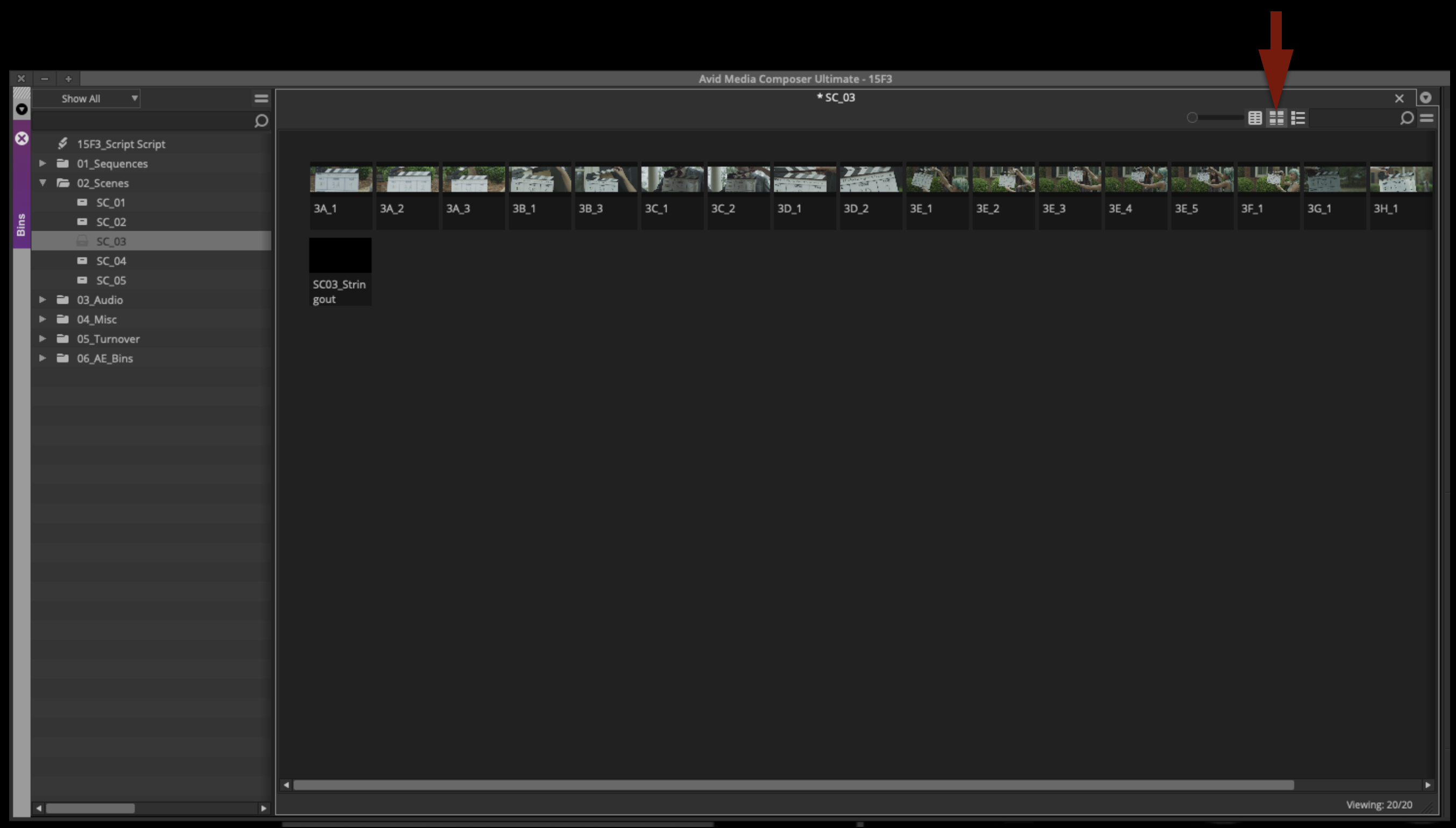
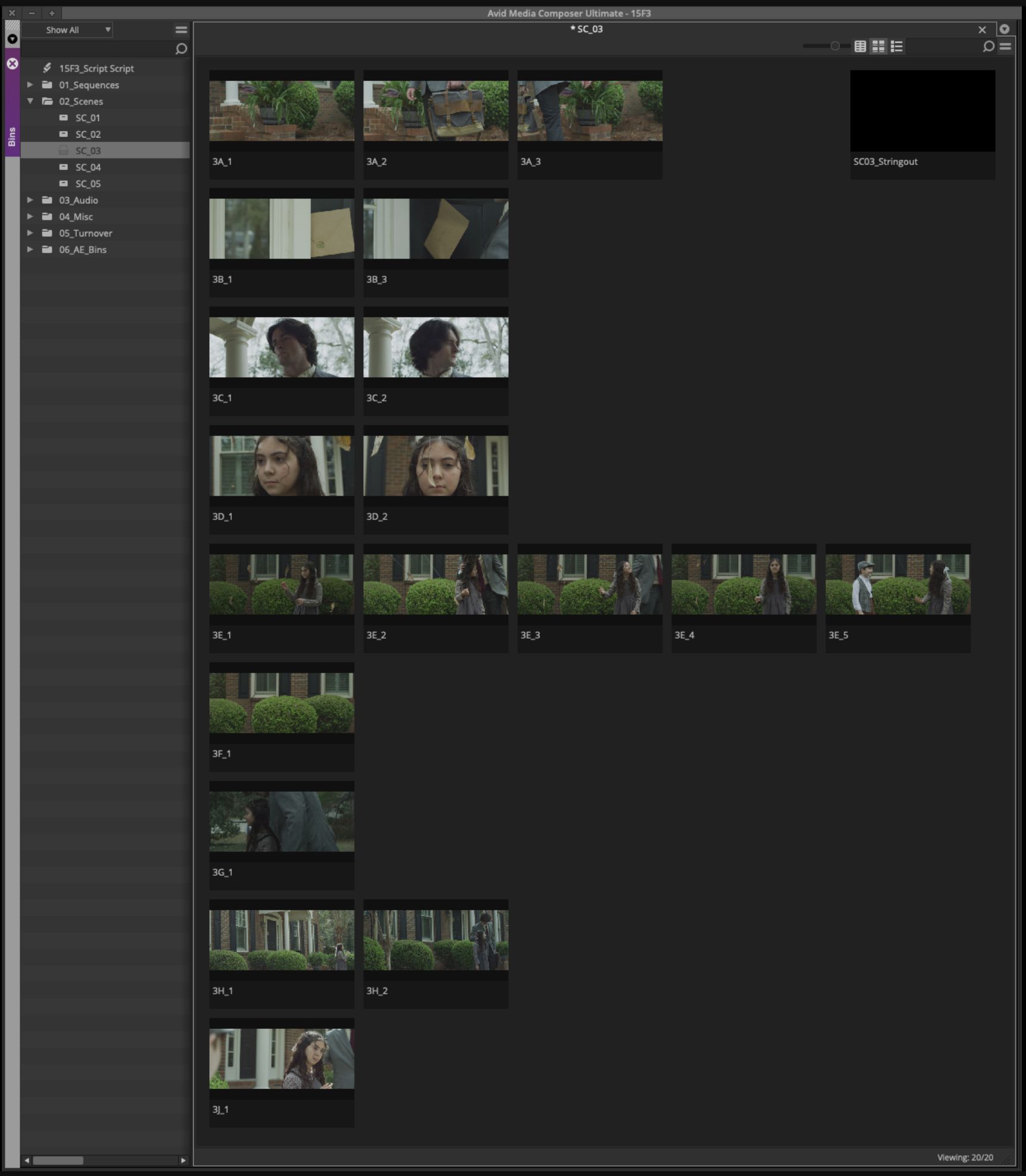
Switch the view in the scene bin to the thumbnail view:
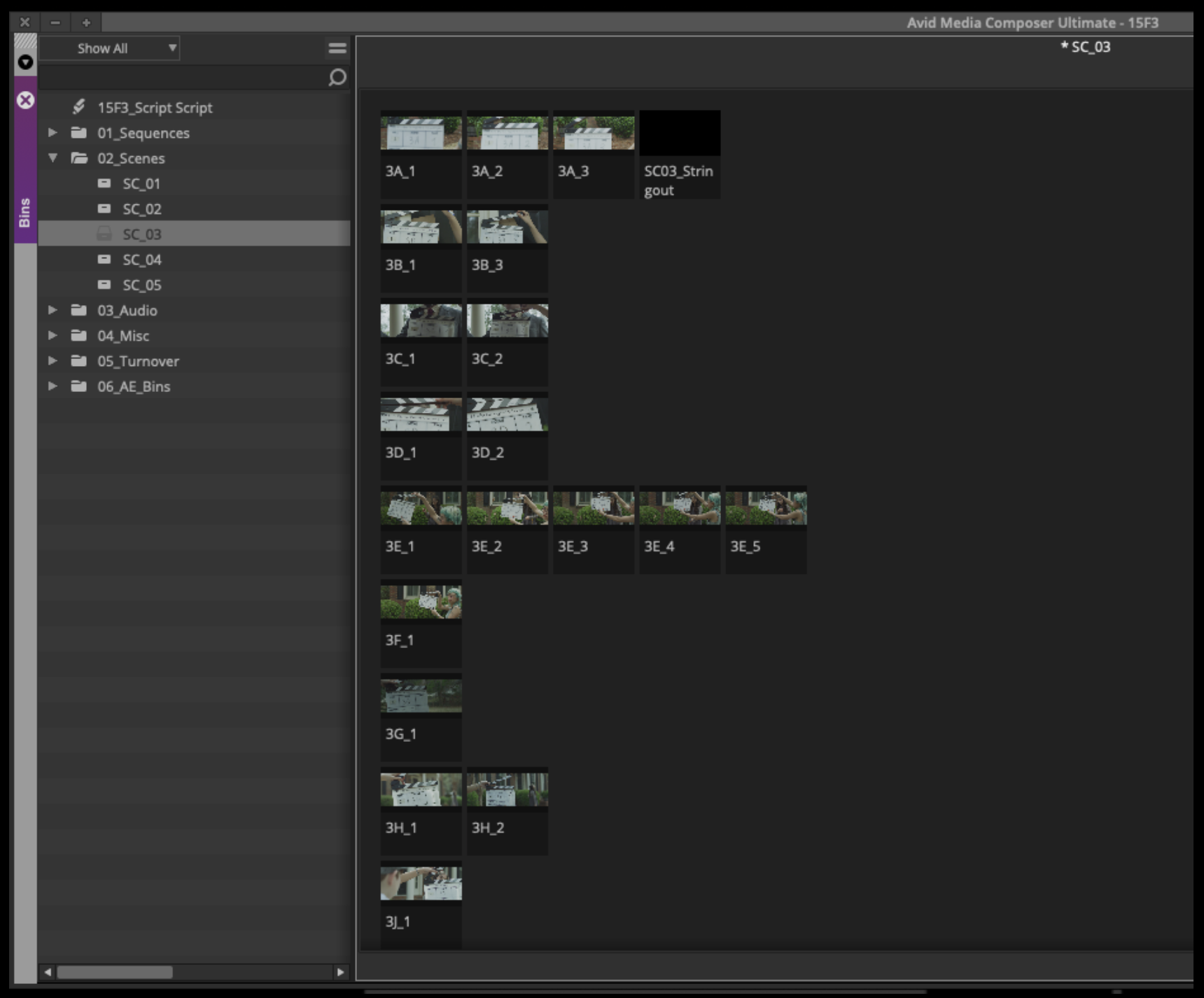
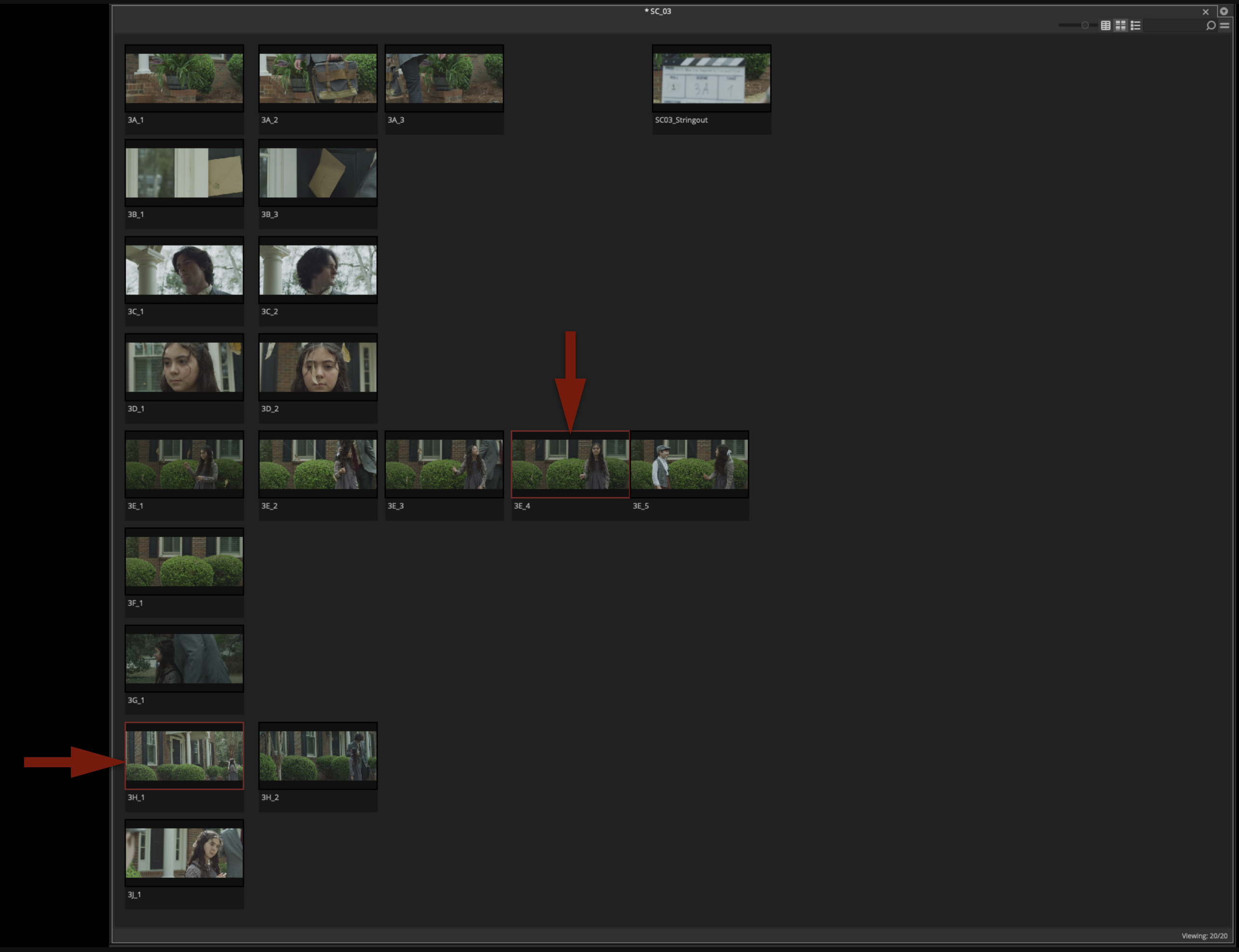
Drag the thumbnails around and organize each scene bin into rows of setups and columns of takes. Hit “Command + T” to snap the thumbnails to a grid to making organizing easier.
Next, change the thumbnail for each one. By default the thumbnail is the first frame of video, which is not helpful to an Editor as it usually only shows the slate. You can change the thumbnail by single-clicking on the clip and scrubbing with the JKL keys. Wherever you stop scrubbing, that thumbnail will be saved.
If a setup has only one take, set the thumbnail to what the majority of the shot represents. If a setup has multiple takes, set the early takes to the beginning of the action and the last takes to the end of the action. This way, the Editor can see at a glance what the motion of the camera or the changing of the blocking is, simply by looking across the different takes.
Transcribe Notes and Label “NG”
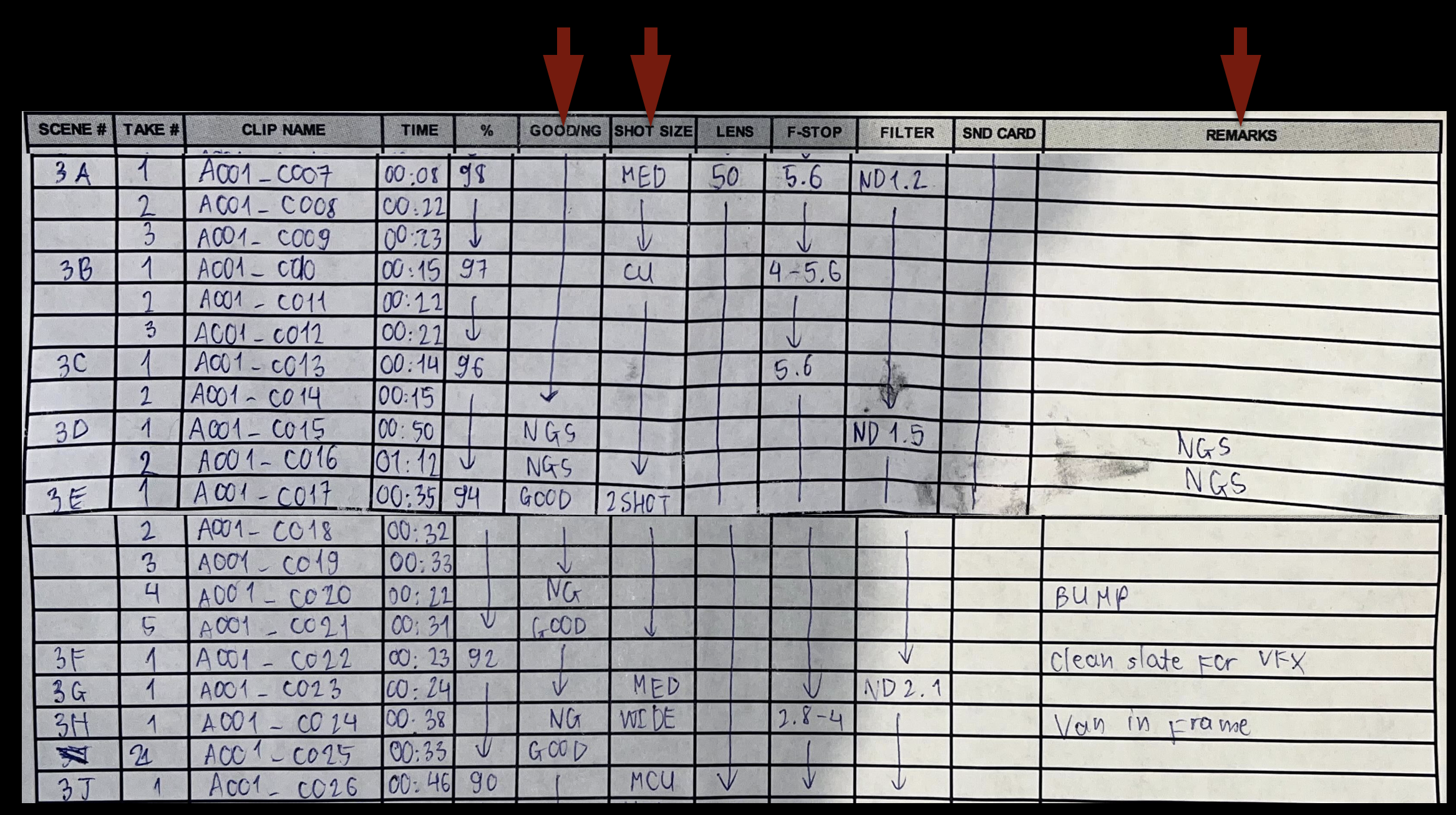
The Camera Report has notes for Good/NG, Shot Size, and Remarks:
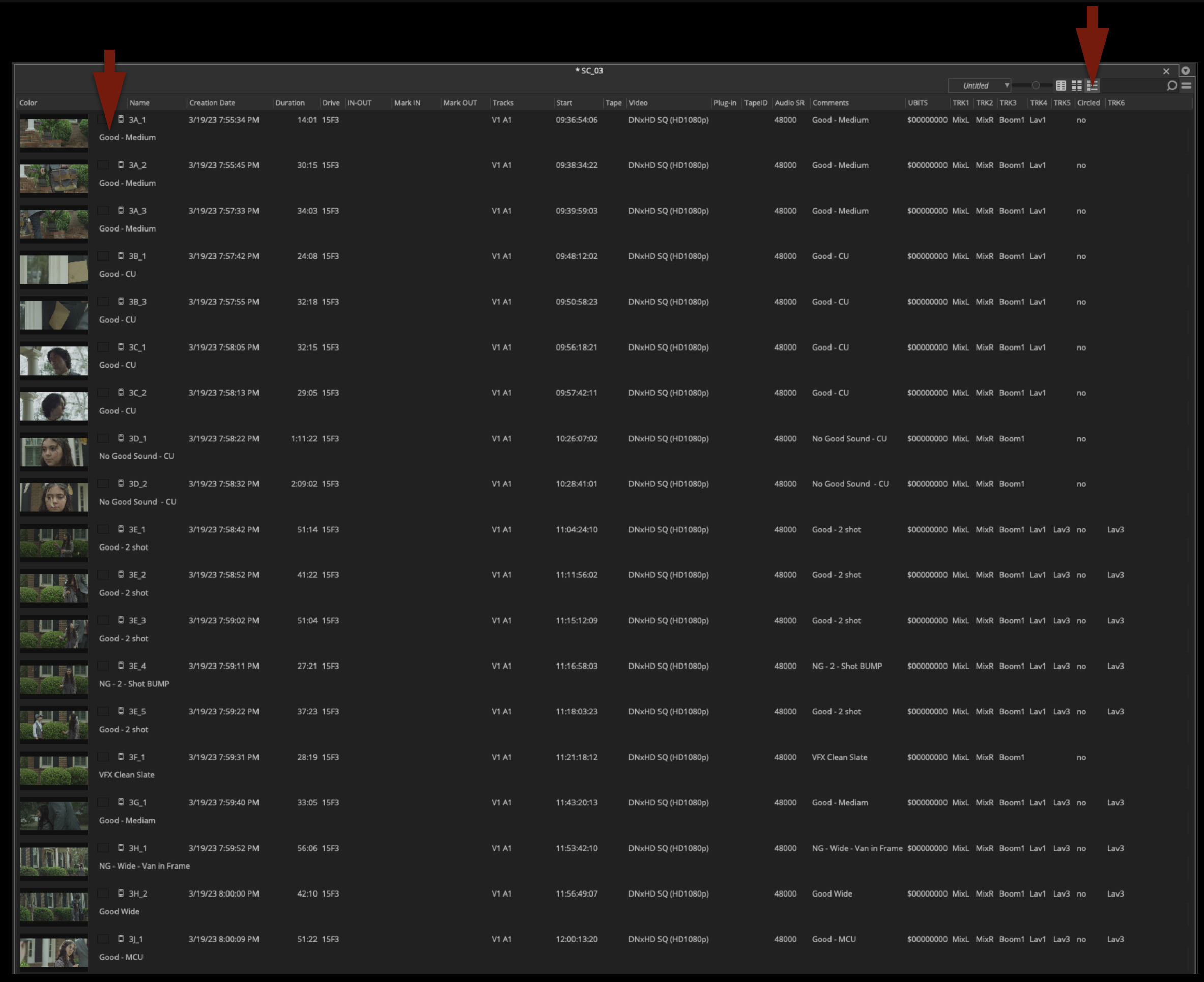
Select Script View, and transcribe all of these notes from the Camera Report onto the corresponding clips in the Comments section.
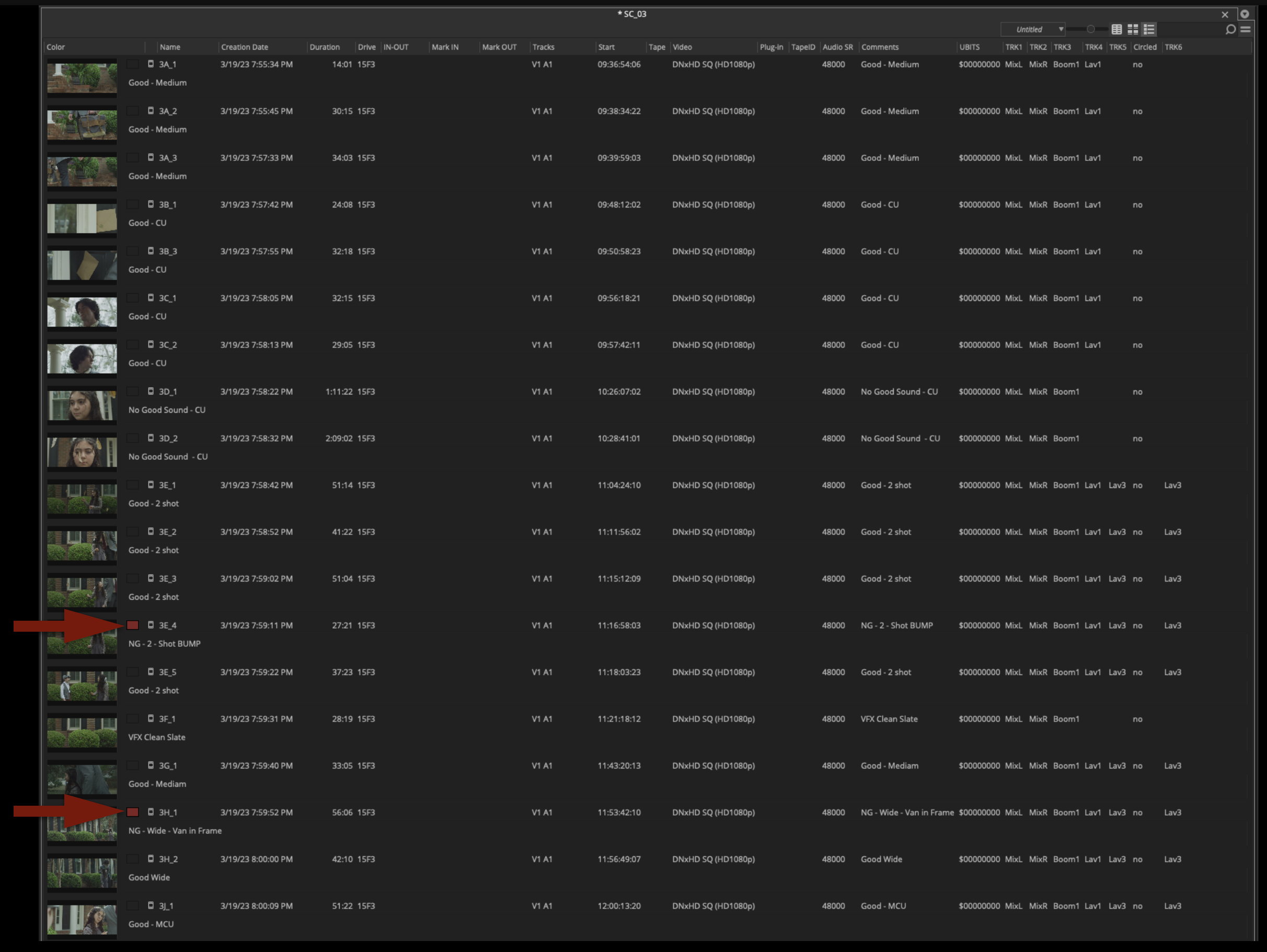
Any clips marked as “NG” or “No Good” should be labeled in red:
This color-coding should translate to the thumbnail view, so the Editor will easily be able to tell which takes are No Good.
Assemble Scene Stringouts
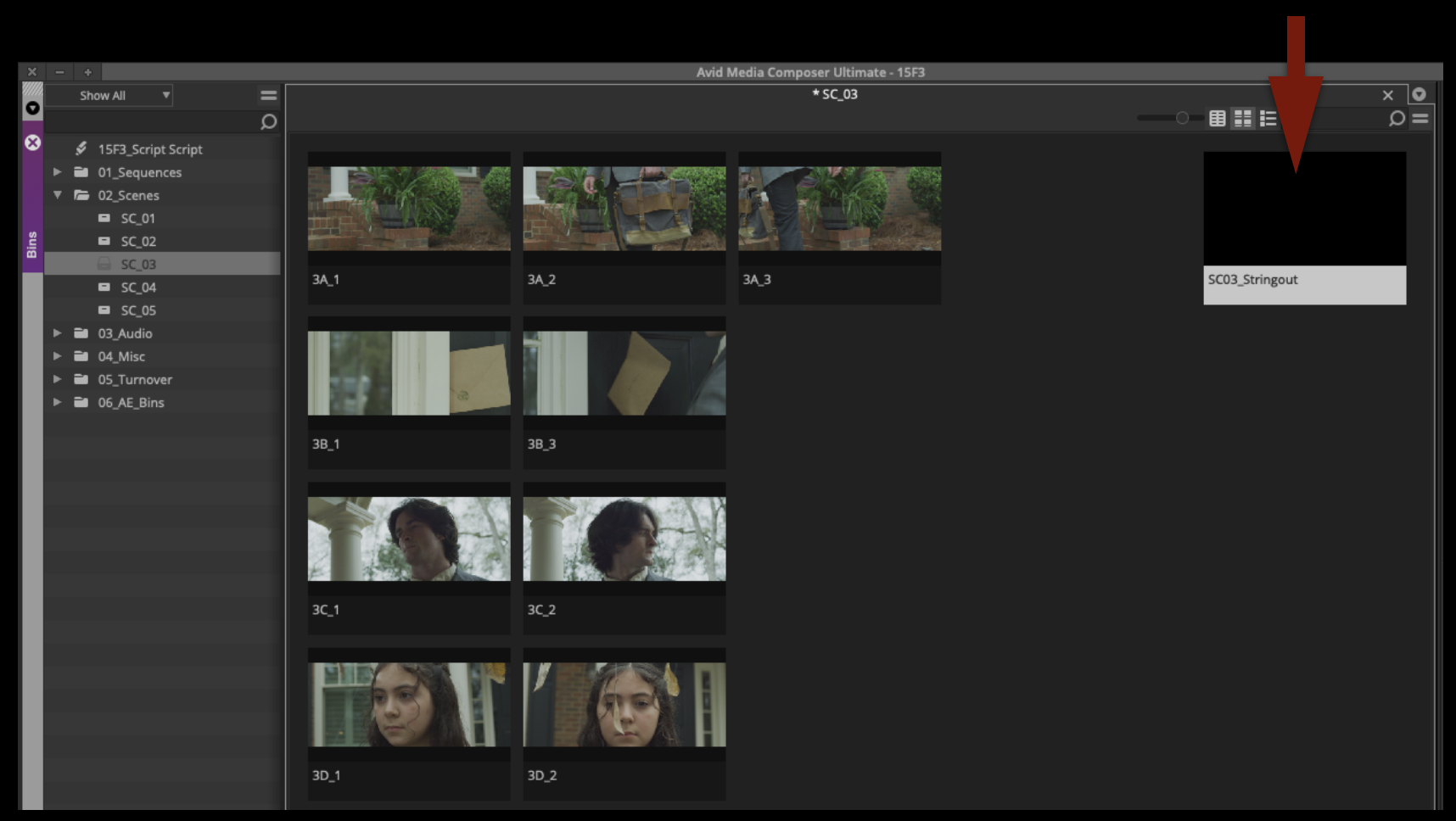
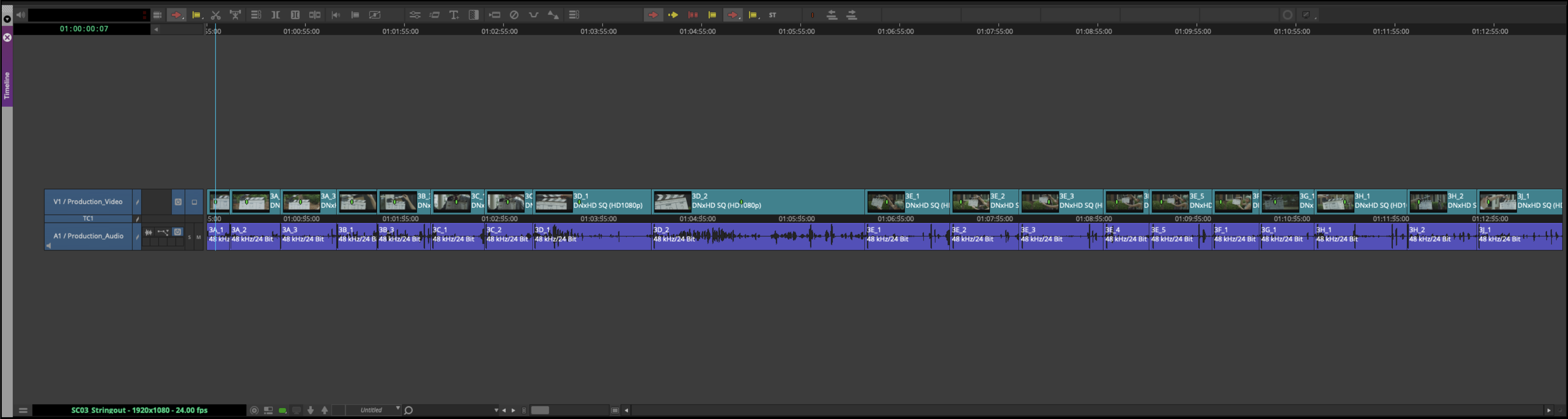
Inside every scene bin, there’s a sequence labeled as a “Scene Stringout” that’s already been made. A scene stringout is not the same thing as a dailies sequence. A dailies sequences is normally organized in shooting order by day, and exported out for the production to see the progress of the film as it is shot. Scene stringouts are organized by scene and are not exported. They are made by the Assistant Editor for the Editor to review all the options available while working on a particular scene.
To assemble the scene stringout, open the sequence and the cut all the shots into the sequence in shot order.
Assemble a Dailies Stringout
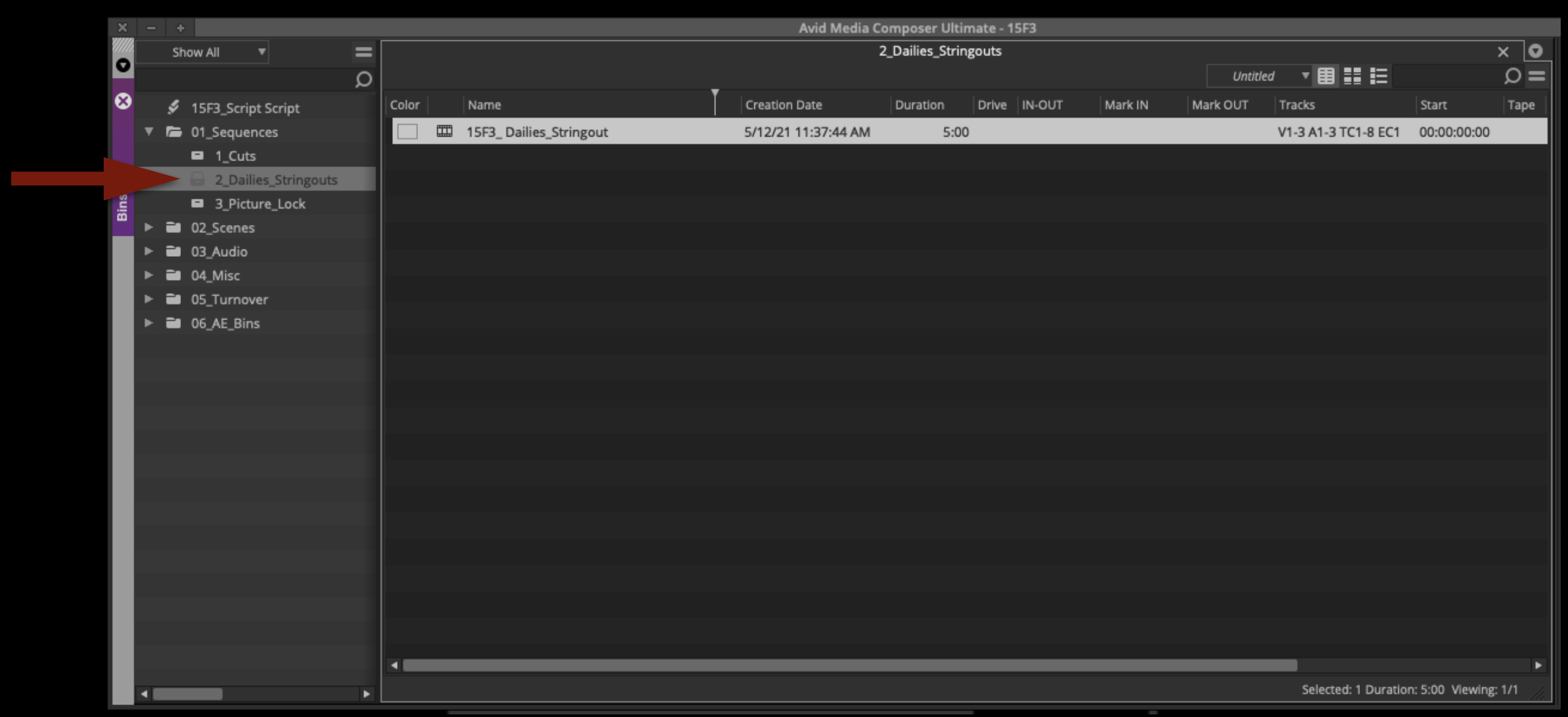
Open the Dailies Stringout sequence from the Dailies Stringout bin:
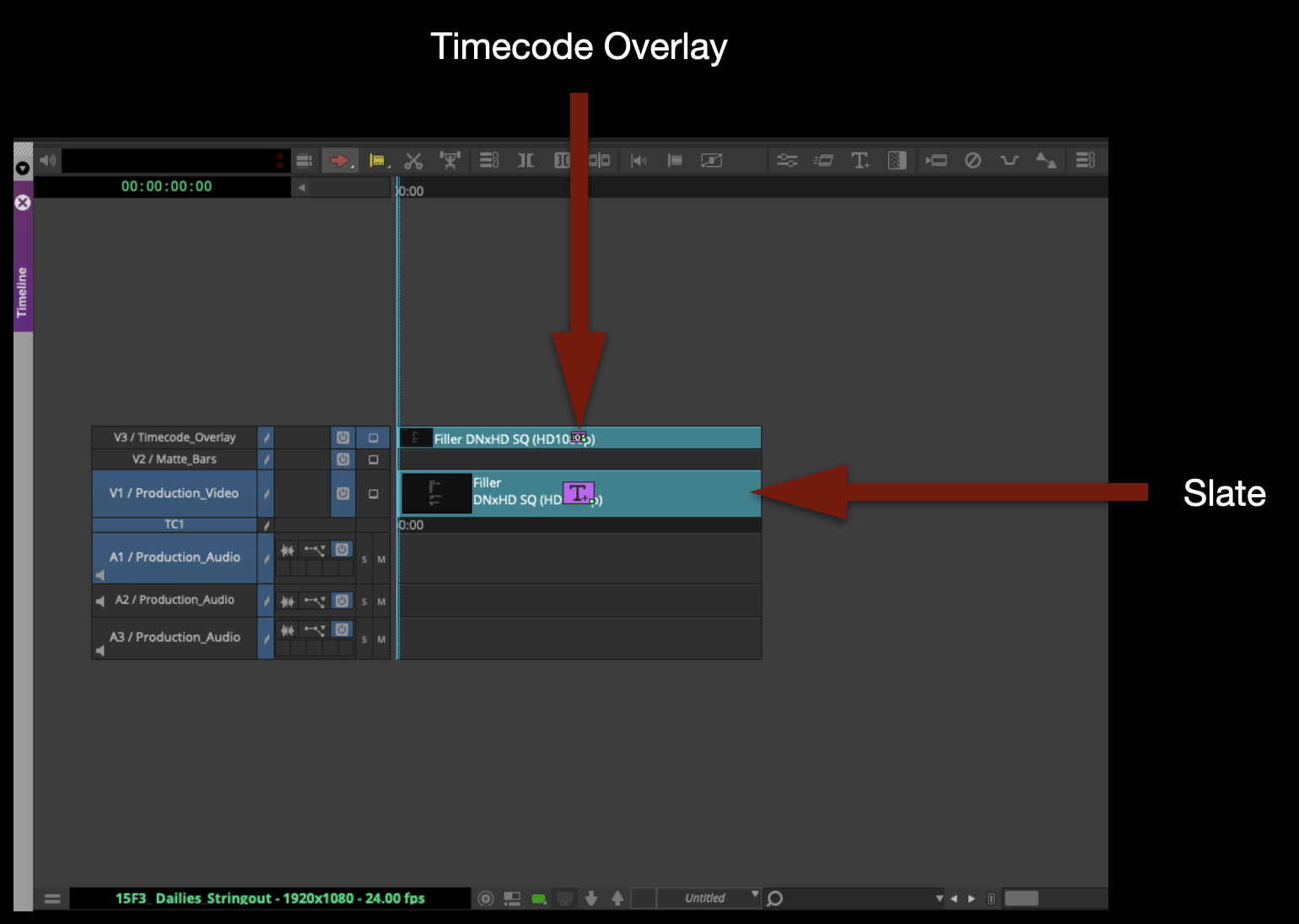
The sequence should already have a slate and Timecode Effect Burn-In:
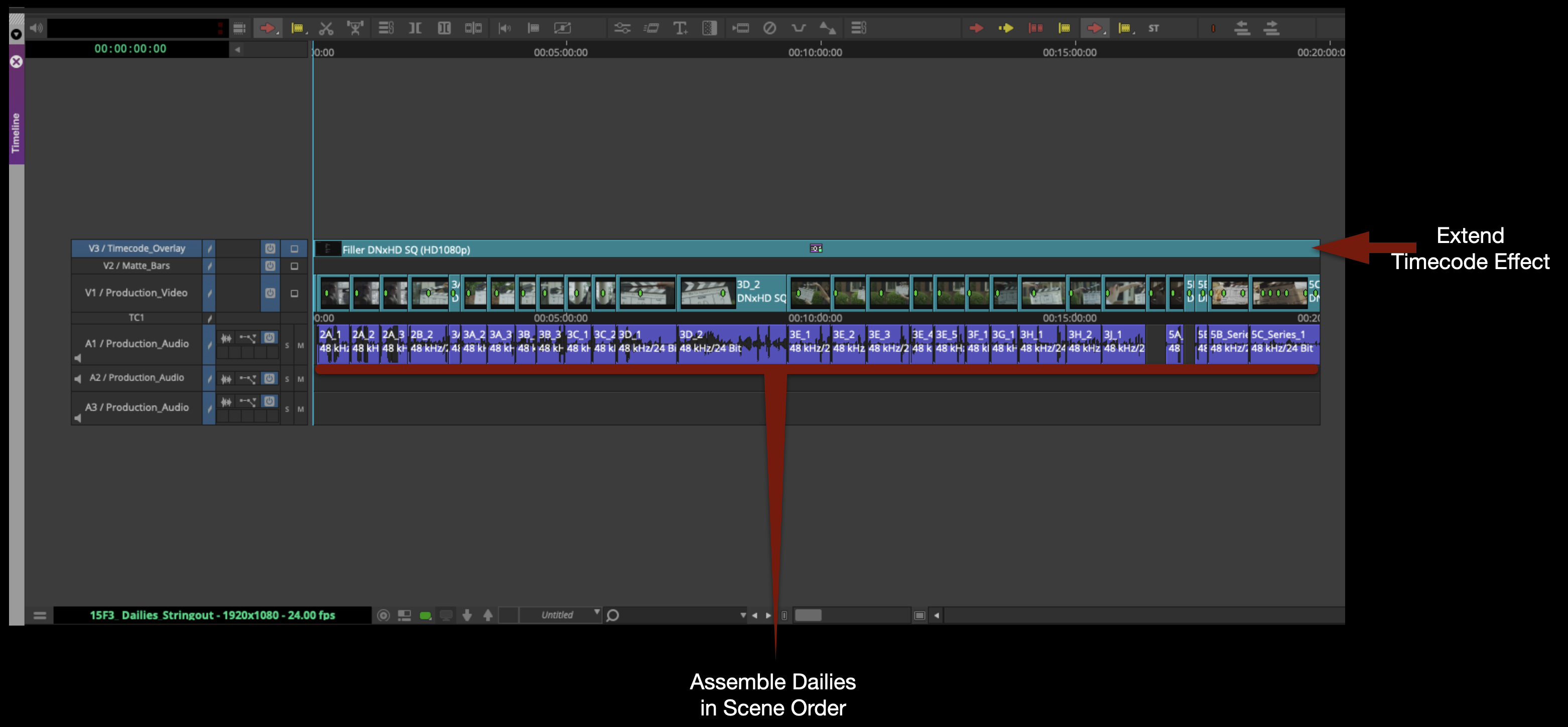
Assemble all the footage in scene order. Then, extend the Timecode Effect so that it covers everything on Video Track 1.
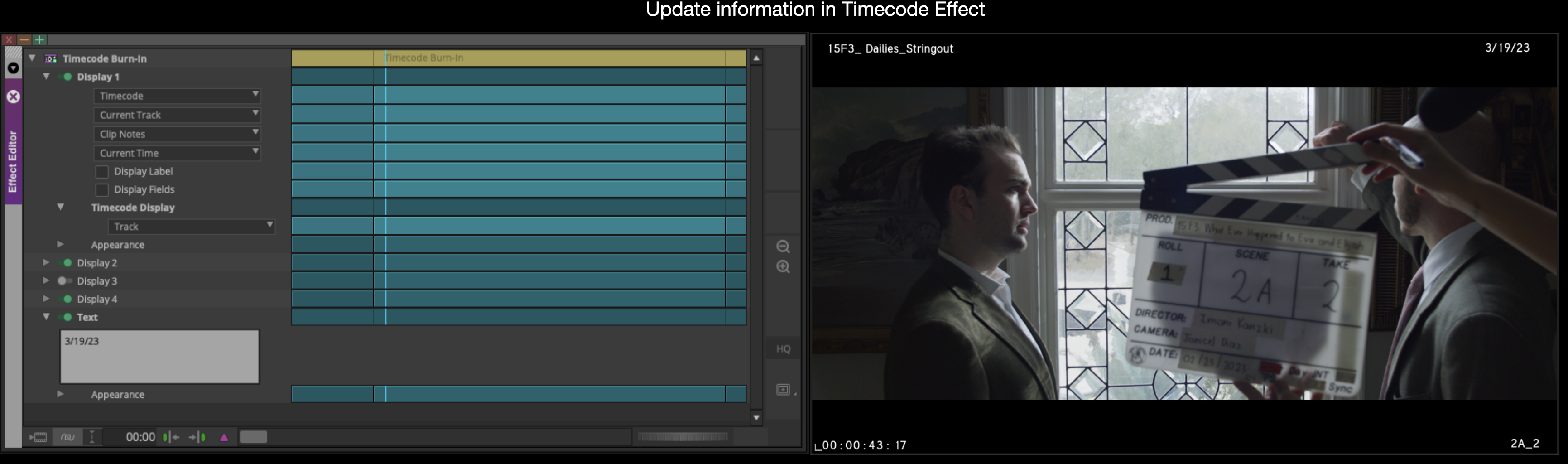
Most everything in the Timecode Effect should update automatically based on the metadata of the clips in the sequence and the sequence itself. But check that the date is correct in the”Text” option:
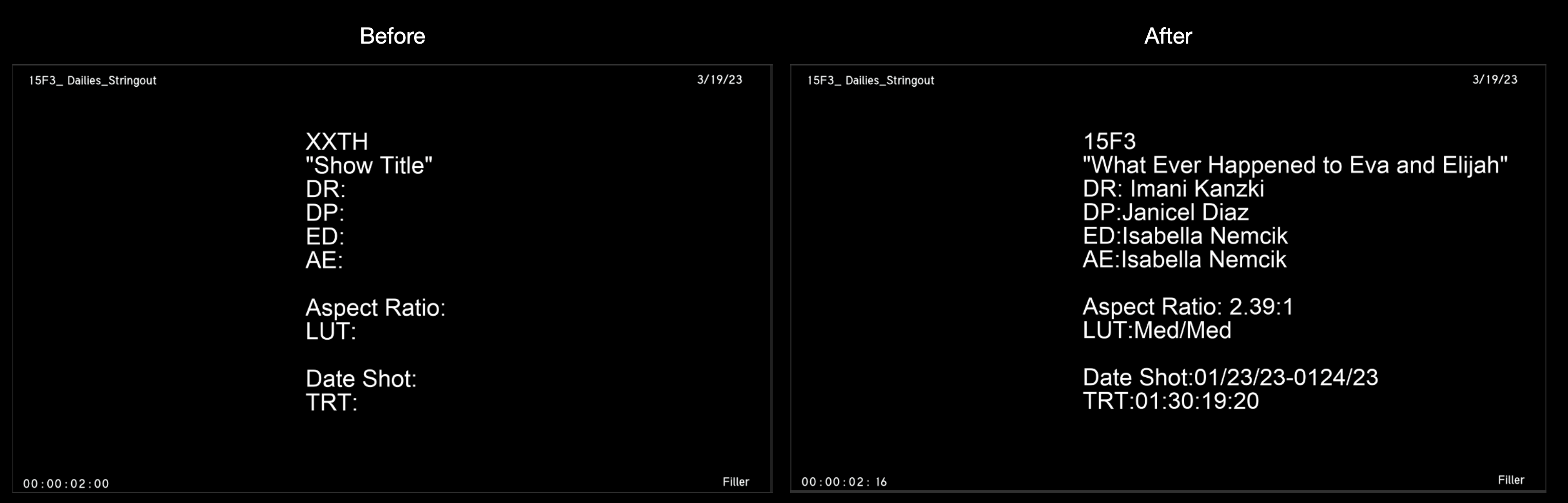
Enter the slate information:
Export and Upload Dailies to Frame.io
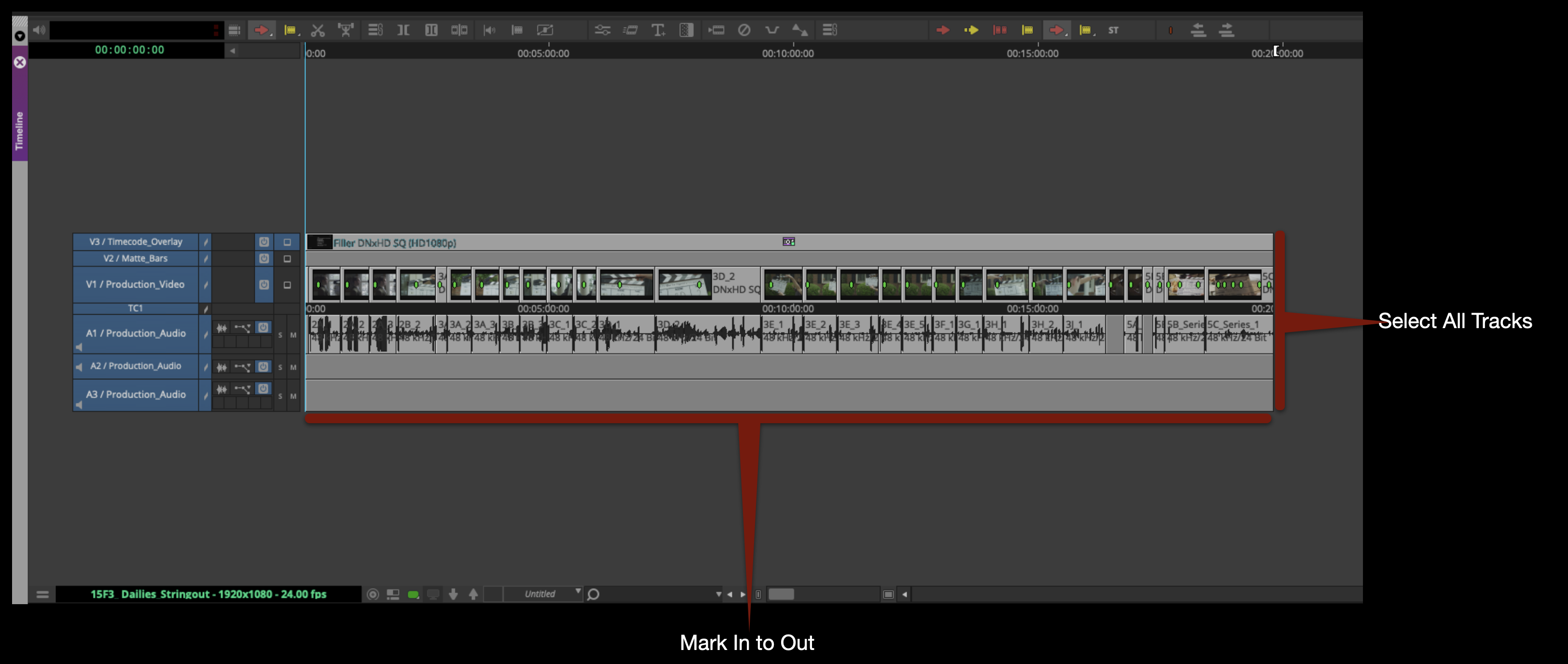
Mark In/Out for the entire timeline and select all video and audio tracks:
Right-click in the Program Monitor and select “Export”.
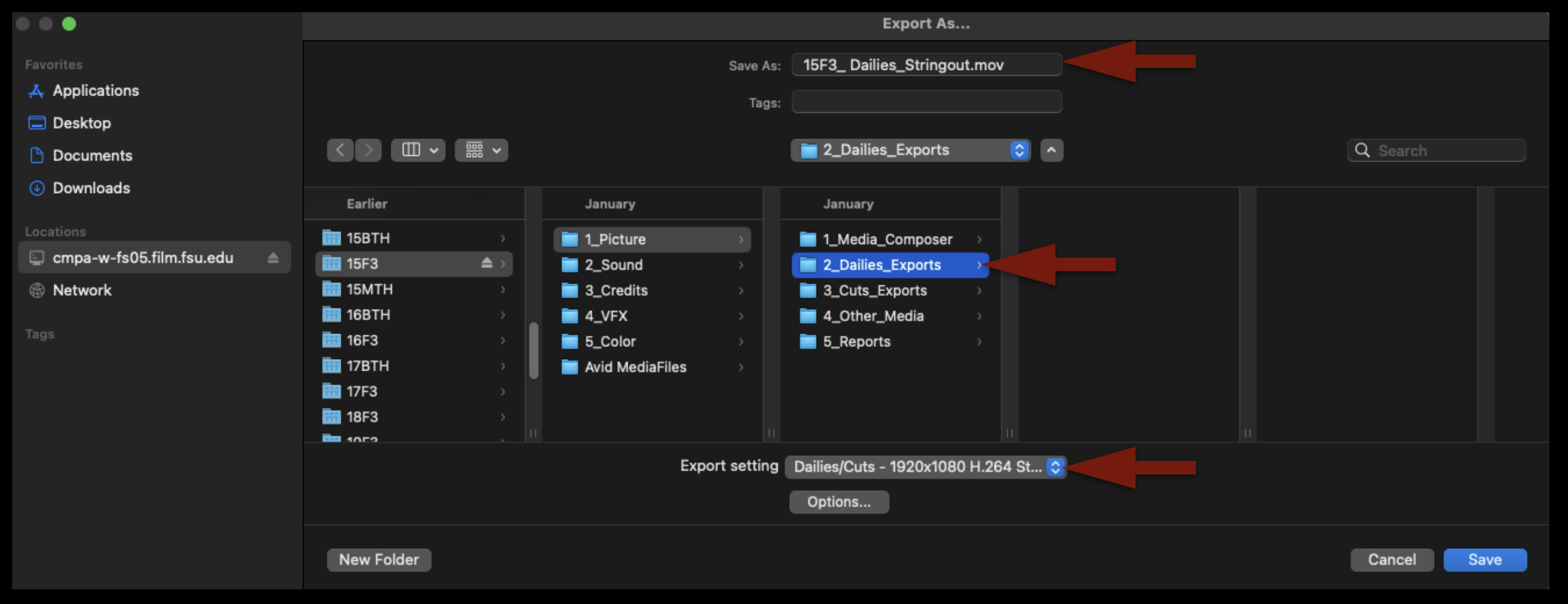
Check that the name of the file is correct, that it’s going the proper folder on your show volume, and that you are using the correct export setting:
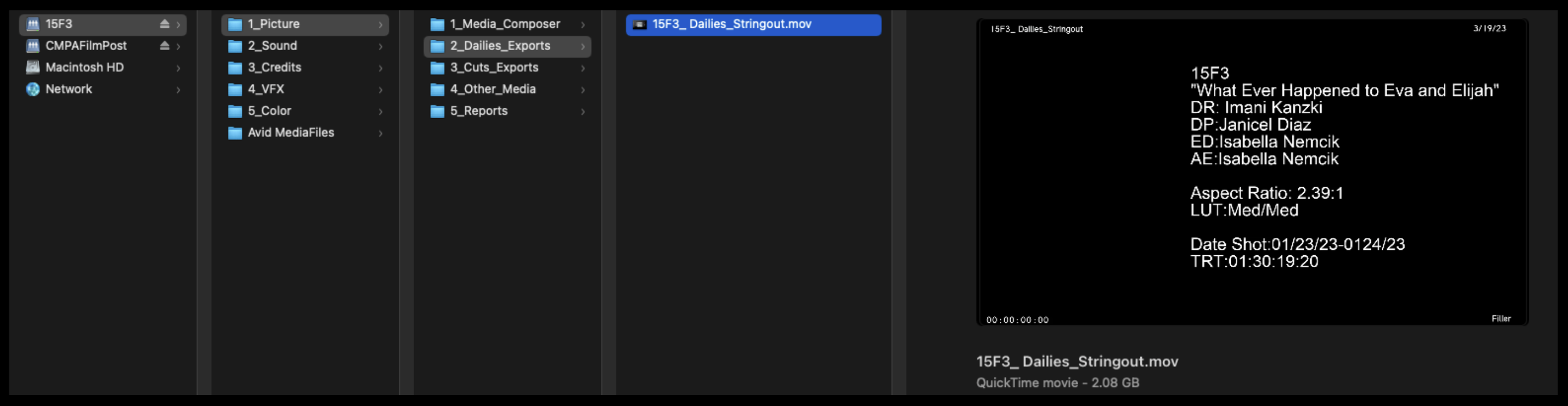
When the export is complete, open it in QuickTime Player and check that everything is correct. Then, upload to the proper folder on frame.io.
If you have need to send out a review link to the dailies stringout – e.g., so that a faculty member or another crew member can look at it — it’s simple to do. Follow the instructions here: Frame.io Review Links.
When you are finished, save your bins and close the project. Congratulations! Your work here is done!
Sound design for F1 projects involves the technical workflows used to build, organize, edit, and integrate the film’s audio elements throughout post-production. This includes processes related to dialogue editing, music, sound effects, ambience, session organization, track management, and preparation for mixing and final delivery.
Strong technical sound workflows are essential because creative storytelling through sound depends heavily on organization, consistency, and reliable post-production pipelines. Careful session management and audio preparation help productions avoid technical problems later in finishing while allowing sound teams to work more efficiently and creatively. The process also helps students develop professional habits related to audio workflow management, collaboration, and post-production coordination.
Set Up the Sequence
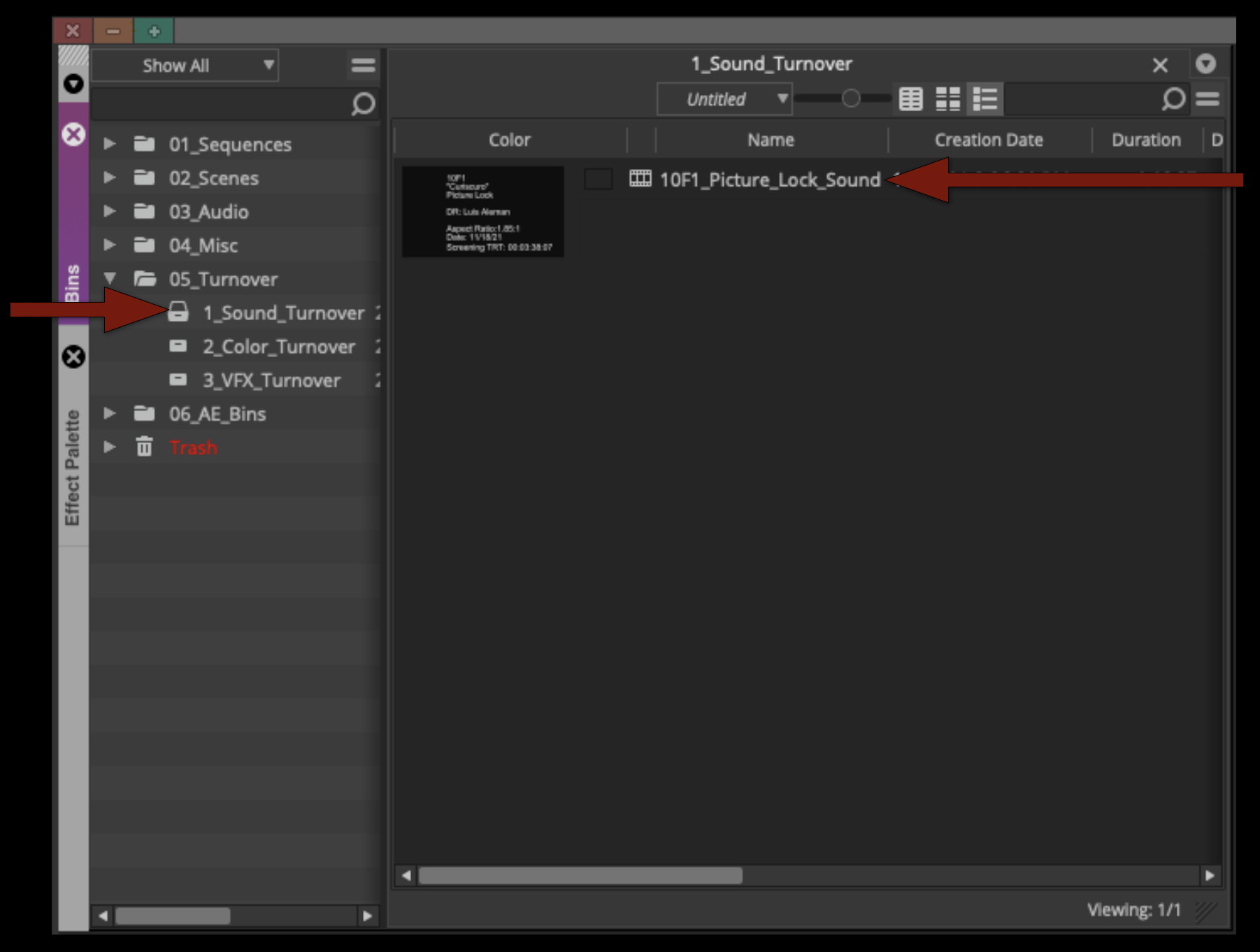
At the start of your Sound Design day duplicate your “Picture Lock” sequence. Rename the new sequence “XXF1_Picture_Lock_Sound” and move the sequence to the “Sound_Turnover” bin.
Production Audio
If you haven’t already been doing this during your picture editing time, now is when you would want to make sure your production audio tracks are checkerboarded and have cross fades on everything. This is also when you may need to cut in some room tone to fill any gaps.
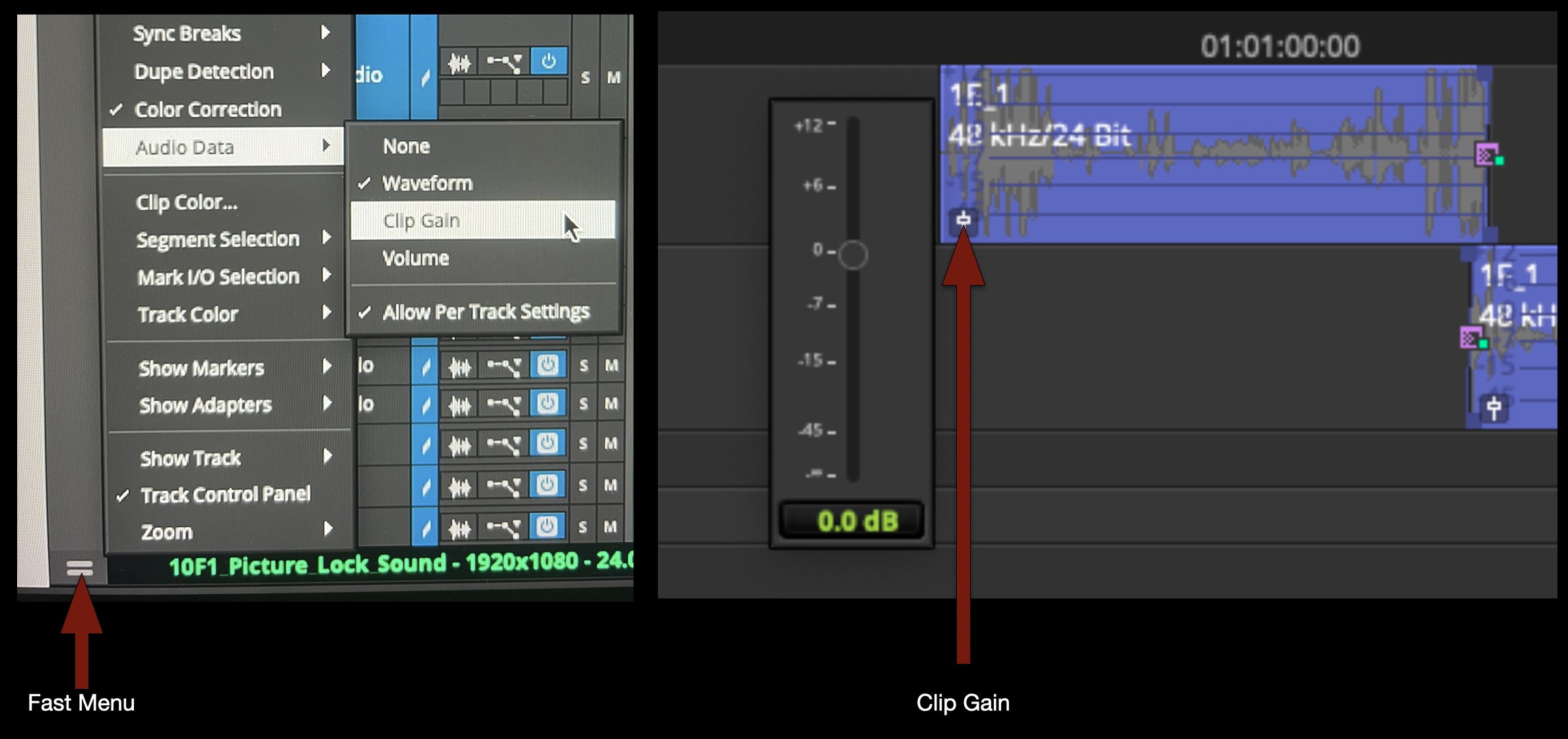
If you need to turn the Clip Gain up or down the easiest way is to us the “Fast Menu” to give you access to the control on the clips in the timeline.
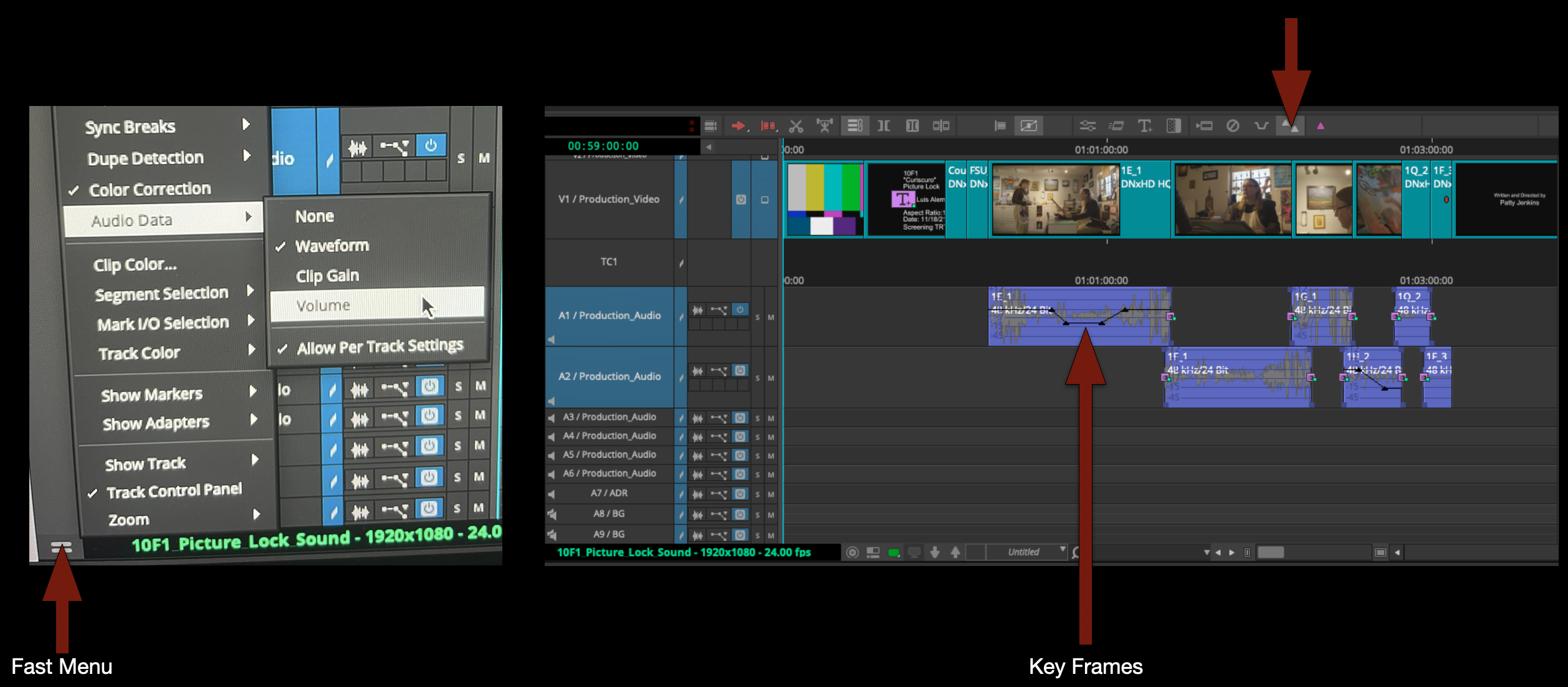
If you need finer control use the fast menu to switch to “Volume” and then you can use keyframes to automate any volume changes.
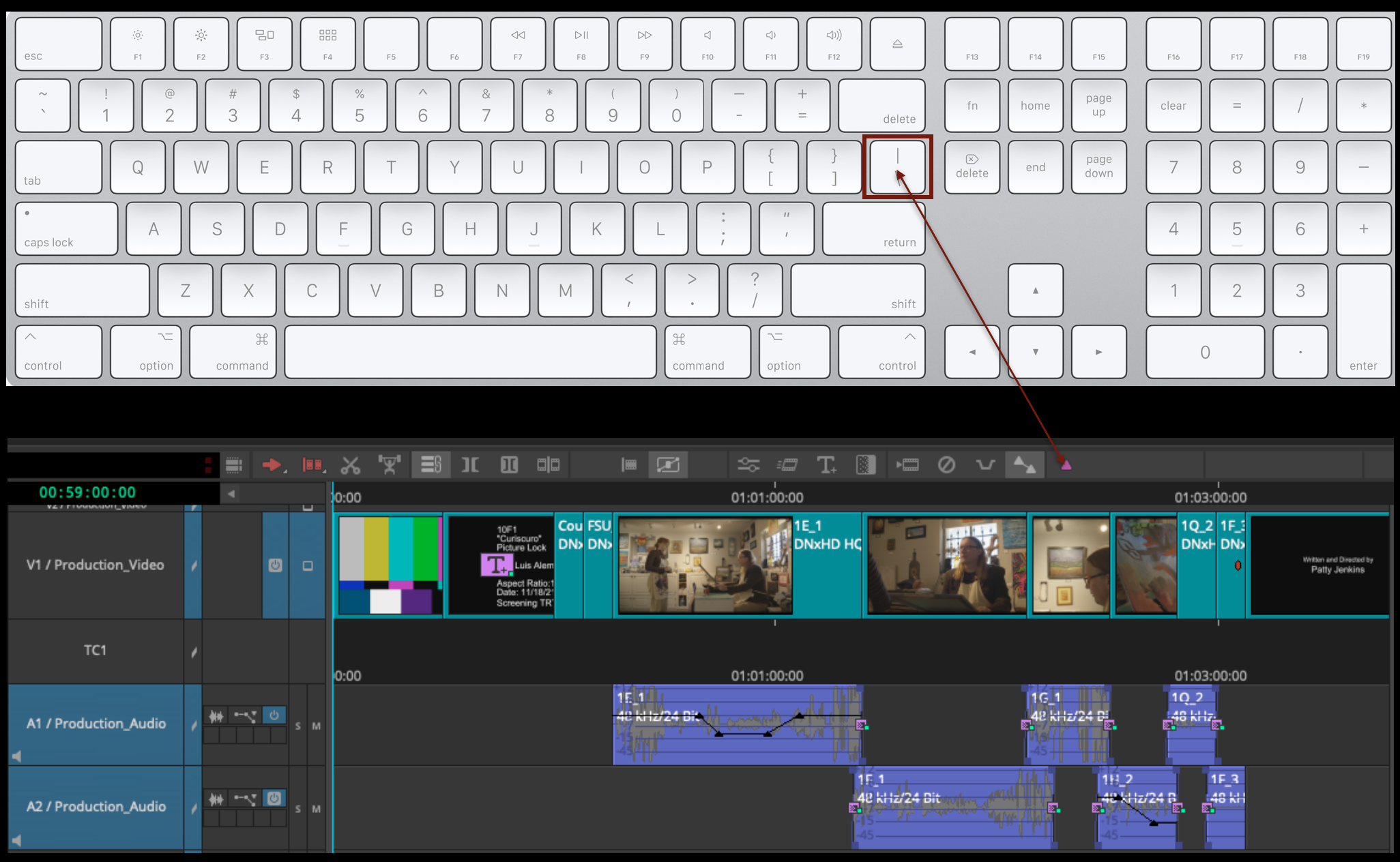
To make this go faster use the default keyboard shortcut for adding keyframes.
Also remember that “option” key is your friend for being able to lasso and manipulate the keyframes once they are created.
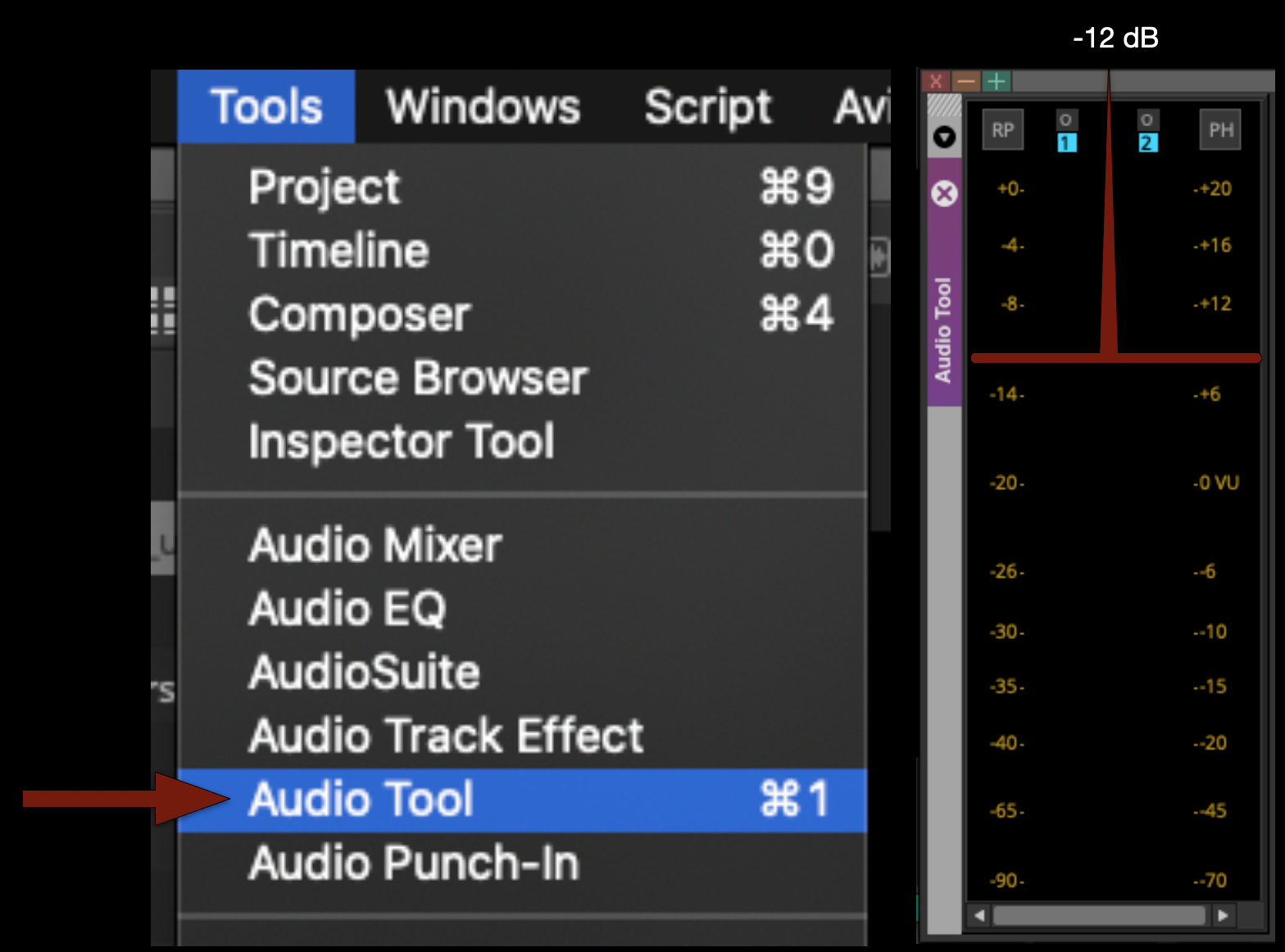
For reference a normal speaking voice should hit at about “-12dB”. To monitor this you can pull up the “Audio Tool”.
If a character is yelling it would be above that and if a character was whispering it would be below that.
Music
If you need music for your F1 remember that you have access to the Universal Production Music website.
You can ask for the login username and password, and your instructor can send it to you.
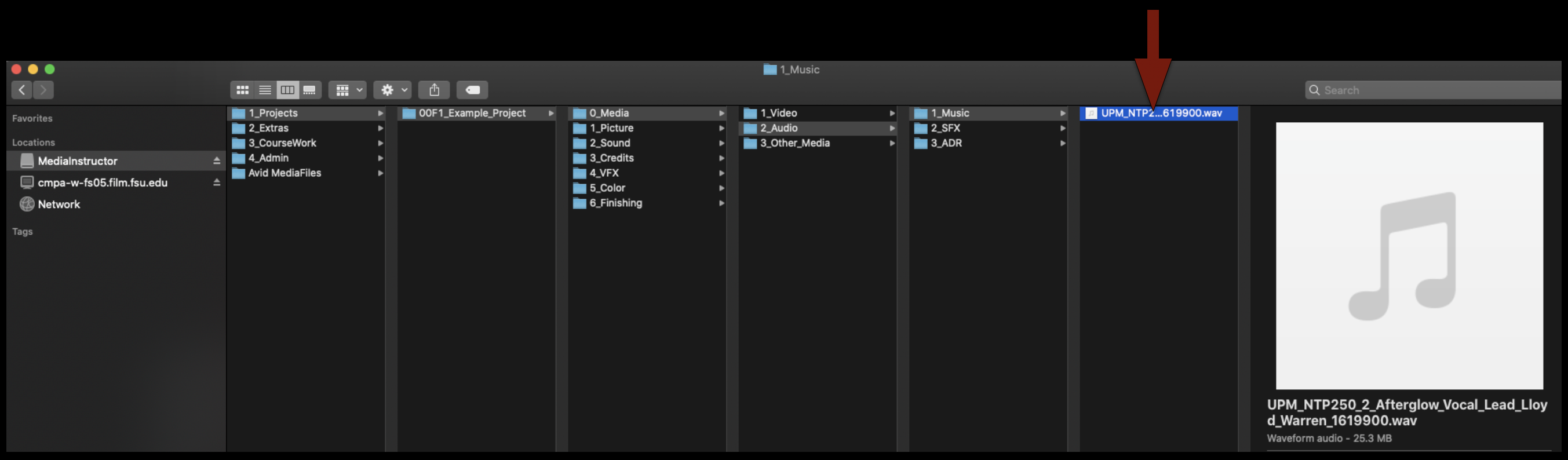
When you download tracks from the website by default they will be saved in your “Downloads Folder”. DO NOT leave them there. Instead move them to the appropriate music folder in your shows audio folder as shown in the example.
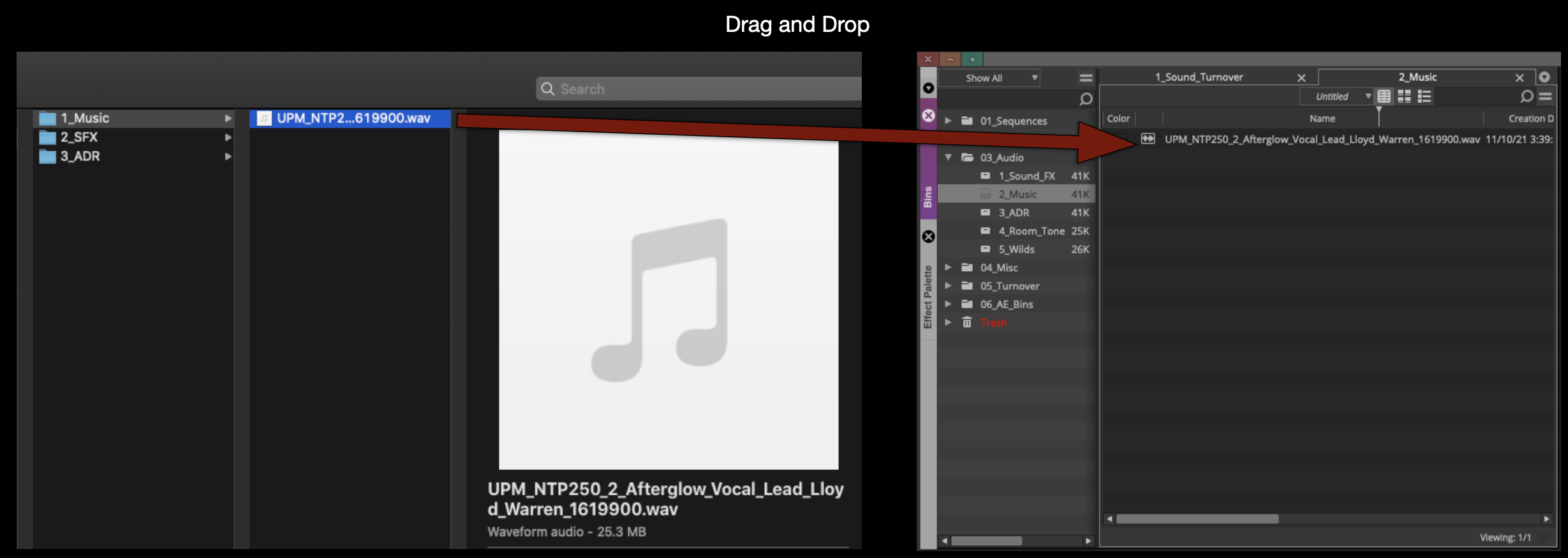
The to import any music into Media Composer, assuming you have your “Import Settings” set properly all you have to do is drag and drop it into the proper bin and it will import it.
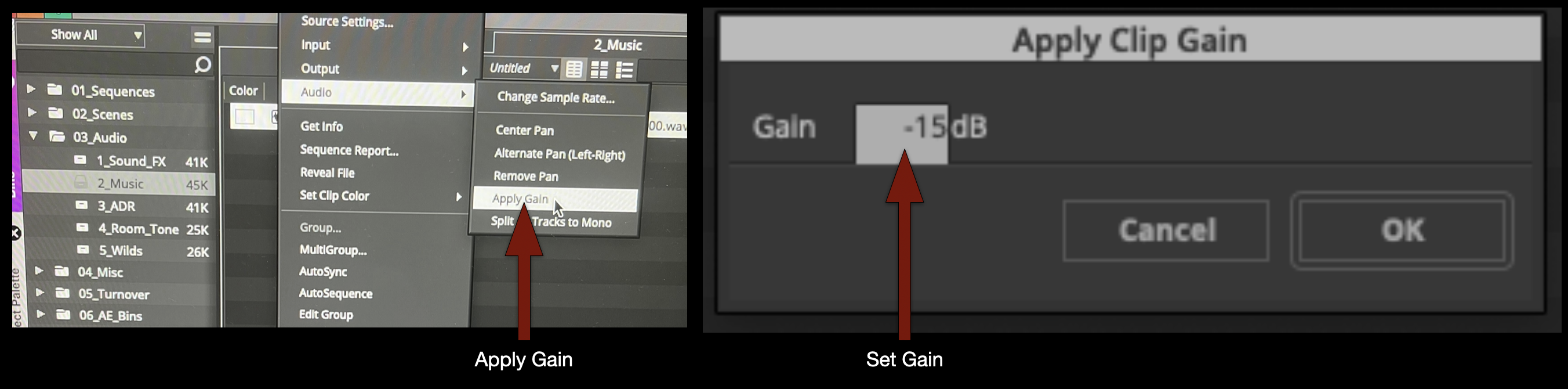
By default most music comes in very loud so you may want to lower the volume of audio while its still in the bin before you cut it into your sequence. To do so, select all the files you want to effect, right click and select “Apply Gain”, then you can type in “+” or “-” how much you want to turn it up or down.
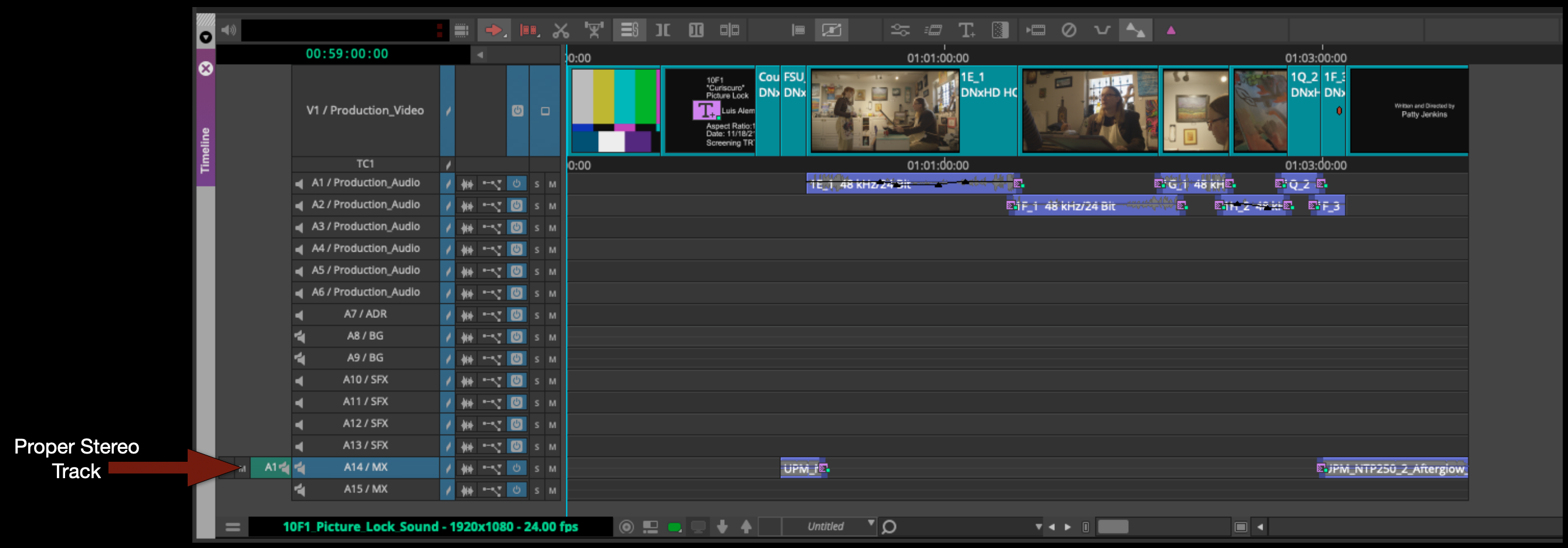
Your music will need to go into one of the “stereo” tracks in your timeline so make sure its set to stereo and then cut it.
Sound FX
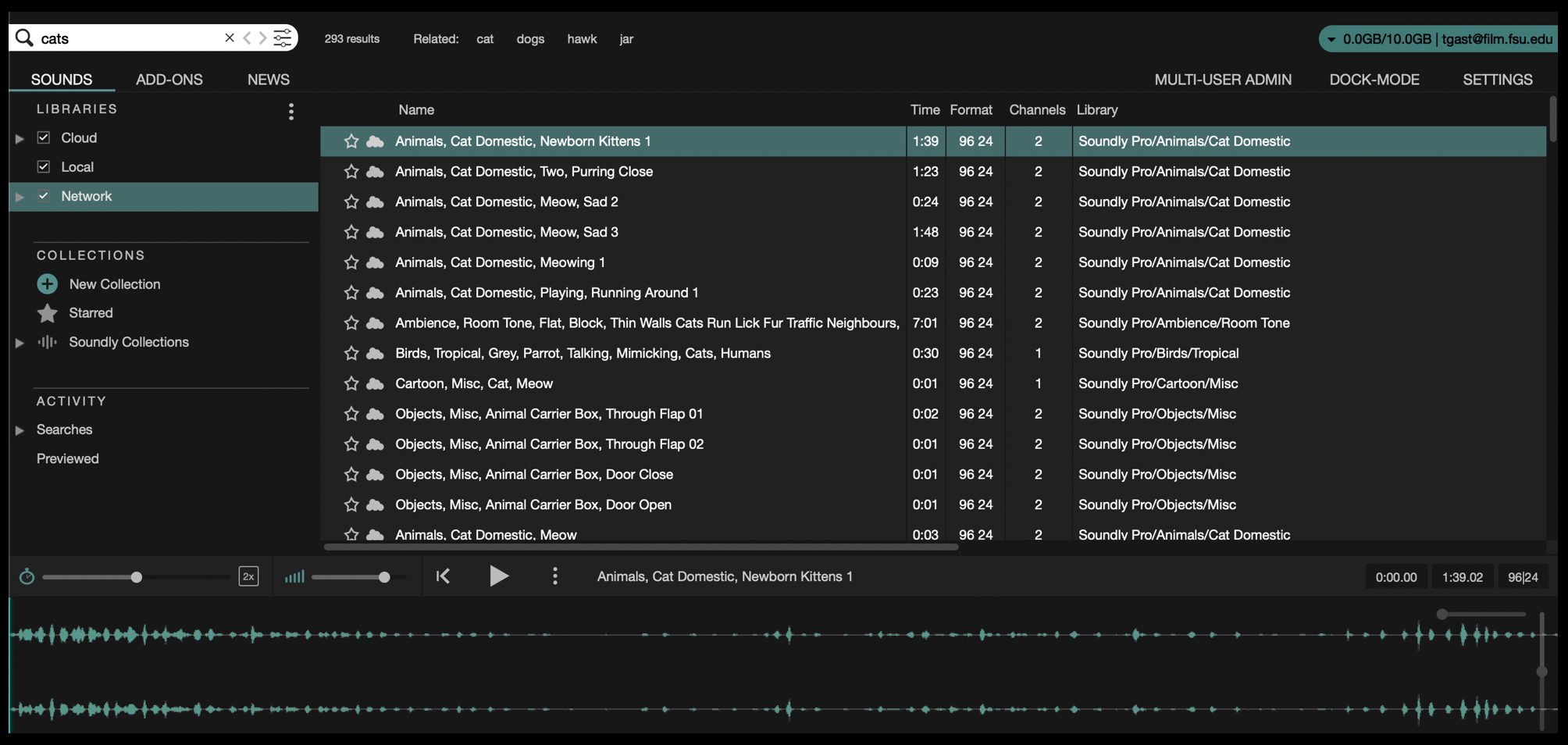
For sound FX for your F1 you should use the Soundly app to search through the sound FX library.
Just like with music, as long as your import settings are set properly in preferences you can simply drag and drop the sound FX you want into the proper “Sound FX” bin in Media Composer.
Also, just like with music you need to pay attention to whether the audio is stereo or not. Make any adjustments necessary and then cut it into the proper track in your sequence.
Exporting Stereo Mix
At the end of your sound design day when you done working you will need to export a stereo .wav file that will be imported into Resolve and sunc up with picture.
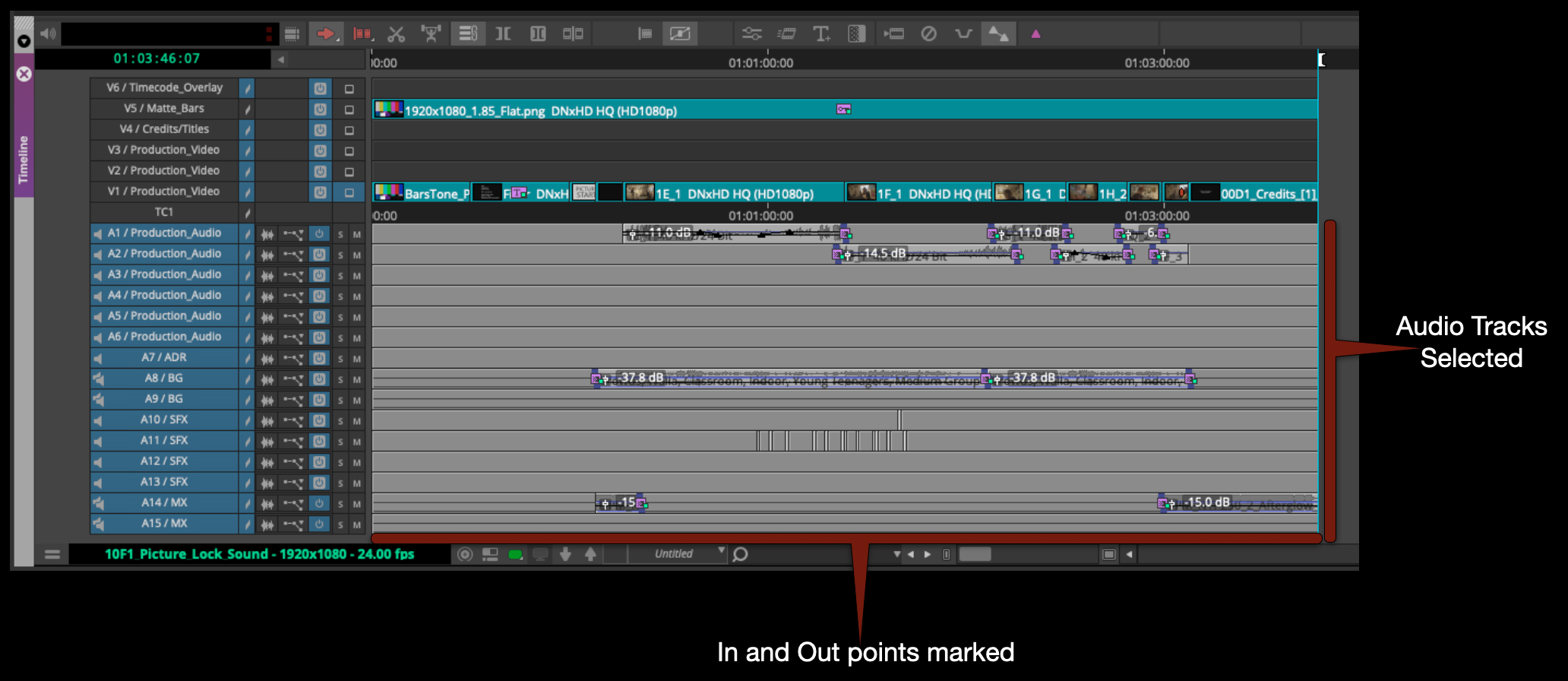
Mark in at the very beginning of the sequence and out at the very end of the credits. IMPORTANT include the entire front sequence not just the content. Then select all of the audio tracks.
Right click in the program monitor and select export.
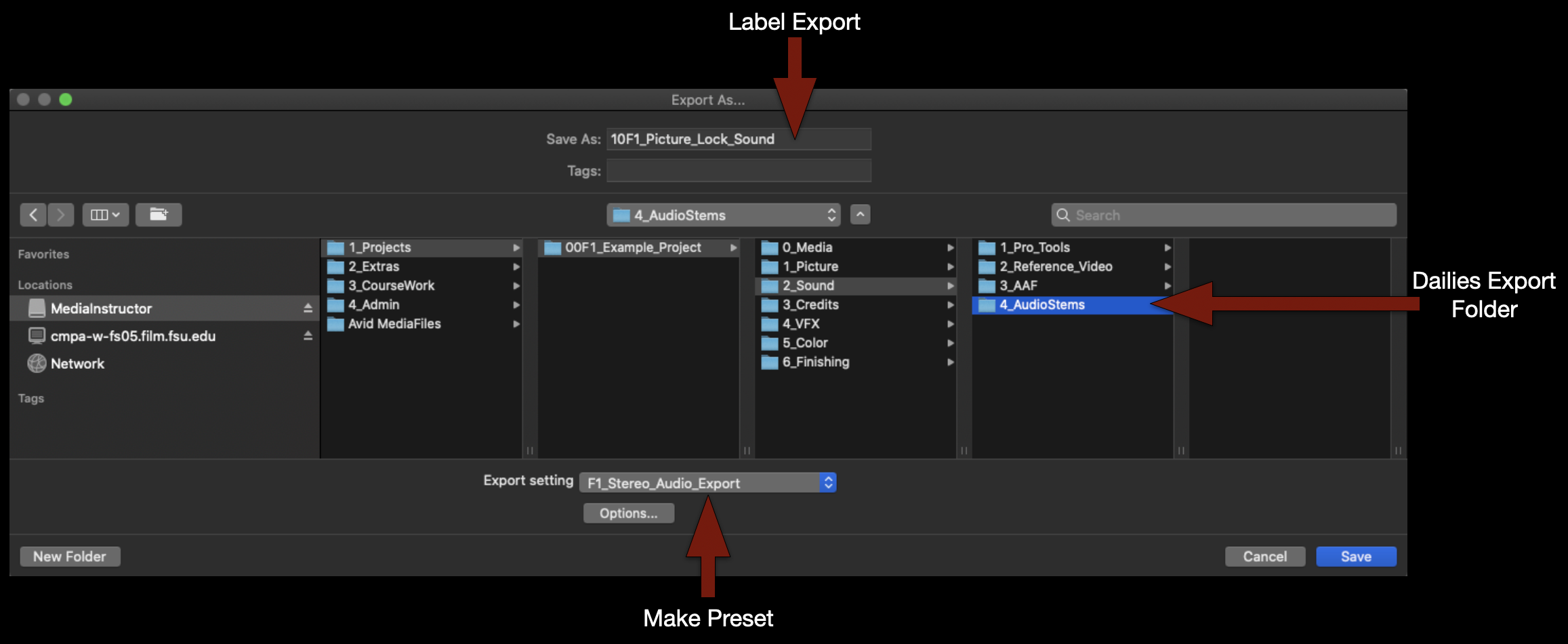
Check that the name of the file is correct, that its going the proper folder and that you are using the correct export setting.
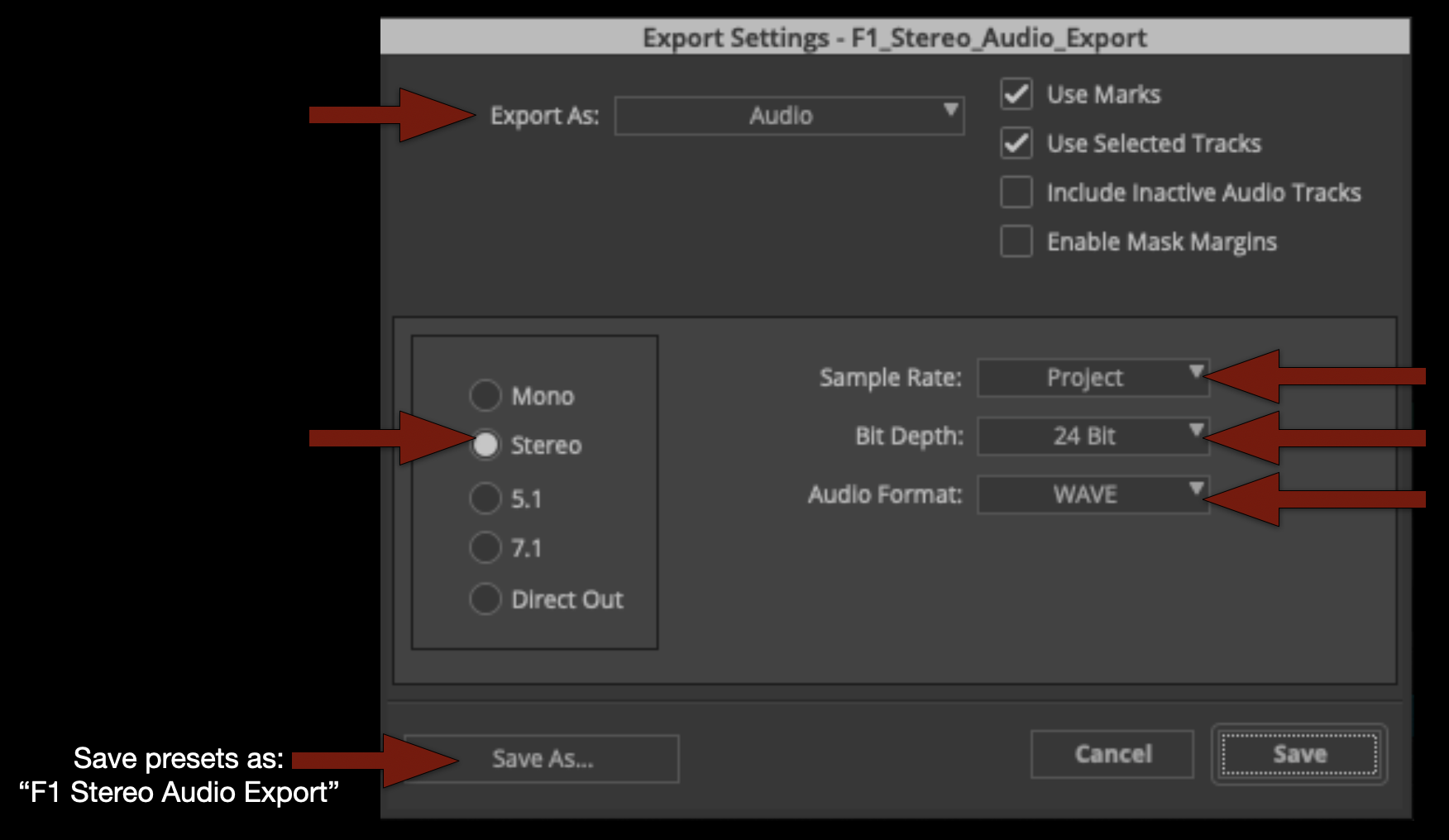
If you don’t yet have a “F1_Stereo_Audio_Export” preset make one using these settings.
When the export is complete you can listen to the .wav file to make sure it’s all there. If everything sounds good save your bins and close Media Composer.
Proper media offloading procedures are essential to protecting the integrity and security of a production’s footage. This post outlines the required workflow for transferring, verifying, organizing, and backing up media cards so that no footage is lost, corrupted, or misplaced during production or post-production.
These procedures are designed to mirror professional industry practices, where careful data management is considered just as important as capturing the footage itself. A single mistake during the offloading process can jeopardize days of work and create costly delays for the entire production. By following a consistent workflow, students develop habits that prioritize redundancy, organization, and accountability—skills that are foundational to contemporary digital filmmaking.
The Basic Process
The CMPAFilmPost Server is where you will offload all of the Original Camera Files (OCF) and Production Audio. Every computer the Post Hall has ShotPut Pro installed as well as a Red Mini Mag reader and a multi card reader attached.
ShotPut Pro is a software which not only copies video and audio files but will also verify the copies afterwards and make reports documenting that the offload was successful. These reports will be uploaded to Frame.io so that the production can keep track of when the media was offloaded and verify that the offload was successful .Every media card used on a production must use ShotPut Pro for offloading to the proper folder tree on CMPAFilmPost to assure the productions video and audio assets are safe.
Mounting Media Cards
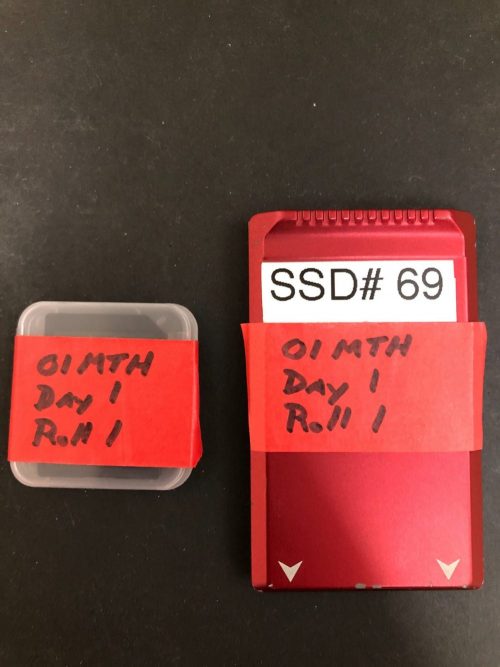
The Assistant Editor (AE) will retrieve the Red Mini Mag (containing the video), the SD card (containing the audio), and the camera reports from the ingest room cubby and bring them back to their assigned suite on the post hall for offloading. Production should have applied red tape to show live media was on them and labeled them as shown.
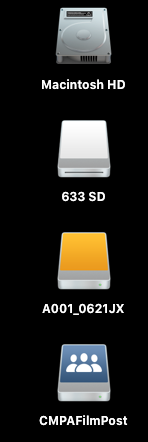
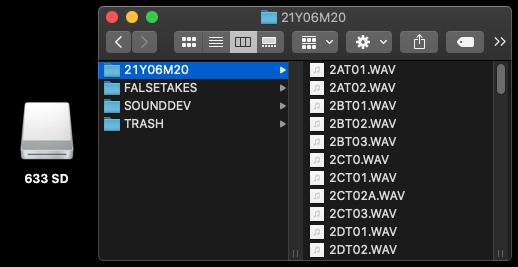
Remove the tape and insert the cards into the corresponding readers, they will mount like an external hard drive and appear on the desktop.
Desktop
RED MINI MAG CONTAINING VIDEO
SD CARD CONTAINING SOUND
Offloading Media with ShotPut Pro
After both media cards are mounted launch ShotPut Pro from the dock.
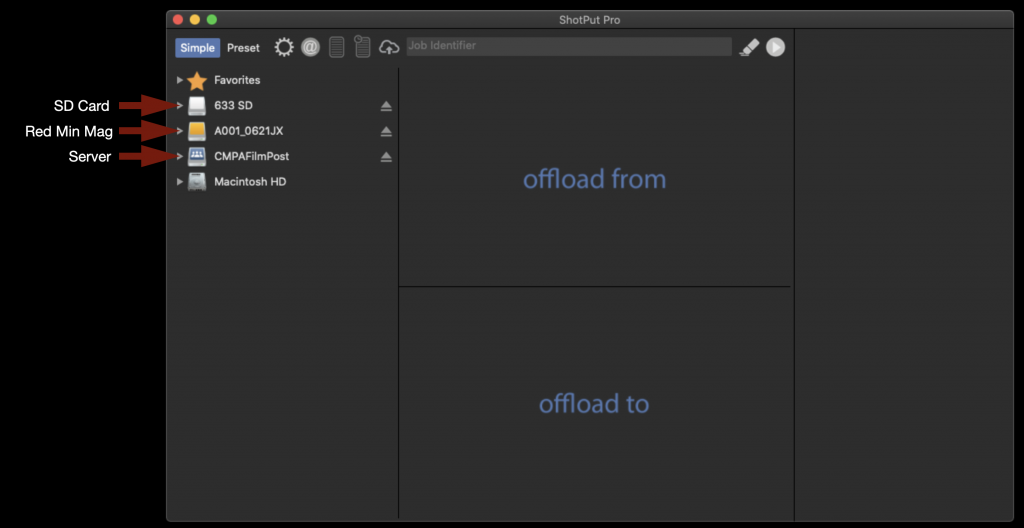
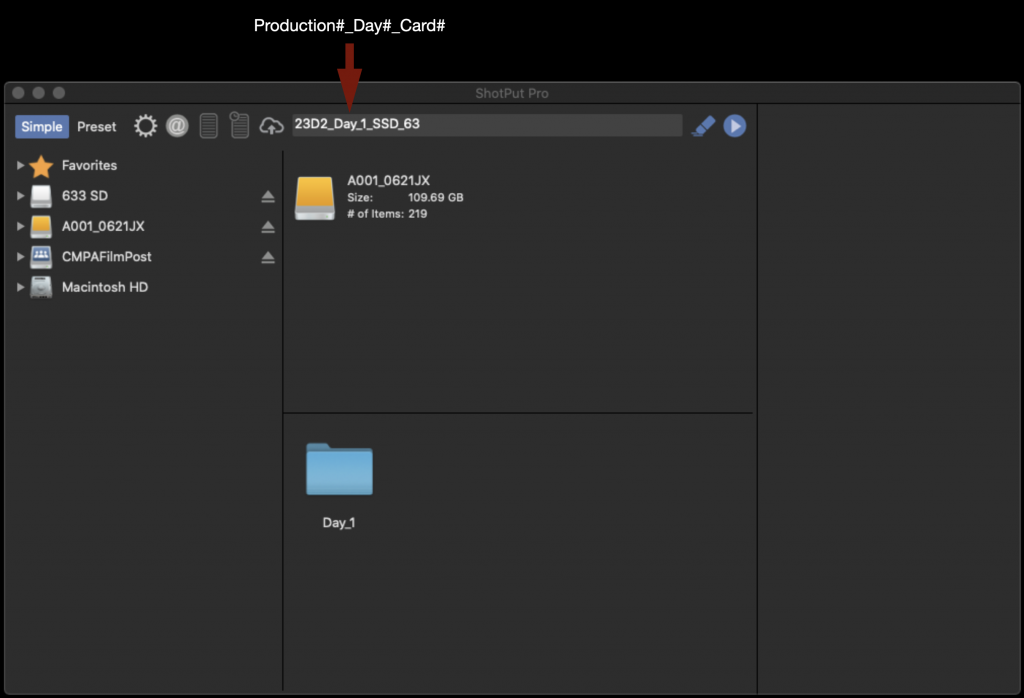
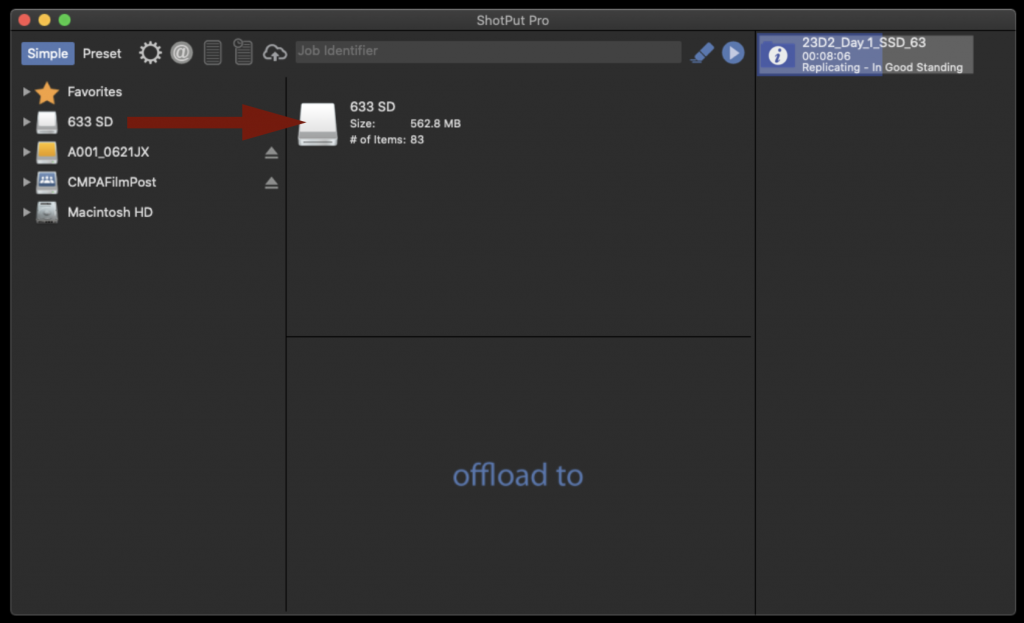
When it opens it will appear as shown below. Notice how the media cards and the Server are shown on the left of the screen.
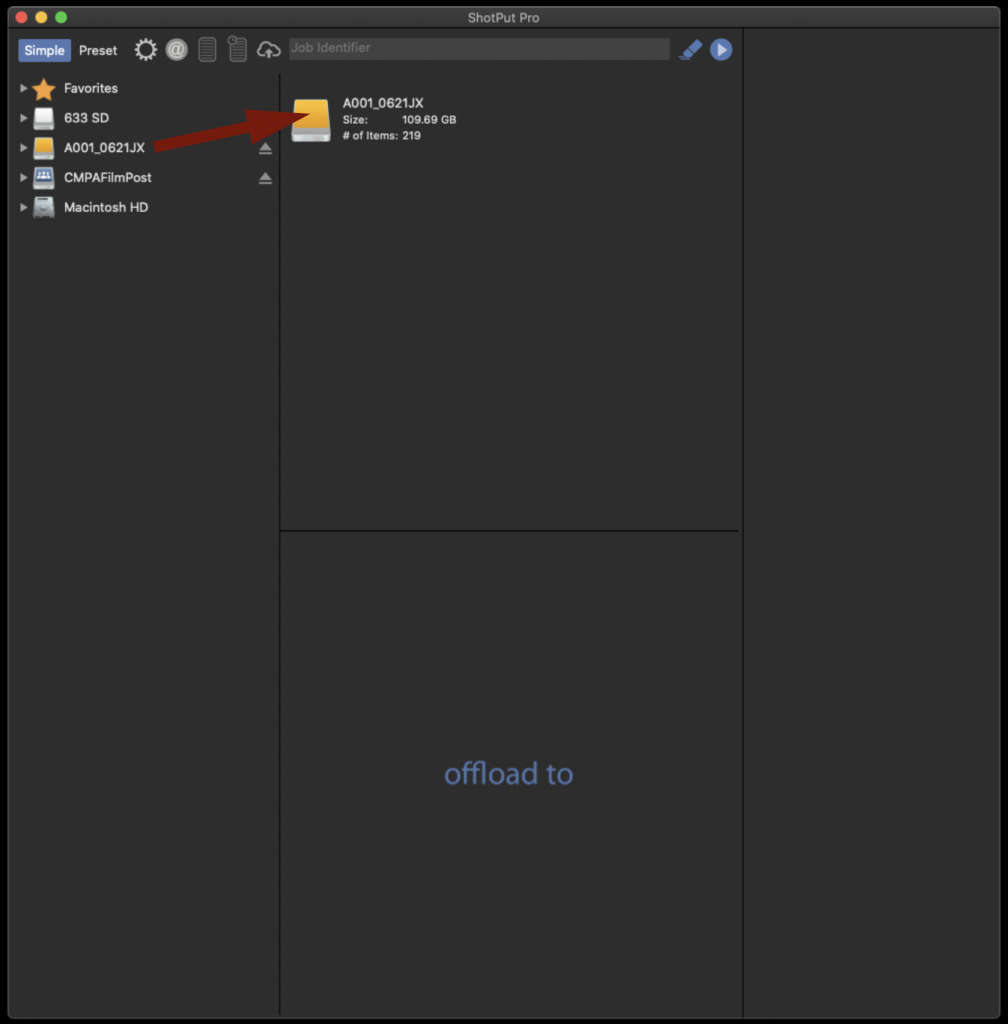
To offload the entire contents of the Red Mini Mag drag the disk icon and drop it in the box labeled “offload from”.
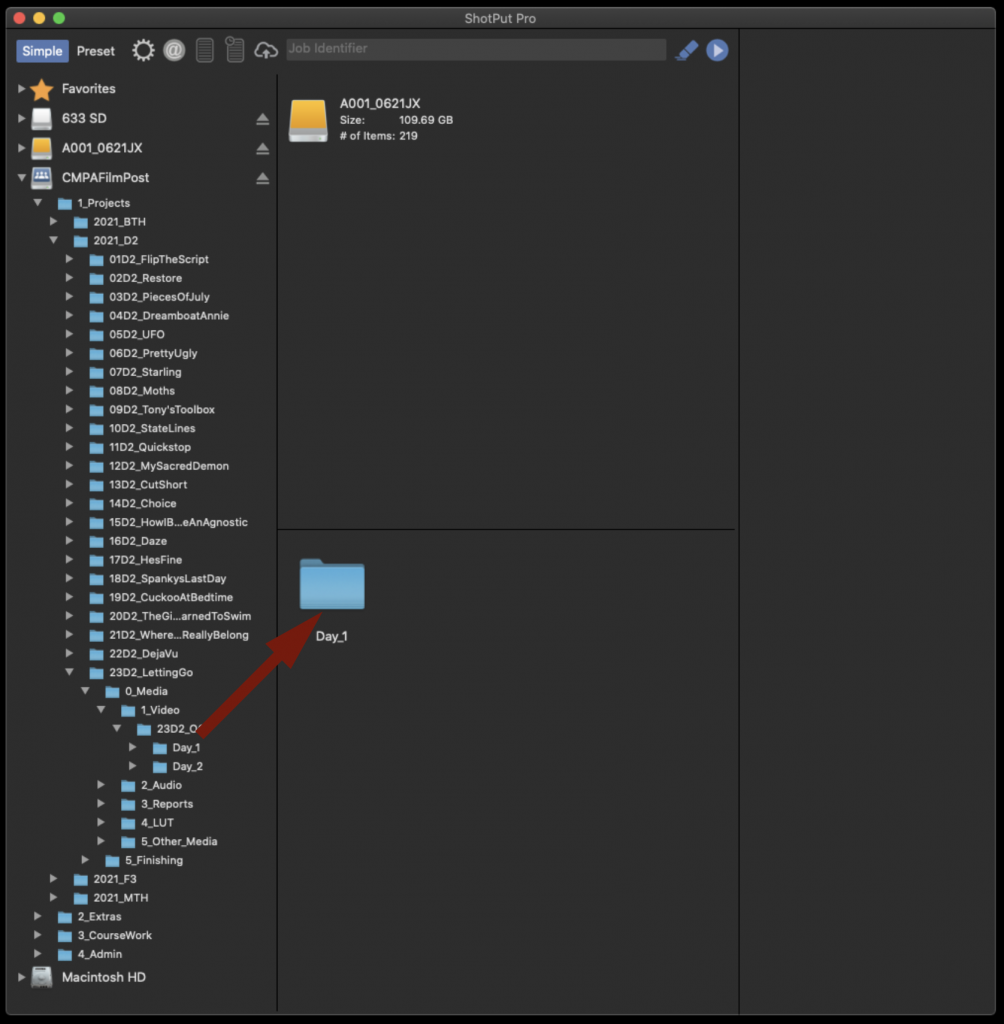
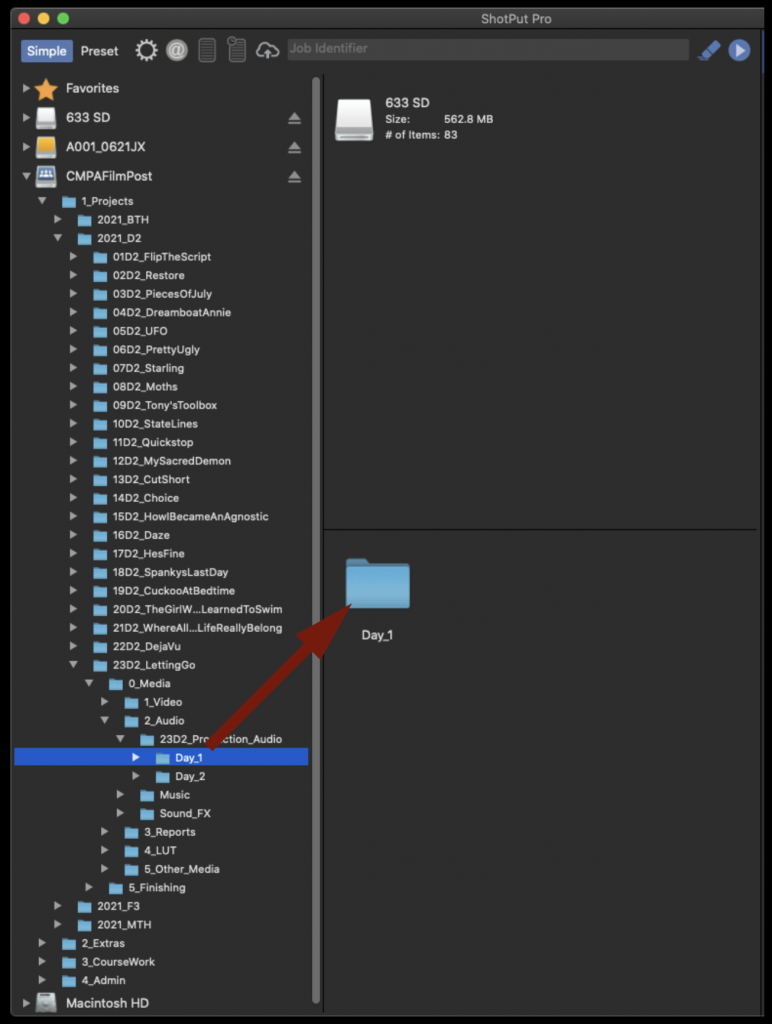
Next you will need to tell ShotPut in what folder on the CPMAFilmPost Server you would like to offload to. Navigate down into the folder tree on the left hand side until you find the proper Show and Day folder for your production. Then drag the folder icon and drop it in the box labeled “offload to”.
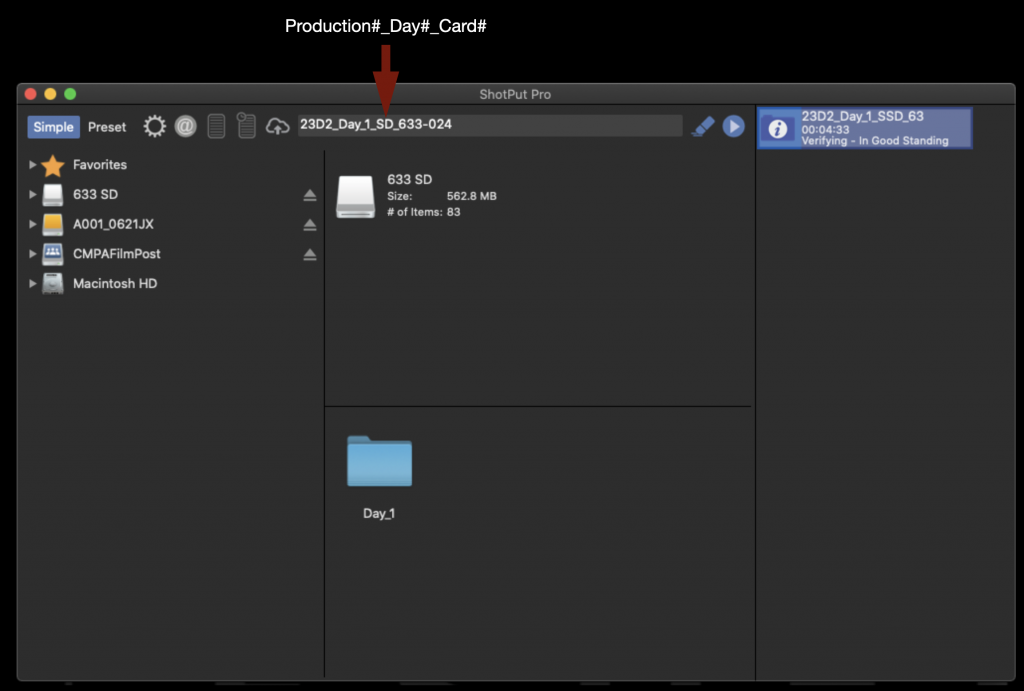
In the field labeled “Job Identifier” fill in the information for this offload in the following format: Production#_Day#_Card#.
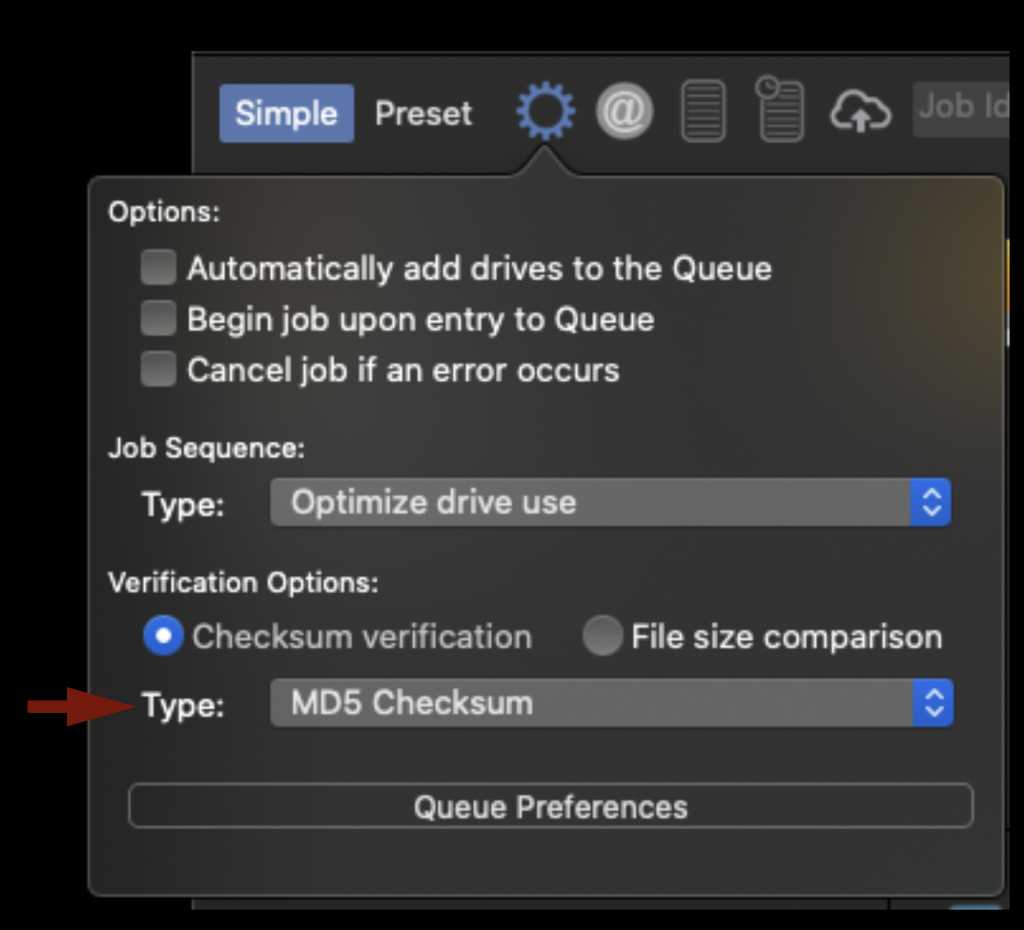
Before starting the offload you will need to check a few settings. First under “Verification Options” make sure the type is set to “MD5 Checksum”. This is a good balance of speed and security.
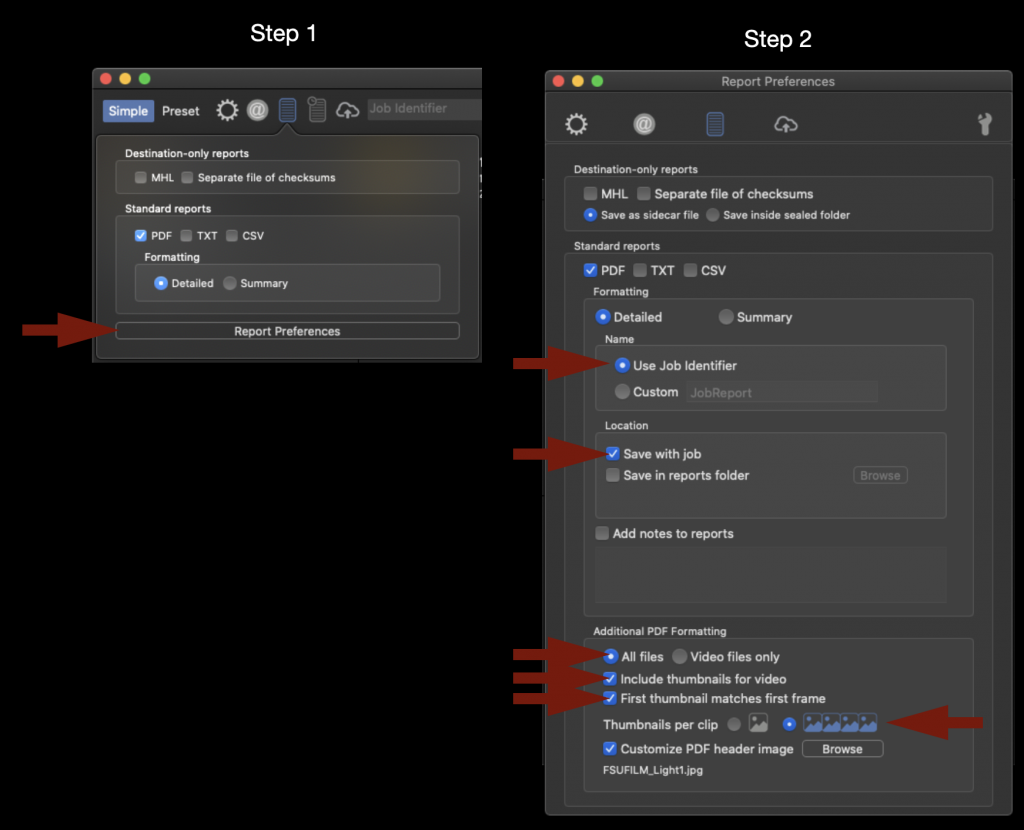
Next make “Report Preferences” and make sure that all the options are check as shown in the example below. This won’t effect the actual offload at all but it will dictate how the pdf that is generated after the offload will be formatted.
When everything looks good you can start the offload by selecting the Blue Arrow.
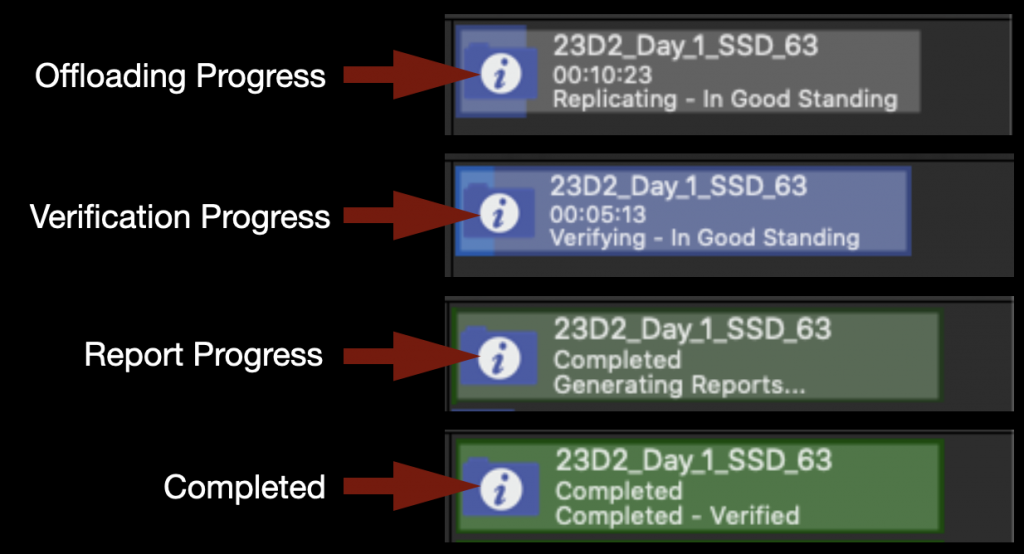
On the right hand side you will see the progress bar appear and you can monitor how long it will take. It will go through several phases as shown below and ho long it takes is dependent on how much media was on the card.
While the video is being offloaded you can go ahead and set the audio offloading at the same time. Just repeat the same process as you did before. To offload the entire contents of the SD Card drag the disk icon and drop it in the box labeled “offload from”.
Next navigate down into the folder tree on the left hand side until you find the proper Show and Day folder for your production. Then drag the folder icon and drop it in the box labeled “offload to”.
In the field labeled “Job Identifier” fill in the information for this offload in the following format: Production#_Day#_Card#.
You can click the blue start arrow again and it will sue up your next offload. When both media cards have finished offloading and are verified it will appear as shown below.
The media is now safely offloaded to the CMPAFilmPost Server.
Verification Reports
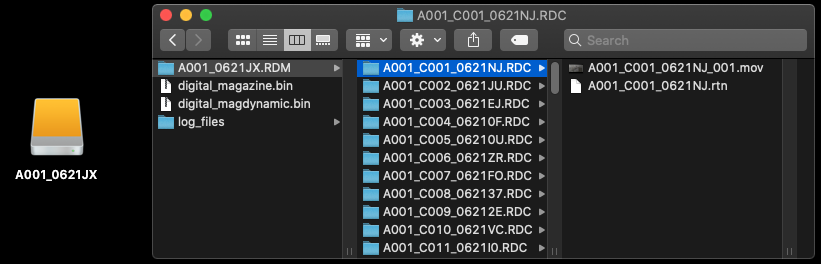
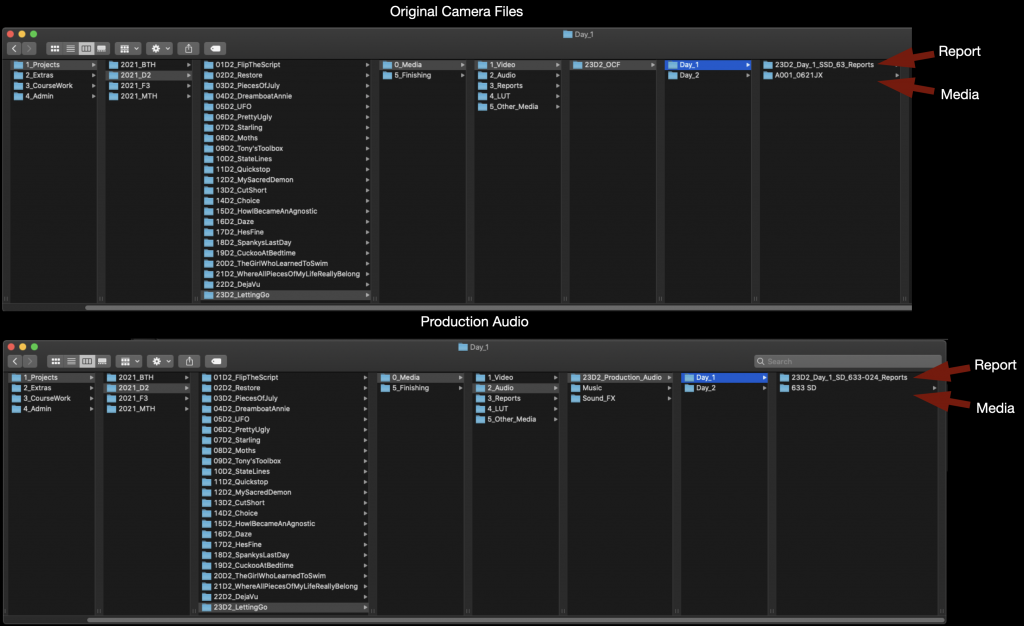
You can find the verification reports alongside the media in the folder that you pointed ShotPut Pro toward.
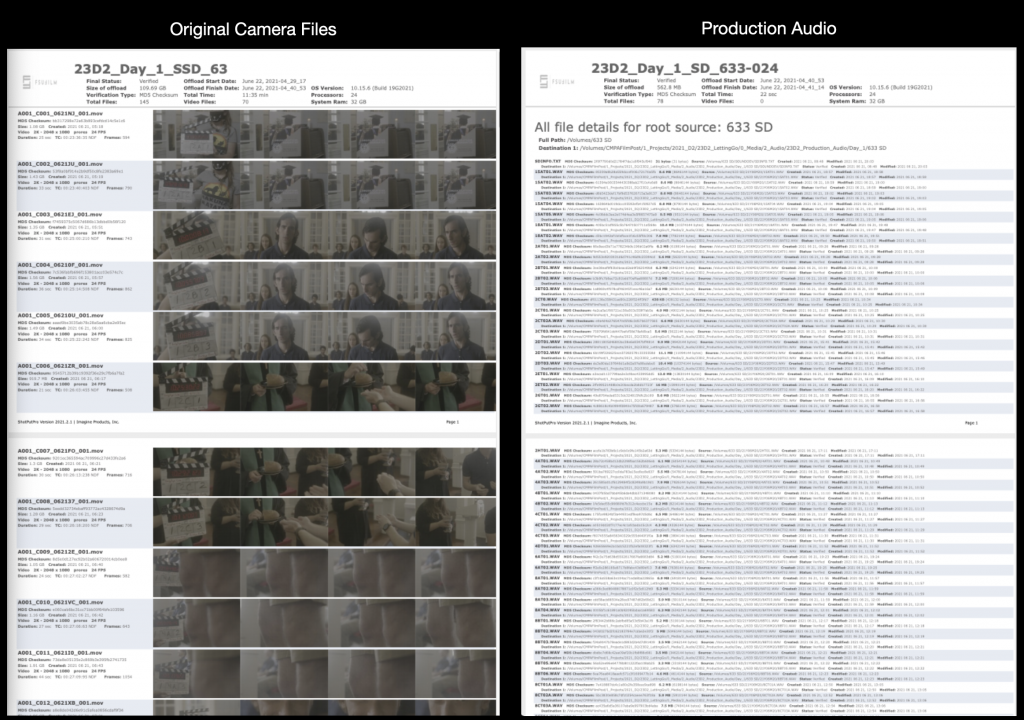
The Verification Reports should look like the examples below.
After checking the reports upload them to the appropriate show folder on Frame.io.
Wrap Up
The SD card will need to be erased after you have verification from ShotPut Pro that the data was transferred safely. Remember to empty the trash after deleting the sound card media as that is the only way to free up space on the card. You do not need to erase the Red Mini Mags as they will be reformatted the next time they are put in the camera. Return the media cards to their cases and return them to the shows cubby in the ingest room. Now that the tape has been removed production will know that they are clear to be used again.
This post explains the process for mounting production servers and accessing designated show volumes used for storing, organizing, and sharing project media. Maintaining a consistent workflow for server access is essential for collaboration across editorial, sound, color, VFX, and other post-production departments.
The procedures outlined here are intended to reduce confusion, prevent file management errors, and ensure that all collaborators are working from the correct media and project structures. Consistent server practices help maintain version control, protect shared assets, and support efficient collaboration across large teams. Developing disciplined organizational habits in post-production environments is a critical professional skill, particularly on projects involving multiple editors, assistants, and departments.
Mounting CMPAFilmPost
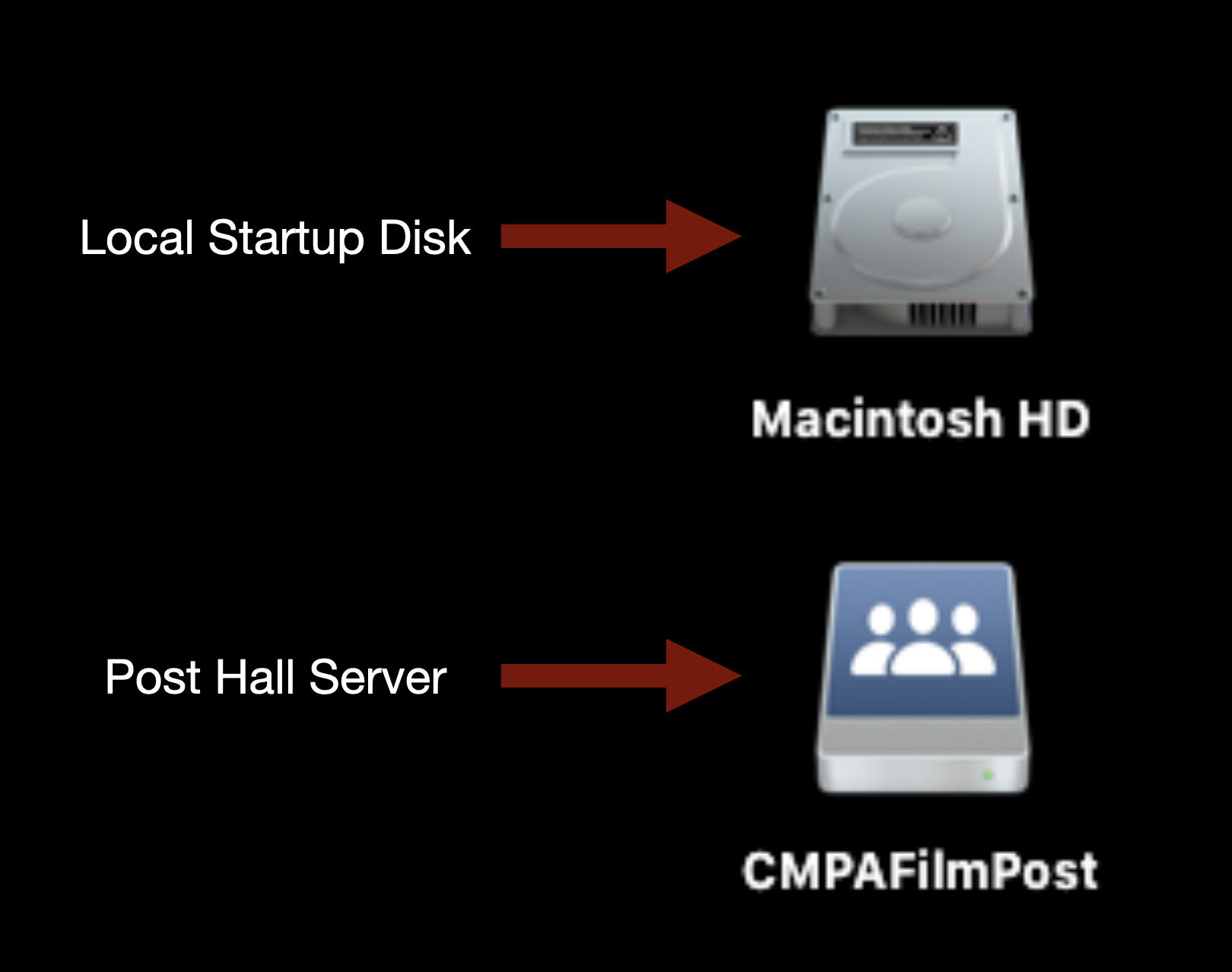
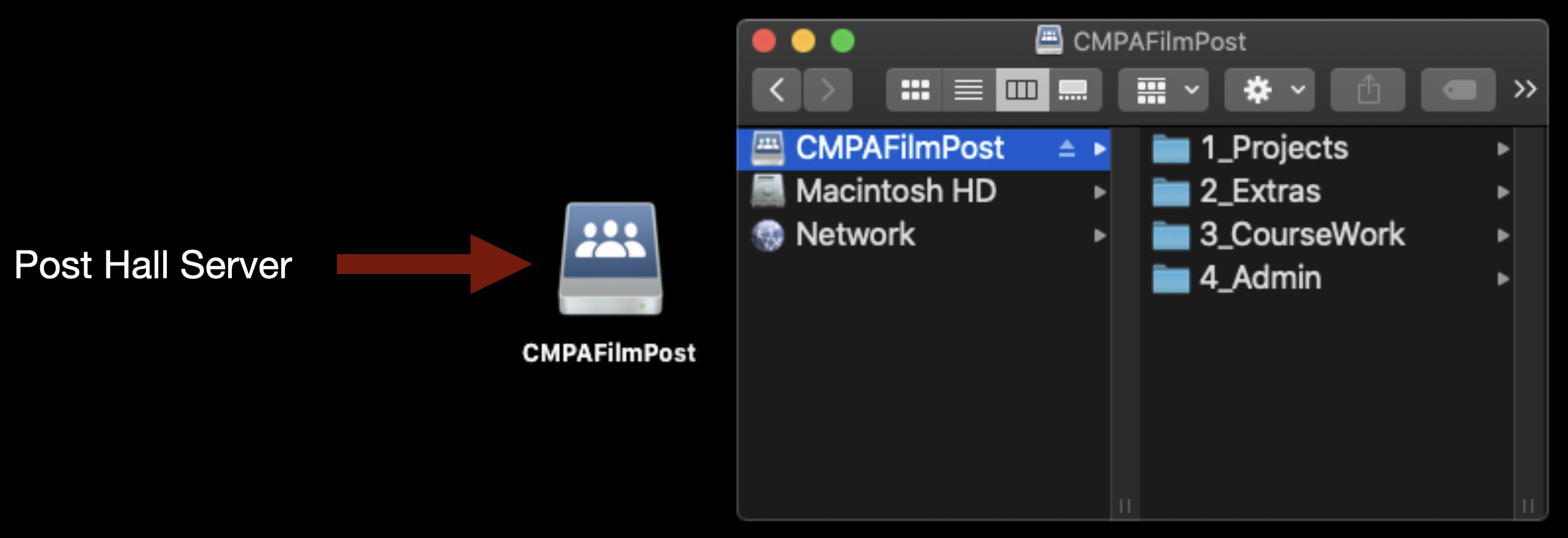
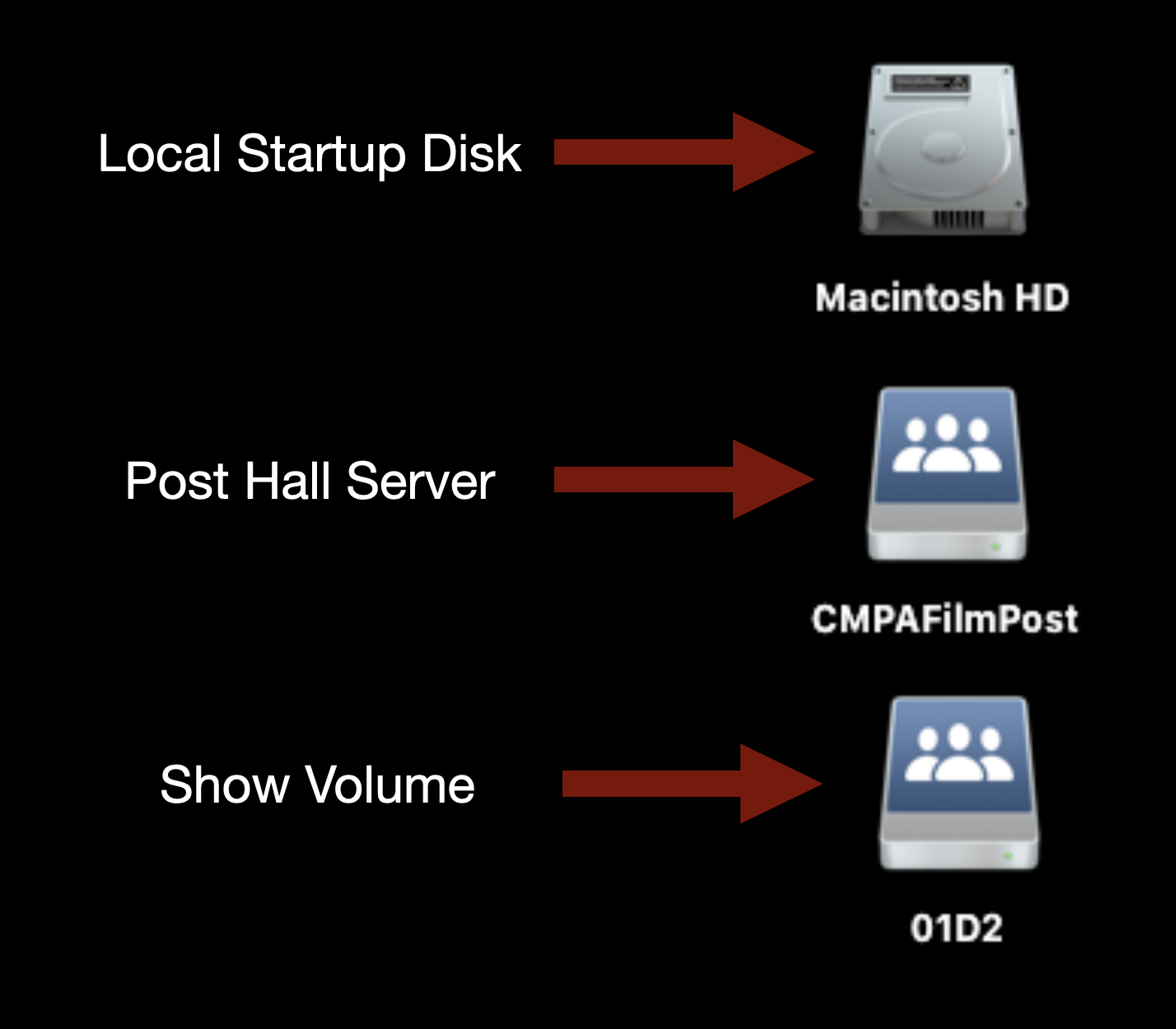
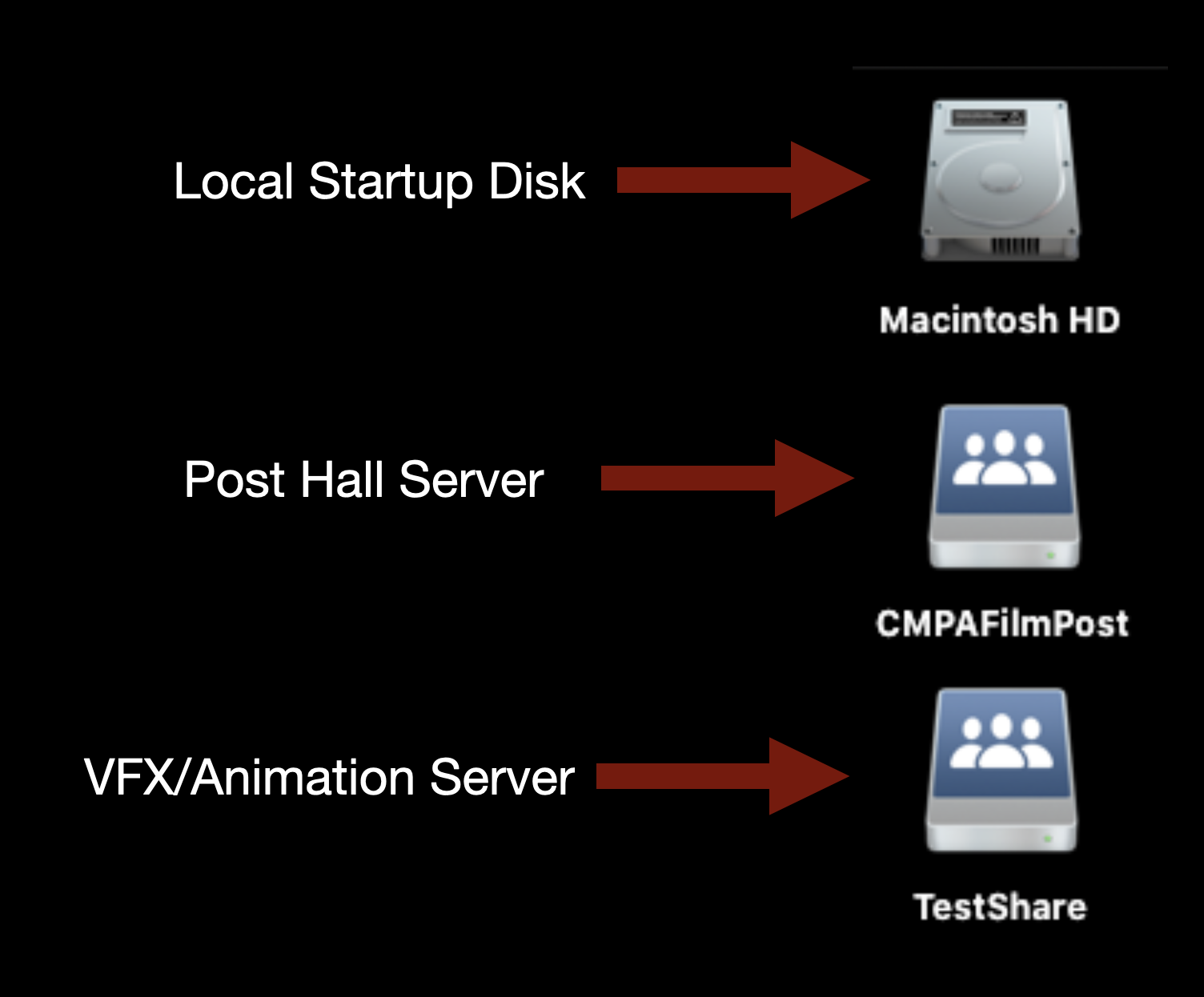
CMPAFilmPost or “the post hall server” should always be mounted on the desktop of your machine and will look like the example below.
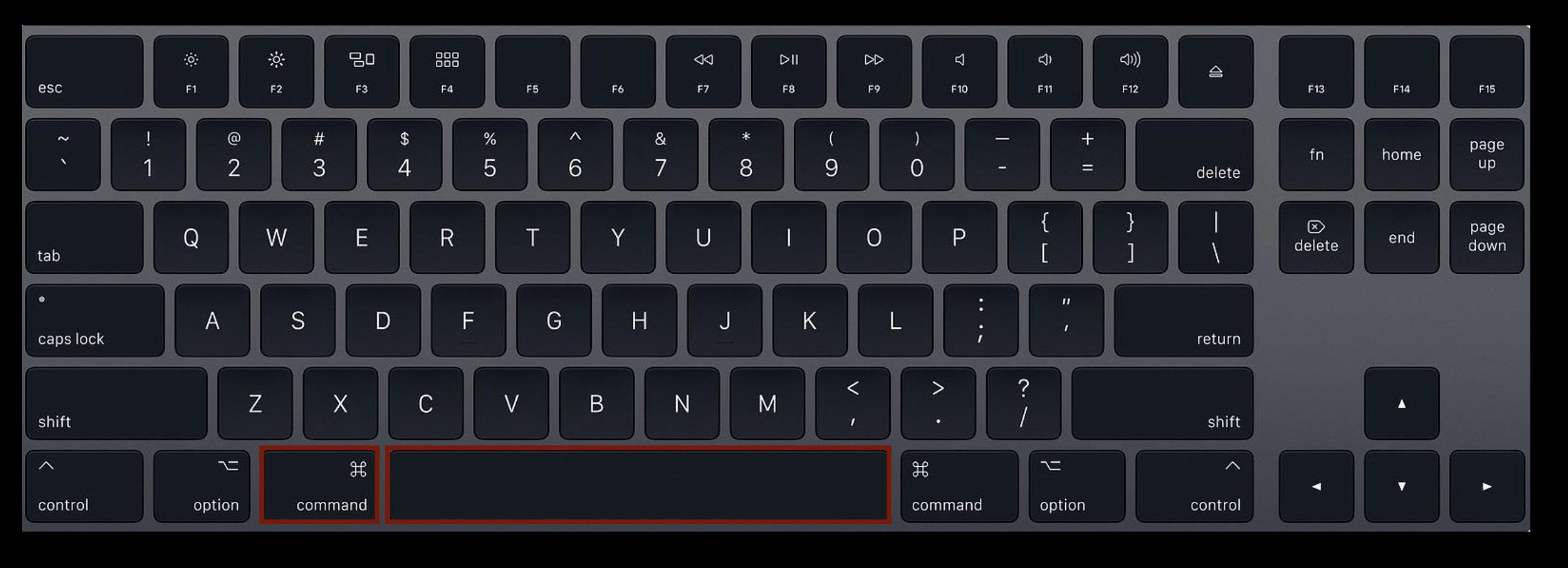
If for some reason it is not mounted type “Command” + “Spacebar” on the keyboard.
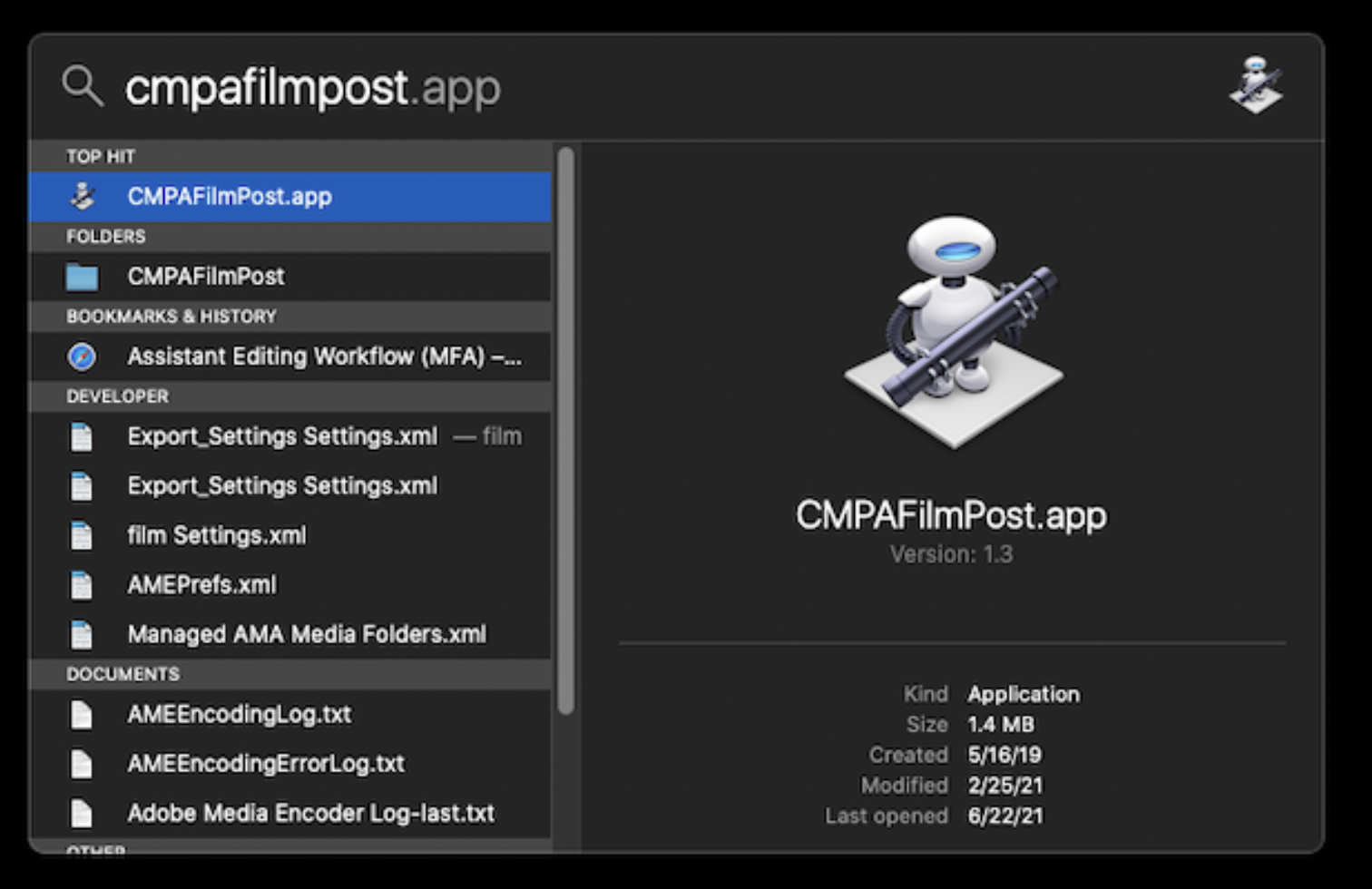
This will bring up the Spotlight Search function.
Type in “cmpafilmpost”. This will find an app that will mount the server. Hit “Enter” and it mount and you will see it on the desktop.
This is the main post hall server. This is where your Original Camera files and Production Audio will live.
Mounting Show Volume
Each film will have its own individual “Show Volume”. This is where your Media Composer Project and ProTools Project will live. You will need to mount the volume specific to the film you are working on.
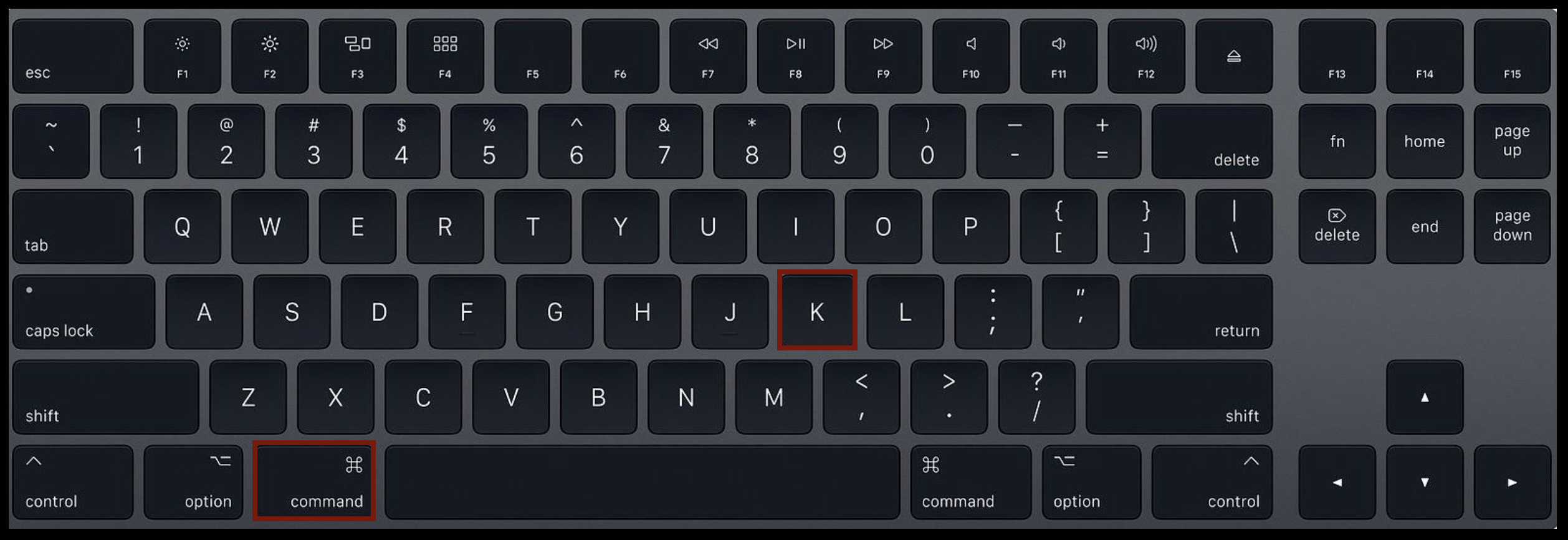
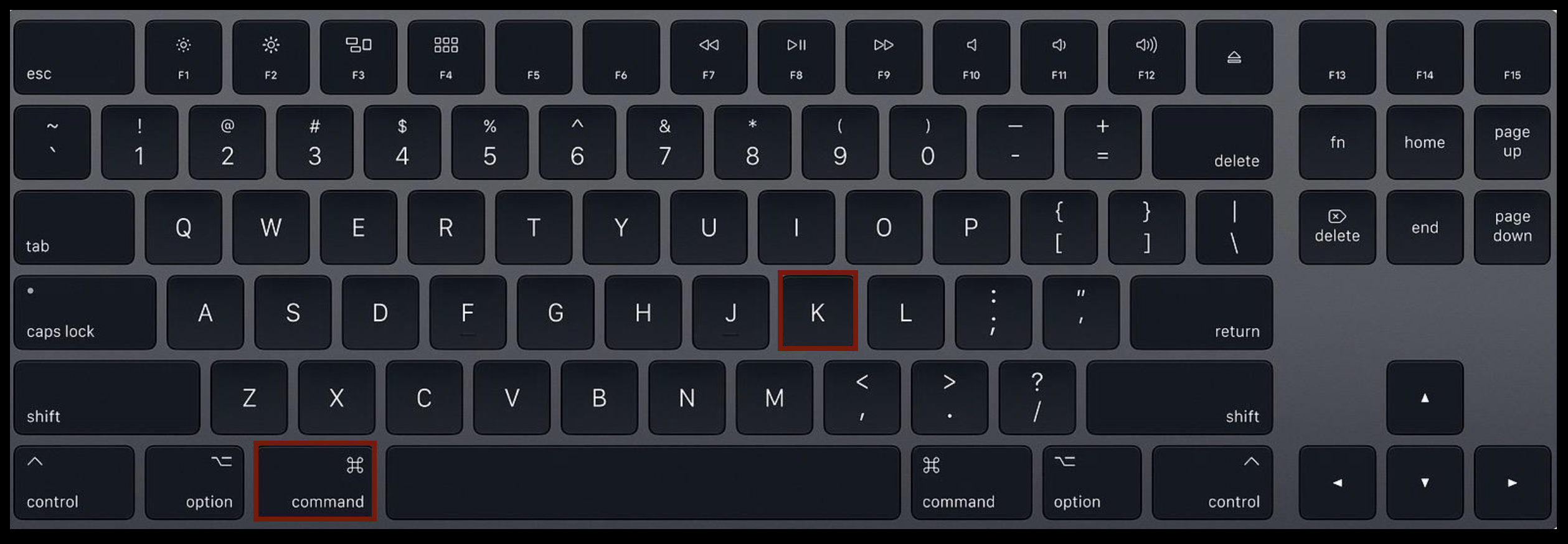
To do so type “Command” + “K” on the keyboard.
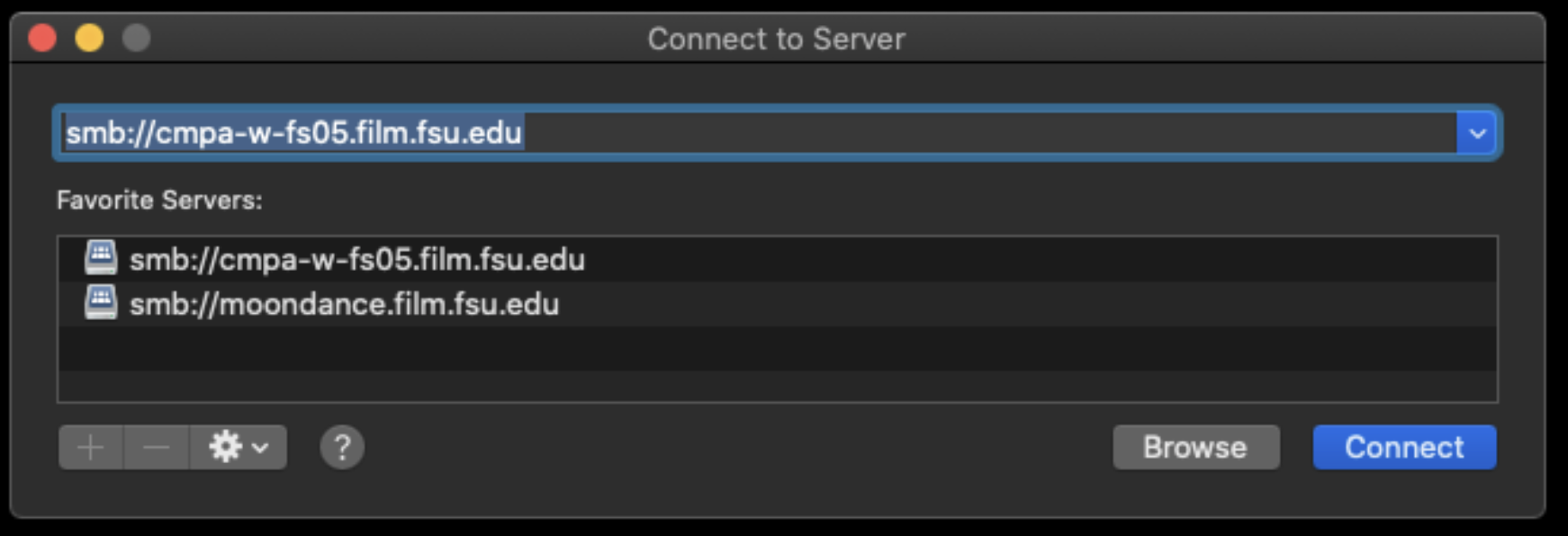
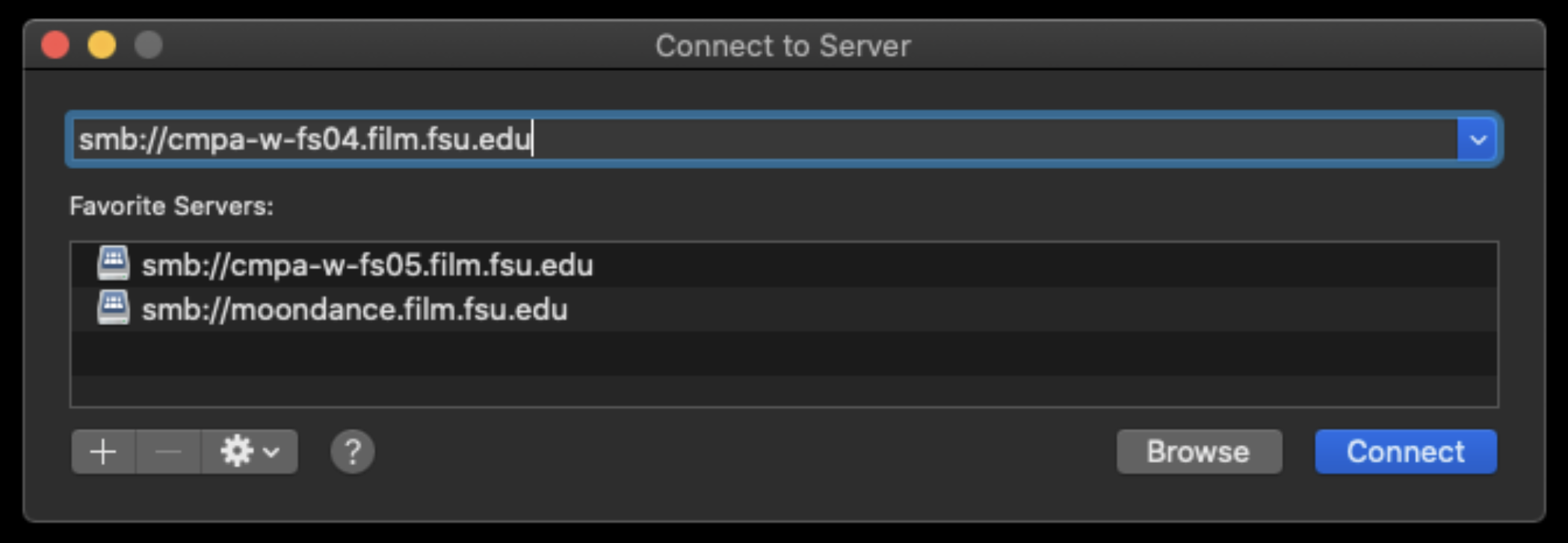
This will bring up the “Connect to Server” prompt. Type in the address: smb://cmpa-w-fs05.film.fsu.edu
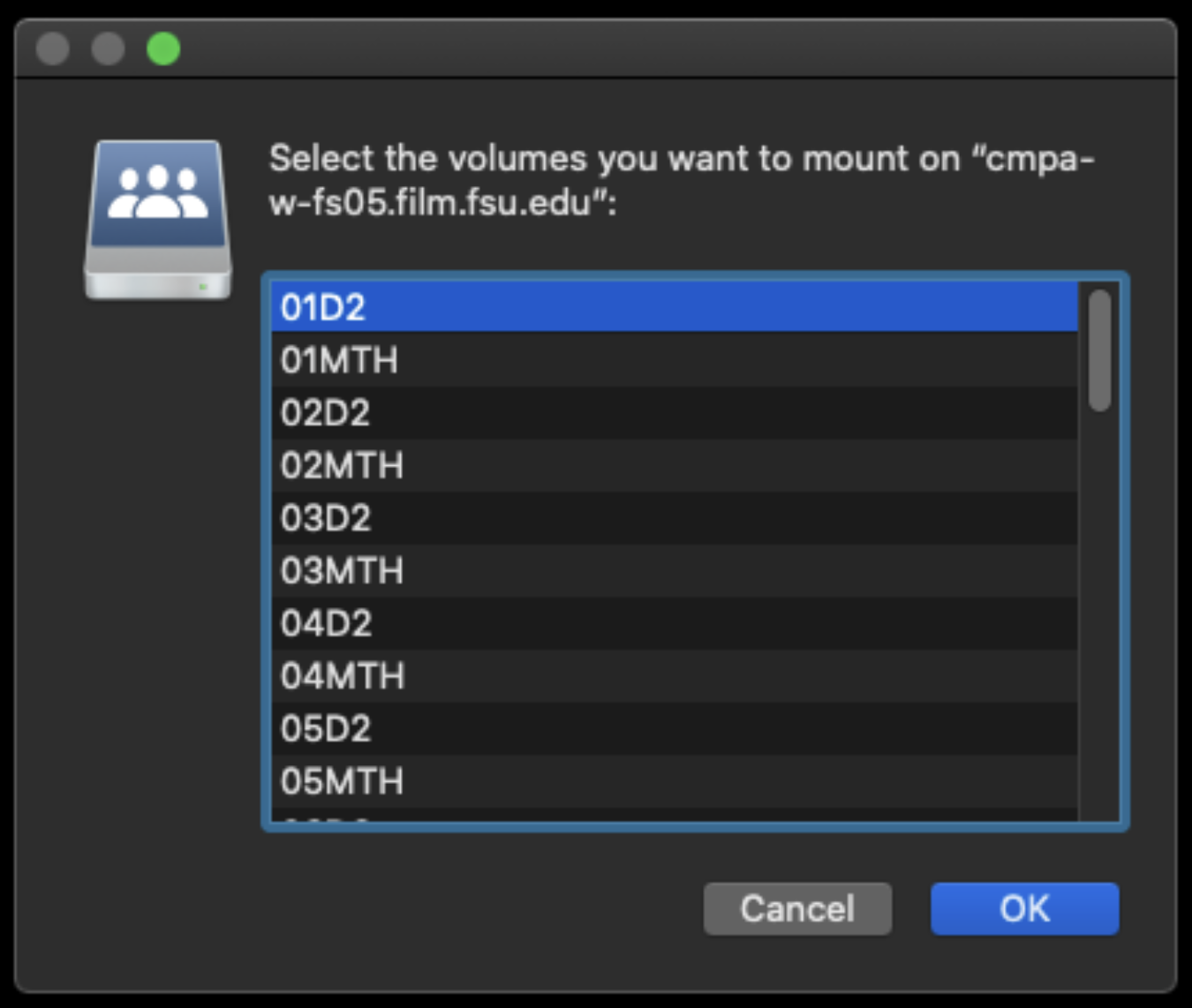
This will show all the possible show volumes that are available to choose from. Select your show number and then hit OK.
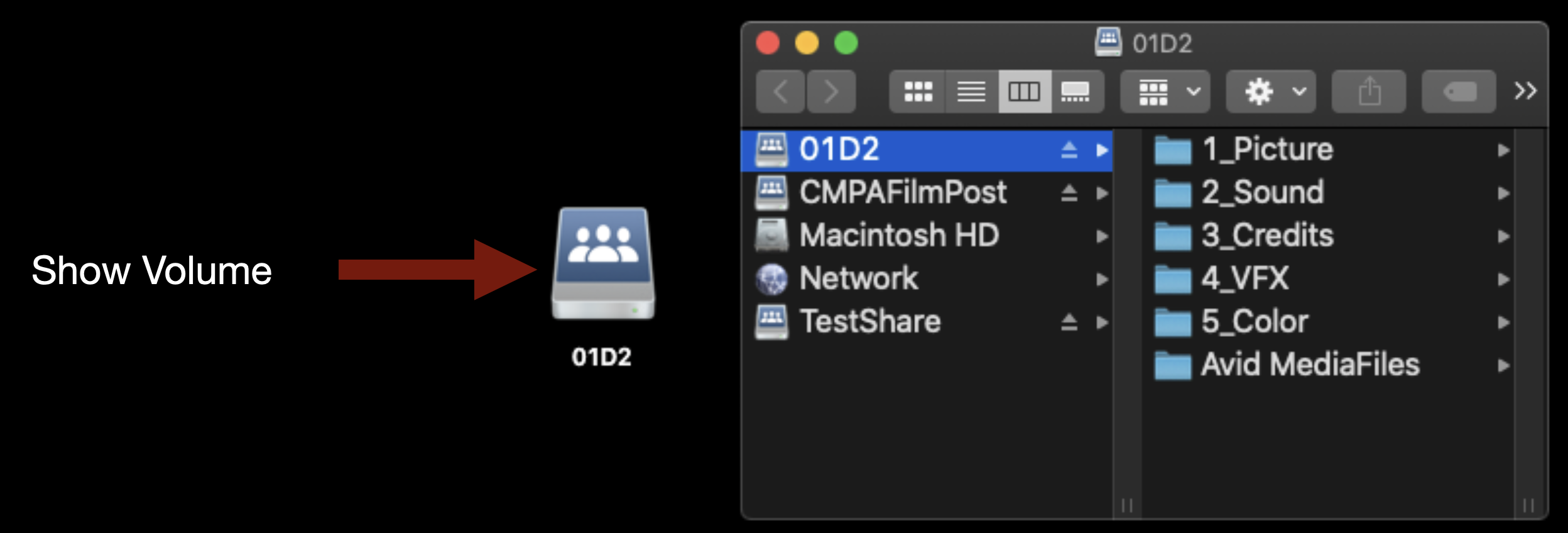
It will mount on the desktop and will look like the example below.
This is the folder structure inside.
Mounting TestShare
TestShare or “the Z Drive” is the server used for VFX and Animation work. If you need to mount it type “Command” +”K”.
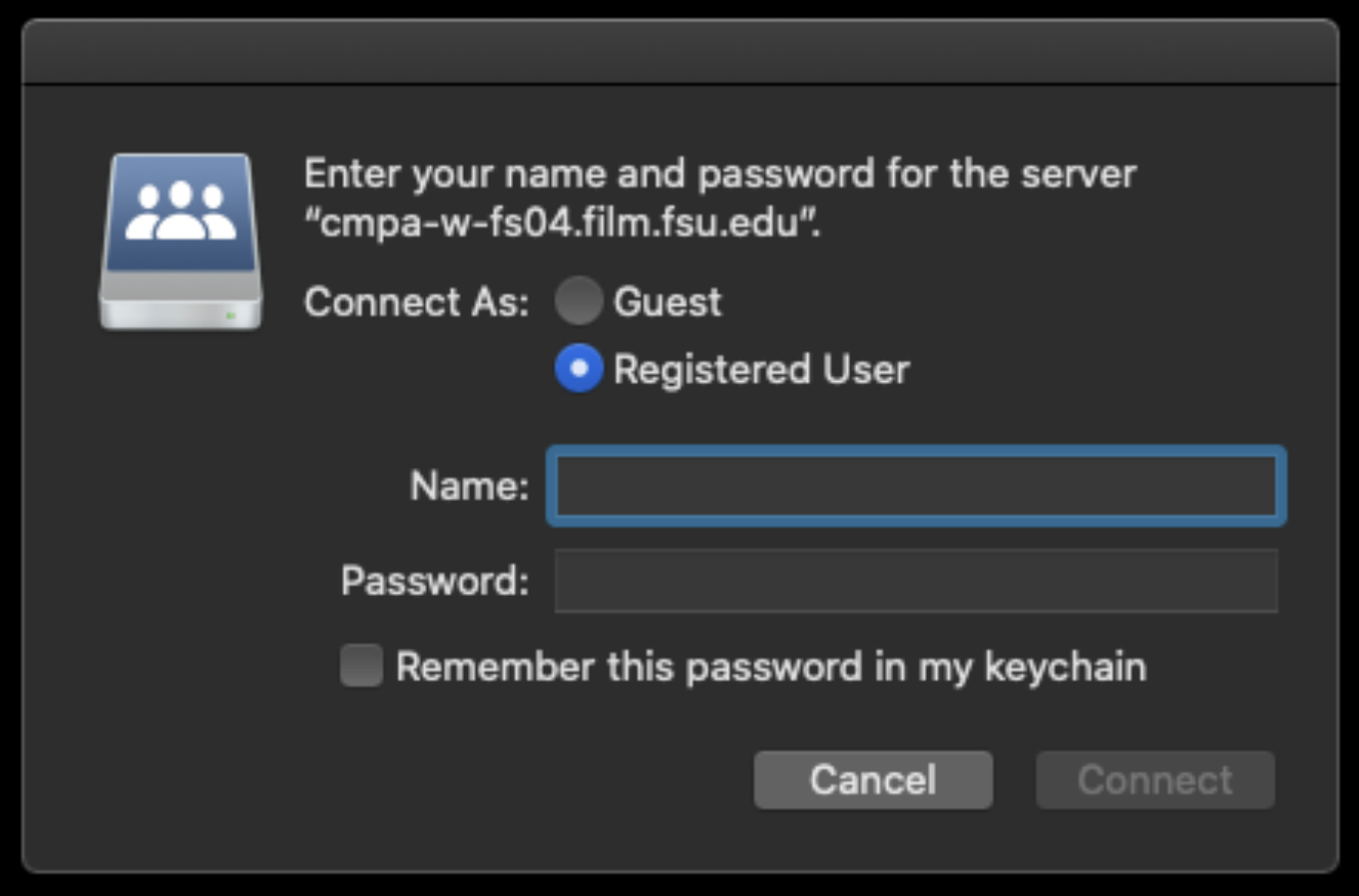
This will bring up the “Connect to Server” prompt. Type in the address: smb://cmpa-w-fs04.film.fsu.edu
You will need to enter your FSU ID and Password.
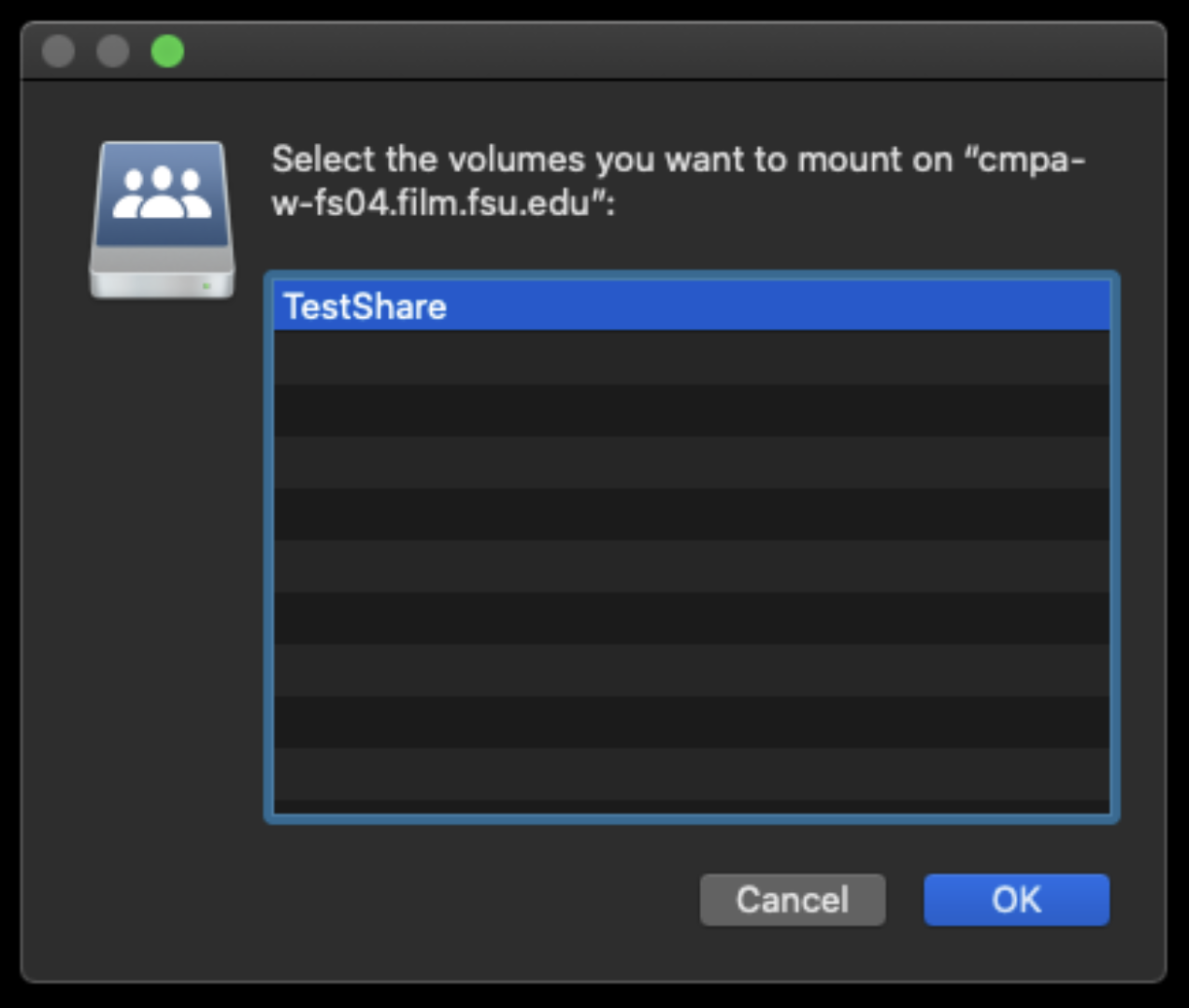
After that it will let you choose “TestShare”. Click OK to mount it.
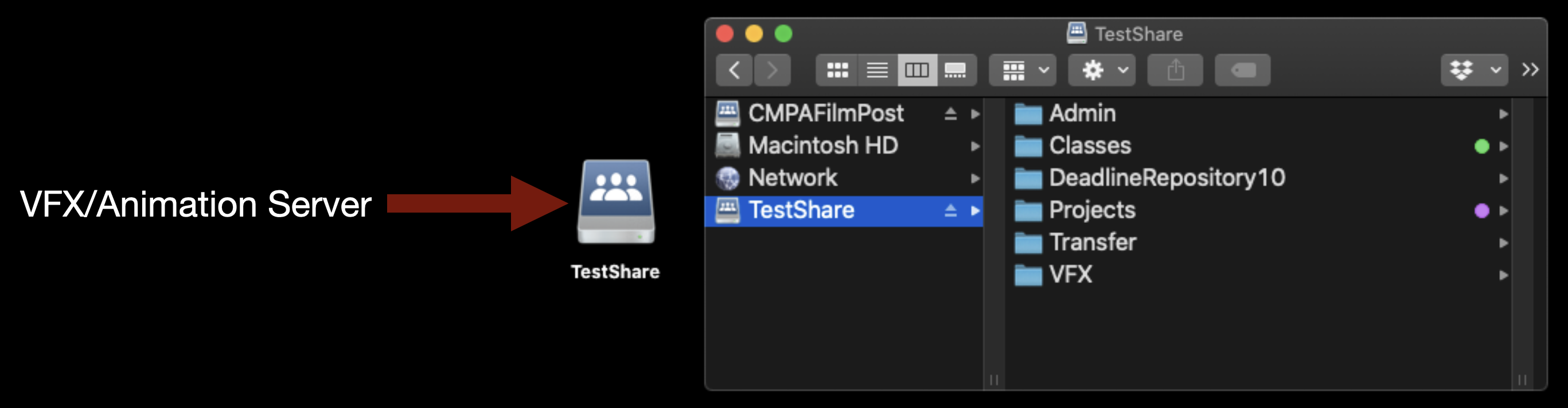
It will mount on the desktop and will look like the example below.
The front sequence set-up refers to the standardized elements that must appear at the beginning of a locked Avid Media Composer sequence prior to final delivery. These elements include bars and tone, slate information, countdown leader, and the FSUFILM leader, arranged according to the delivery specifications outlined below.
Standardized front sequence formatting helps ensure consistency across projects and supports smoother workflows during sound, color, mastering, archival, and exhibition processes. Maintaining proper sequence structure also reinforces professional finishing practices and helps students develop attention to detail during final delivery preparation.
Instructions
Download the Extras folder, which is located on frame.io inside the F2 folder.
In Media Composer, change the sequence starting time to 00:59:00:00.
Control-click on the Program Monitor – Sequence Report.
Import / link to the Bars and Tone video and add it to the timeline. It should run for exactly 30 seconds.
Add a 30-second slate with the title tool that includes: the title of the film; the names of the creative team; and the TRT of the film. Note: the TRT starts at the first frame of FSU leader and ends at the final frame of the copyright.
Import / link to the countdown and add it to timeline. This should run for exactly 8 seconds.
Import / link to the FSUFILM Leader and add it to timeline. This should run for 10 seconds.
This resource compiles public domain and Creative Commons materials that students may use when searching for music, images, footage, sound effects, or other media assets for productions and related projects.
Understanding public domain and Creative Commons licensing is important because productions must ensure that all third-party materials are being used legally and appropriately. Learning how to evaluate licensing terms, attribution requirements, and permitted usage helps students develop stronger professional practices related to copyright, rights clearance, and media sourcing within film production workflows.
Some Words of Caution
The Internet is a wonderful place for finding videos, images, motion graphics, clip art, music, and sound effects that can be used in your films.
Beware, however, that the Internet is also a terribly unreliable place and the burden of proof will fall on Producers to document that the production has the rights to use the materials, so that there’s a clear chain of title.
For works in the public domain, this can sometimes take a fair amount of research, as licensing information can be unclear, unreliable, or hard to track down. Any works published 95 years ago or earlier are now in the public domain. Any works published in the past 95 years should be assumed to be under copyright, unless otherwise confirmed. Be aware that new versions of works in the public domain — e.g., a New York Symphony Orchestra’s recent recording of Beethoven’s 9th Symphony — are copyrighted. In other words, while you could perform the composition yourself and be alright, you couldn’t use the New York Symphony Orchestra’s recording without clearing it first.
For Creative Commons work, some license types (such as “NoDerivs” and “ShareAlike”) are not compatible with the work we do. Productions are only permitted to use work licensed as “Attribution” or “Attribution-NonCommercial”.
Discover original artworks from a library of public domain books and chromolithographs. Art prints scanned and digitally enhanced into high resolution, available to download under the CC0 license.
Free vector images. Find the best royalty free vectors and illustrations for your design, with thousands of new images added every day. Download free backgrounds, graphics, clipart, drawings, icons, logos and more that are safe for commercial use.
Pick-up photography refers to additional filming conducted after principal photography has concluded in order to capture missing material, inserts, revised coverage, or other supplemental footage needed to improve the project.
Because additional filming affects scheduling, equipment access, staffing, locations, and administrative coordination, productions must approach pick-up photography carefully and with clear planning. The process helps ensure that additional shooting is necessary, realistically achievable, and properly coordinated within the broader production and post-production schedule.
How It Works
On the FC and MC cycles, students may make a request to the Head of Production for pick-up photography to improve moments in the film that were not captured successfully during principal photography. Pick-up requests may not be made for additional moments that were not part of the original shooting plan.
No show will be approved for more than six hours of pick-up photography. And all pick-up photography will need to be completed and cut into the edit before picture lock. In some cases, this may mean that the turnaround time for pick-up photography is tight, so students will need to be diligent and proactive if they want to put in a request.
Pick-up photography is a privilege to be earned. Since pick-up photography involves time and resources, requests will not be approved automatically. Approvals will be granted only if the time and resources are available and if students make a compelling case for the value of the pick-ups to the film (including proof that the problem cannot be adequately solved with careful editing choices).
the exact nature of the subject matter to be shot;
the reason why it was not shot with the first unit crew during principal photography;
the date, times, and location of the proposed shoot;
the crew required for the proposed shoot, including names and signatures (you’ll need to determine how many crew members you need and you’ll need to recruit them);
notes on any special equipment requests;
notes on any budget plans;
any other supporting documentation.
For MC projects, all requests must be submitted to the MFA Head of Production no later than the end of the spring semester. For FC projects, all requests must be submitted to the BFA Head of Production no later than the day of the first cut screening.
The Head of Production’s decision on whether to approve or deny a pick-up photography request is final.