#post-production

Universal Production Music

Decorative image of Universal Production Music

Overview

Universal Production Music is a production music library available to students for approved use within film projects and related productions. This resource provides information about accessing the library, searching for music, and incorporating licensed tracks into student productions under the program’s agreement.

Using properly licensed production music is important because films intended for festival exhibition, online release, or public distribution must have clear rights documentation for all music used within the project. Access to a professional music library also helps students develop stronger practices related to music selection, licensing, and post-production workflow management.

How it Works

The College of Motion Picture Arts pays an annual fee to Universal Production Music (UPM)—the worlds largest music catalog—for the licenses to the library music they provide on their site.

All the music in UPM is pre-approved for use in any of our student productions. Each track should be credited in the end titles of the finished film, but no releases need to be signed for the use of this music, so long as you remain in accordance with the licensing agreement. Simply include a copy of the license in the final paperwork delivery for the project.

Contact the post-production staff if you need the login credentials.
Music Rights

Overview

Music rights refer to the legal permissions and ownership interests associated with the use of music within a film or media project. This includes rights connected to musical compositions, sound recordings, synchronization, master recordings, and other forms of music usage and licensing.

Understanding music rights is essential because productions cannot assume that music may be used simply because it is publicly available or easy to access online. Proper rights clearance helps productions avoid legal and distribution problems while reinforcing professional practices related to copyright, licensing, and responsible media usage.

Important Rules and Restrictions

Unfortunately, music rights are often neglected until the very end of post-production. This is a mistake that could come back to haunt you. Acquiring music rights is often a more difficult and time-consuming process than one might realize. It is therefore in your best interest to start thinking about the music in your film early—ideally during pre-production.

For this reason, all F1 and M1 projects are only permitted to use music from the Universal Production Music library, since the school has already licensed that music.

Producers on all other production cycles may use the other methods of acquiring music that are described below, but they should start the process of clearing rights as early as possible.

A show will not be permitted to mix with a piece of music if the music rights have not been 100% cleared.

An alternate track from the Universal Production Music library should always also be prepared as a back-up—in case unanticipated issues arise with the music rights and so that an alternate, screenable version of the film remains available after any music rights may have expired.

Working with a Composer

If you want your film scored, then you will want to contact several composers during pre-production. Explain to them what your story is about and ask them to send a demo reel. If you like their work, then ask them to produce a temp track based on the ideas expressed in the script. If you like the temp track, hire them to score the film. You should have them sign the School’s Composer Contract at the moment of hiring before they begin any work.

Provide them with copies of early cuts as well as the final cut of your film. The composer will then compose the score and submit it to you.

Licensed Music

If you want to use pre-existing music, then you will need to obtain the proper licenses in order to use the music in your film. You must get each license for at least:

  • Two-years
  • Film festival
  • Non-commercial
  • World rights

Getting the music rights could be as simple as sending letters to the publisher and record label, having them sign and return them. However, you may be required to complete their licensing agreements instead. If this is the case, make sure you have the Head of Production review the agreement before you sign it, to ensure we have the proper releases.

There are typically two different types of licenses that you will need to acquire:

Synchronization License

This is the right to reproduce a specific musical composition in your film. It must be obtained from the copyright owner of the composition, which is usually the publisher. You can find out who the publisher is by searching by song title at either www.ascap.com or www.bmi.com.

Almost every song is represented by one of these two companies. Songs that are not represented by ASCAP or BMI might be found at the National Music Publishers’ Association “Songfile” website (www.nmpa.org). You will be provided with a contact at the publisher’s Business Affairs or Licensing Department.

Note that you will need to get a synchronization license from the publisher, even if you are making your own sound recording of that song. For example, if you have your actor sing or recite lyrics, whistle or hum the tune, play the song on a musical instrument, or in any way make your own sound recording of the song, you will need to get the synchronization license from the publisher.

Master Use License

This is the right to synchronize a sound recording with your visual image. You clear this right with the record label who owns the sound recording you would like to use. Check the liner notes of the recording to find out which company this is. Alternatively, you can get contact information for record labels by contacting either ASCAP or BMI (see above). You will be provided with a contact at the record label’s Business Affairs Department.

Library Music

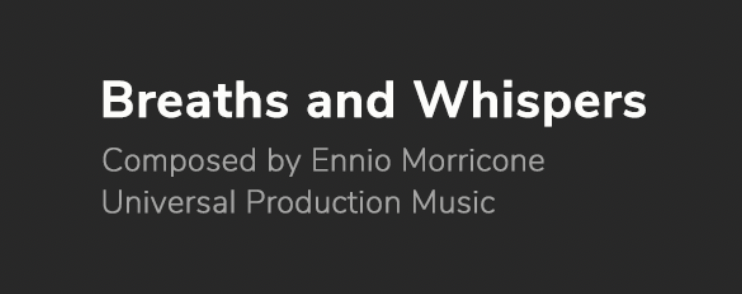
The school pays an annual fee to Universal Production Music for licenses to their library music. You are free to use any and all of the music in that library and no releases need to be signed. You will need to credit the song title and composer in the finished film for each piece of music that you use. Here’s an example:

Sample on-screen song credit

Public Domain Music

If you want to use a piece of music currently in the public domain, be careful. Know for sure that the piece of music is actually in the public domain. This can sometimes take a fair amount of research, as there is often unclear and unreliable information circulating about works that are supposedly in the public domain. All songs and musical works published in 1925 or earlier are in the public domain; anything published after 1925 should be assumed to be under copyright, unless otherwise stated. If the piece of music is in the public domain, then you can use it.

However, be aware that just because a musical composition may be in the public domain, that does not necessarily mean the sound recording of that composition is in the public domain. For example, the musical composition of Beethoven’s 9th Symphony is in the public domain, but the New York Symphony Orchestra’s recent recording of it is not. If you would like to use that particular recording in your film, you will need to get a license from the publishing company that holds the rights to that specific recording. You could, however, hire your own musicians to perform the 9th Symphony without needing to acquire a license to use the composition.

Creative Commons

Creative Commons is a community that offers an alternative copyright model for authors of creative works who would like others to be able to share, remix, sample, or build upon their work. Creative Commons provides a range of licenses that authors can attach to their creative works, giving other people greater or lesser degrees of permission to share or modify the work.

You may use Creative Commons work in your film if the original work has been licensed with one of the following license types, so long as you provide attribution in your film’s end credits:

CC-BY license
Attribution
CC-BY-NC license
Attribution • Non-Commercial

Some of the Creative Commons licenses, however, do not play nicely with how we make movies. If you see licenses on works that include either of the following terms, you will most likely not be permitted to use those works:

  • NoDerivs. This license does not permit derivative works and requires that the original work is passed along unchanged and in whole, which is unlikely to happen in the context of our films.
  • ShareAlike. This license requires you to also license your work with a ShareAlike license. However, since the College owns the copyright on all student films, students are not permitted to license their films with a Creative Commons license, which makes it impossible for you to honor the original Creative Commons license.

Note, however, that many authors who’ve opted for a NoDerivs or ShareAlike license may be open to giving you permission to use their work if you contact them directly. If they are willing, you’ll need to follow the College’s usual process of acquiring a licensing agreement for a copyrighted work.

Credit Policies

Overview

This page outlines the rules and professional standards governing the presentation of titles and credits in student films, including formatting expectations and appropriate content. Screen credits are intended to recognize individuals and entities who contributed directly to the production and are expected to follow established professional conventions.

Maintaining clear standards for titles and credits is important because credits function as an official production record and reflect the professionalism of both the film and its filmmakers. Accurate, properly formatted credits help ensure that contributors are recognized appropriately while reinforcing industry expectations surrounding presentation, attribution, and professional conduct.

Content vs. Credits

For FSUFILM productions, title and credits are limited to a maximum of 60 seconds. This can be divided between Lead Titles and End Credits but combined together their length is not to exceed 60 seconds. This allotted time includes the Logo card and the Copyright card at the end of the credits, each of which must run for two seconds each.

Titles and credits that run over picture or audio that is not “advancing the narrative” will count toward your 60 seconds for titles and credits. Titles and credits that run over picture or audio that is “advancing the narrative” will count toward your Content time.

Remember that the primary purpose of credits is to credit that people which contributed to the creation of the film. Content time is for story, credit time is for credit. Any questions will be left to the discretion of the directing and editing faculty.

Rules

At FSUFILM, we adhere to a professional standard for the presentation of credits and titles in all student films. Film credits serve the sole purpose of recognizing those who contributed directly to the production and are not a space for personal messages, jokes, or informal content. All credits must be accurate, appropriately formatted, and aligned with industry standards to maintain the integrity of the work and the professionalism of our filmmakers.

Every show must adhere to the following rules. No exceptions.

  1. There can be no visual changes made to the FSUFILM leader.  
  2. There can be no possessive credits (“A Film by Me”) or production company credits. Only FSU makes these films. 
  3. Students must use their real names and are not permitted to take their name off a film.
  4. Whenever possible, students who do more than one job should have their name listed once with all jobs in one place. 
  5. Only ATL crew, actors, and the title may have single cards. Everyone else should be in groups, listed efficiently to be legible but not lengthy. 
  6. There can be no dedicating the film to someone.
  7. A “Special Thanks” section may be added to thank individuals or businesses that helped support the production, but aren’t credited elsewhere. A few rules:
    • The list should include only formal names and/or business names. No other language is permitted.
    • Use real names—not nicknames or terms like Mom & Dad.
    • If you wish to thank faculty or staff members, rather than singling out individuals, use the more inclusive: “College of Motion Picture Arts Faculty and Staff.”
    • For production cycles that ran a Spark fundraising campaign, include a general thank you to “Spark Donors” in every film. You may additionally thank individual donors, if you have a special relationship with them and would like for them to be able to see their name on screen.
    • Thanking a deity of any sort is not permitted. The State does not hold a religious affiliation, so FSU cannot thank any God or Gods.

Lab Policies

Overview

This page outlines the rules, expectations, and operational procedures governing the use of computer labs, post suites, and shared post-production facilities, such as the ADR/Foley Suite and mixing stages. Violations of these policies may result in disciplinary action.

Lab policies help ensure that shared spaces remain functional, secure, organized, and available to all students working within the program. Clear expectations also support safer working environments, protect equipment and facilities, and reinforce professional habits related to workspace stewardship and collaborative resource usage.

General etiquette

Computer labs and post-production facilities are work spaces. They are not spaces for hanging out and socializing, as this can be distracting to other students who are trying to work. They are also spaces with a lot of technology that needs to remain well-maintained and correctly configured.

Each student is expected to leave a workstation in the same condition they found it, so that the next user doesn’t run into problems.

Access

Labs and post suites are for student-use only. This is to keep our facilities secure and to minimize potential distractions that guests may cause for other students who are trying to focus on their work. If you wish to bring a guest to a lab or the Post Hall, you must seek prior approval from FSU faculty.

Food and drink

Food is never permitted in the computer labs or post suites. Beverages are only permitted if in a BOTTLE WITH A SPORTS CAP. Beverages must be kept in your backpack or bag when you’re not drinking. The container must never be left on the desk or on the floor near the workstations. If you cause damage to any equipment, you will be held responsible for the full replacement costs.

Noise and cell phones

Keep your voice volume down so as not to disrupt or disturb others working in the space. Keep phones on silent/vibrate mode at all times. If you need to take/make a call, step out of the lab.

Workstations

Keep your work area reasonably clean and neat at all times. Always restore your work area to a pristine condition when you leave. Unless rendering, log out of your workstation if you plan to step away from your computer for more than 15 minutes.

All students are responsible for proper care of the equipment. If you lose or break any equipment, you will be held responsible for the full replacement costs. Tablets, mice, and external monitors must not be removed from a workstation under any circumstances. Chairs must also not be removed from the lab.

The downloading of illegal or potentially harmful files on the lab computers is absolutely forbidden. In particular, the FSU network or computers must never be used to download or store pirated movies, music, software, plug-ins, or any other material.

Rendering

Assume all projects will be rendered locally on your assigned workstation. Contact faculty if you feel you cannot complete your show’s rendering on your local workstation. If you set-up renders overnight or over lunch, leave a piece of paper on the desk to indicate that the workstation is busy rendering.

Storyboard panels and walls

You may hang project-based materials on the “storyboard” panels if you wish. Do not post inappropriate or potentially offensive materials to the storyboard panels. Keep it professional. Do not tape or pin anything to bare walls or computer monitors.
Clean up

Please assist with the general upkeep of the labs. It’s a team effort. If you notice that a lab is getting messy, assist by cleaning up some of the mess, even if you weren’t responsible for it.
F1/Doc Editorial Process

Overview

This page outlines the editorial workflow and post-production process used for F1 documentary projects, including organization, review stages, revisions, faculty feedback, and major editorial milestones.

Documentary editorial often evolves through discovery and restructuring over time rather than following a fully predetermined script. A structured editorial process helps productions manage large amounts of footage more effectively while supporting clearer collaboration, feedback, and storytelling development throughout post-production.

How It Works

This post provides a step-by-step guide covering how to:

Note: On F1 projects, there will be no VFX work allowed outside Media Composer. Only your credits may be generated in After Effects and imported in as a DPX sequence.

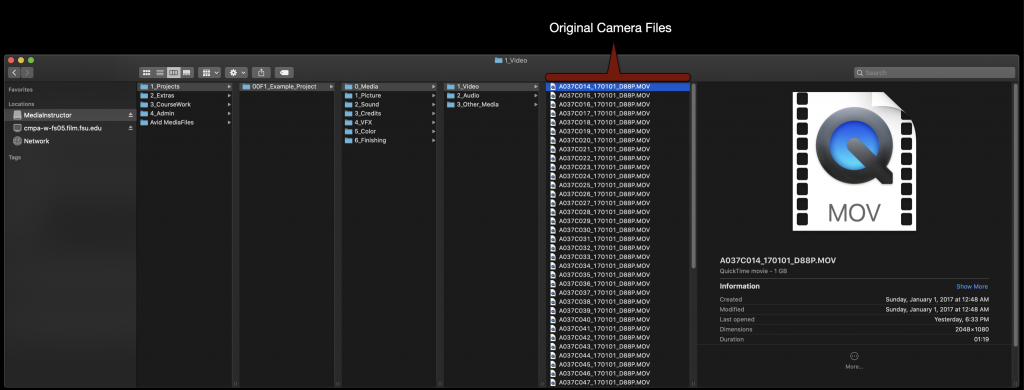
On the first day check the location of your OCF on the local drive of your assigned machine.

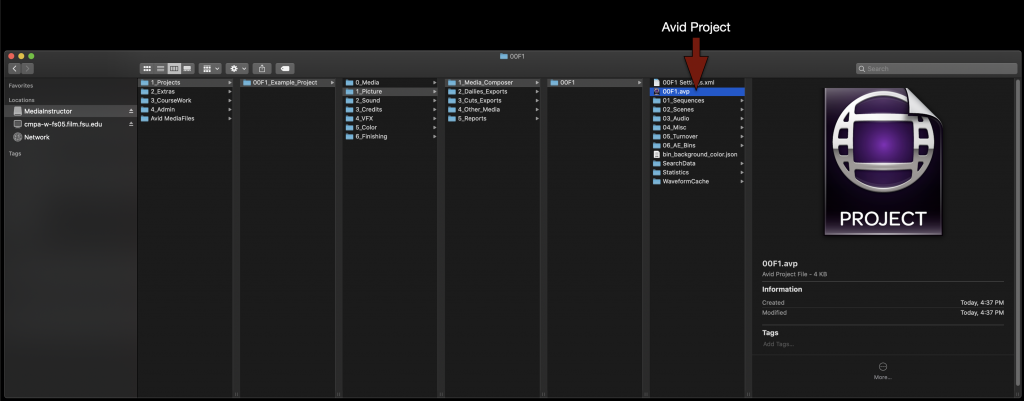
Next open your Media Composer project. It can be found at in the folder tree as shown in the example.

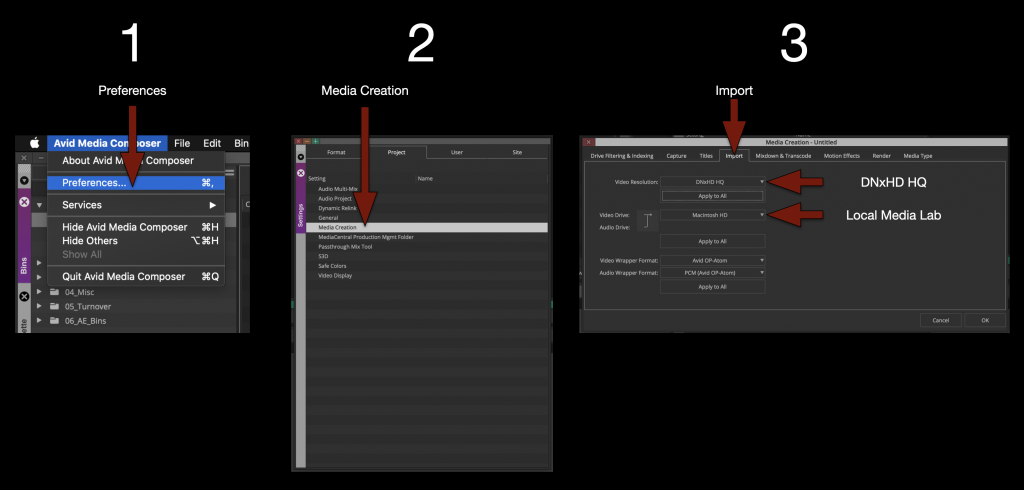
Once your project is open its a good idea to go ahead and set the “Media Creation” settings to the correct resolution and drive.

IMPORTANT! Remember to set your video resolution to “DNxHD HQ”.

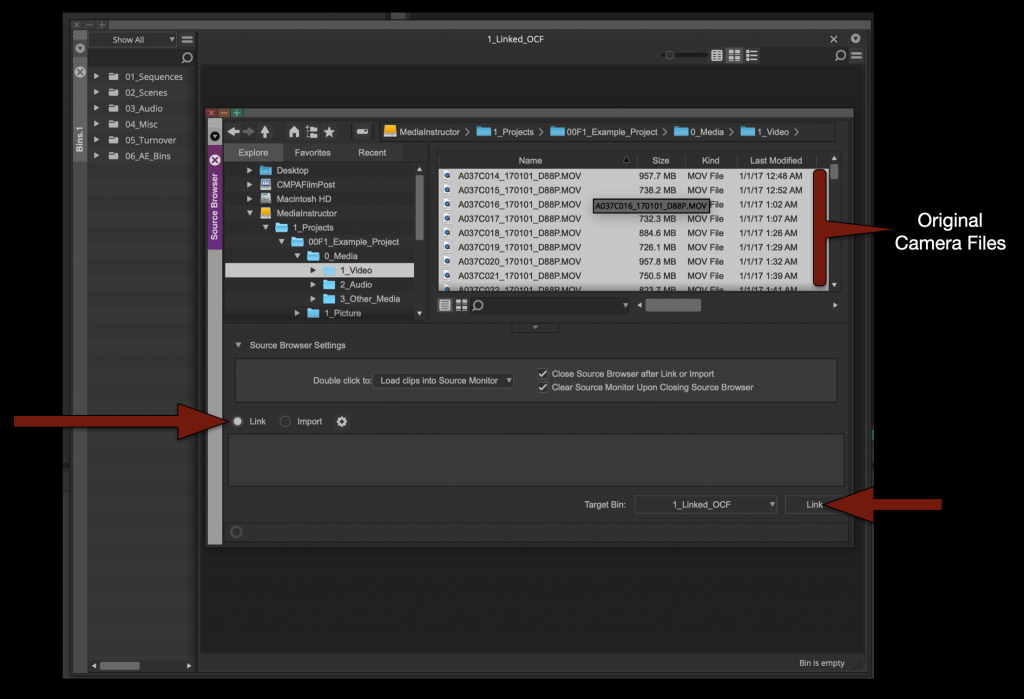
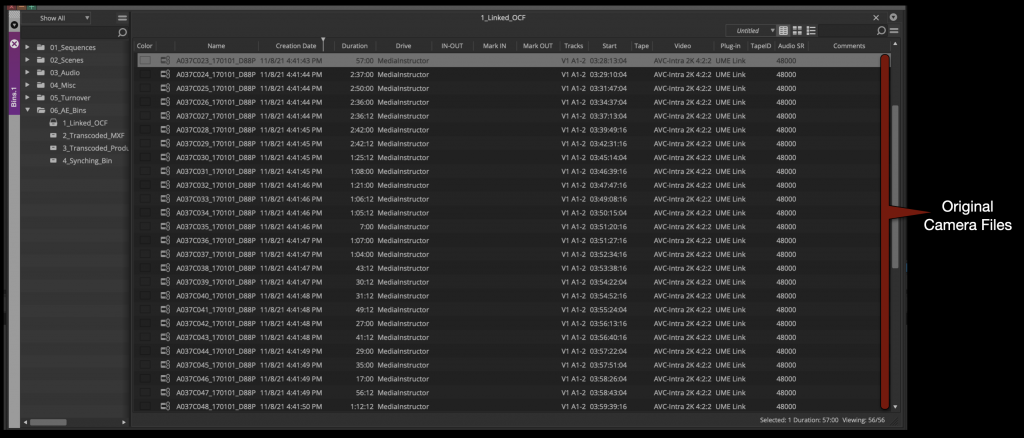
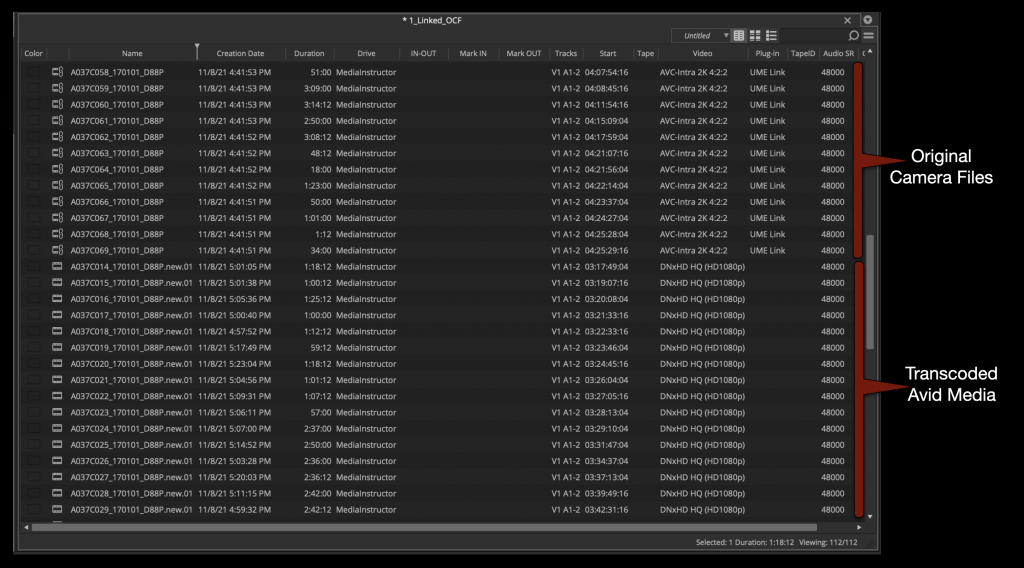
Now open the “Linked OCF” bin and open the “Source Browser”. Select all of the original camera files and link them into the bin.

When everything is linked it it will look like the example below.

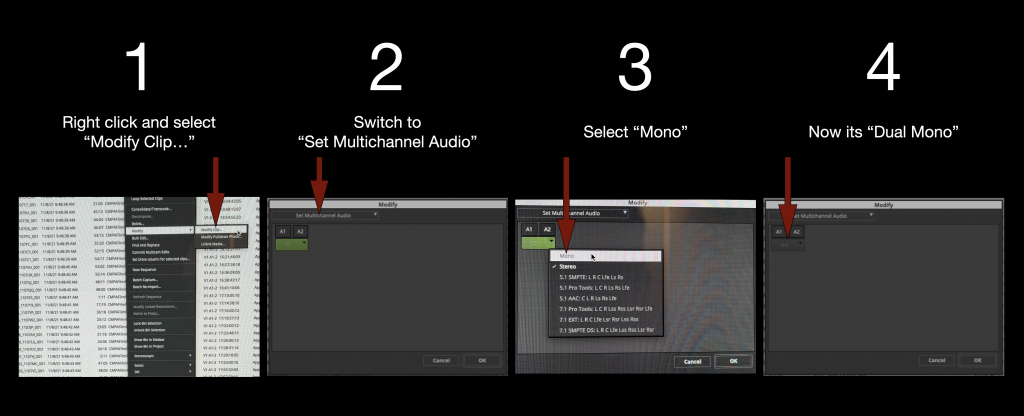
Select all the linked OCF in the bin and switch the audio from “Stereo” to “Dual Mono”.

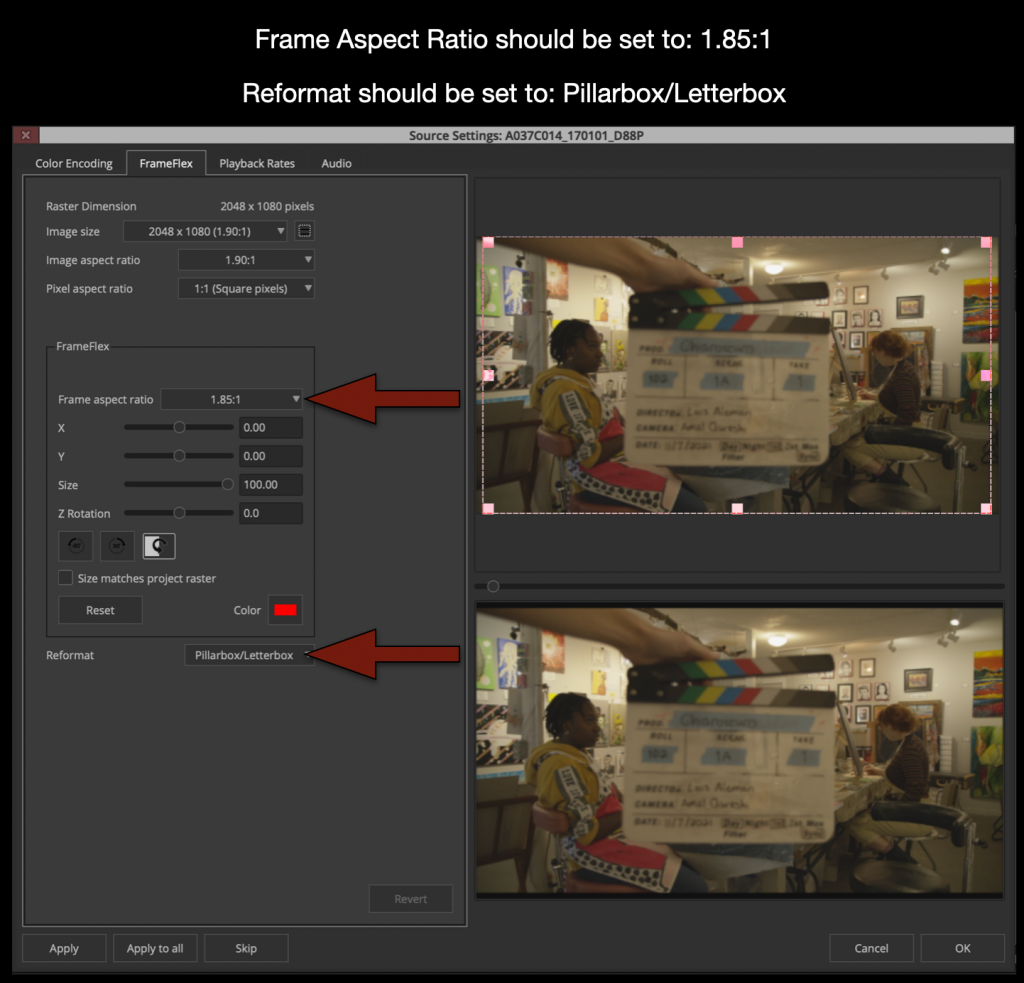
Select all the linked OCF in the bin again and right click and select “Source Settings”. This will open the “Source Settings” window. You will use the FrameFlex tab to set the proper aspect ratio.

Only change the settings for Frame Aspect Ratio and Reformat. Changing anything else or not following these instructions can lead your transcoded footage being stretched or distorted.

Changing these two parameters will ensure that when new Avid Media is created that is 1920×1080 it will have the correct aspect ratio burned in. 

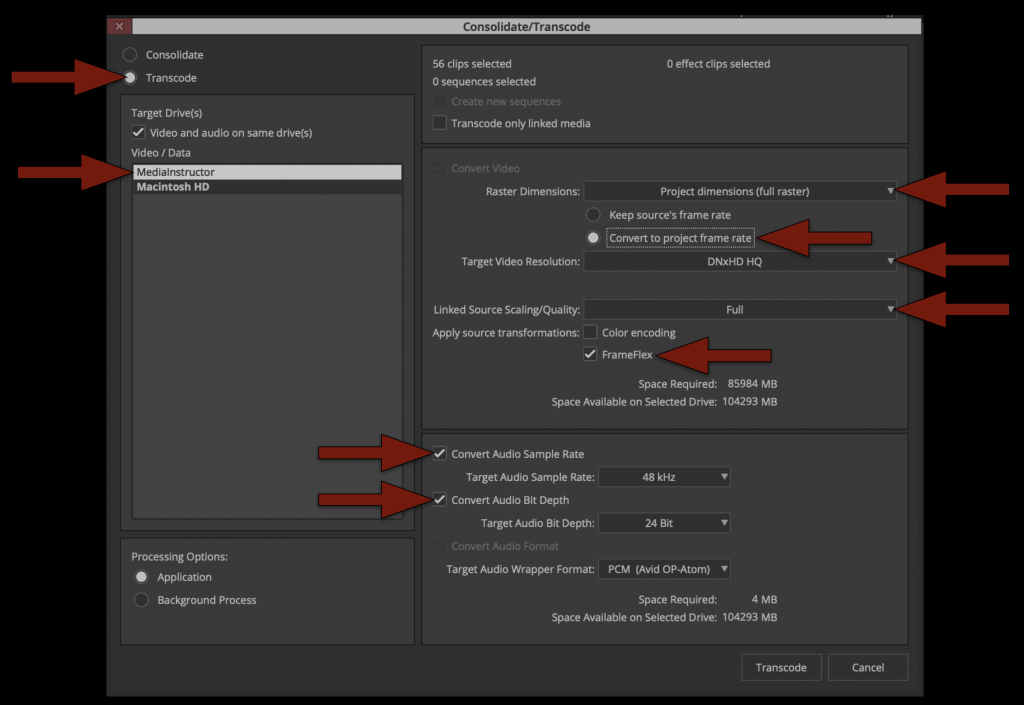
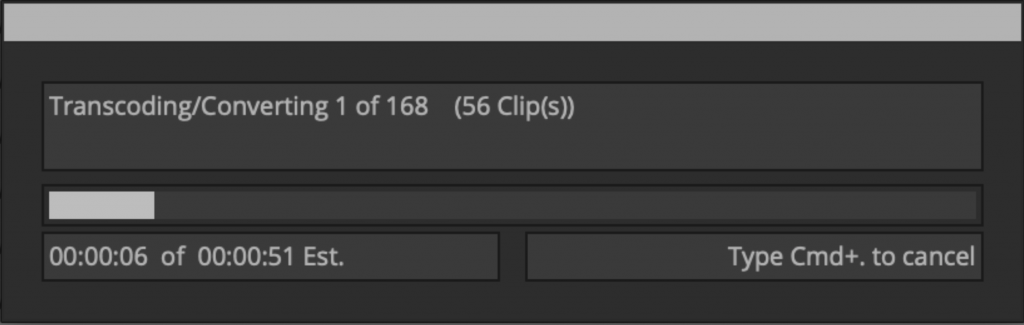
Now that all of your linked media has the proper framing and is set to dual mono its time to transcode to Avid Media. Highlight all of the linked files in the bin by hitting “Command + A”. Then right click on a clip and select “Consolidate/Transcode”.

Study the options with the red arrows shown below. THIS IS VERY IMPORTANT as it determines the kind of media that will be transcoded and used for editing in Media Composer and coloring in Resolve. 

The radial button in the top left should be set to “Transcode” Then double check all of the red arrows on the right.

– Target Drive should be local media drive
– Target Video Resolution should be DNxHD HQ

Once everything is set properly you can click “Transcode”. This process will take a few minutes as it generates new Avid Media so take a break and relax. 

Organize Footage into Avid Bins

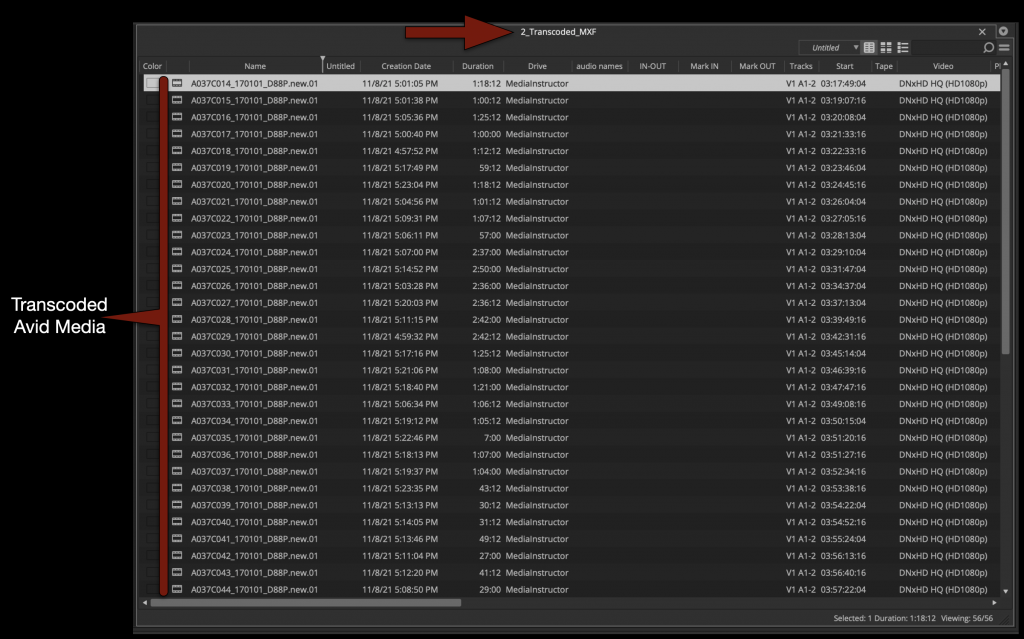
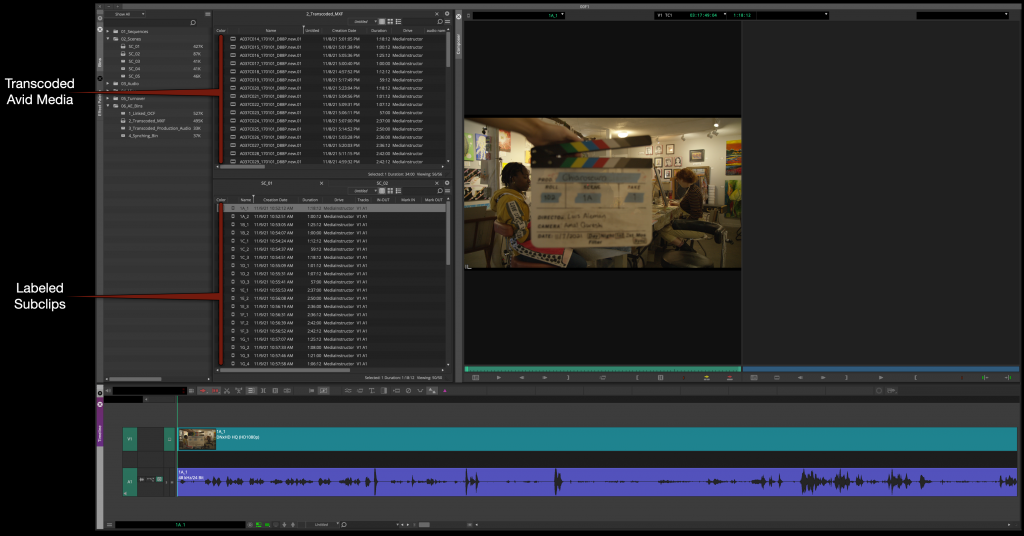
When the transcode is finished you will notice that now you have two versions of everything in your bin. One is the linked OCF and the other is Transcoded MXF Avid Media.

Move the newly transcoded Master Clips to the “Transcoded MXF Bin”. Close the “Linked Bin” you will no longer need it.

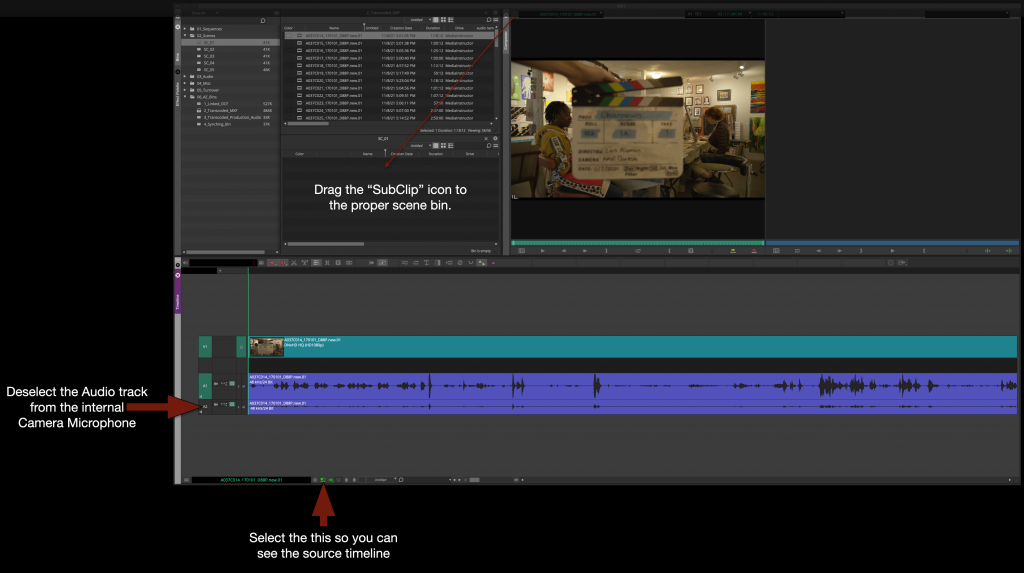
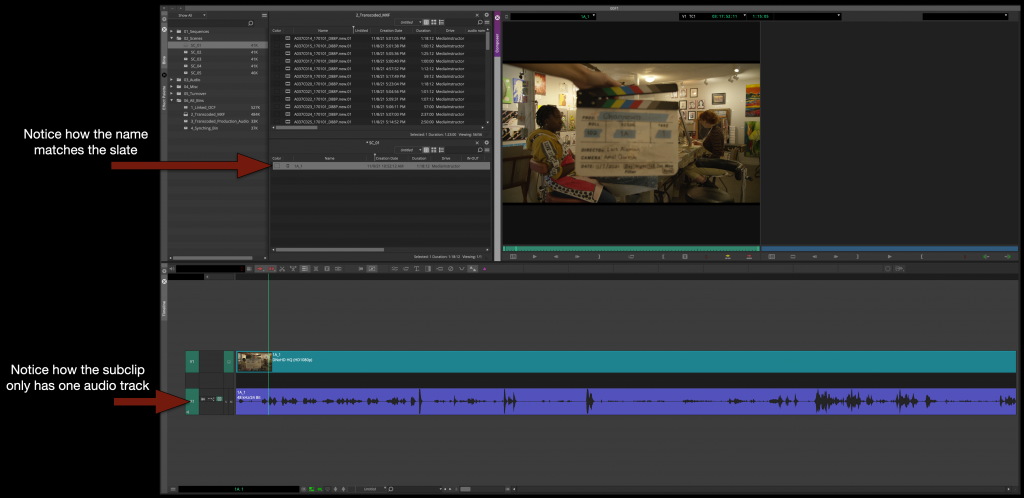
Next, make subclips of all of the Master Clips in the proper “Scene Bins”. This will accomplish three things.

1- It will organize your clips by scene
2- It will let you rename the subclips to match what is on the slate
3- It will let you “remove” the audio from the internal camera microphone

After you make a subclip in the proper scene bin with only the audio from the boom microphone you will be able to rename it based on the slate.

Repeat this for every Master Clip until all of your media is subcliped, labeled, and organized into the proper “Scene Bin”.

This would be the stage that if you have any “Bumped Takes”, “Wild Lines”, or “Room Tone” you would subclip, label and organize taht as well into the proper bin.

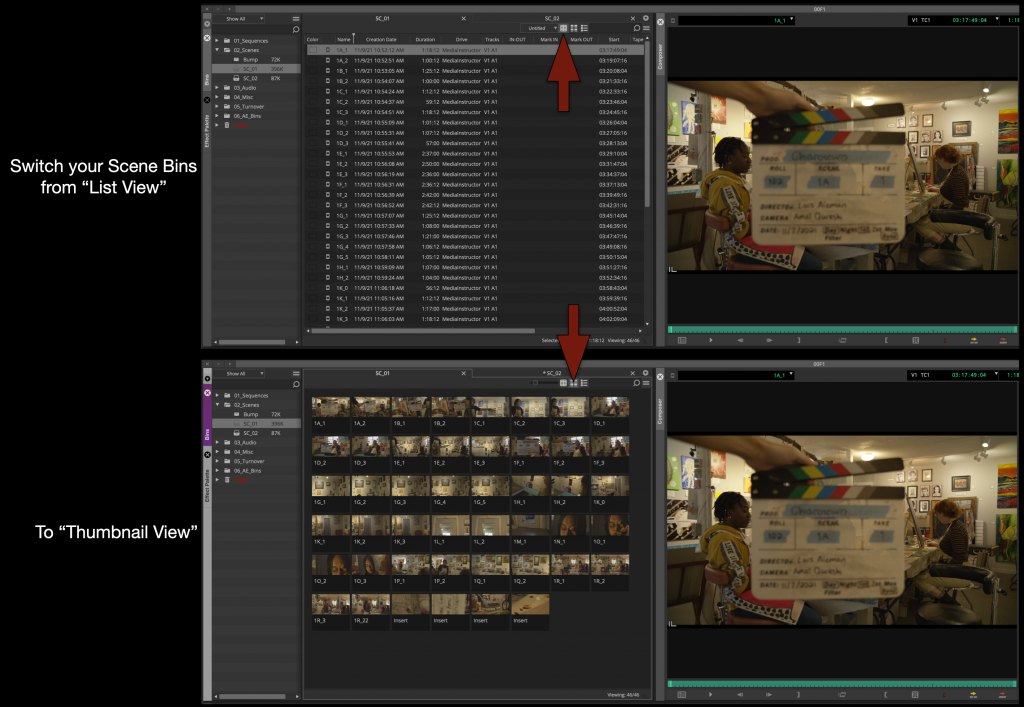
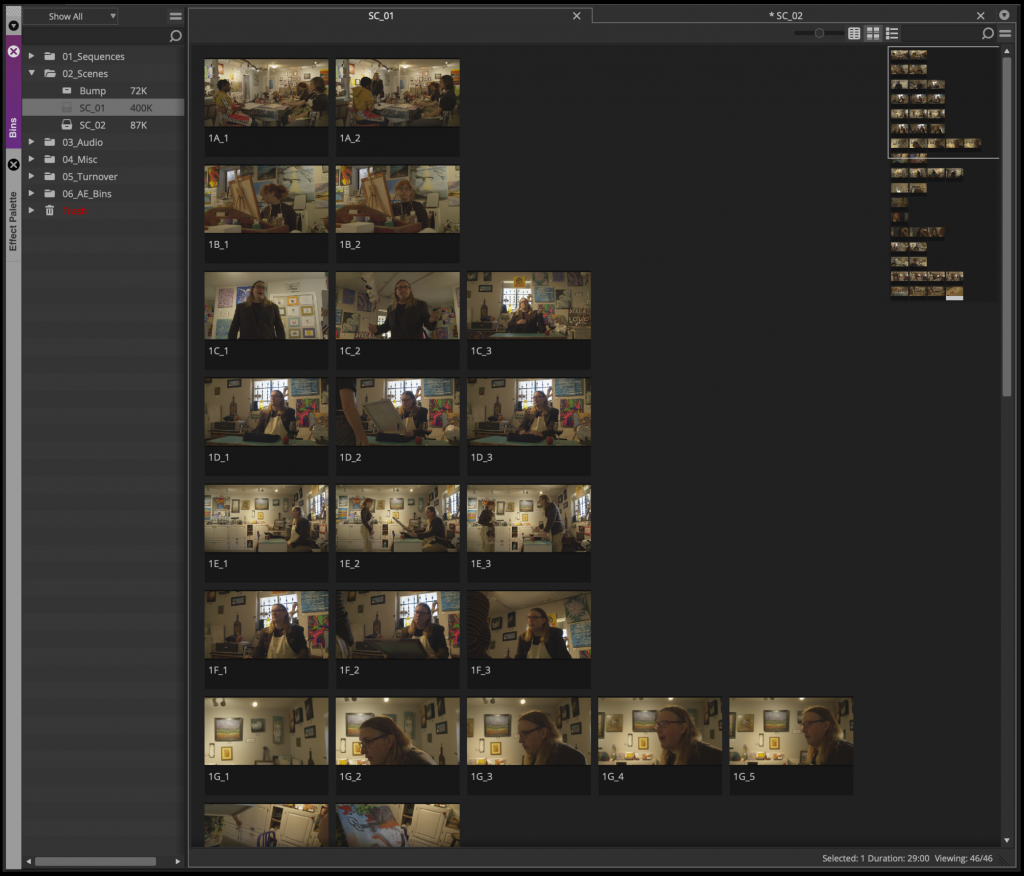
Now that al the subclips are in the right bin, switch your scene bins from “List View” to “Thumbnail View”.

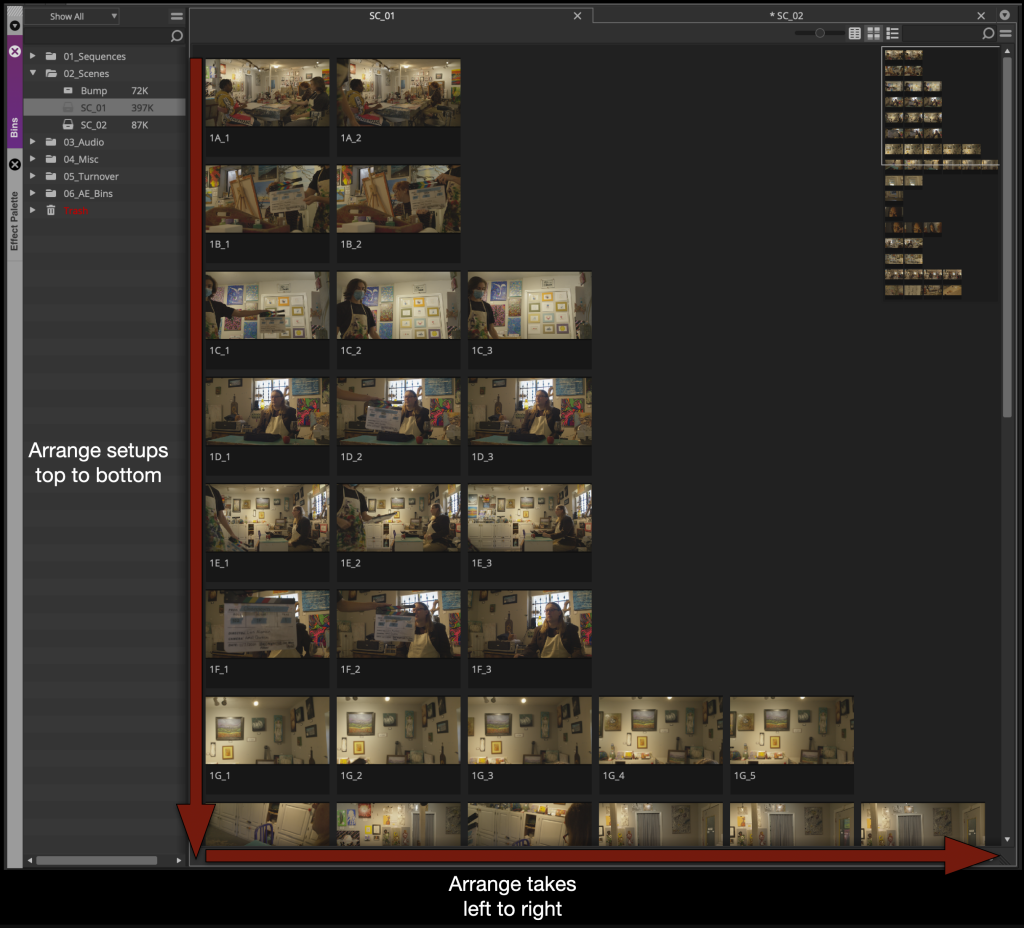
For each scene bin arrange the thumbnails so that the takes are displayed top to bottom and the takes are arranged left to right.

Then single click on each thumbnail and using the “JKL” key scrub and find a good thumbnail frame for each one.

Assemble the Dailies Stringout

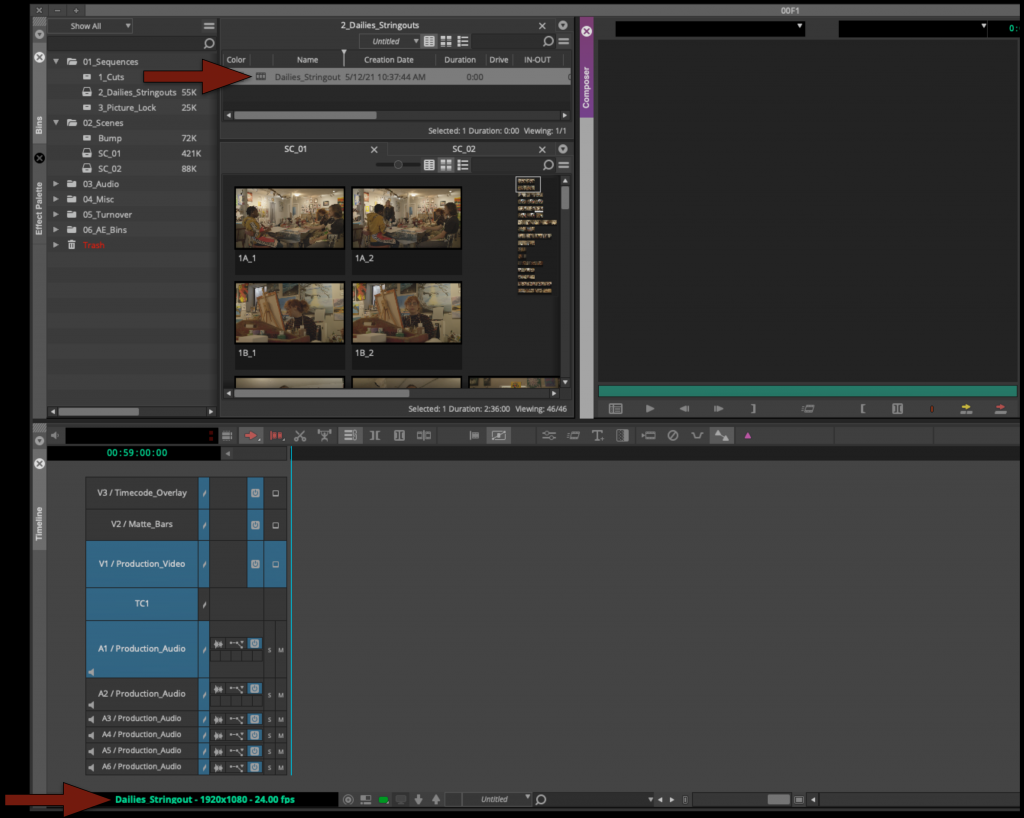
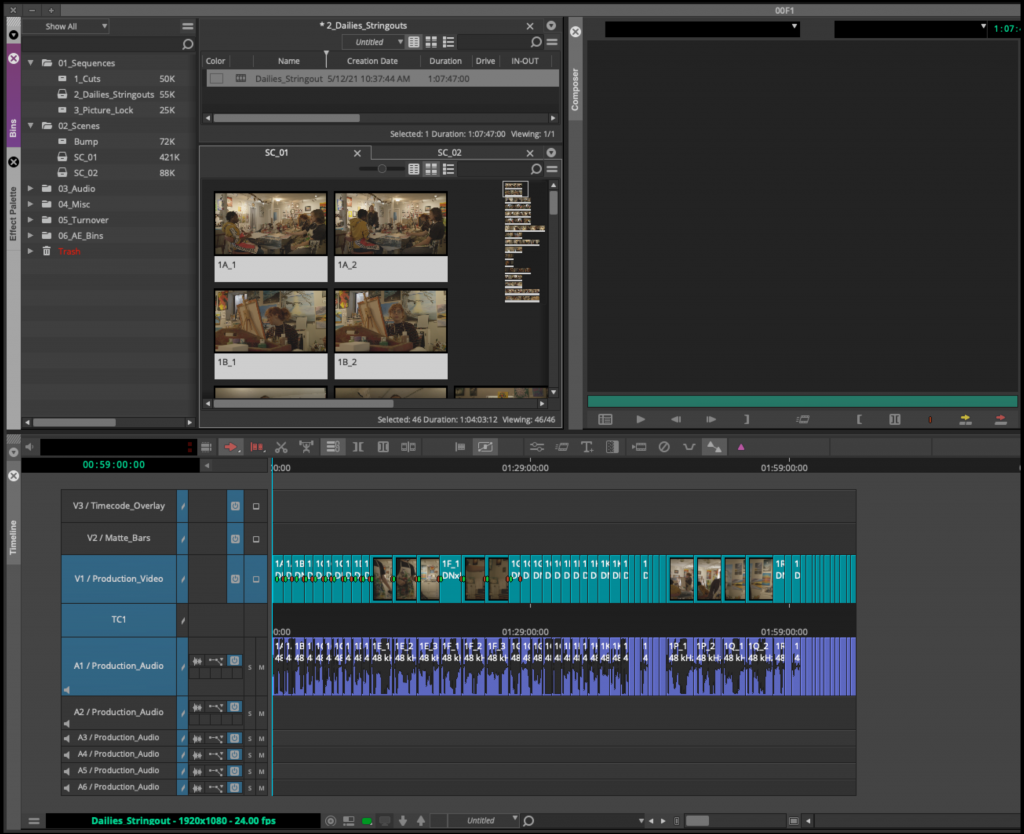
Now you can assemble everything from each scene bin into a Dailies Stringout sequence. It can be found in the sequences folder inside the Dailies Stringout bin.

In scene order assemble all the takes from each scene bin.

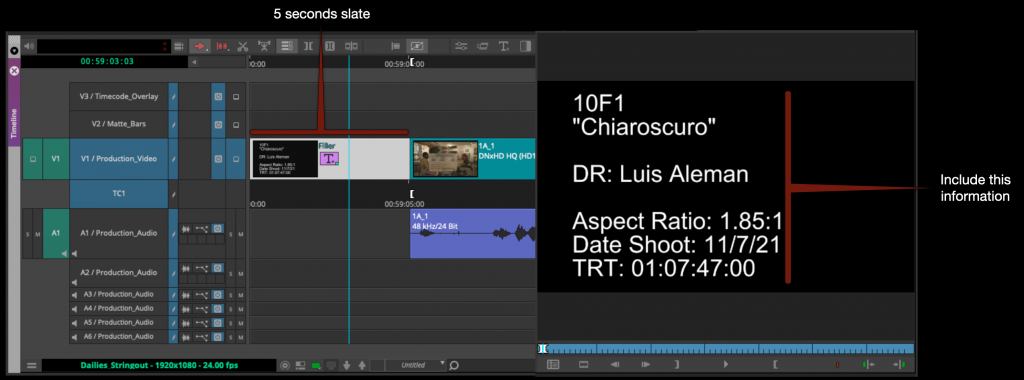
Insert a 5 second slate at the begin of the sequence and using the Avid Title tool fill in the slate with all the information shown in the example below.

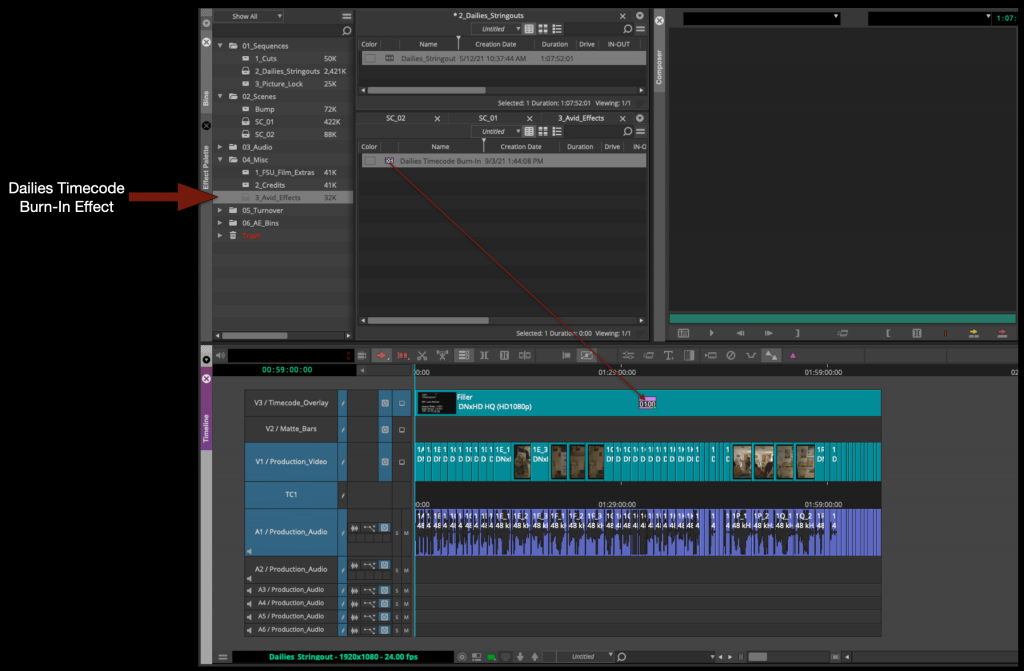
Inside the Avid Effects Bin you will find a Dailies Timecode Burn-In effect. Apply this effect to the fill in the labeled video track.

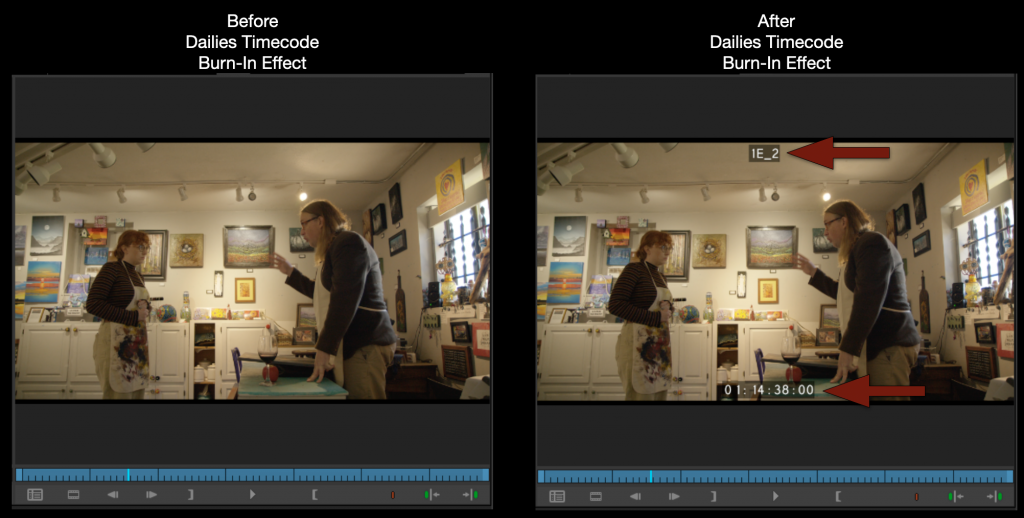
You will see in the Program Monitor that your Dailies string out now has timecode and shot names burned in.

Export and Upload to Frame.io

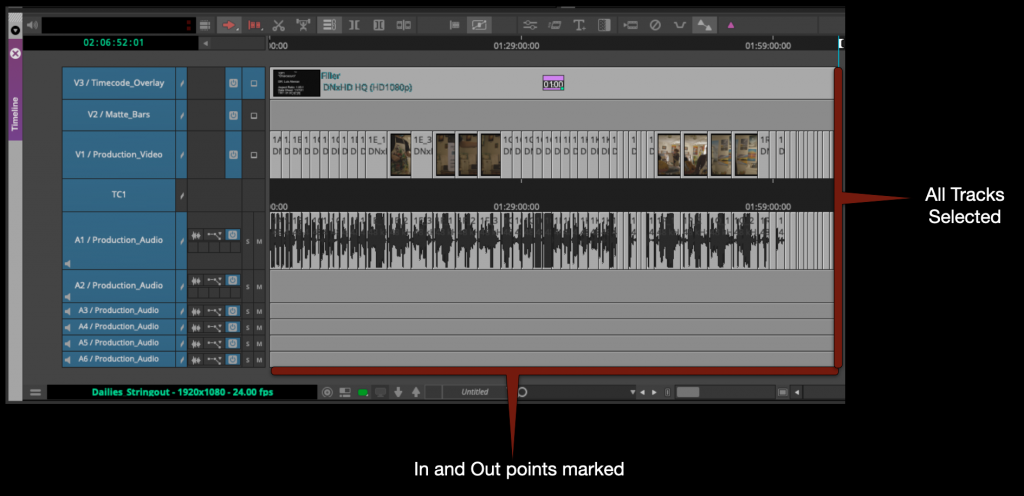
Mark in to out for the entire timeline and select all the video and audio tracks.

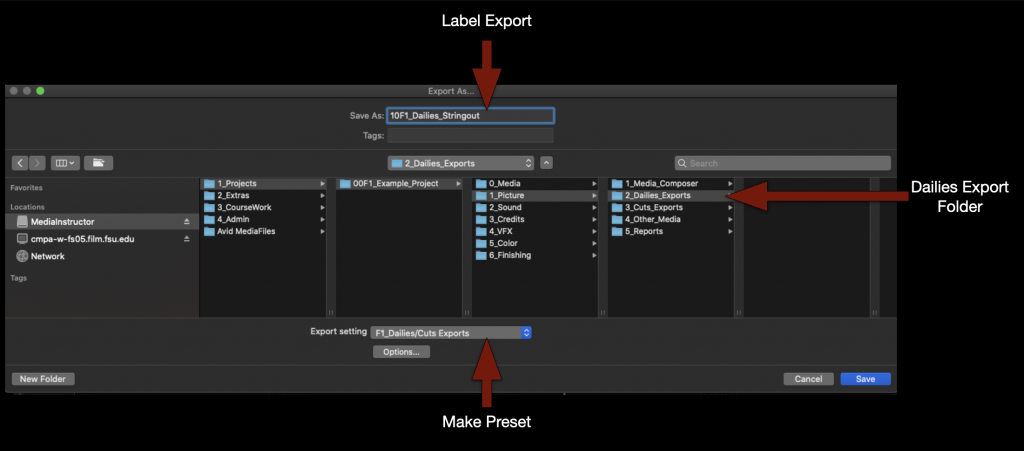
Right click in the program monitor and select export. 

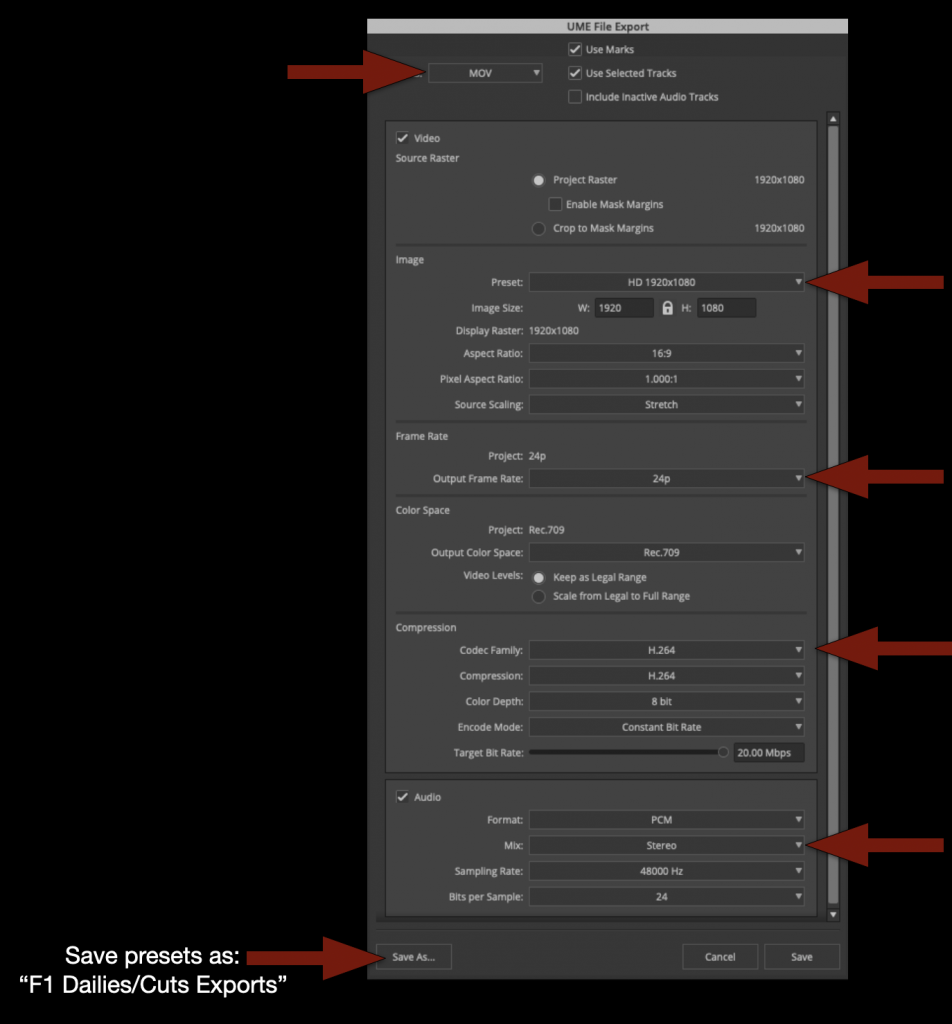
Check that the name of the file is correct, that its going the proper folder and that you are using the correct export setting.

If you don’t yet have a “F1 Dailies/Cuts Export” preset make one using these settings.

When the export is complete you can check to make sure everything is correct and then upload to the proper folder on frame.io.

Review Footage

Now you are ready to review your dailies. Watch everything!

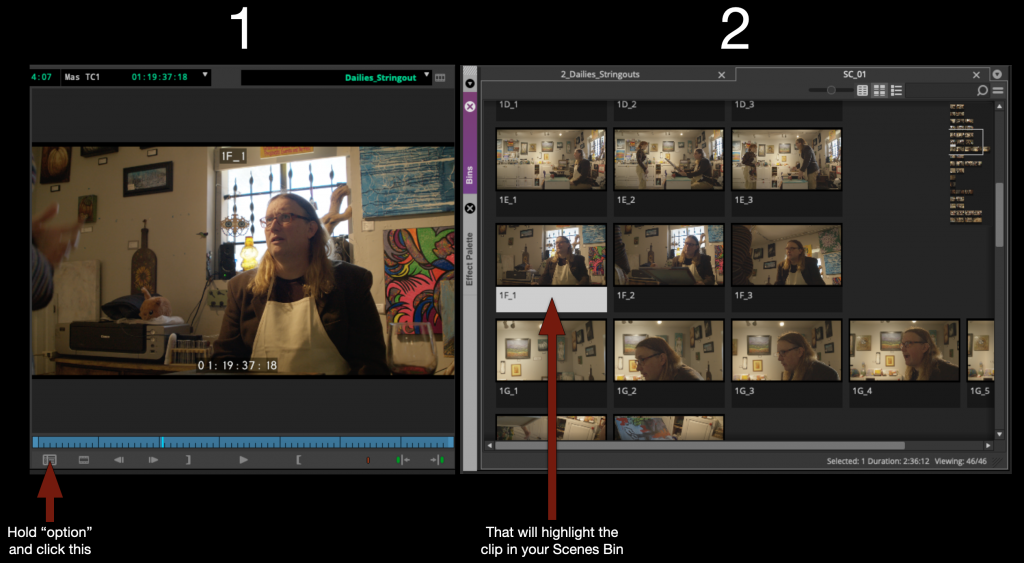
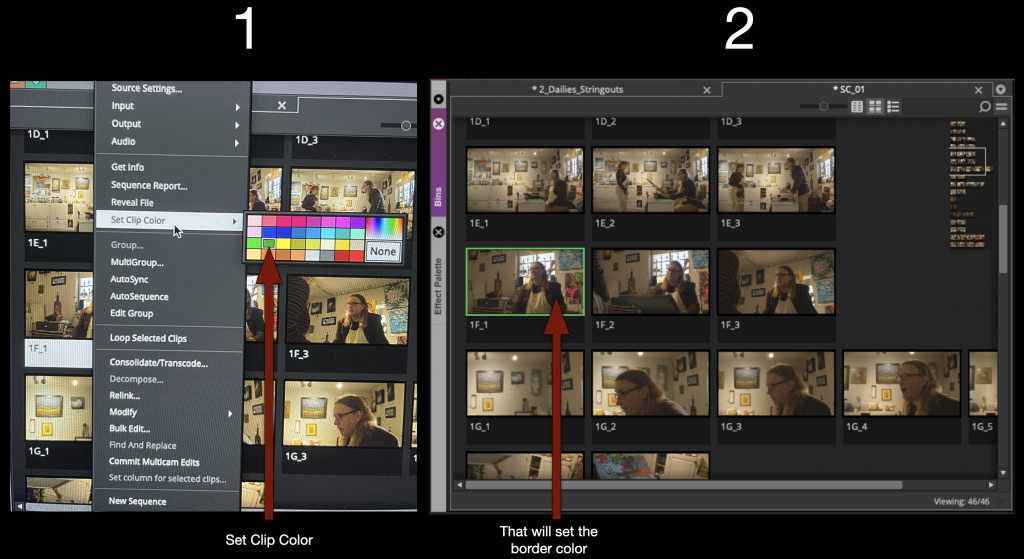
As you are watching the dailies string out sequence in Media Composer you may find that you would like to color code your clips or add written notes to yourself. This is easy to do by using the “Find Bin” button.

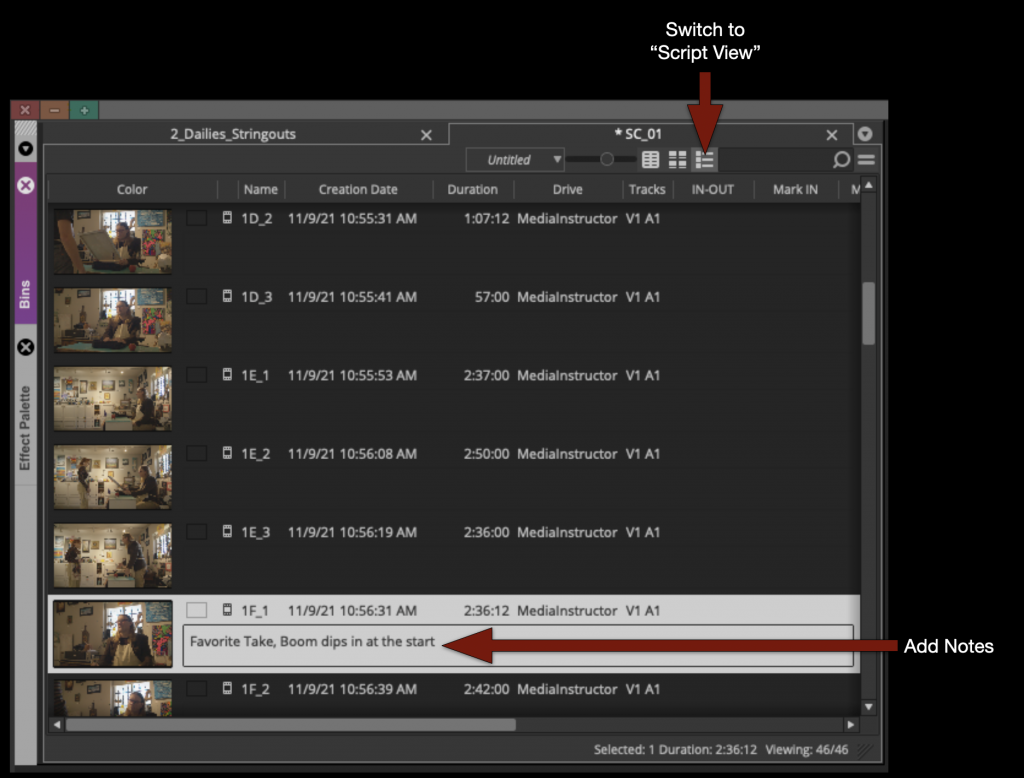
Once the clip is highlighted you an add notes by switching to “Script View” and typing in the comments section.

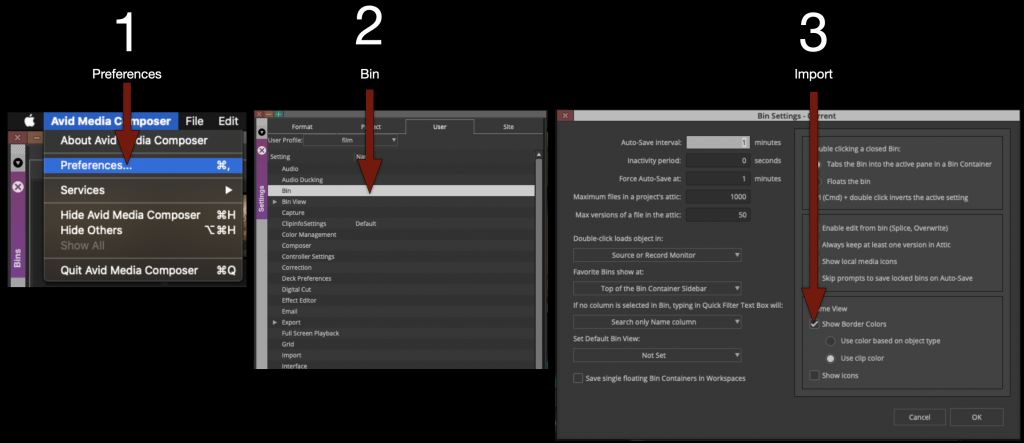
Or if you would like to color code them in “Frame View” you can do taht as well. But first you need to turn something on in the preferences.

Under Preferences – Bin – Check “Show Border Colors”

With that option on you can right click on any thumbnail and set the clip color and it will appear as a border. You can use this to create any kind of organizational system that you like.

Create Front Sequence and Mask

Now that you have reviewed all your footage you are almost ready to begin work on your first cut. But first you need to build the front sequence and apply the mask that you will work underneath.

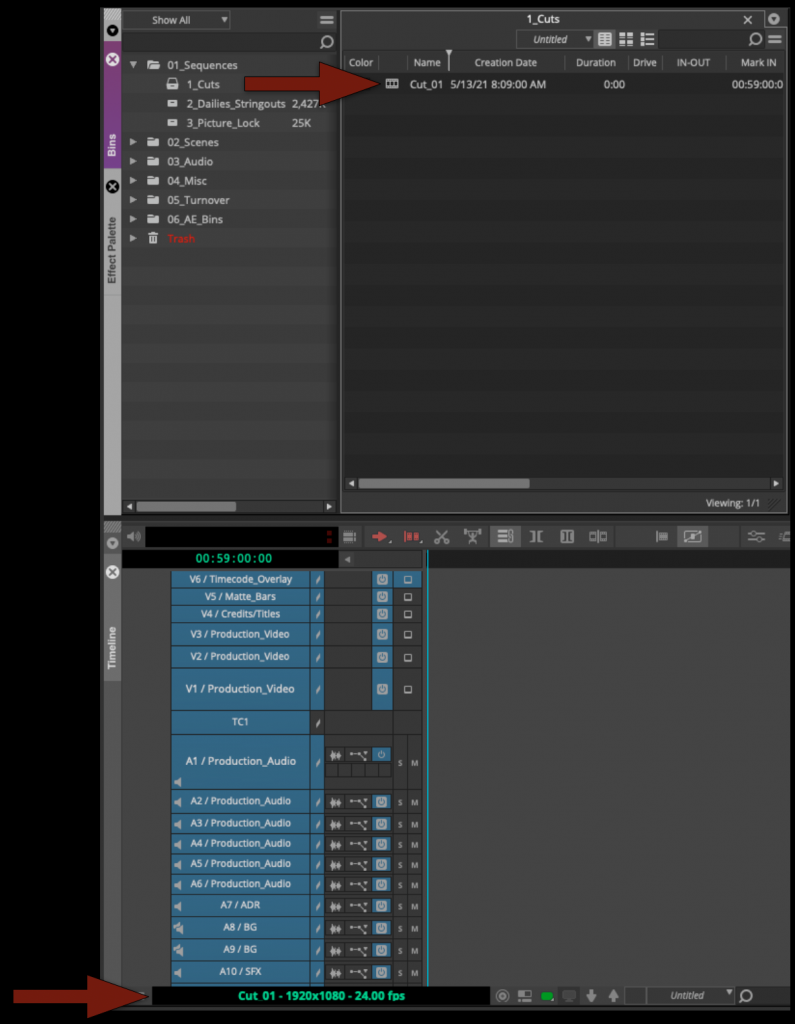
Open the Cut Sequence inside the Cuts Bin.

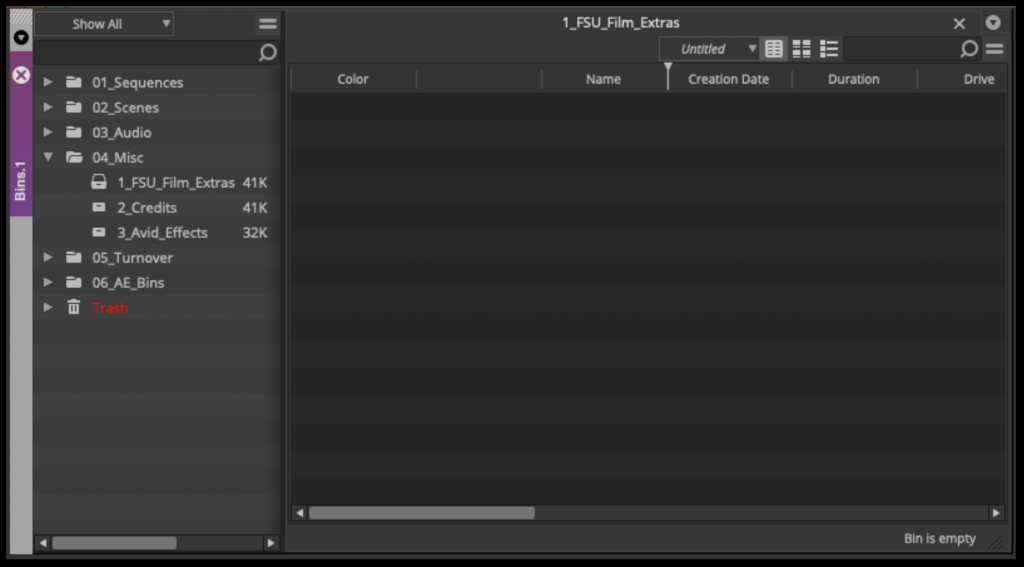
Open the “FSU_Film_Extras” bin.

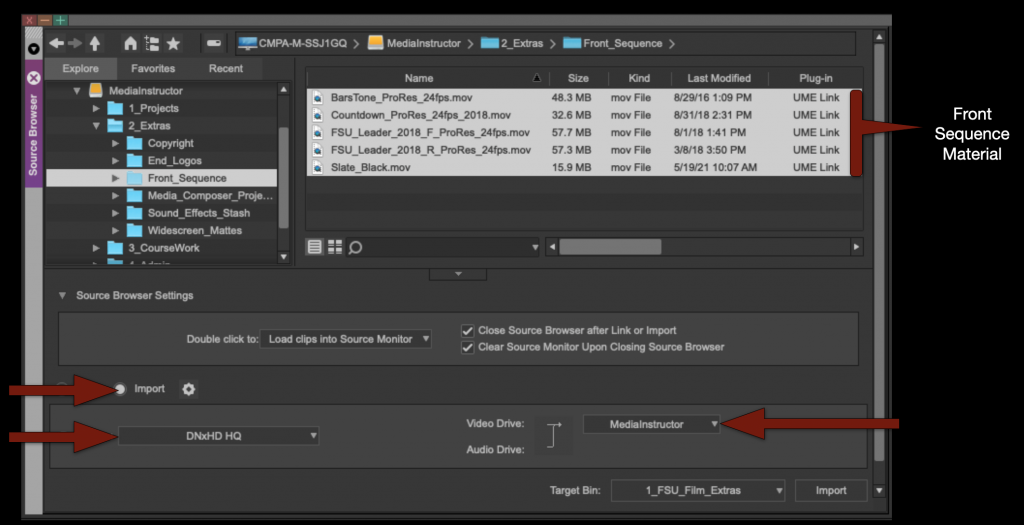
Then using the “Source Browser” import in the front sequence material.

Make sure your Resolution is still set to DNxHD HQ and your Target Drive is correct.

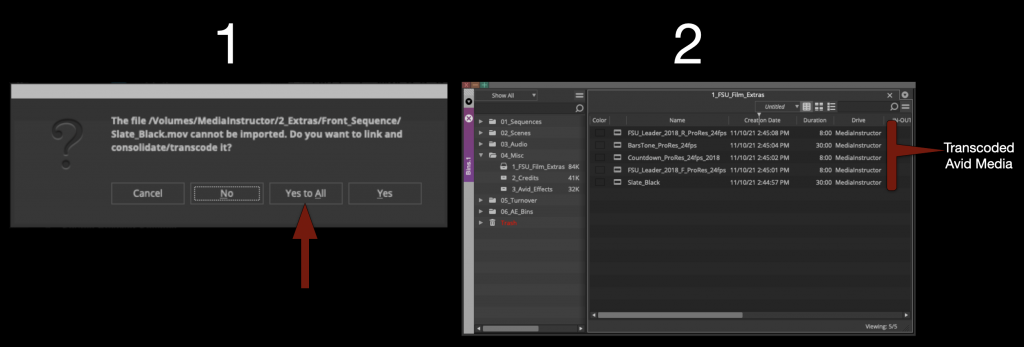
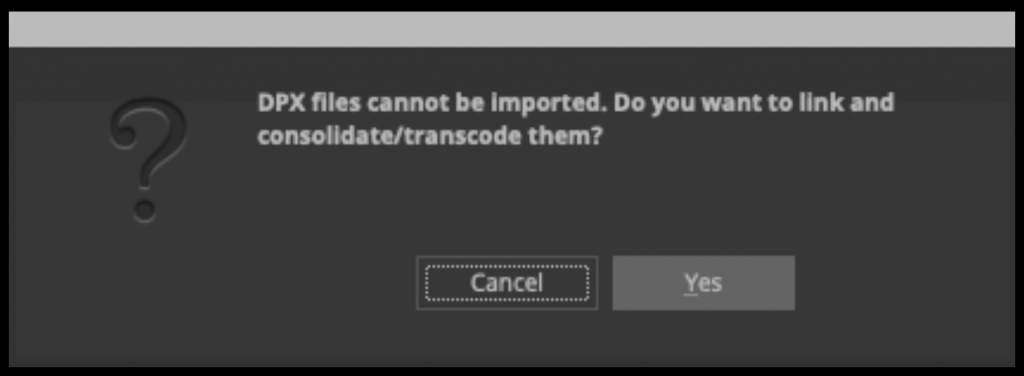
When you click “import” it will say that they will first need to be linked and then transcoded. Select “Yes to All”. It will transcode the media to Avid MXF media.

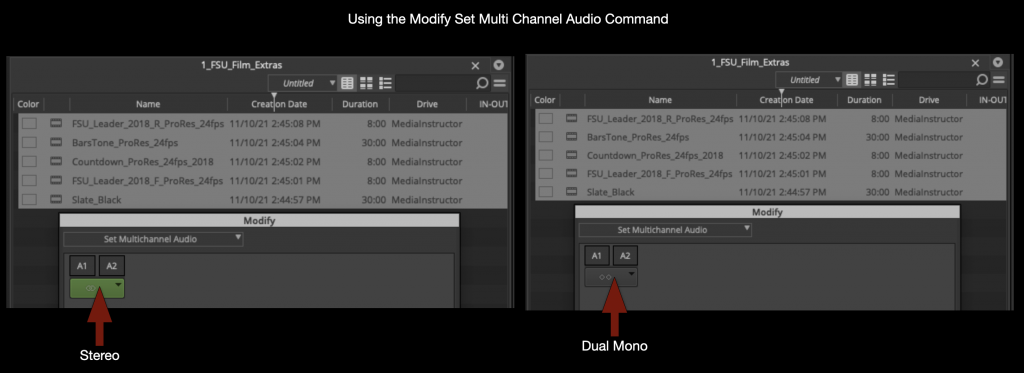
This new medias audio will need to be switched to “Dual Mono”. Select everything and right click to select “Modify”.

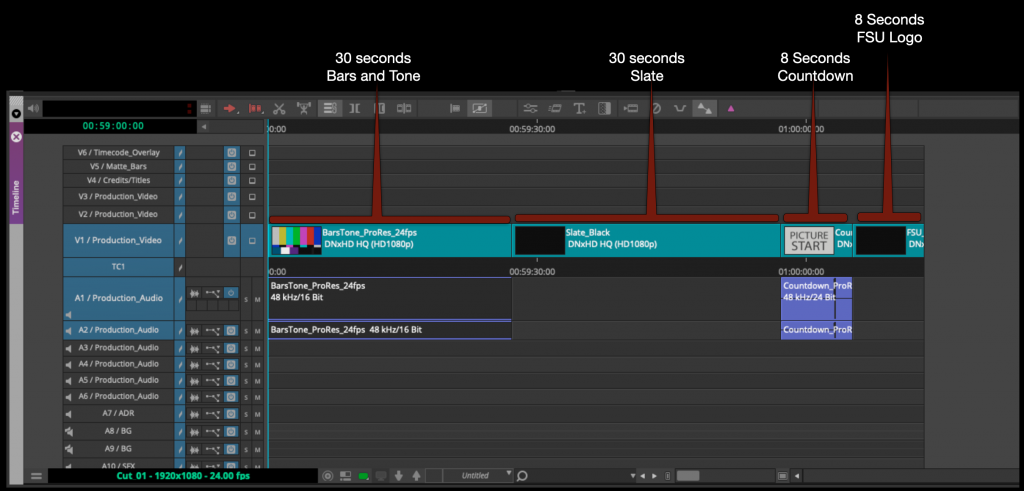
Cut the Front Sequence material into the sequence in the following order:

Your Front Sequence Should be arranged in the following order.

  1. Bars and Tone – 30 seconds – start at Timecode 00:59:00:00
  2. Slate – 30 seconds – start at Timecode 00:59:30:00
  3. Academy Countdown (SMPTE Leader) – 8 seconds – start at Timecode 01:00:00:00
  4. FSU Leader – 8 seconds – start at Timecode 01:00:08:00

This means that the first frame of content will fall on 01:00:21:00. If everything is put together correctly the 2-pop (#2 on the Leader) will fall on 01:00:06:00 (This is very important!)

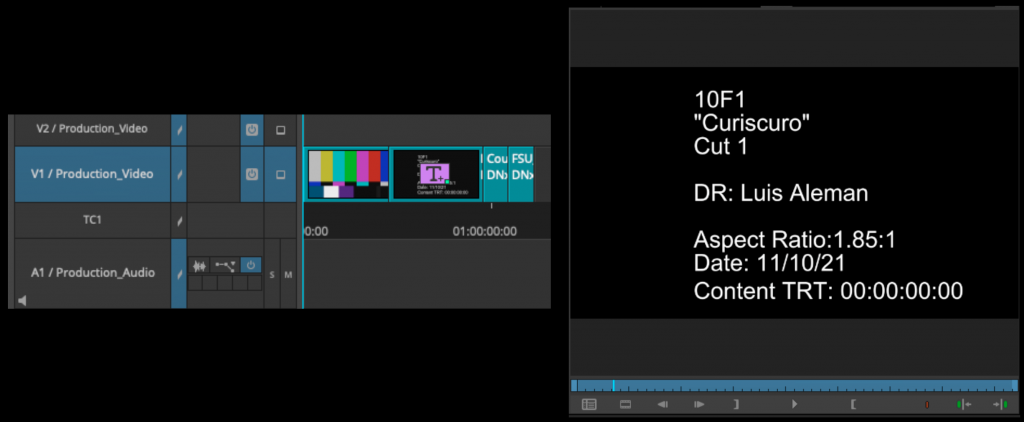
Apply the Avid Title Tool to the 30 second Slate and fill it in as shown in the example below.

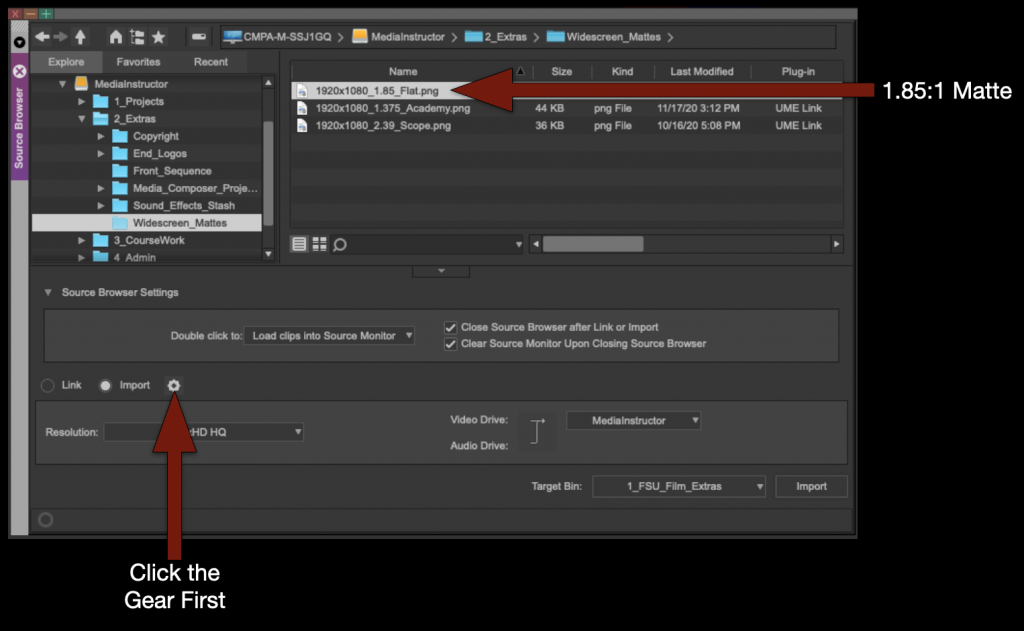
Next to apply the proper masking to the sequence use the source browser to import the Mask into the FSU Film Extras bin.

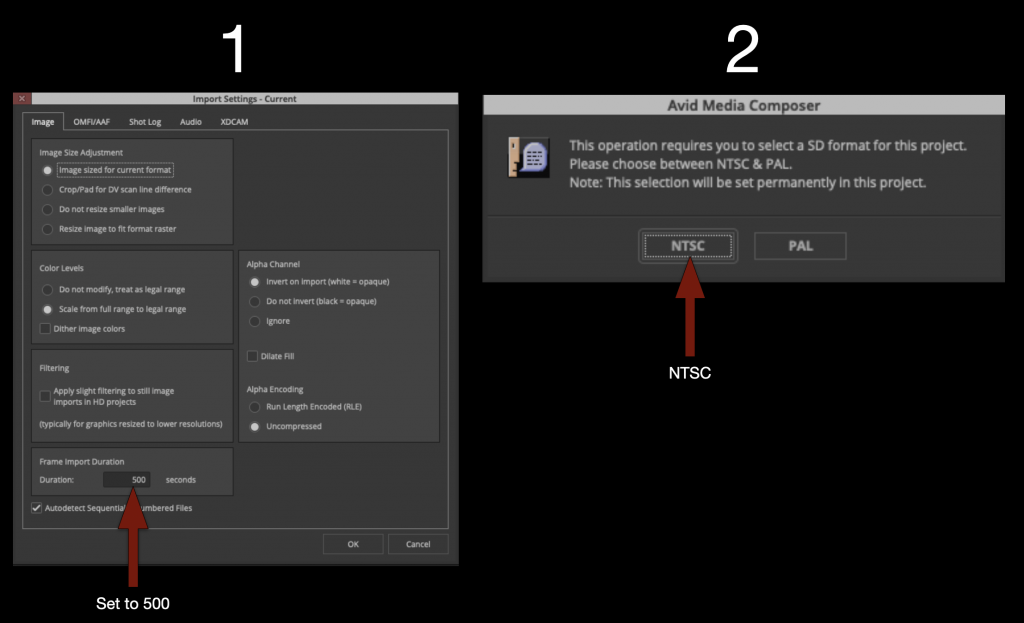
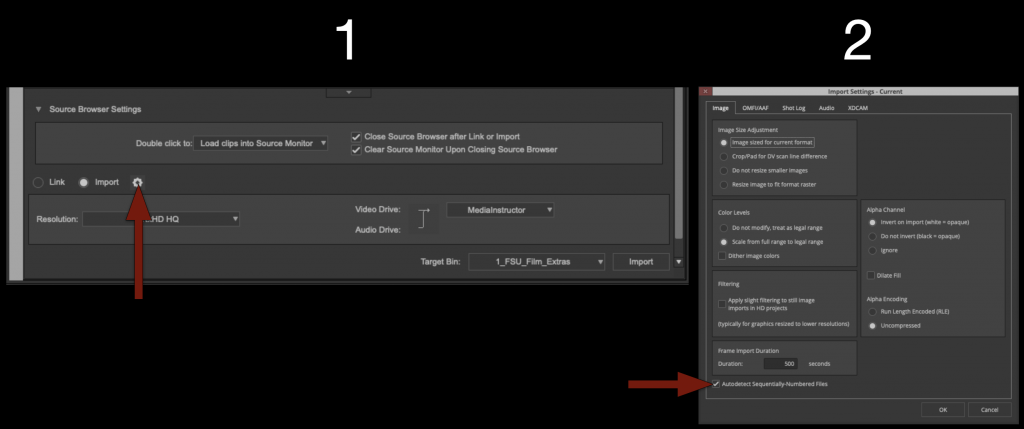
But since the Mask is a still frame you need to tell Media Composer how long to make the new transcoded file to be. In the Source Browser before clicking “Import” select the “Gear” icon.

Under “Import Settings” set the “Frame Import Duration” to 500. Then elect OK and import. It will ask if you prefer NTSC or PAL. Select NTSC.

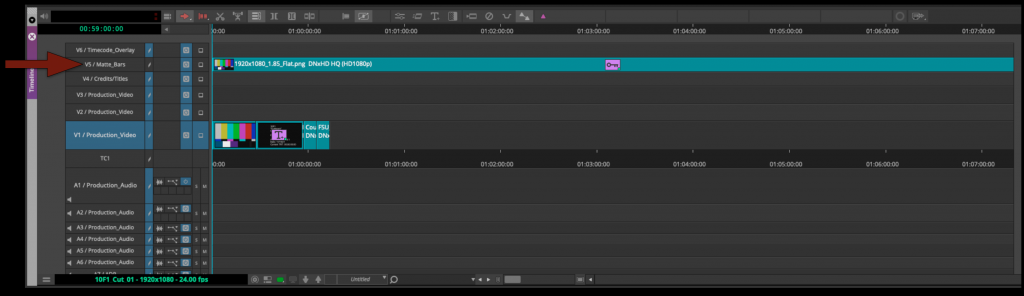
Now that the Mask has been imported into the FSU Film Extras bin you can cut it into the proper track in your sequence.

Duplicate Sequences

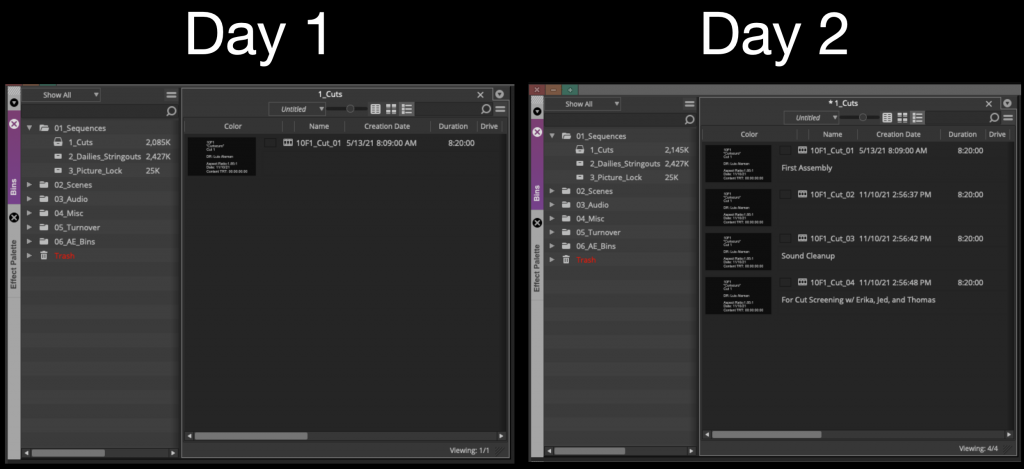
As you begin cutting picture you will find times when you will want to duplicate your sequence. Generally after you have received notes or tried something new. At the very least you should be duplicating your sequence and “versioning up” at least once a day.

Use the “Script View” to make notes about each cut so that you can keep track of the changes between cut.

Import Credits

Before you picture lock its required that your credits be completed using the After Effects Template and exported out as a properly labeled DPX image sequence and imported into Media Composer.

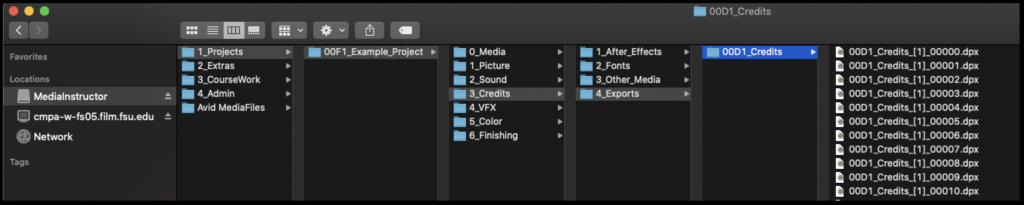
Below is an example of where they should be saved and how they should be named.

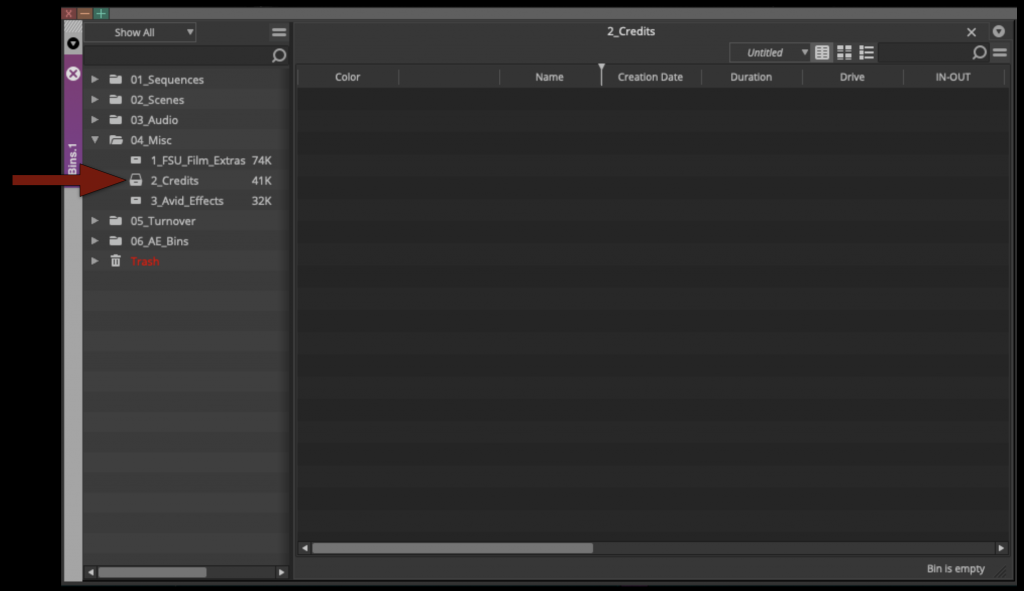
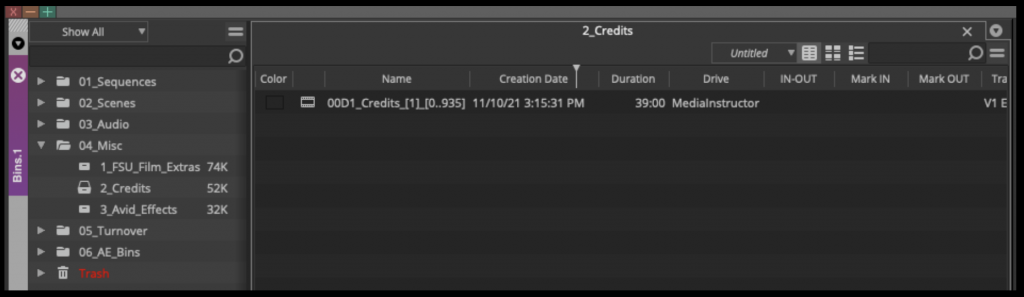
They should be imported into your Credits Bin inside Media Composer which can be found inside the Misc folder.

Use the Source Browser to import the credits into the Credits Bin. However since its a DPX image sequence and not a video file we need to tell Media Composer this before importing.

Click the “Gear” icon next to the import selection and then in the “Import Settings” box make sure “Auto detect Sequentially Numbered Files” is selected.

Then elect the first file in the image sequence and click “Import”.

A box will appear saying it needs to be “Linked and then Transcoded”, select yes and wait for it to transcode.

When it’s complete your credits should be in the “Credit Bin” as avid media.

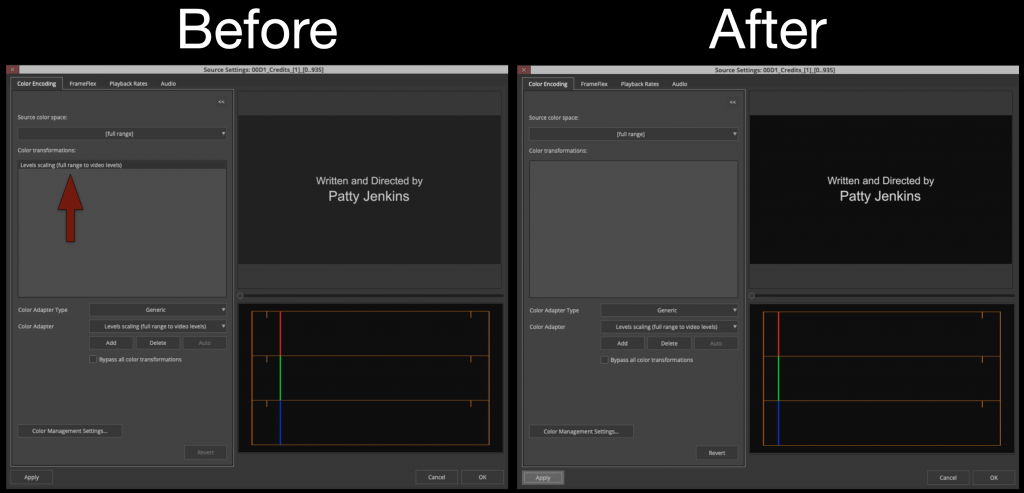
Your credits may look a bit washed out. This is because Avid is trying to compensate for the difference in “Video/Data” levels. Right click on the credits and select “Source Settings”

Under color encoding delete the “Levels Scaling” effect from the color transformations and the black level will then appear correct.

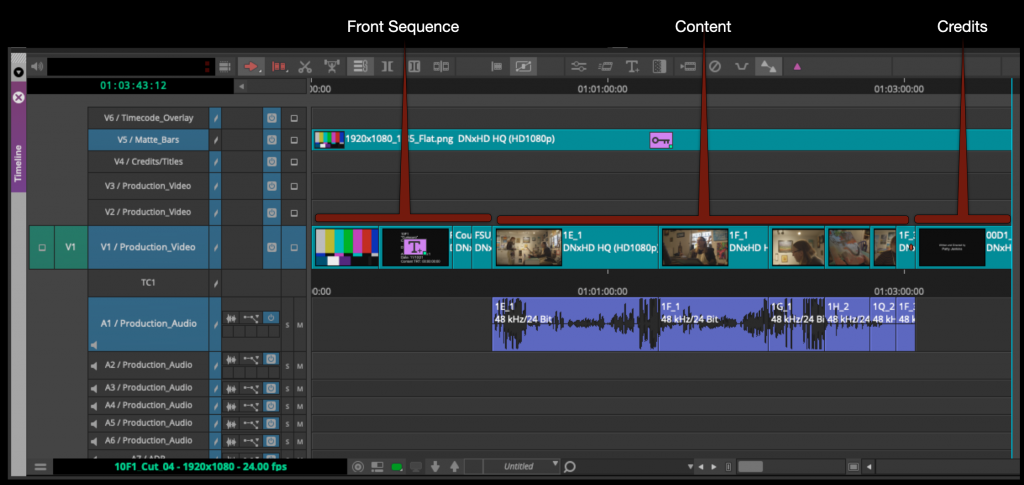
Cut your credits into the sequence after your content.

Picture Lock

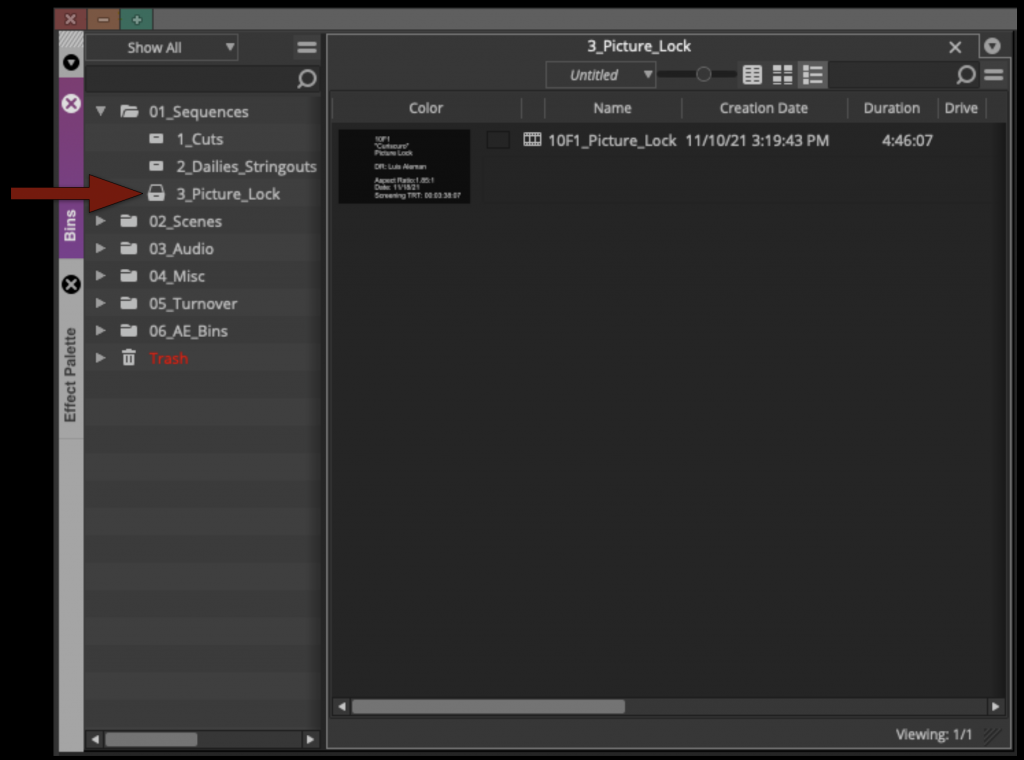
Duplicate your sequence and rename it “XXF1_Picture_Lock” and move that sequence into the “Picture Lock Bin”.

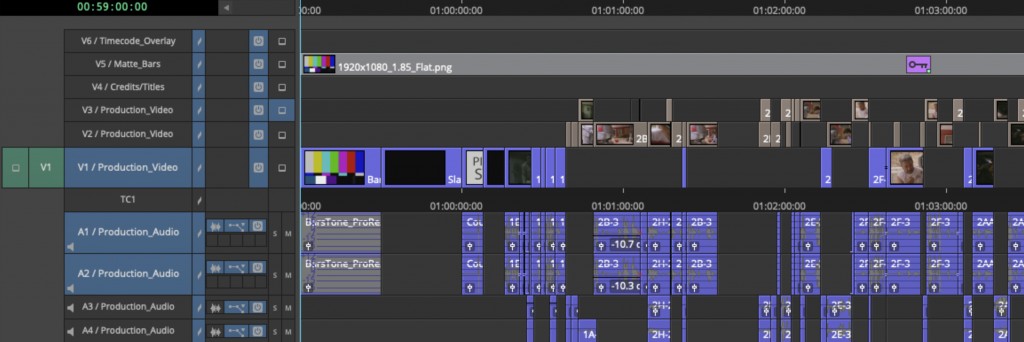
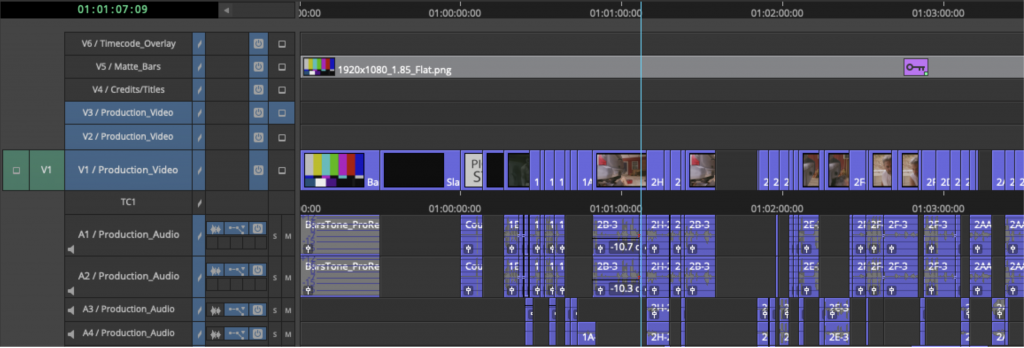
To prep your timeline for coloring your video needs to be condensed onto as few video tracks as possible. It’s understood that, due to the nature of how some video dissolves are built, more than one track is sometimes necessary. The idea is to reduce the amount of tracks and media as much as possible.

Your sequence would go from looking like the example below with video on tracks V1 – V3 that needs to be brought down.

To your sequence looking like the example below with everything consolidated onto one track.

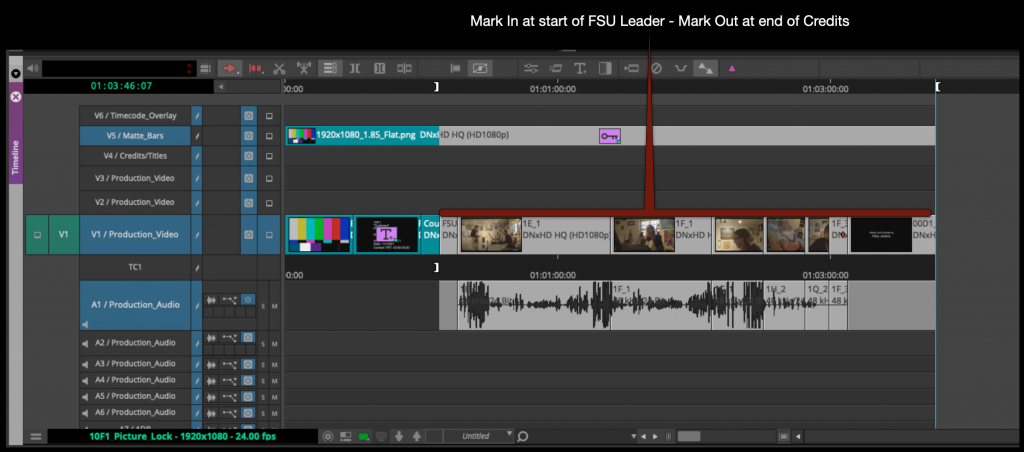
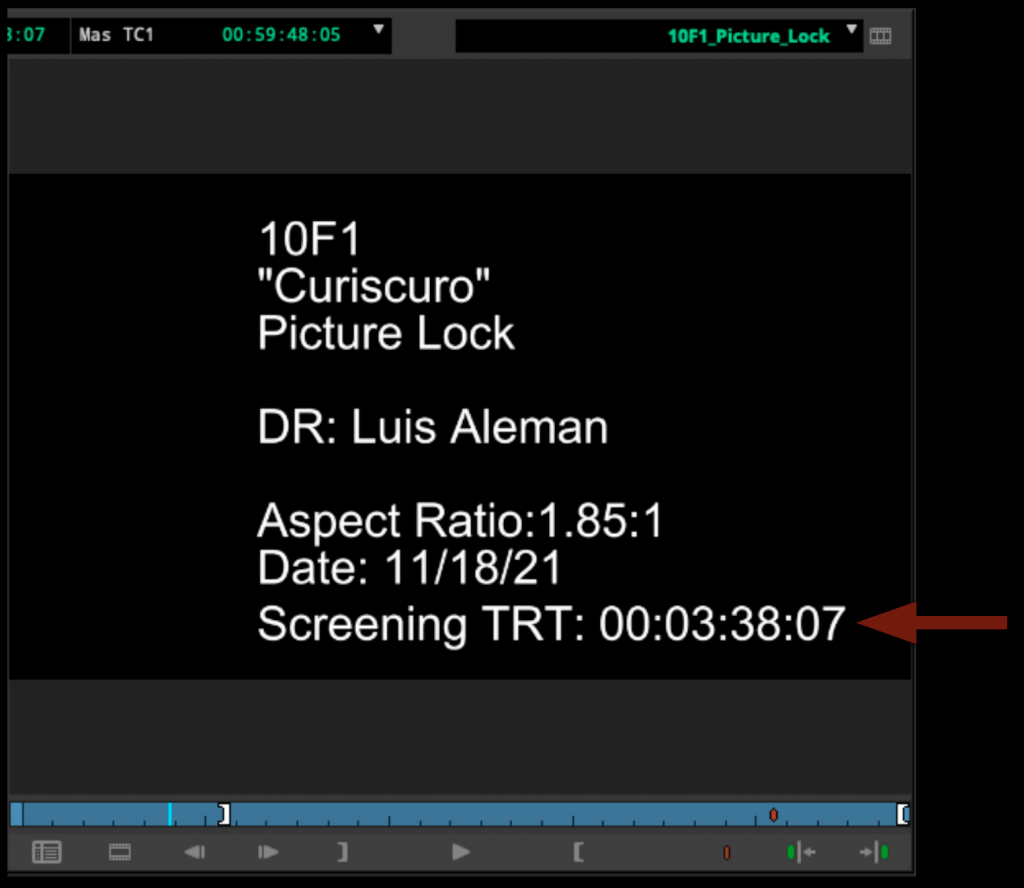
To find you’re Screening Total Run Time mark in at the start of the FSU Leader and then mark out at the end of the credits.

Update the slate in the front sequence with the Screening Total Run time and make sure it includes all the information in the example below.

Congratulations! Your F1 is now picture locked. Save your project and close Media Composer.

Ingest

Overview

Ingest refers to the process of transferring, organizing, verifying, and preparing production media for editorial workflows within F1 productions. Be sure to double-check everything as you go through the various steps.

Careful ingest procedures are essential because production media must be transferred accurately and consistently before editorial work can begin safely and efficiently. Organized ingest workflows help reduce the risk of media loss, corruption, confusion, or downstream technical problems while reinforcing professional habits related to data management and post-production organization.

On Set

The Director of each project is responsible for bringing a personal laptop and a personal hard drive to set. At the end of the day, the Director should therefore copy the day’s data from the media card to the following locations:

  • on the portable hard drive included in the camera kit
  • on the student’s personal hard drive

After the Director has double-checked that all files have been copied over to the different drives, they can clear the media card, so that the next project has an empty, formatted card on which to shoot.

In the Lab

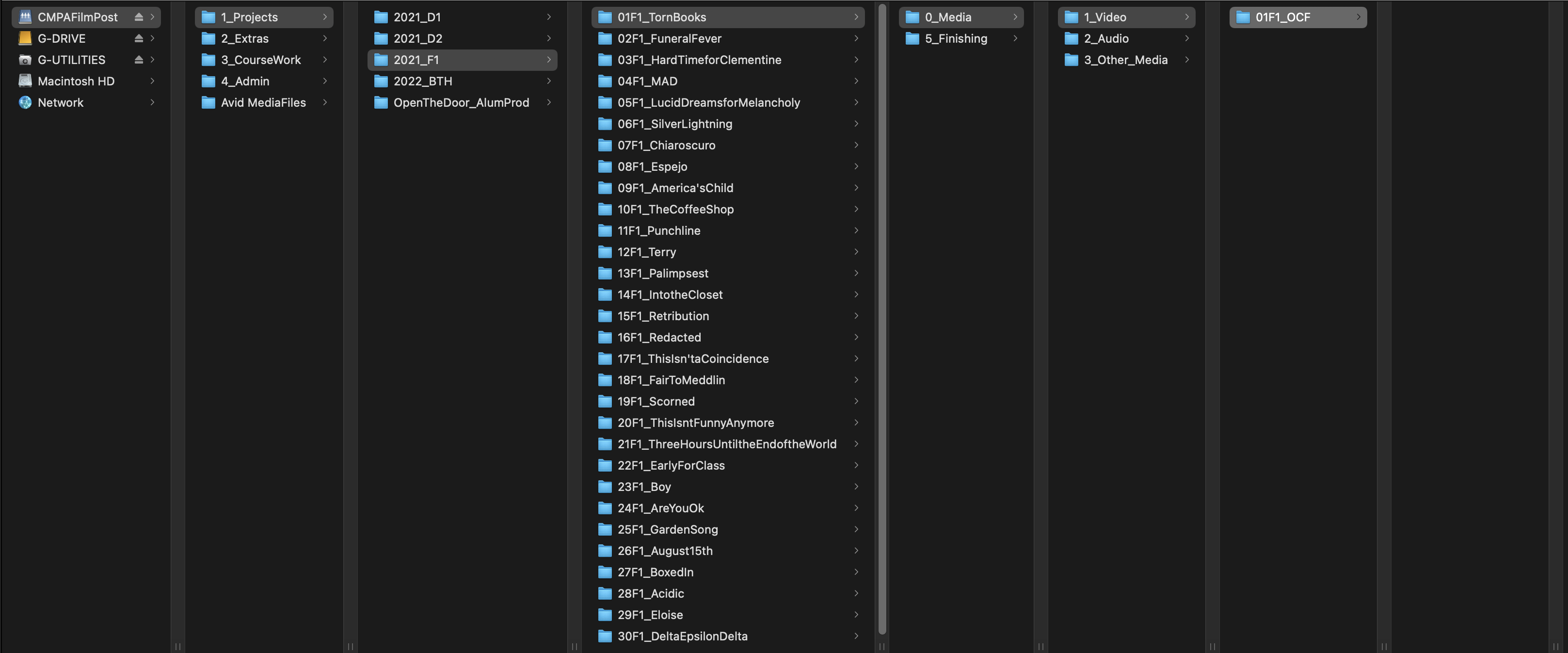
At the end of the shooting day the director will then need to bring one of the hard drives to the editing lab to offload the footage to the CMPAFilmPost Server. Use one of the computers in the lab to copy the OCF (original camera files) to the proper folder in on the server as shown in the example below.

Folder structure